
Last updated: July 28, 2026
Quick Answer: This Excel tutorial for 2026 walks complete beginners through building a real side-business or household expense tracker from scratch over one weekend. By finishing the project, readers naturally touch every core feature: data entry, formulas, tables, charts, and basic data tools, no separate lessons needed.
Key Takeaways
- Most jobs require only 6-8 core Excel skills; mastering them in one project is faster than watching hours of unconnected videos.
- A beginner can learn functional Excel basics in one focused weekend (roughly 8-12 hours total).
- Building a real tracker project beats memorizing isolated features because context makes skills stick.
- Excel in 2026 includes AI-assisted formula suggestions and Copilot integration, worth knowing, but not required to get started.
- Free resources (Microsoft’s own tutorials, YouTube) are genuinely good; paid courses add structure but aren’t essential for beginners.
- Common beginner mistakes, skipping tables, hardcoding numbers, ignoring cell references, are easy to avoid once flagged.
- Excel remains the most widely requested spreadsheet tool in job postings in 2026, making it worth the weekend investment.
Is Excel Still Worth Learning in 2026?
Yes, Excel remains one of the most requested software skills in job postings across finance, operations, marketing, HR, and small business. Google Sheets and other alternatives have grown, but Excel’s depth in data analysis, pivot tables, and formula power still makes it the standard in most professional environments.
For anyone asking whether this weekend investment pays off: the answer is yes, especially for roles that involve numbers, reporting, or tracking anything. If you’re curious how Excel and Sheets compare feature by feature, this Google Sheets vs Excel in 2026 comparison breaks it down in detail.
Choose Excel if your workplace uses Microsoft 365, you need advanced pivot tables or Power Query, or job listings in your field specifically mention it.
What Excel Skills Do You Actually Need in 2026?
Most jobs need far fewer Excel skills than people assume. The core list that covers roughly 80% of real workplace tasks includes:
- Data entry and formatting, entering, aligning, and formatting cells cleanly
- Basic formulas, SUM, AVERAGE, COUNT, MIN, MAX
- Cell references, understanding relative vs. absolute references (the
$sign) - IF statements, building simple logical tests
- Tables, converting a data range into an official Excel Table
- VLOOKUP or XLOOKUP, pulling data from one sheet to another
- Pivot Tables, summarizing data without writing formulas
- Charts, turning numbers into a visual quickly
Skills like macros, Power Query, and advanced array formulas matter for specialized roles but aren’t entry-level requirements. You can explore how to enable macros in Excel once the basics are solid.
What’s New in Excel 2026 Compared to Older Versions?
The biggest additions in recent Excel versions center on AI assistance and dynamic arrays. Microsoft Copilot in Excel 365 can now suggest formulas, summarize data ranges, and generate charts from plain-language prompts, useful once you know enough to check its output.
Key updates worth knowing as a beginner in 2026:
| Feature | What It Does | Beginner Relevance |
|---|---|---|
| Copilot AI suggestions | Suggests formulas as you type | Helpful, but verify results |
| Dynamic arrays (FILTER, SORT, UNIQUE) | Return multiple results from one formula | Learn after core formulas |
| XLOOKUP | Replaces VLOOKUP with cleaner syntax | Use this instead of VLOOKUP |
| Checkboxes in cells | Native checkbox support without forms | Great for trackers |
These features don’t replace the fundamentals, they build on them. Start with the core project below first.
Can You Learn Excel in Just One Weekend?
Yes, with one condition: focus on a single project rather than trying to cover everything. A beginner who spends 8-12 hours over a weekend building one real tracker will leave with more usable skill than someone who watches 6 hours of disconnected tutorial videos.
The key is deliberate practice with a real goal. When every formula you write has a purpose (tracking actual income or expenses), it sticks faster.
Excel Tutorial for Beginners: The Weekend Project, Step by Step
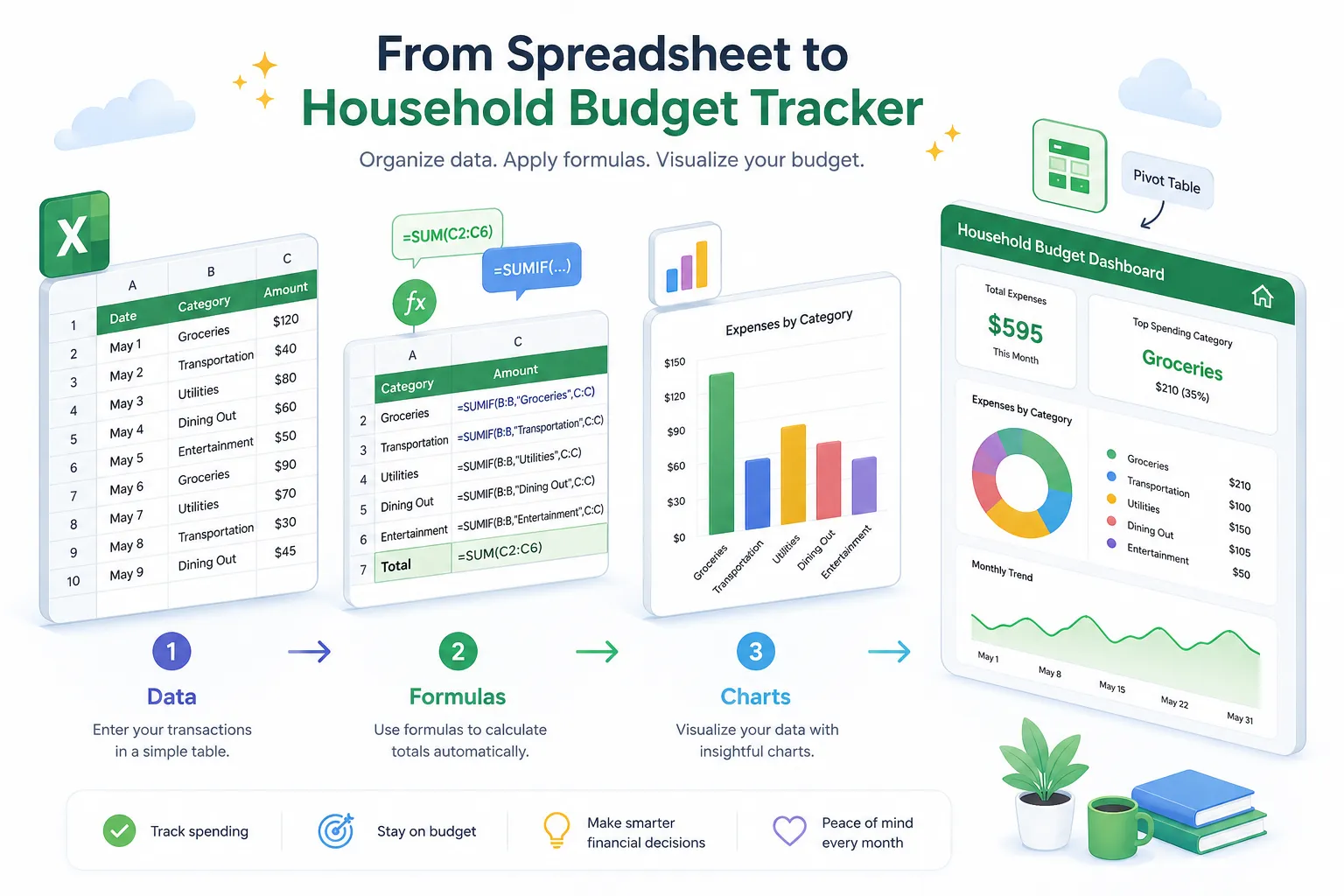
This guided project builds a Monthly Side-Business Tracker, a spreadsheet that records income and expenses, calculates profit, flags overspending with color, and shows a summary chart. Every step introduces one new core feature.
Saturday Morning: Data Foundation (2-3 hours)
Step 1, Set up your workbook Open Excel, rename Sheet1 to “Transactions.” Add these column headers in row 1: Date, Category, Description, Income, Expense, Notes.
Step 2, Enter 15-20 rows of sample data Use realistic numbers. This forces you to practice data entry in Excel and understand how rows and columns relate.
Step 3, Convert to an Excel Table Select your data range, press Ctrl+T, and confirm. This single step unlocks auto-filtering, structured references, and automatic formula expansion. Skipping this is the #1 beginner mistake.
Step 4, Add a Profit column
In the first empty column, type =[@Income]-[@Expense]. The @ syntax is Excel Table notation, it applies to every row automatically.
Saturday Afternoon: Formulas and Logic (2-3 hours)
Step 5, Build a Summary sheet
Add a new sheet called “Summary.” Use =SUM(Transactions[Income]) and =SUM(Transactions[Expense]) to pull totals. This teaches cross-sheet references.
Step 6, Add an IF statement
In the Summary sheet, add a “Status” cell: =IF(B3>B4,"Profitable","Loss")
For a deeper dive, see Excel IF statements made simple.
Step 7, Use SUMIF to break down by category
=SUMIF(Transactions[Category],"Marketing",Transactions[Expense])
This one formula answers “how much did I spend on marketing?”, a skill covered thoroughly in SUMIF, COUNTIF, and beyond.
Sunday Morning: Charts and Visual Tools (2-3 hours)
Step 8, Create a bar chart Select your category summary data, press Alt+F1 to insert a chart instantly. Resize and label it. For chart tips, turning Excel data into a graph is a quick reference.
Step 9, Add conditional formatting Back on the Transactions sheet, highlight the Expense column. Go to Home → Conditional Formatting → Color Scales. Cells with high expenses turn red automatically, no formula needed.
Sunday Afternoon: Polish and Protection (1-2 hours)
Step 10, Lock your formula cells Select the cells with formulas, then lock cells in Excel so they can’t be accidentally overwritten. This is a professional habit worth building early.
Step 11, Remove any duplicate rows Use Data → Remove Duplicates to clean the dataset. See how to remove duplicates in Excel for the exact steps.
Step 12, Save and review Review every formula. Make sure no numbers are hardcoded where a cell reference should be. That’s the finished project. 🎉
What Excel Features Do Most Jobs Actually Require?
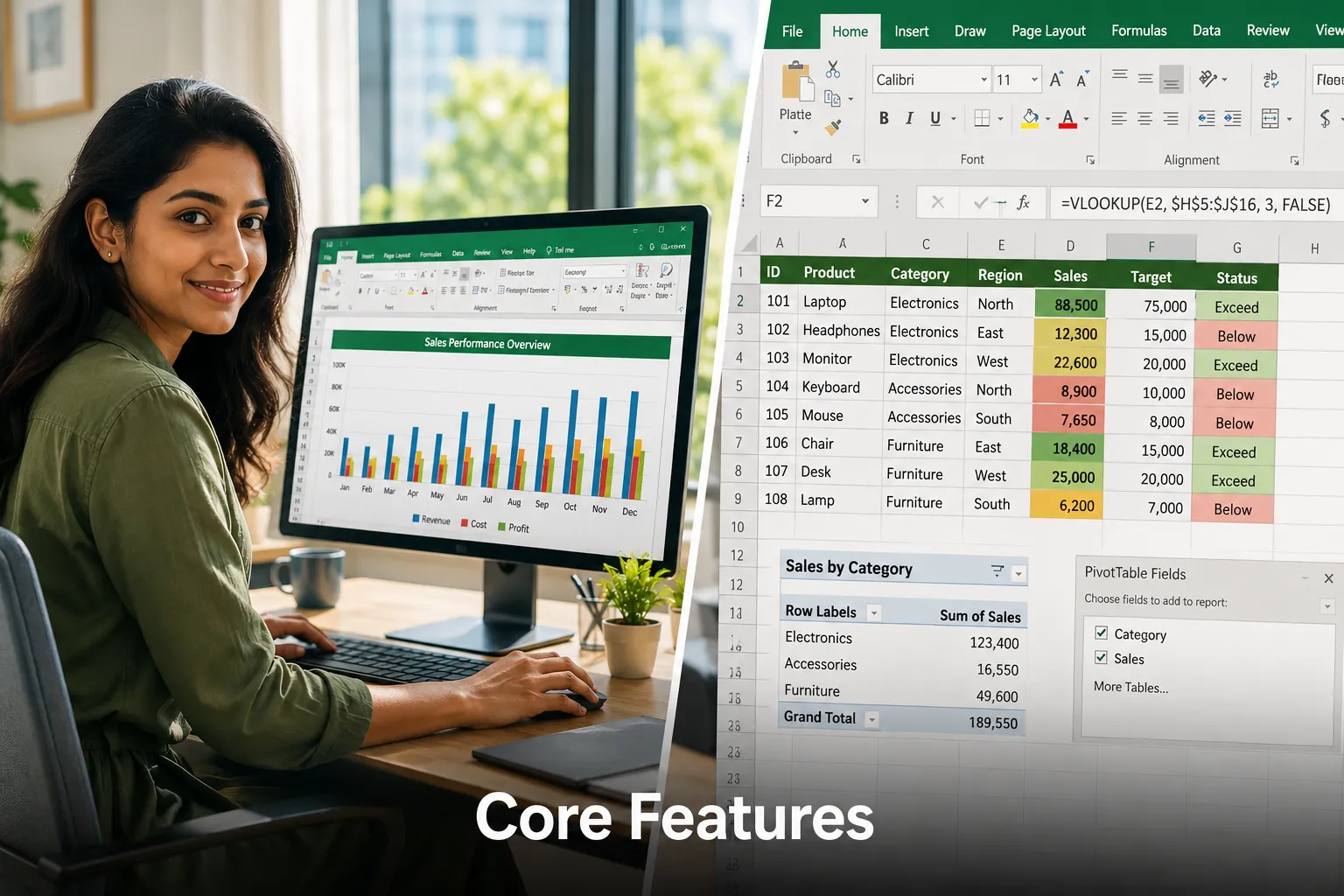
Employers in 2026 consistently expect these skills for entry-to-mid-level roles:
- SUM, AVERAGE, COUNT, universal
- IF and nested IF, used in reporting and dashboards
- VLOOKUP or XLOOKUP, data matching across sheets
- Pivot Tables, summarizing large datasets without code
- Charts, communicating data visually
- Conditional Formatting, highlighting exceptions automatically
- Filters and Sorting, basic data navigation
Advanced roles (data analyst, financial analyst) add Power Query, INDEX/MATCH, and dynamic arrays. But the list above covers most administrative, operations, and coordinator roles.
Common Mistakes Beginners Make in Excel
Knowing these ahead of time saves hours of frustration:
- Skipping Excel Tables, Working with plain ranges instead of Tables means formulas don’t auto-expand and filtering is manual.
- Hardcoding numbers in formulas, Writing
=A1*0.15instead of=A1*B1(where B1 holds the rate) makes updates painful. - Mixing data types in a column, Putting “N/A” in a number column breaks SUM formulas silently.
- Not using absolute references, Forgetting the
$when copying formulas is the most common formula error for beginners. - Merging cells carelessly, Merged cells break sorting and filtering. Use “Center Across Selection” instead.
Excel Alternatives Worth Knowing
Excel isn’t always the right tool. Here’s a quick guide:
- Google Sheets, Best for real-time collaboration and free access. See Excel vs Google Sheets for students for a student-focused breakdown.
- Airtable, Better for database-style project tracking with non-technical teams.
- Power BI / Tableau, Better for large-scale data visualization beyond what Excel charts handle well.
For most individual and small-team work, Excel or Sheets covers everything needed.
Free vs. Paid Excel Tutorials: Which Is Better?
Free resources are genuinely sufficient for beginners. Microsoft’s own support pages, YouTube channels, and practice-based sites cover every core feature at no cost. Paid courses (Udemy, LinkedIn Learning, Coursera) add structured progression and certificates, useful if you need proof of learning for a job application or prefer guided accountability.
Choose free if: you’re self-motivated, learning for personal projects, or already have a goal (like this weekend project). Choose paid if: you need a certificate, want a structured curriculum, or find yourself getting stuck without guided feedback.
How to Know When You’ve Learned Enough Excel
A practical benchmark: if you can build the tracker project above from memory, including Tables, SUMIF, an IF statement, a chart, and conditional formatting, you’ve crossed the threshold that most job descriptions mean when they say “proficient in Excel.”
Beyond that, learning is task-driven. When a new work problem requires a feature you don’t know (pivot tables, XLOOKUP, data validation), that’s the right time to learn it. For a deeper jump into data work, Excel for data analysis is a natural next step.
FAQ
How long does it really take to learn Excel basics? Most beginners reach functional proficiency, enough for common job tasks, in 8-15 hours of focused, project-based practice. Watching videos without building something takes much longer to produce usable skill.
What should my first Excel project be? A personal budget tracker or expense log. It’s small enough to finish in a weekend, uses every core feature (formulas, tables, charts), and produces something genuinely useful.
Can I learn Excel if I’ve never used it before? Yes. Excel’s interface is designed for non-programmers. The guided project above starts from an empty workbook and requires no prior knowledge.
Is Excel 2026 different enough from older versions that old tutorials are useless? No. The fundamentals, formulas, tables, pivot tables, charts, haven’t changed. Older tutorials are still valid. Just be aware that XLOOKUP is now preferred over VLOOKUP, and Copilot features won’t appear in older tutorial screenshots.
What’s the best free resource to learn Excel in 2026? Microsoft’s own support site (support.microsoft.com) and YouTube channels focused on Excel 365 are both strong. Pair either with a real project for best results.
Do I need Microsoft 365 or will Excel 2019 work? Excel 2019 covers all core features. Microsoft 365 adds XLOOKUP, dynamic arrays, and Copilot. For beginners, either version works fine for this project.
How do I practice Excel with real projects after the weekend? Rebuild the tracker with your own real data, then extend it: add a pivot table summary, a monthly trend chart, or a second sheet for goals. Each extension teaches a new skill in context.
Is a pivot table hard to learn for a beginner? No. A pivot table takes about 20 minutes to learn from scratch. Select your Table, go to Insert → PivotTable, drag fields into rows and values. That’s the core of it.
What keyboard shortcuts should beginners learn first? Start with Ctrl+C/V (copy/paste), Ctrl+Z (undo), Ctrl+T (create table), Alt+= (AutoSum), and F2 (edit cell). For a broader list, see Excel keyboard shortcuts for busy professionals.
Can I use this tutorial on Excel for Mac? Yes. All formulas and features in this project work on Excel for Mac. A few keyboard shortcuts differ (use Cmd instead of Ctrl for most).
Conclusion
The fastest path through this Excel Tutorial for 2026: A Step-by-Step Guided Project to Learn Core Features in One Weekend isn’t memorizing features in isolation, it’s building one real thing that forces every skill into action. The Monthly Side-Business Tracker project above covers data entry, formulas, tables, SUMIF, IF logic, conditional formatting, charts, and cell protection in a logical sequence that mirrors actual workplace use.
Actionable next steps:
- Block Saturday and Sunday morning on your calendar this weekend.
- Open a blank Excel workbook and follow Steps 1-12 above.
- Once the tracker is done, swap in your own real data (personal budget, freelance income, anything with rows and categories).
- When you hit a feature you don’t know, search for it specifically, that’s the most efficient way to keep growing.
- After the basics feel solid, explore master spreadsheet equations in Excel to push into intermediate territory.
One weekend, one project, one genuinely useful skill. That’s the whole plan.