
Last updated: July 10, 2026
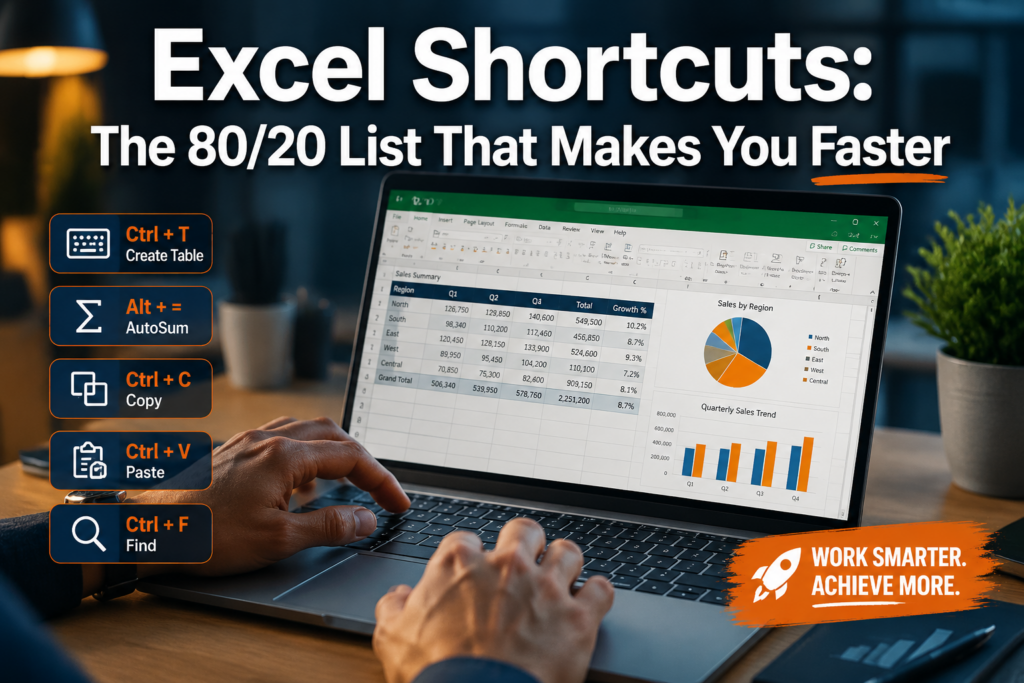
Quick Answer: The vast majority of time saved in Excel comes from a small set of keyboard shortcuts covering navigation, selection, data entry, and formatting. Mastering roughly 20 core shortcuts handles about 80% of daily Excel tasks for most professionals. You don’t need to memorize hundreds of combinations, just the right ones, applied in real workflows.
Key Takeaways
- Navigation shortcuts (Ctrl + Arrow keys, Ctrl + Home/End) are the single biggest time-savers for large spreadsheets.
- Ctrl + C / Ctrl + V / Ctrl + Z / Ctrl + Y remain the top universal shortcuts every professional should have automatic.
- Keyboard shortcuts are measurably faster than mouse clicks for repetitive tasks, studies on typing efficiency consistently show keyboard users complete menu-based actions 2-3x faster.
- Mac and Windows shortcuts differ, primarily swapping Ctrl for Cmd and using Option instead of Alt.
- Most professionals reach comfortable fluency with 10-15 shortcuts within two weeks of deliberate practice.
- Financial analysts and accountants benefit most from formula shortcuts (AutoSum, F2, F4) and paste-special combinations.
- Forgetting a shortcut mid-workflow is normal, pressing F1 or using Alt to activate the ribbon key tips recovers you instantly.
- Pivot table and filter shortcuts (Ctrl + Shift + L, Alt + Down Arrow) cut reporting time significantly.
- Shortcuts are worth learning even if you use templates, they speed up editing, not just building.
What Are the Most Used Excel Keyboard Shortcuts?
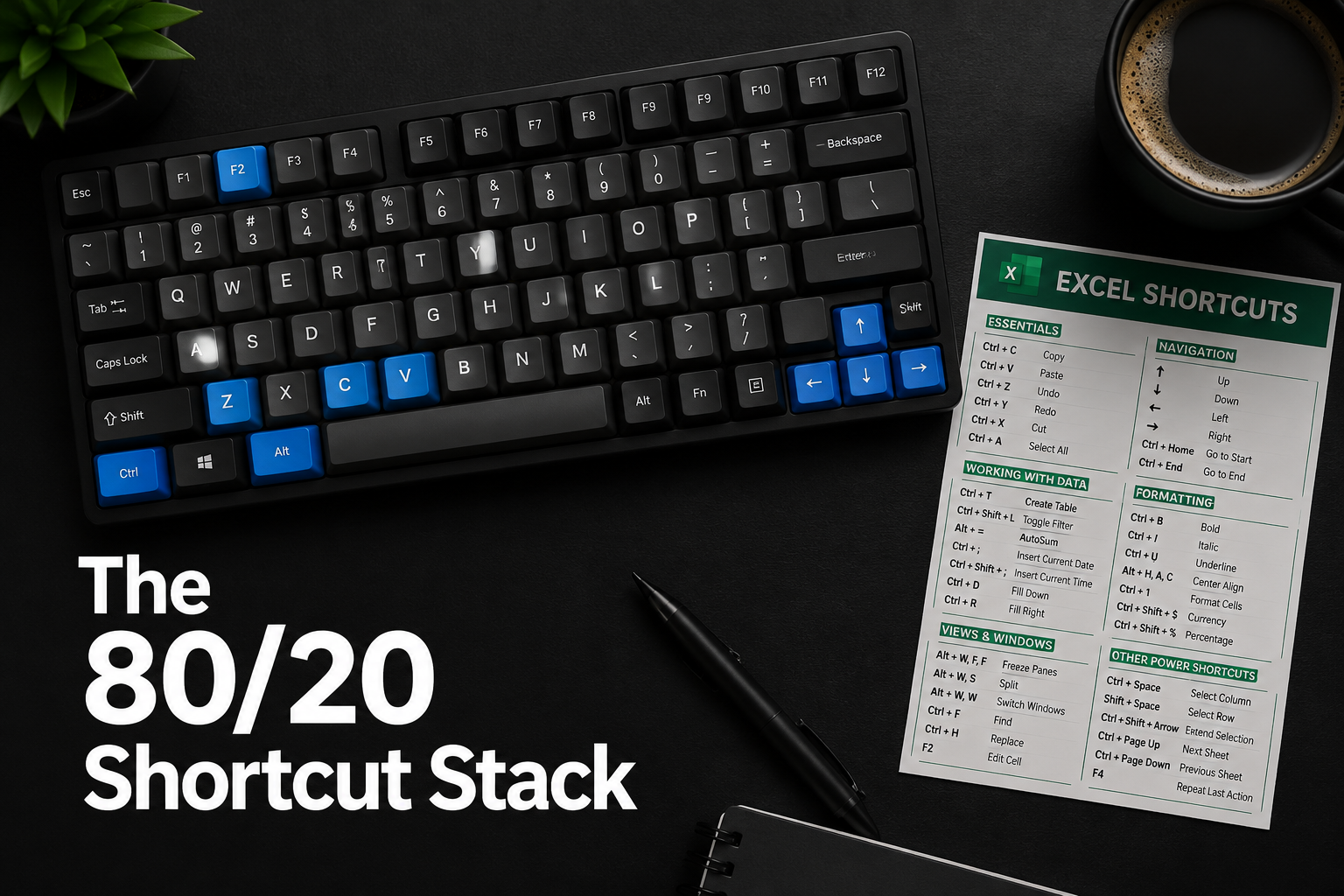
The most-used Excel shortcuts fall into four categories: copy/paste/undo, navigation, selection, and formatting. These core combinations cover the actions professionals repeat dozens of times per day [1][9].
Top 20 shortcuts by daily frequency:
| Shortcut (Windows) | Shortcut (Mac) | Action |
|---|---|---|
| Ctrl + C | Cmd + C | Copy |
| Ctrl + V | Cmd + V | Paste |
| Ctrl + Z | Cmd + Z | Undo |
| Ctrl + Y | Cmd + Y | Redo |
| Ctrl + X | Cmd + X | Cut |
| Ctrl + Arrow Key | Cmd + Arrow Key | Jump to data edge |
| Ctrl + Home | Cmd + Fn + Left | Go to cell A1 |
| Ctrl + End | Cmd + Fn + Right | Go to last used cell |
| Ctrl + Shift + Arrow | Cmd + Shift + Arrow | Select to data edge |
| Ctrl + S | Cmd + S | Save |
| F2 | F2 | Edit active cell |
| Ctrl + D | Cmd + D | Fill down |
| Ctrl + R | Cmd + R | Fill right |
| Alt + = | Cmd + Shift + T | AutoSum |
| Ctrl + 1 | Cmd + 1 | Format cells dialog |
| Ctrl + Shift + L | Cmd + Shift + F | Toggle filters |
| Ctrl + T | Cmd + T | Create table |
| Ctrl + F | Cmd + F | Find |
| Ctrl + H | Cmd + H | Find and replace |
| Ctrl + Page Up/Down | Fn + Ctrl + Up/Down | Switch sheets |
For a deeper dive into time-saving combinations, see this complete guide to 50 time-saving keyboard shortcuts for Excel.
How Much Faster Can Keyboard Shortcuts Make You in Excel?
Keyboard shortcuts meaningfully reduce the time spent on repetitive Excel tasks, particularly for professionals who use spreadsheets for more than an hour daily. Research on human-computer interaction consistently shows that keyboard-based commands execute 2-3x faster than equivalent mouse-driven menu navigation for experienced users [9].
The real gain isn’t any single shortcut, it’s the compound effect. Saving two seconds per action, repeated 50 times in a session, adds up to nearly two minutes per hour. Over a full workday, that’s 15-20 minutes returned to productive work.
“The biggest Excel time gains don’t come from exotic shortcuts, they come from automating the ten actions you already do constantly.”
Where the time actually goes:
- Reaching for the mouse and navigating menus: 1.5-3 seconds per action
- Keyboard shortcut equivalent: 0.3-0.8 seconds
- Estimated daily savings for a heavy Excel user: 15-30 minutes
Best Excel Shortcuts for Data Entry and Formatting
For data entry and formatting tasks, a small cluster of shortcuts handles the bulk of the work. These are the combinations that make filling, editing, and styling cells fast without breaking your typing rhythm [3][6].
Data entry essentials:
- F2, Enter edit mode in the active cell without clicking
- Ctrl + D, Copy the cell above and fill down (great for repeating formulas)
- Ctrl + ;, Insert today’s date instantly
- Ctrl + Shift + ;, Insert the current time
- Tab, Move right after entry (instead of Enter, which moves down)
- Alt + Enter, Add a line break inside a cell
Formatting shortcuts:
- Ctrl + B / I / U, Bold, italic, underline
- Ctrl + 1, Open the Format Cells dialog (covers number format, alignment, borders, fill)
- Ctrl + Shift + $, Apply currency format
- Ctrl + Shift + %, Apply percentage format
- Ctrl + Shift + #, Apply date format
For adding color and visual structure to your data, conditional formatting is a powerful complement to manual formatting shortcuts.
Excel Shortcuts That Save the Most Time for Busy Professionals
The highest-ROI shortcuts for busy professionals are the ones that replace multi-click menu sequences with a single key combination. These are the shortcuts that make the biggest dent in daily time [3][9].
Top 5 time-savers ranked by impact:
- Ctrl + Shift + Arrow, Select entire ranges of data instantly instead of clicking and dragging. Essential for large datasets.
- Alt + = (AutoSum), Sums a column or row in one keystroke. See also: Excel AutoSum shortcut guide.
- Ctrl + T, Convert a range to an Excel Table, which auto-expands formulas and enables structured references.
- Ctrl + Shift + L, Toggle filters on and off without touching the ribbon.
- Ctrl + Alt + V, Open Paste Special, which lets you paste values only, formats only, or transpose data, without overwriting formulas.
Common mistake: Many professionals use Ctrl + V for everything and accidentally paste formulas into cells where they only want values. Ctrl + Alt + V (then V, Enter) pastes values only and takes less than a second once it’s muscle memory. You can explore more paste special shortcut techniques to build this habit.
Keyboard Shortcuts vs. Mouse Clicks in Excel: Which Is Faster?
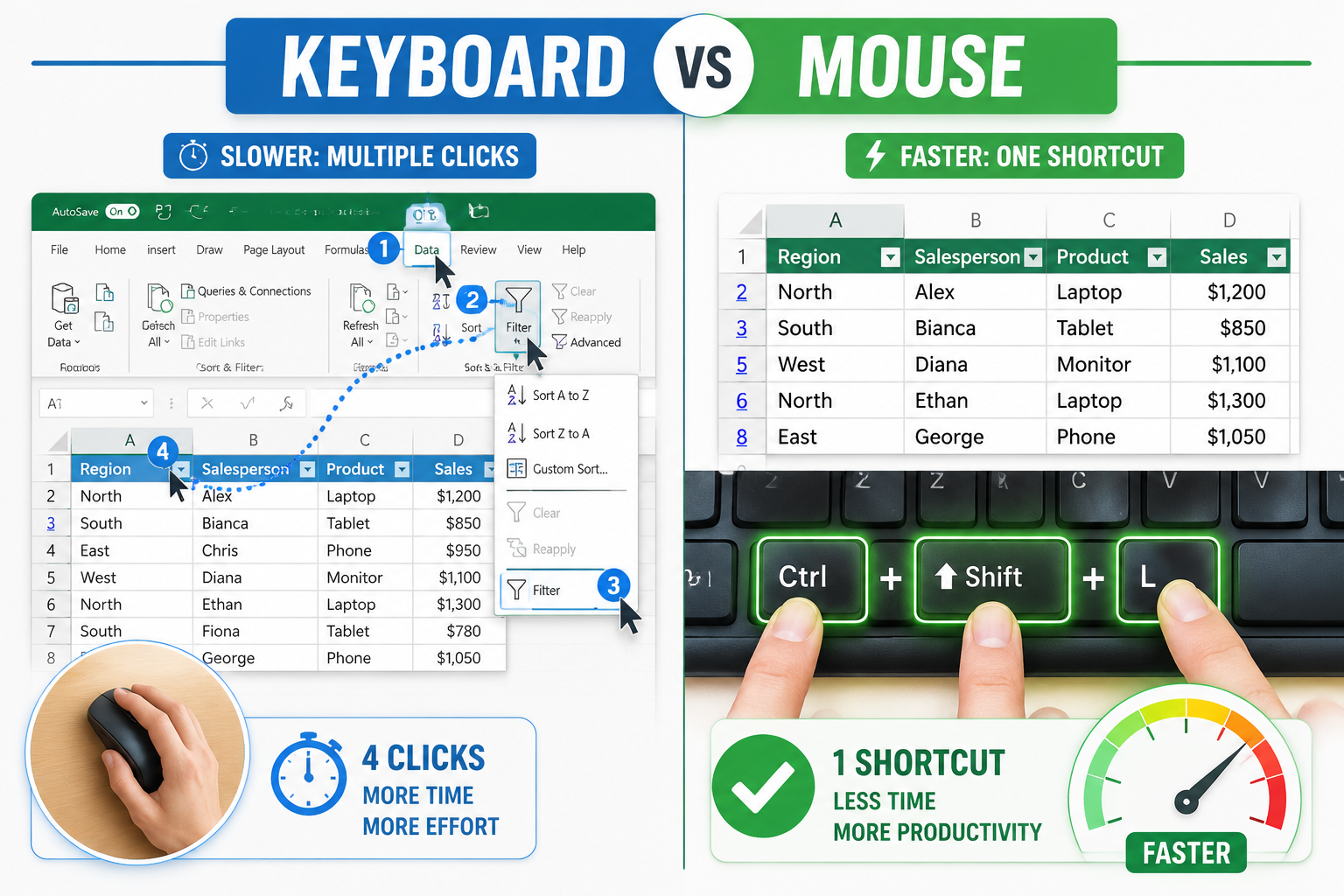
Keyboard shortcuts are faster than mouse clicks for nearly every repeated Excel action, especially menu-based commands and cell navigation. The mouse is still useful for one-off tasks like resizing columns or selecting non-contiguous ranges with precision [9].
Choose keyboard shortcuts when:
- You’re performing the same action more than twice in a session
- The action is buried two or more menus deep (e.g., Paste Special, Format Cells)
- You’re navigating across large spreadsheets
Choose the mouse when:
- Selecting irregular, non-contiguous ranges
- Resizing rows or columns by dragging
- Clicking into a chart element for editing
The practical rule: if you can name the shortcut without thinking, use it. If you have to recall it, the mouse may be faster in that moment, but that’s a signal to practice the shortcut until it’s automatic.
Excel Shortcuts for Pivot Tables and Filtering Data
Pivot tables and data filters have their own shortcut set that most professionals never learn, even though these are among the most time-intensive Excel tasks [3][7].
Filter shortcuts:
- Ctrl + Shift + L, Toggle AutoFilter on/off
- Alt + Down Arrow, Open the filter dropdown for the active column (then use arrow keys and Space to select)
- Ctrl + Shift + End, Select from the current cell to the last used cell (useful before creating a pivot table)
Pivot table shortcuts:
- Alt + N + V, Insert a new pivot table (ribbon key sequence)
- Alt + JT, Activate the PivotTable Analyze tab when a pivot is selected
- F5 then Enter, Refresh a pivot table (Go To dialog trick; use Alt + F5 for direct refresh in newer Excel versions)
For visual data summaries, pivot charts are especially useful when data isn’t pre-summarized.
Excel Shortcuts for Financial Analysts and Accountants
Financial analysts and accountants use a specific subset of Excel shortcuts more than any other professional group. Formula auditing, cell locking, and precise number formatting are the priority areas [3][7].
High-value shortcuts for finance professionals:
- F4, Toggle absolute/relative cell references ($A$1 → A$1 → $A1 → A1) while editing a formula. This is one of the most underused shortcuts in finance work.
- Ctrl + ` (backtick), Toggle between showing formula text and formula results across the entire sheet
- Ctrl + [, Jump to the cell a formula references (trace precedents)
- Ctrl + Shift + $, Apply accounting/currency format
- **Alt + = **, AutoSum selected range
- F2 then F9, Evaluate just the selected part of a formula
For large model work:
- Ctrl + Home / Ctrl + End, Jump to the beginning or end of your data range instantly
- Selecting the entire worksheet with shortcut keys is also essential before applying bulk formatting changes.
Excel Shortcuts on Mac vs. Windows: Are They Different?
Yes, Mac and Windows Excel shortcuts differ in meaningful ways, though the logic is consistent. The main rule: Ctrl on Windows = Cmd on Mac, and Alt on Windows = Option on Mac for most shortcuts [5][10].
Key differences to know:
| Action | Windows | Mac |
|---|---|---|
| AutoSum | Alt + = | Cmd + Shift + T |
| Switch sheets | Ctrl + Page Up/Down | Fn + Ctrl + Up/Down |
| Go to cell A1 | Ctrl + Home | Cmd + Fn + Left Arrow |
| Insert row/column | Ctrl + Shift + + | Ctrl + I |
| Delete row/column | Ctrl + – | Cmd + – |
| Repeat last action | F4 or Ctrl + Y | Cmd + Y |
Edge case: On Mac laptops without a full keyboard, some shortcuts require the Fn key to activate function keys (F1, F12). This catches many Mac users off guard. A dedicated Mac Excel shortcuts reference is worth bookmarking [5].
How Long Does It Take to Memorize Excel Keyboard Shortcuts?
Most professionals reach practical fluency with 10-15 core shortcuts within one to two weeks of consistent daily use. The key is deliberate practice during real work, not rote memorization [6].
A realistic learning timeline:
- Days 1-3: Learn 5 shortcuts (Ctrl + Arrow, Ctrl + Shift + Arrow, F2, Alt + =, Ctrl + 1). Use them exclusively, even if it feels slower at first.
- Days 4-7: Add 5 more (Ctrl + T, Ctrl + Shift + L, Ctrl + Alt + V, F4, Ctrl + D).
- Week 2: Add shortcuts specific to your role (finance, data analysis, reporting).
- Week 3+: The first 15 shortcuts become automatic. Add new ones as needed.
What doesn’t work: Printing a list of 100 shortcuts and trying to memorize them all. The 80/20 principle applies here, focus on the shortcuts tied to your most frequent actions.
If you’re starting from scratch, how to learn MS Excel in 24 hours covers a structured approach to building core skills quickly.
What If I Forget an Excel Shortcut Mid-Workflow?
Forgetting a shortcut mid-task is completely normal and easy to recover from. Press Alt to activate Excel’s ribbon key tips, every tab and command gets a letter overlay so you can navigate entirely by keyboard without memorizing the shortcut [7].
Other recovery options:
- F1, Opens Excel Help with a searchable shortcut index
- Ctrl + F1, Toggle the ribbon on/off if it’s in the way
- Right-click the relevant cell or object for a context menu of common actions
- Use Tell Me (Alt + Q) to type what you want to do in plain language
The ribbon key tip system (activated by pressing Alt) is especially useful for less-common shortcuts like inserting rows, applying borders, or accessing the Name Manager.
Excel Shortcuts for People Who Work With Large Spreadsheets
Large spreadsheets demand navigation and selection shortcuts above all else. Without them, scrolling through thousands of rows with a mouse is one of the biggest productivity drains in Excel [1][9].
Essential large-spreadsheet shortcuts:
- Ctrl + Arrow Keys, Jump to the last non-empty cell in any direction. Use repeatedly to move across large data blocks.
- Ctrl + Shift + Arrow, Select from the current cell to the last non-empty cell in that direction.
- Ctrl + Home, Return to cell A1 instantly.
- Ctrl + End, Jump to the last used cell in the spreadsheet.
- Ctrl + G (or F5), Go To dialog for jumping to a specific cell reference or named range.
- Ctrl + F, Find a value anywhere in the sheet without scrolling.
For duplicate data in large sets: The quick guide to deleting duplicates in Excel pairs well with these navigation shortcuts when cleaning large datasets.
Are Excel Keyboard Shortcuts Worth Learning, or Should I Just Use Templates?
Shortcuts and templates solve different problems. Templates eliminate repetitive setup work; shortcuts eliminate repetitive editing and navigation work. Both are worth using, and they complement each other rather than compete [6].
Use templates when: You build the same type of spreadsheet repeatedly (budgets, schedules, trackers). A good template means you never start from scratch.
Use shortcuts when: You’re editing, analyzing, or formatting data inside any spreadsheet, template or not.
The honest answer: If you work in Excel for more than 30 minutes a day, keyboard shortcuts will save you meaningful time within two weeks. Templates alone won’t help you move faster inside a sheet.
Excel Shortcuts for Navigating Between Sheets Quickly
Switching between worksheets is one of the most frequent actions in multi-sheet workbooks, and most professionals still do it by clicking tabs. There’s a faster way [1][7].
Sheet navigation shortcuts:
- Ctrl + Page Down, Move to the next sheet (right)
- Ctrl + Page Up, Move to the previous sheet (left)
- Ctrl + F, Find a value across sheets (use Options to expand scope)
- Right-click any sheet navigation arrow (bottom-left of screen), Shows a full list of all sheets for quick jumping
For Mac users: Use Fn + Ctrl + Down Arrow and Fn + Ctrl + Up Arrow to switch sheets on a compact keyboard [5][10].
Pro tip: Name your sheets clearly and keep them in logical order so Ctrl + Page Down/Up navigation is predictable. Combining good sheet organization with navigation shortcuts cuts context-switching time significantly.
Common Excel Shortcut Mistakes People Make
Even experienced Excel users make a handful of recurring shortcut mistakes. Knowing these in advance saves frustration [4][6].
Mistakes to avoid:
- Using Ctrl + V when Ctrl + Alt + V is needed, Pasting formulas into cells that should contain values only is a frequent error in financial models.
- Pressing Delete instead of Ctrl + –, Delete clears cell contents; Ctrl + – actually removes the row or column.
- Forgetting F4 when writing formulas, Not locking cell references with F4 causes formula errors when copying across rows or columns.
- Using Ctrl + Z too aggressively, Undo works for most actions but not all (e.g., it won’t undo saving or some macro actions). Save frequently with Ctrl + S instead.
- Mixing up Ctrl + D and Ctrl + C, Ctrl + D fills down from the cell above; Ctrl + C copies. They’re not interchangeable.
- Ignoring Ctrl + Shift + Arrow for selections, Most users drag with the mouse to select large ranges, which is much slower and less accurate.
Conclusion
Excel keyboard shortcuts for busy professionals: the 80/20 list that makes you faster isn’t about memorizing every combination in existence. It’s about identifying the 15-20 shortcuts tied to your most frequent daily actions and making them automatic through real practice.
Actionable next steps:
- This week: Pick five shortcuts from the navigation and selection group (Ctrl + Arrow, Ctrl + Shift + Arrow, Ctrl + Home, Ctrl + End, Ctrl + Page Down). Use them exclusively for three days.
- Next week: Add five data entry and formatting shortcuts (F2, Ctrl + D, Alt + =, Ctrl + 1, Ctrl + Alt + V).
- Week three: Layer in role-specific shortcuts (F4 for finance, Ctrl + Shift + L for data analysts).
- Keep a sticky note with your current “learning set” of five shortcuts on your monitor until they’re automatic.
- Explore further: The complete 50-shortcut reference for Windows is a reliable next step once the core set is solid.
The goal isn’t to be impressive, it’s to stop losing time to repetitive mouse clicks so you can focus on the work that actually matters.
FAQ
Q: What is the single most useful Excel keyboard shortcut for beginners? Ctrl + Z (Undo) is the most universally useful shortcut for beginners because it removes the fear of making mistakes. After that, Ctrl + Arrow Keys for navigation deliver the fastest visible time savings.
Q: Can I use Excel shortcuts in Google Sheets? Most core shortcuts (Ctrl + C, Ctrl + V, Ctrl + Z, Ctrl + Arrow Keys) work in Google Sheets. Some Excel-specific shortcuts (F4 for reference locking, Alt + = for AutoSum) behave differently or require different key combinations. For a full comparison, see Excel vs Google Sheets.
Q: How do I see all available shortcuts in Excel? Press Alt to activate ribbon key tips, or press F1 and search “keyboard shortcuts” in the Help panel. Microsoft’s official shortcut documentation is also available online and covers every version.
Q: What shortcut inserts a new row in Excel? Select the row above where you want the new row, then press Ctrl + Shift + + (plus sign). On Mac, use Ctrl + I. You can also explore the Excel insert row shortcut tag for more variations.
Q: Is there a shortcut to quickly make a chart from selected data? Yes. Select your data range and press Alt + F1 to insert a chart instantly on the current sheet. See Tip #1 in the Excel Charts series for details.
Q: What does F4 do in Excel? In formula editing mode, F4 cycles a cell reference through absolute and relative formats ($A$1 → A$1 → $A1 → A1). Outside of formulas, F4 repeats the last action performed, useful for applying the same format or insertion repeatedly.
Q: How do I add today’s date with a keyboard shortcut? Press Ctrl + ; (semicolon) to insert a static date. For a dynamic date that updates daily, use the TODAY() function instead.
Q: What shortcut opens the Format Cells dialog? Ctrl + 1 opens the Format Cells dialog on both Windows and Mac. This single shortcut replaces navigating through the Home tab ribbon to access number formats, alignment, borders, and fill options.
Q: Is there a shortcut to select an entire worksheet? Yes. Press Ctrl + A to select all cells. For more precise control over whole-sheet selection, see the guide on selecting the entire worksheet using only shortcut keys.
Q: Do Excel shortcuts work the same in older versions like Excel 2016? Most core shortcuts (Ctrl + C/V/Z, F2, Ctrl + Arrow, Alt + =) work identically across Excel 2016, 2019, 2021, and Microsoft 365. A small number of newer shortcuts (some Alt + key sequences) may differ in older versions.
References
[1] The Excel Keyboard Shortcut Cheat Sheet For Pc And Mac Users – https://annenbergdl.org/the-excel-keyboard-shortcut-cheat-sheet-for-pc-and-mac-users/
[3] Excel 2025 Top 15 Shortcuts Formulas Fast Data Entry – https://www.allianzebposervices.com/excel-2025-top-15-shortcuts-formulas-fast-data-entry/
[4] Microsoft Excel Shortcuts A To Z – https://www.reddit.com/r/excel/comments/118pn3p/microsoft_excel_shortcuts_a_to_z/
[5] Organized Excel Shortcuts Mac – https://excelpractice.net/wp-content/uploads/2024/07/Organized_Excel_Shortcuts_Mac.pdf
[6] Shortcut Keys For Excel – https://www.pracskills.co.nz/blog/shortcut-keys-for-excel
[7] Keyboard Shortcuts Microsoft Office Word Excel Powerpoint Outlook Edge Windows Visio – https://www.lifecycle365.com/wp-content/uploads/2025/09/Keyboard-Shortcuts-Microsoft-Office-Word-Excel-PowerPoint-Outlook-Edge-Windows-Visio-.pdf
[9] Handy Excel Keyboard Shortcuts For Windows And Mac – https://www.computerworld.com/article/1614370/handy-excel-keyboard-shortcuts-for-windows-and-mac.html
[10] Excel For Mac Keyboard Shortcuts On A Small Keyboard – https://sumproduct.com/blog/excel-for-mac-keyboard-shortcuts-on-a-small-keyboard/