

Last updated: July 16, 2026
Quick Answer: SUMIF and COUNTIF are Excel functions that add up or count cells only when a condition is met, for example, totaling sales from one region or counting how many tasks are marked “Done.” SUMIFS and COUNTIFS extend that power to multiple conditions at once. Together, these functions handle the vast majority of real-world data analysis without needing complex formulas or pivot tables.
Key Takeaways
- SUMIF adds values in one range when a matching condition is found in another range.
- COUNTIF counts how many cells meet a single condition; COUNTIFS handles multiple conditions.
- SUMIFS is the multi-criteria version of SUMIF, use it whenever you need more than one filter.
- Both functions work with text, numbers, dates, and wildcards as criteria.
- A mismatched criteria range and sum range size is one of the most common causes of wrong results.
- SUMPRODUCT is a flexible alternative when criteria get complex or you need array-style logic.
- Wildcards (
*and?) let SUMIF and COUNTIF match partial text, like all products starting with “Pro.” - Summing across multiple sheets requires a workaround, SUMIF doesn’t natively loop across tabs.
What Are SUMIF and COUNTIF, and Why Do They Matter?
SUMIF and COUNTIF are conditional aggregation functions built into every version of Excel. They answer the question: “Give me a total (or count), but only for rows that match this rule.” [7]
For everyday tasks, sales by region, attendance tracking, budget by category, these two functions replace hours of manual filtering. If you already know how to write basic formulas, check out how to use Excel with formulas as a foundation before diving deeper here.
Basic syntax:
=SUMIF(range, criteria, sum_range), checks range for criteria, then sums the matching rows in sum_range [6]=COUNTIF(range, criteria), counts how many cells in range match criteria [10]
Real example: A sales manager has a table with columns for Region, Rep, and Revenue. To total revenue for the “North” region:
<code>=SUMIF(A2:A100, "North", C2:C100)
</code>
To count how many rows belong to the North region:
<code>=COUNTIF(A2:A100, "North")
</code>
That’s the core of SUMIF, COUNTIF, and Beyond: Master Conditional Aggregation in Excel for Everyday Tasks, simple syntax, powerful results.
What’s the Difference Between SUMIF and SUMIFS?
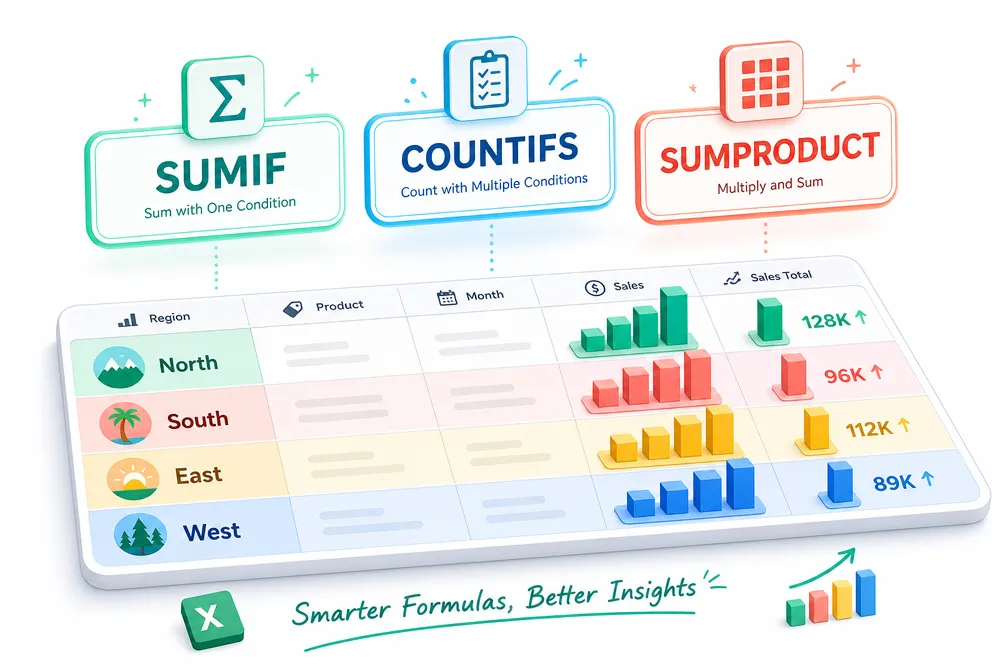
SUMIF handles one condition; SUMIFS handles two or more. SUMIFS is the official multi-criteria extension, and its argument order is slightly different. [8]
| Function | Max Conditions | Syntax Order |
|---|---|---|
| SUMIF | 1 | range, criteria, sum_range |
| SUMIFS | 127 | sum_range first, then criteria pairs |
Example, SUMIFS for region + product:
<code>=SUMIFS(C2:C100, A2:A100, "North", B2:B100, "Widget A")
</code>
This sums revenue only where Region = “North” AND Product = “Widget A.”
⚠️ Common mistake: Swapping the argument order. In SUMIFS, the sum range comes first. In SUMIF, it comes last. Getting this backwards returns an error or wrong total every time.
What’s the Difference Between COUNTIF and COUNTIFS?
COUNTIF counts cells matching one condition; COUNTIFS counts cells matching all conditions simultaneously. Both are useful, but COUNTIFS is needed any time you filter by more than one column. [3]
<code>=COUNTIF(D2:D50, "Complete")         ← tasks marked Complete
=COUNTIFS(A2:A50,"North",D2:D50,"Complete")  ← North region + Complete
</code>
Use COUNTIF if you only need one filter (faster to write, easier to read). Use COUNTIFS if you need two or more filters applied at the same time.
Can SUMIF Work With Text Criteria or Only Numbers?
SUMIF works with text, numbers, dates, and logical expressions as criteria. Text criteria must be wrapped in double quotes; cell references do not need quotes. [6]
Examples:
=SUMIF(B2:B100, "Pending", C2:C100), text match ✅=SUMIF(C2:C100, ">500", C2:C100), number comparison ✅=SUMIF(B2:B100, E1, C2:C100), criteria from cell E1 ✅
For a practical application, see how to calculate quantity and price in Excel, SUMIF pairs naturally with price-times-quantity tables.
Can SUMIF Work With Wildcards and Partial Text Matches?
Yes, SUMIF and COUNTIF both support the * (any characters) and ? (single character) wildcards. This makes partial text matching straightforward without helper columns. [7]
<code>=SUMIF(B2:B100, "Pro*", C2:C100)      ← matches "Product A", "Promo", etc.
=COUNTIF(B2:B100, "?at")              ← matches "Cat", "Bat", "Hat"
=SUMIF(B2:B100, "*widget*", C2:C100)  ← contains "widget" anywhere
</code>
Edge case: To match a literal asterisk or question mark in your data, escape it with a tilde: "~*" matches the character * exactly.
How Do I Use SUMIF With Greater Than or Less Than Operators?
Combine the operator and value inside a text string using quotes and the ampersand (&) when referencing a cell. [6]
<code>=SUMIF(C2:C100, ">1000", C2:C100)          ← hardcoded threshold
=SUMIF(C2:C100, ">"&E1, C2:C100)           ← threshold from cell E1
=SUMIF(C2:C100, "<="&TODAY(), C2:C100)     ← on or before today
</code>
Supported operators: >, <, >=, <=, <> (not equal to).
What’s the Best Way to Sum Data Based on Date Ranges in Excel?
Use SUMIFS with two date criteria, one for the start date and one for the end date. A single SUMIF can only apply one condition, so date ranges require SUMIFS. [3]
<code>=SUMIFS(C2:C100, A2:A100, ">="&DATE(2026,1,1), A2:A100, "<="&DATE(2026,3,31))
</code>
This sums all revenue in Q1 2026. Replace the DATE values with cell references for a dynamic dashboard. For working with date differences, the guide on finding the difference between two dates in months is a helpful companion.
How Do I Fix SUMIF Returning Zero When It Shouldn’t?
A SUMIF returning zero almost always means a criteria mismatch, a data type mismatch, or extra spaces in the source data. [7]
Checklist to diagnose:
- Text vs. number mismatch, numbers stored as text won’t match numeric criteria. Use
VALUE()to convert, or check the cell alignment (left-aligned = text, right-aligned = number). - Extra spaces,
"North "≠"North". UseTRIM()on your data range. - Criteria range and sum range size mismatch, both must be the same size (see next section).
- Date stored as text, dates formatted as text won’t respond to date criteria.
- Wrong sheet reference, double-check the range is pointing to the right tab.
💡 Quick test: Use
=COUNTIF(range, criteria)first. If it returns 0, the criteria itself isn’t matching, the problem is in the condition, not the sum range.
What Happens If My SUMIF Criteria Range and Sum Range Are Different Sizes?
When the criteria range and sum range are different sizes, Excel doesn’t throw an error, it silently returns an incomplete or wrong total. This is one of the trickiest bugs to spot. [6]
Excel anchors the sum range to the top-left cell of the criteria range and then uses the same dimensions. So if your criteria range is A2:A100 (99 rows) but your sum range is C2:C50 (49 rows), Excel will only sum C2:C100, potentially pulling in unrelated data.
Fix: Always make criteria ranges and sum ranges the same size. Using full-column references like A:A and C:C eliminates this risk entirely (with a minor speed trade-off on very large files).
When Should I Use SUMPRODUCT Instead of SUMIF?
Use SUMPRODUCT when your conditions involve calculated logic, OR conditions, or comparisons that SUMIF/SUMIFS can’t express cleanly. SUMPRODUCT multiplies arrays together and sums the result, which makes it extremely flexible. [3]
<code>=SUMPRODUCT((A2:A100="North")*(C2:C100>500)*D2:D100)
</code>
This sums column D where Region = “North” AND Revenue > 500, all in one formula.
Choose SUMPRODUCT if:
- You need OR logic (SUMIFS only does AND)
- Your criteria involve calculated columns
- You’re on an older Excel version without SUMIFS
Stick with SUMIFS if:
- You have straightforward multi-condition filtering
- Speed matters on large datasets (SUMIFS is faster than SUMPRODUCT on big ranges)
How Do I Sum Across Multiple Sheets Using SUMIF?
SUMIF doesn’t natively loop across multiple sheets, but there are two practical workarounds. [7]
Option 1, Manual addition: Write a SUMIF for each sheet and add them:
<code>=SUMIF(Sheet1!A:A,"North",Sheet1!C:C)+SUMIF(Sheet2!A:A,"North",Sheet2!C:C)
</code>
Option 2, Consolidate first: Use Excel’s Data > Consolidate feature to merge all sheets into one summary table, then run a single SUMIF on that table.
For complex multi-sheet workbooks, building a well-structured master sheet is often the cleaner long-term solution. The guide on mastering spreadsheet equations in Excel covers structuring formulas across larger workbooks.
Is There a SUMIF Alternative That Works Better for Complex Conditions?
For complex conditions in Excel 365 or Excel 2021+, FILTER combined with SUM is often cleaner and more readable than nested SUMIFS. [8]
<code>=SUM(FILTER(C2:C100,(A2:A100="North")*(B2:B100="Widget A")))
</code>
This does the same job as SUMIFS but returns a visible filtered array, which makes auditing easier.
Other alternatives worth knowing:
- AVERAGEIF / AVERAGEIFS, same logic as SUMIF but returns an average
- Pivot Tables, best for exploratory analysis across many categories at once
- Power Query, best for large datasets or data that needs cleaning before aggregation
For tracking spending by category, like a food or household budget, SUMIF formulas inside a template are often the most practical approach. See how to create a monthly food budget template in Excel for a real-world example.
Common Mistakes People Make With COUNTIF Formulas
The most frequent COUNTIF errors are criteria formatting issues, range selection mistakes, and misunderstanding how COUNTIF handles blanks. [10]
- Forgetting quotes around text:
=COUNTIF(A:A, Done)fails; use=COUNTIF(A:A, "Done") - Counting blanks incorrectly:
=COUNTIF(A:A, "")counts empty cells;=COUNTIF(A:A, "<>")counts non-empty cells - Case sensitivity: COUNTIF is not case-sensitive, “north” and “NORTH” count as the same
- Using COUNTIF for AND logic: It can’t do it, use COUNTIFS instead
- Criteria as a number without quotes:
=COUNTIF(A:A, ">500")works;=COUNTIF(A:A, >500)does not
Putting It All Together: Real-World Templates
SUMIF, COUNTIF, and Beyond: Master Conditional Aggregation in Excel for Everyday Tasks isn’t just theory, these functions power practical daily tools.
Three ready-to-build templates:
- Sales by Region Dashboard, SUMIFS for revenue by region + product, COUNTIFS for deal count, date range filter for monthly view
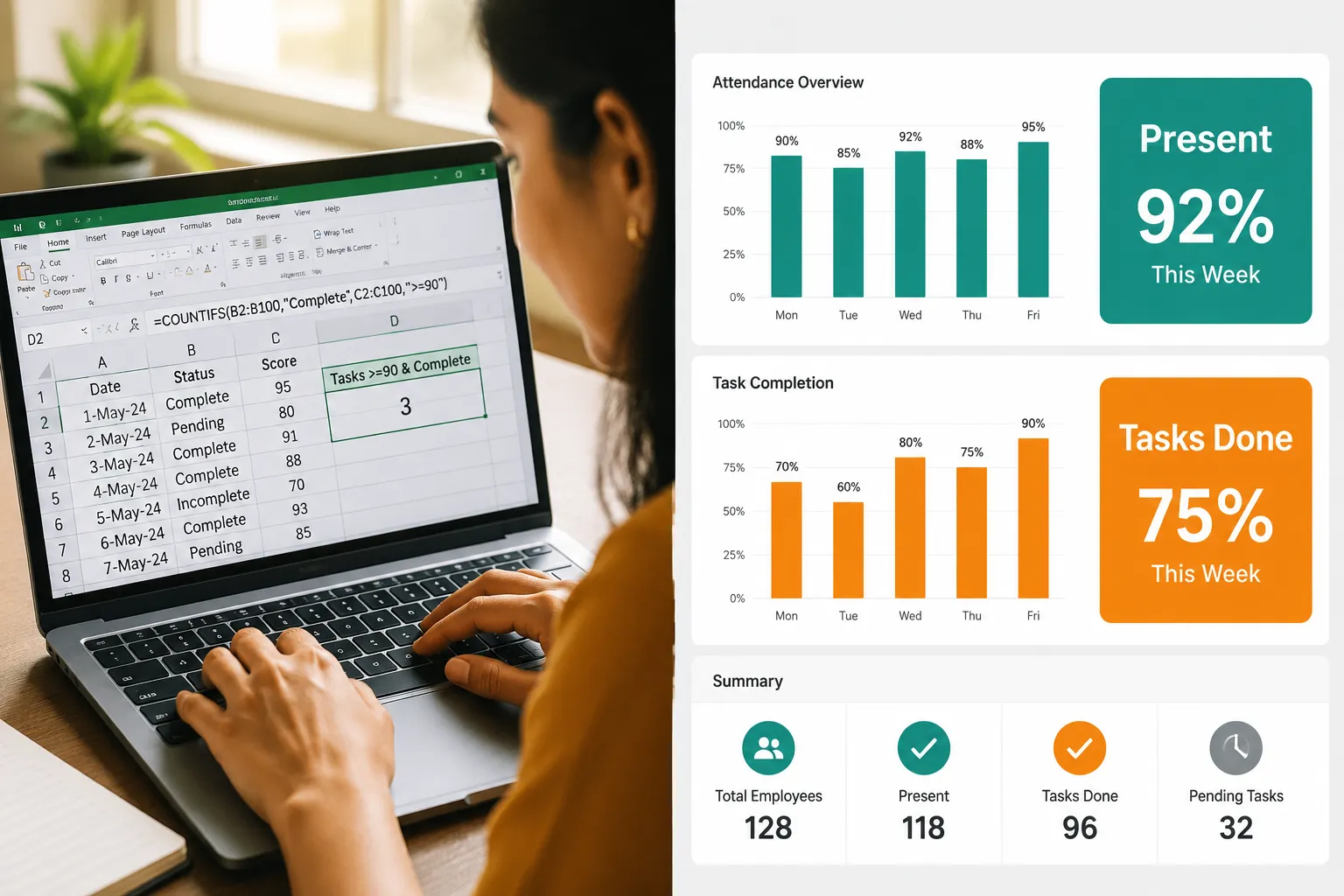
- Attendance Tracker, COUNTIF to count “Present”/”Absent” per employee, COUNTIFS to filter by date range and department
- Task Completion Report, COUNTIFS for tasks marked “Done” by assignee and week, SUMIF for total hours logged per project
For a home inventory or asset tracking use case, the ready-to-use home inventory template for Excel shows how SUMIF-style logic applies outside of business data. And if you’re building a budget tracker, the balance sheet template guide demonstrates how conditional totals feed into financial summaries.
FAQ
Q: Does SUMIF work with merged cells? A: No, merged cells cause unreliable results in SUMIF because Excel only “sees” the top-left cell of a merged group. Unmerge cells before using SUMIF on that range.
Q: Can COUNTIF count colored cells? A: Not directly. COUNTIF works on values, not formatting. Use a helper column with a formula that identifies the condition driving the color, then COUNTIF on that column.
Q: What’s the maximum number of criteria in SUMIFS? A: SUMIFS supports up to 127 criteria range/criteria pairs, far more than any practical use case requires.
Q: Can I use SUMIF with a dynamic named range?
A: Yes. Define a named range using OFFSET or a Table (Ctrl+T), then use the name as the range argument in SUMIF. Table references like Table1[Revenue] are especially clean.
Q: Why does COUNTIF count a date as a number?
A: Excel stores dates as serial numbers internally. If your criteria is a date, format it correctly: =COUNTIF(A:A, DATE(2026,7,1)) or use ">="&DATE(2026,7,1).
Q: Is SUMIF case-sensitive?
A: No. "north", "NORTH", and "North" all match the same way. For case-sensitive summing, use SUMPRODUCT with EXACT: =SUMPRODUCT((EXACT(A2:A100,"NORTH"))*C2:C100).
Q: Can I nest SUMIF inside another function?
A: Yes. For example, =IFERROR(SUMIF(A:A,"North",C:C),0) returns 0 if the formula errors, which is useful in dashboards.
Q: What’s the difference between SUMIF and DSUM? A: DSUM uses a separate criteria table (database-style) and is more flexible for complex criteria but harder to maintain. SUMIF and SUMIFS are faster to write for most everyday tasks.
Conclusion
Mastering SUMIF, COUNTIF, and Beyond: Master Conditional Aggregation in Excel for Everyday Tasks gives any Excel user a serious productivity edge. These functions handle sales reports, attendance logs, budget summaries, and task trackers without pivot tables or complex macros.
Actionable next steps:
- Start with SUMIF on a real dataset, pick one column as your criteria and one as your sum range.
- Upgrade to SUMIFS the moment you need a second filter (date + region, product + rep, etc.).
- Test with COUNTIF first when a SUMIF returns zero, it quickly reveals whether the criteria is matching at all.
- Try SUMPRODUCT for any scenario involving OR logic or calculated conditions.
- Build one template, a sales dashboard, budget tracker, or attendance sheet, and let these functions do the heavy lifting automatically.
The more familiar these functions become, the less time gets spent on manual filtering and copy-pasting. That’s the real value of conditional aggregation in Excel.
References
[1] Countif Sumif Excel – https://messaoudidata.com/en/blog/countif-sumif-excel/ [3] Conditional Aggregation Of Data – https://excelk.com/en/conditional-aggregation-of-data/ [6] Sumif Function – https://support.microsoft.com/en-us/excel/functions/sumif-function [7] Sumif And Countif In Excel – https://www.vertex42.com/blog/excel-formulas/sumif-and-countif-in-excel.html [8] Countifs Sumifs Conditional Data Analysis – https://www.graduateschool.edu/learn/excel/countifs-sumifs-conditional-data-analysis [10] How To Start Using Countif Sumif And Averageif In Excel – https://business.tutsplus.com/tutorials/how-to-start-using-countif-sumif-and-averageif-in-excel–cms-28086