
Last updated: July 29, 2026
Quick Answer: Custom cursor tools for Excel and Google Sheets are apps, browser extensions, and OS-level settings that change how your cursor looks, moves, and behaves inside spreadsheets. They help you select ranges more precisely, reduce eye strain, and navigate large datasets faster, with options ranging from free Chrome extensions to paid accessibility software.
Key Takeaways
- Custom cursor tools work at three levels: operating system settings, browser extensions (for Google Sheets), and standalone desktop apps (for Excel).
- The most popular free option for Google Sheets is the Custom Cursor Chrome extension; for Excel on Windows, OS pointer settings and third-party tools like Cursor FX or CursorMan handle customization.
- Cursor lag in Google Sheets is almost always a browser or hardware acceleration issue, not a cursor tool problem.
- Mac and Windows handle cursor customization differently, Mac users have fewer native options but can use accessibility features or third-party apps like Cursorcerer.
- Custom cursors do not interfere with keyboard shortcuts or Excel macros in most configurations.
- Accessibility-focused cursor tools (larger pointers, high-contrast cursors) can meaningfully reduce RSI risk and eye fatigue during long spreadsheet sessions.
- Most useful cursor tools cost nothing or under $10 one-time; enterprise accessibility tools can run $30,$60/year.
- Large datasets benefit most from crosshair-style cursors that visually highlight the active row and column.
What Are Custom Cursor Tools and How Do They Work in Excel?
Custom cursor tools change the default arrow or crosshair pointer into something more visible, precise, or ergonomic. In Excel specifically, they work either at the OS level (replacing system cursor files) or through third-party apps that inject a custom pointer layer on top of the application window.
Excel itself does not have a built-in cursor customization menu. What you see inside a spreadsheet, the white cross for cell selection, the arrow for menus, the resize arrows for columns, are all controlled by Windows or macOS pointer settings, not Excel’s own preferences.
How the layers work:
- OS-level: Windows lets you swap cursor schemes via Settings > Accessibility > Mouse pointer. macOS has similar options under System Settings > Accessibility > Display > Pointer.
- App-level overlays: Tools like Pointer Plus or CursorMan (Windows) sit on top of all open windows and apply a custom cursor regardless of which app is active.
- Spreadsheet-specific overlays: Some Excel add-ins highlight the active row and column with colored shading, which effectively makes the cursor’s position easier to track even without changing the pointer itself.
For power users who want faster point-and-click work, pairing a custom cursor with keyboard automation for faster spreadsheet work is the most effective combination.
Best Cursor Customization Apps for Google Sheets
For Google Sheets, the best cursor customization happens at the browser level, since Sheets runs entirely inside Chrome, Edge, or Firefox.
Top options in 2026:
| Tool | Platform | Cost | Best For |
|---|---|---|---|
| Custom Cursor for Chrome | Chrome extension | Free (premium ~$2/mo) | Visual cursor swap |
| Cursor Pro | Chrome/Edge extension | Free | Large pointer, accessibility |
| Mouse Pointer Highlight | Chrome extension | Free | Visibility & RSI |
| Pointer Focus | Windows desktop app | ~$9 one-time | Presentations & demos |
| Mousecape | macOS | Free | Mac cursor theming |
Custom Cursor for Chrome is the most downloaded option, with a library of hundreds of cursor styles. It works seamlessly inside Google Sheets without affecting formula entry or cell selection behavior.
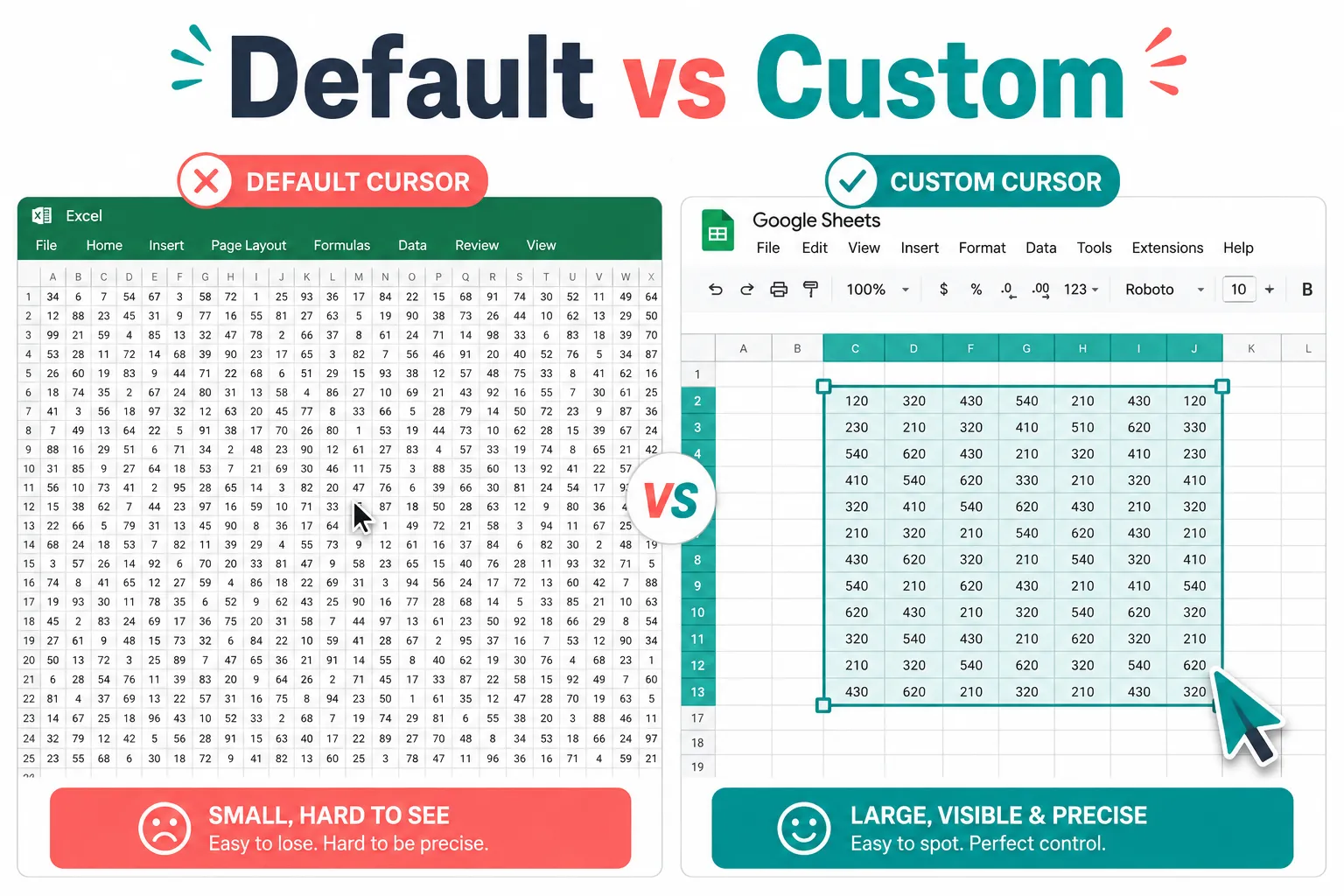
Mouse Pointer Highlight adds a colored ring around the cursor, especially useful when working on large Sheets with many rows, since it prevents the “where did my cursor go?” problem that slows down data entry.
💡 Pro tip: If you work with complex spreadsheet formulas in Google Sheets vs Excel, a high-visibility cursor reduces the chance of clicking the wrong cell mid-formula.
Can You Change Cursor Speed and Appearance in Excel?
Yes, cursor speed and appearance in Excel are both adjustable, though through the OS rather than Excel’s own settings.
On Windows:
- Go to Settings > Bluetooth & devices > Mouse > Additional mouse settings
- Under the Pointer Options tab, drag the speed slider
- Under the Pointers tab, choose a cursor scheme or browse for custom
.curor.anifiles
On macOS:
- Open System Settings > Accessibility > Display
- Adjust Pointer size with the slider
- Toggle Shake mouse pointer to locate for quick visual find
Excel’s internal cursor behavior (how fast the selection moves when you hold an arrow key) is separate, that’s controlled by Settings > Advanced > Editing Options > After pressing Enter, move selection.
Common mistake: Many users adjust mouse DPI on their hardware without realizing it affects cursor speed across all apps including Excel. If cursor movement feels off after installing a new mouse, check both the hardware DPI settings and the OS pointer speed, they stack.
Custom Cursor Extensions for Chrome Sheets vs Desktop Excel
The tools available for Google Sheets (Chrome-based) and desktop Excel are fundamentally different because one is a browser app and the other is a native desktop application.
Chrome/Sheets extensions:
- Work via the Chrome Extensions API
- Apply to all browser tabs, not just Sheets
- Cannot modify Excel’s internal crosshair cursor
- Easy to install, update automatically, and are generally free
Desktop Excel tools:
- Require OS-level cursor replacement or a standalone app
- Can be scoped to specific applications (e.g., only change cursor when Excel is the active window) using tools like Cursor FX or CursorMan
- Offer more control over cursor animations and size
- Some Excel-specific add-ins (like ReadingLine or Row Highlighter) don’t change the cursor itself but add a visual row/column highlight that achieves the same navigation benefit
Choose Chrome extensions if: you primarily use Google Sheets in a browser and want a quick, free setup.
Choose a desktop app if: you use Excel heavily, want per-application cursor rules, or need accessibility-grade pointer sizing.
How Much Do Cursor Customization Tools Cost?
Most cursor tools are free or very cheap. Here’s a realistic cost breakdown:
- Free: Custom Cursor for Chrome (basic), Mouse Pointer Highlight, Mousecape (Mac), Windows built-in pointer schemes
- Under $5: Custom Cursor for Chrome Premium (removes ads, unlocks full library)
- $9,$15 one-time: Pointer Focus (Windows), CursorFX (Windows)
- $30,$60/year: Enterprise accessibility suites like AssistiveWare or ClickAid that include cursor tools alongside other accessibility features
For most spreadsheet users, the free tier covers everything needed. Paid tools make sense for accessibility requirements, professional presentations, or if you want animated cursors and advanced per-app rules.
Why Is My Cursor Lagging in Google Sheets?
Cursor lag in Google Sheets is almost always caused by browser performance issues, not the cursor tool itself. The three most common causes are hardware acceleration being disabled, too many browser extensions running simultaneously, or a very large Sheets file taxing the browser’s rendering engine.
Fix it in order:
- Check hardware acceleration: In Chrome, go to
chrome://settings/systemand make sure “Use graphics acceleration when available” is ON. - Disable unused extensions: Too many active extensions slow Chrome’s rendering. Disable all non-essential ones and re-enable one at a time.
- Reduce sheet complexity: Sheets with 50,000+ rows, many conditional formatting rules, or embedded charts can cause pointer lag. Splitting data across multiple sheets helps.
- Clear browser cache:
Ctrl+Shift+Deletein Chrome, then clear cached images and files. - Try a different browser: Edge (Chromium-based) often performs better than Chrome on large Sheets files.
If lag only appears after installing a cursor extension, that extension is likely re-rendering the cursor on every frame. Switch to a lighter extension or use the OS-level pointer settings instead.
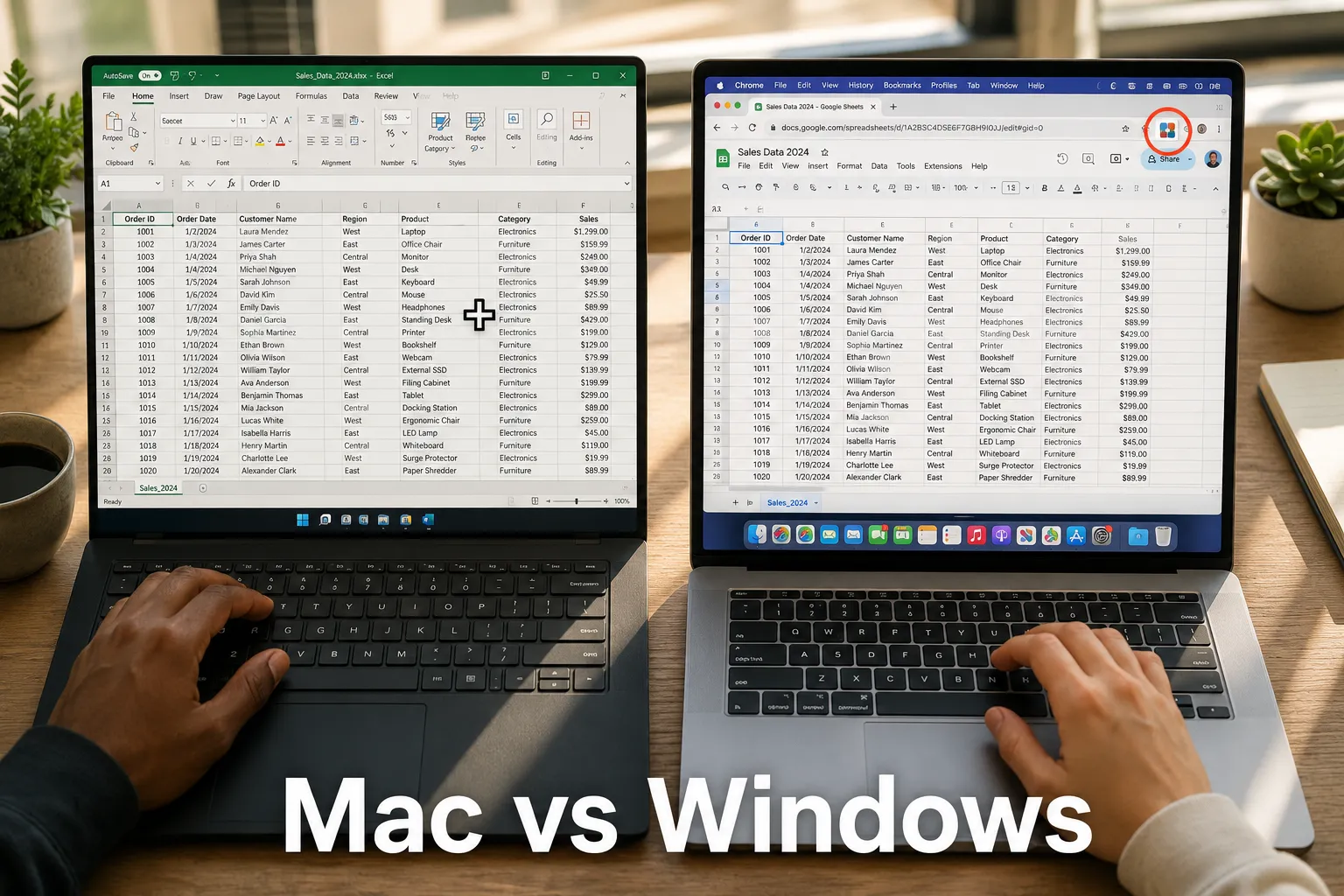
Custom Cursor Tools for Mac vs Windows Excel
Mac and Windows handle cursor customization differently, and Excel behaves slightly differently on each platform.
Windows advantages:
- Native support for custom
.curand.anicursor files - Third-party apps (CursorFX, CursorMan) have mature Windows ecosystems
- More Excel add-ins support row/column highlighting on Windows
Mac advantages:
- Built-in Accessibility pointer size slider goes very large (up to 4x default)
- “Shake to find” feature is genuinely useful in large spreadsheets
- Mousecape is a free, clean tool for swapping cursor themes system-wide
Mac limitation: macOS does not support animated cursors natively, and the selection of third-party cursor tools is smaller than on Windows. Excel for Mac also lacks some Windows-only add-ins.
Quick comparison:
| Feature | Windows | Mac |
|---|---|---|
| Custom .cur files | ✅ Native | ❌ Not supported |
| Large pointer (accessibility) | ✅ | ✅ |
| Animated cursors | ✅ | ❌ |
| Row highlight add-ins for Excel | More options | Fewer options |
| Free cursor theming apps | CursorFX, CursorMan | Mousecape |
For a broader look at how Excel differs between platforms, the Google Sheets vs Excel feature comparison covers platform-specific gaps in detail.
Do Custom Cursors Work with Keyboard Shortcuts?
Yes, custom cursor tools do not interfere with keyboard shortcuts in Excel or Google Sheets. Cursor customization operates at the display/rendering layer, while keyboard shortcuts are handled by the application’s input layer. The two don’t interact.
This means you can use a custom cursor alongside Excel keyboard shortcuts for busy professionals without any conflict. In fact, combining a high-visibility cursor with keyboard navigation is the fastest workflow for large spreadsheets, use the keyboard to jump between ranges and the custom cursor to confirm your position visually.
One edge case: Some cursor overlay apps that capture mouse events (rather than just replacing cursor images) can occasionally intercept keyboard+mouse combos like Shift+Click for range selection. If you notice selection behavior breaking after installing a cursor tool, check the app’s settings for “intercept mouse events” or “capture input” options and disable them.
Custom Cursor Settings for Accessibility and RSI Prevention
Larger, high-contrast cursors are one of the most underused accessibility tools for spreadsheet workers. For anyone spending 4+ hours daily in Excel or Sheets, small cursor-related adjustments can reduce eye strain and repetitive strain injury (RSI) risk.
Practical settings to enable:
- Increase pointer size: Windows and Mac both allow this natively. A 1.5x to 2x pointer is noticeably easier to track without feeling cartoonish.
- High-contrast cursor schemes: Windows includes “Windows Black (extra large)” and “Windows Inverted” cursor schemes that work well on bright spreadsheet backgrounds.
- Pointer trails: Found in Windows Mouse settings under Pointer Options. Short trails help the eye track fast cursor movement across wide monitors.
- Color-coded cursors: Some accessibility tools let you set the cursor to a bright color (orange or yellow) that stands out against white spreadsheet grids.
- Row/column highlighter add-ins: For Excel, add-ins like Excel Row Highlighter shade the active row and column, reducing the need to visually hunt for the cursor at all.
🖱️ RSI note: Reducing the need to move the mouse precisely over small cells, by using larger cursors, row highlights, and keyboard shortcuts, directly reduces the repetitive micro-movements that contribute to wrist and shoulder strain.
Can You Use Custom Cursors with Excel Macros?
Custom cursor tools are fully compatible with Excel macros (VBA). Since cursor customization operates at the OS or display layer, it has no interaction with VBA execution.
However, Excel’s VBA environment does give you some cursor control of its own. The Application.Cursor property lets a macro temporarily change the cursor to a specific type during execution:
<code class="language-vba">Application.Cursor = xlWait      ' Shows hourglass/spinner
Application.Cursor = xlDefault   ' Restores default cursor
</code>
This is useful for long-running macros, showing a wait cursor tells the user the macro is still running. It does not conflict with any third-party cursor tool; the OS-level custom cursor simply overrides Excel’s cursor request at the display level once the macro finishes.
Common mistake: Forgetting to reset Application.Cursor = xlDefault at the end of a macro. If a macro errors out mid-run, the cursor can get stuck as a wait spinner. Always include cursor reset in your error handler.
Best Alternatives to Paid Cursor Tools for Spreadsheets
The best free alternatives to paid cursor tools are OS built-in accessibility settings, free Chrome extensions, and Excel’s own row/column highlighting features.
Free alternatives that actually work:
- Windows built-in cursor schemes (Settings > Mouse > Pointers): Includes large and extra-large options at no cost
- macOS Accessibility pointer size (System Settings > Accessibility > Display): Free, effective, no install needed
- Custom Cursor for Chrome (free tier): Hundreds of cursor styles, works in Google Sheets
- Mouse Pointer Highlight (Chrome, free): Adds a colored ring, great for visibility
- Excel conditional formatting for row highlighting: Not a cursor tool, but highlighting the active row with a formula-based rule achieves similar visual tracking. See Excel IF Statements Made Simple for the formula approach.
- Keyboard-first navigation: Reducing mouse dependence entirely is the most effective “cursor tool” of all, Excel keyboard shortcuts can replace most point-and-click actions.
Custom Cursor Tools for Large Datasets and Performance
For large datasets (10,000+ rows), cursor visibility and navigation precision matter more than aesthetics. The best tool in this context is a crosshair-style cursor or a row/column highlight overlay.
What works best with large data:
- Crosshair cursor style: Extends horizontal and vertical lines from the cursor tip across the entire screen, making it easy to see which row and column the cursor is in. Available in Windows cursor schemes and via tools like Pointer Focus.
- Row highlighter add-ins for Excel: These shade the entire active row in a light color, solving the “lost in the data” problem without requiring any cursor movement.
- Freeze panes + custom cursor: Freezing header rows while using a large cursor keeps context visible as you scroll. See how to freeze a row in Excel for setup steps.
- Zoom level adjustment: Increasing Excel’s zoom to 120-130% makes cells larger and reduces the precision required for accurate clicking, effectively making the cursor “more accurate” without changing it at all.
Performance note: Row highlight add-ins that use VBA event triggers (like Worksheet_SelectionChange) can slow down navigation in very large files. Test with your specific file size before committing to an event-based highlighter.
Is Custom Cursor Software Compatible with All Excel Versions?
OS-level cursor tools work with every version of Excel because they operate independently of the application. Third-party add-ins and row highlighters have more version-specific compatibility to check.
Compatibility quick guide:
- Windows cursor schemes: Compatible with all Excel versions (2016, 2019, 2021, Microsoft 365)
- Chrome cursor extensions: Work with Google Sheets in any browser version; no Excel compatibility since they’re browser-only
- VBA-based row highlighters: Compatible with Excel 2016+ on Windows; limited on Mac due to VBA event differences
- Excel add-ins (.xlam files): Check the add-in’s documentation for minimum Excel version; most modern add-ins require Excel 2016 or Microsoft 365
- macOS cursor tools (Mousecape): Compatible with macOS Ventura and later; works with Excel for Mac 2019+
Edge case: Excel Online (the browser version) behaves like Google Sheets, Chrome extensions apply, but desktop cursor tools do not. If your organization uses Excel Online exclusively, treat it the same as Google Sheets for cursor tool selection.
For users working across both platforms, the Google Sheets vs Excel comparison covers more compatibility differences worth knowing.
Common Mistakes When Setting Up Cursor Tools
Most cursor tool problems come from a small set of setup errors. Knowing them upfront saves a lot of troubleshooting time.
Mistakes to avoid:
- Installing multiple cursor extensions simultaneously: Two Chrome cursor extensions will conflict, causing flickering or the wrong cursor appearing. Keep only one active.
- Forgetting to reset VBA cursor state: As noted above, always reset
Application.Cursorin your macro’s error handler. - Using animated cursors on slow machines:
.anianimated cursor files add a small rendering overhead. On older hardware, stick to static.curfiles. - Applying a row highlighter to a shared workbook: VBA event-based highlighters can cause save conflicts in shared Excel files. Test in a local copy first.
- Changing DPI without adjusting pointer speed: Upgrading to a high-DPI mouse and not recalibrating OS pointer speed makes the cursor feel erratic in Excel’s small cells.
- Ignoring browser hardware acceleration: The single most common cause of cursor lag in Google Sheets, always check this first before blaming the cursor extension.
FAQ: Custom Cursor Tools for Excel and Google Sheets
Q: Can I use a custom cursor in Google Sheets without installing anything?
A: Yes. On Windows, change your system cursor scheme in Settings > Mouse > Pointers. On Mac, increase pointer size in System Settings > Accessibility > Display. Both changes apply inside Google Sheets in any browser.
Q: Does changing the cursor affect Excel’s formula bar or dropdown menus?
A: No. OS-level cursor changes apply uniformly across the entire screen, including Excel’s formula bar and menus, but they don’t affect functionality, only appearance.
Q: Will a cursor extension slow down Google Sheets?
A: A lightweight extension like Custom Cursor for Chrome adds negligible overhead. Extensions that re-render the cursor on every mouse move event can cause minor lag on large files. If you notice slowdown, try disabling the extension and see if performance improves.
Q: What’s the best cursor style for selecting large ranges in Excel?
A: A crosshair or precision cursor style works best for range selection in dense data. It provides a clear center point for accurate clicking without the visual bulk of a large arrow cursor.
Q: Can I set a different cursor for Excel vs other apps on Windows?
A: Not natively in Windows, but tools like Cursor FX and CursorMan support per-application cursor rules, letting you use one style in Excel and another everywhere else.
Q: Does Google Sheets have any built-in cursor settings?
A: No. Google Sheets has no native cursor customization. All cursor changes for Sheets come from the browser (extensions) or OS settings.
Q: Are cursor tools safe to use in a corporate IT environment?
A: OS-level cursor changes are always safe, they’re built-in features. Chrome extensions should be vetted by IT before installation on managed devices. Stick to extensions from the Chrome Web Store with high install counts and recent updates.
Q: Do cursor tools work on touchscreen devices running Excel?
A: No. Cursor tools are designed for mouse/trackpad input. On touchscreen devices, the cursor concept doesn’t apply, touch targets replace pointer navigation.
Q: Can I use a custom cursor during an Excel screenshare or presentation?
A: Yes, and this is one of the best use cases. A large, high-contrast cursor is much easier for viewers to follow during a screenshare. Pointer Focus is specifically designed for this scenario, adding a spotlight effect around the cursor.
Q: Is there a way to make the cell selection highlight more visible in Excel without a cursor tool?
A: Yes. Go to Excel Options > Advanced > Display and adjust the “Selection Color” setting (Microsoft 365 only). Alternatively, use conditional formatting with a CELL("row") or offset approach to shade the active row, though this requires a VBA helper for dynamic updating.
Conclusion: Making Point-and-Click Work Faster Starts with the Right Setup
Custom cursor tools for Excel and Google Sheets don’t require a big investment or complex setup. The biggest gains come from three simple actions: enabling a larger OS pointer, installing one lightweight Chrome extension for Sheets, and adding a row highlighter for Excel when working with large datasets.
Actionable next steps:
- Right now (2 minutes): Open your OS mouse/pointer settings and increase cursor size by 1.5x. Test it in your spreadsheet.
- For Google Sheets users: Install Custom Cursor for Chrome or Mouse Pointer Highlight from the Chrome Web Store. Try one for a week.
- For Excel power users: Look into a VBA row highlighter add-in, or explore the crosshair cursor scheme in Windows pointer settings.
- For accessibility needs: Enable high-contrast cursor schemes and pointer trails, both are free and built into Windows and macOS.
- Combine with keyboard shortcuts: The fastest spreadsheet workers use the mouse for positioning and the keyboard for everything else. Start with the Excel keyboard shortcuts 80/20 list to reduce how often you need the cursor at all.
Small cursor improvements compound over a full workday. Fewer misclicks, less eye hunting, and faster range selection add up to real time savings, especially in data analysis workflows where precision clicking happens hundreds of times per session.