
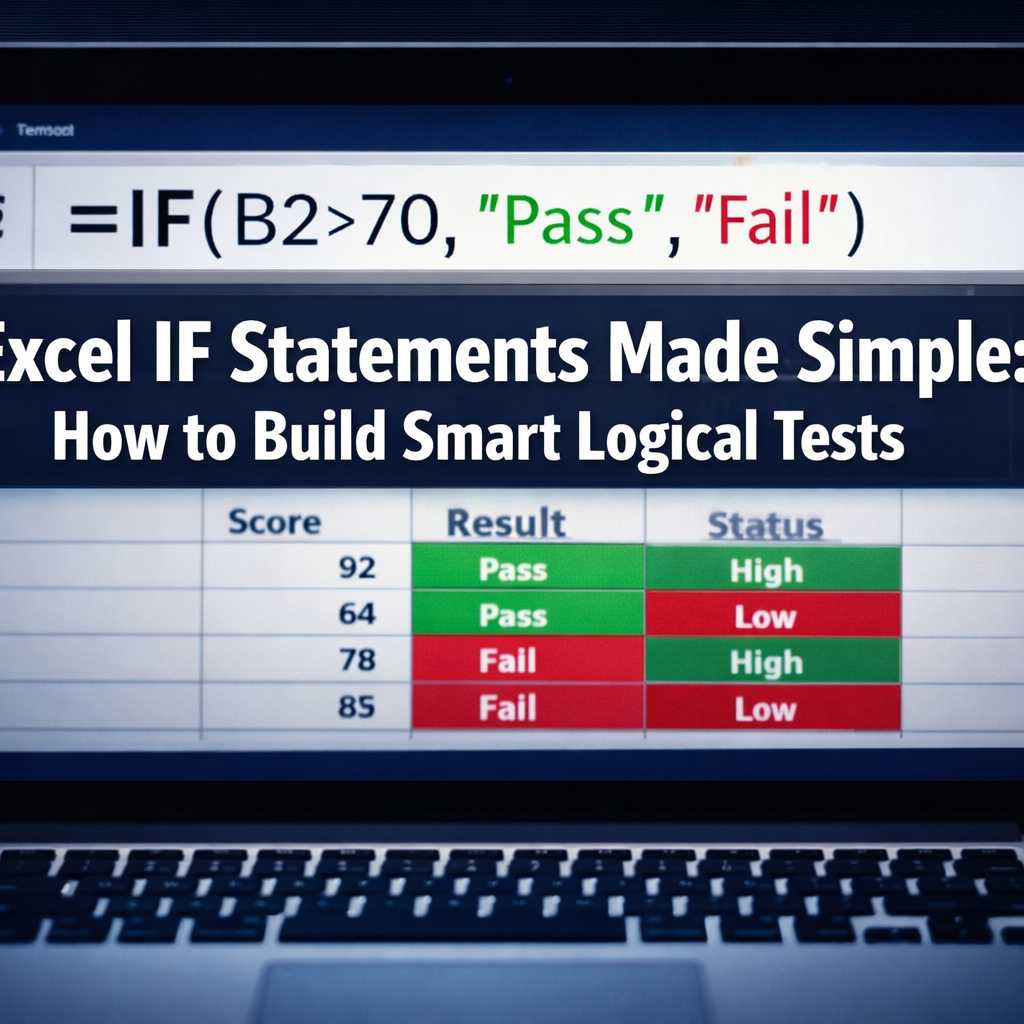
Last updated: July 8, 2026
Quick Answer: The Excel IF statement checks whether a condition is true or false, then returns one of two results based on that answer. The syntax is
=IF(logical_test, value_if_true, value_if_false). It’s one of the most useful functions in Excel for beginners and experienced users alike, and it works across numbers, text, and dates. [9]
Key Takeaways
- The IF function has three parts: a logical test, a result if true, and a result if false.
- Text values inside IF formulas must be wrapped in double quotes, for example
"Pass". - AND and OR functions can be nested inside IF to test multiple conditions at once. [5]
- Nested IFs stack multiple decisions inside one formula but get complex fast, the IFS function is a cleaner alternative in Excel 365 and Excel 2019+.
- Excel 365 supports up to 64 levels of nested IF, but anything beyond 3-4 levels is hard to read and maintain.
- IF statements can power conditional formatting rules to change cell colors automatically.
- Common mistakes include mismatched parentheses, missing quotes around text, and forgetting a false result.
- Dates in Excel are stored as numbers, so standard comparison operators work fine in IF formulas.
What Is an IF Statement in Excel and How Does It Work?
An IF statement in Excel evaluates a condition and returns one value when that condition is true and a different value when it’s false. [9] Think of it as teaching Excel to make a decision: “If this is true, do that, otherwise, do something else.”
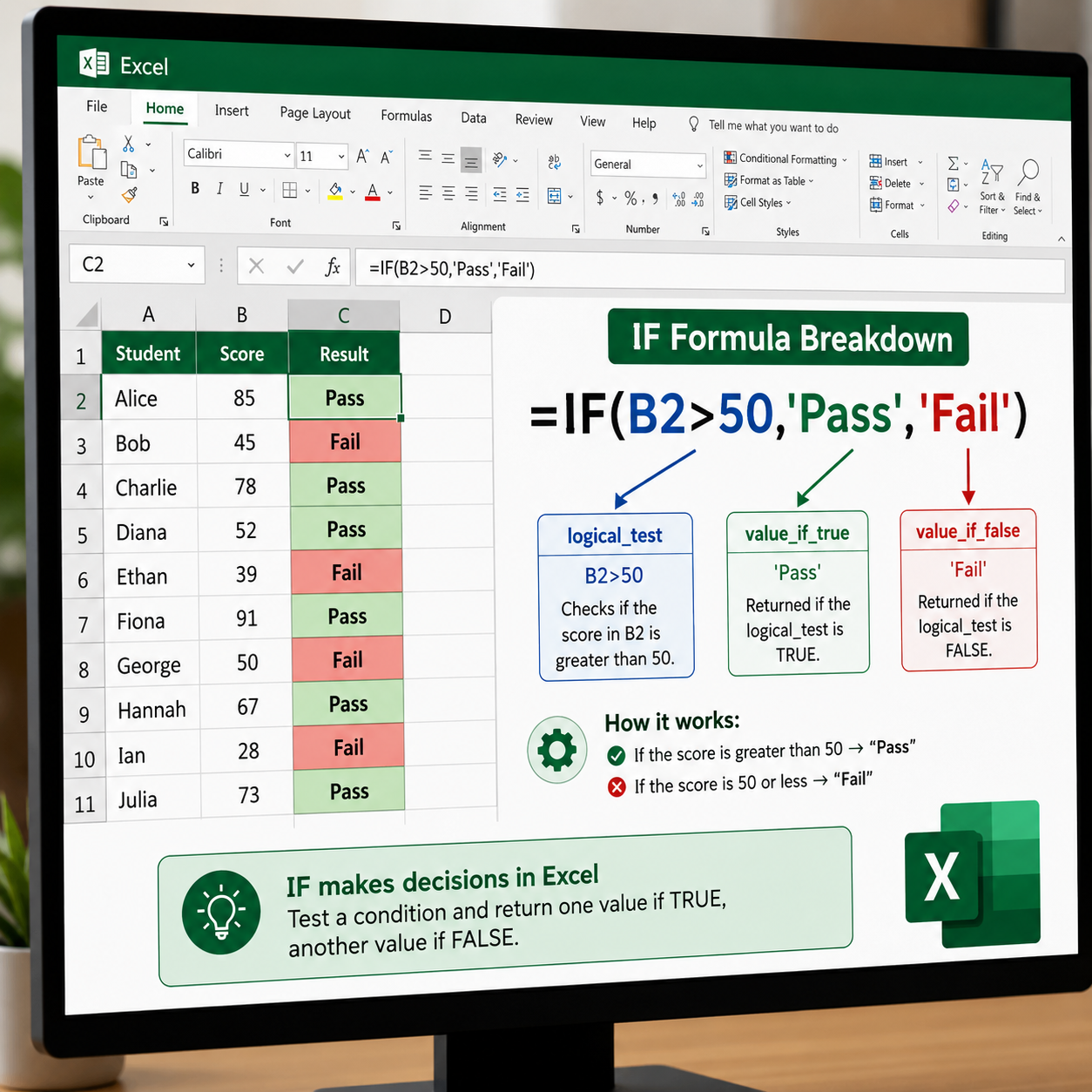
The syntax is straightforward:
<code>=IF(logical_test, value_if_true, value_if_false)
</code>
Each part explained:
- logical_test, the condition Excel checks (e.g.,
A2>100,B5="Yes") - value_if_true, what Excel returns when the condition is met
- value_if_false, what Excel returns when the condition is not met
Quick example: A teacher wants to mark students as “Pass” or “Fail” based on a score in column B.
<code>=IF(B2>=60, "Pass", "Fail")
</code>
If the score in B2 is 60 or higher, Excel shows “Pass.” If not, it shows “Fail.” That’s the core logic behind every IF formula. [10]
How Do I Write a Basic IF Statement in Excel?
Writing a basic IF statement takes about 30 seconds once the structure is clear. Start by identifying what you want to test, what should happen if it’s true, and what should happen if it’s false.
Step-by-step:
- Click the cell where you want the result to appear.
- Type
=IF(, Excel will prompt the three arguments. - Enter your logical test (e.g.,
A2>500). - Type a comma, then enter the true result (e.g.,
"Bonus"or100). - Type another comma, then enter the false result (e.g.,
"No Bonus"or0). - Close with
)and press Enter.
Example for a sales report:
<code>=IF(A2>500, "Bonus", "No Bonus")
</code>
💡 Tip: Numbers don’t need quotes. Text always does. Forgetting quotes around text is one of the top reasons IF formulas return errors.
For beginners just getting started with Excel, check out this free beginner’s guide to Excel for foundational skills before diving deeper into formulas.
Can I Use Multiple Conditions in an IF Statement?
Yes, by combining IF with the AND or OR functions, a single formula can test two or more conditions at the same time. [5] This is one of the most practical upgrades to a basic IF formula.
Using AND (all conditions must be true):
<code>=IF(AND(B2>=60, C2="Submitted"), "Pass", "Incomplete")
</code>
This returns “Pass” only when the score is 60 or above and the assignment was submitted.
Using OR (at least one condition must be true):
<code>=IF(OR(B2="Manager", B2="Director"), "Eligible", "Not Eligible")
</code>
This returns “Eligible” if the role is either Manager or Director. [3]
Decision rule:
- Use AND when every condition must be met.
- Use OR when meeting just one condition is enough.
What’s the Difference Between IF and Nested IF Statements?
A basic IF handles one decision. A nested IF places another IF inside the true or false result, allowing Excel to handle multiple outcomes, not just two. [9]
Basic IF: Two outcomes (true or false). Nested IF: Three or more outcomes by chaining IF functions together.
Example, grading scale:
<code>=IF(B2>=90, "A", IF(B2>=80, "B", IF(B2>=70, "C", "F")))
</code>
Excel reads left to right: if the score is 90+, return “A”; if not, check if it’s 80+, and so on.
What’s the maximum number of nested IFs? Excel 365 supports up to 64 nested IF levels, but readability drops sharply after 3-4 levels. [9] For anything more complex, the IFS function (covered below) is a better choice.
When Should I Use IF vs. IFS Statements in Excel?
The IFS function, available in Excel 2019 and Excel 365, replaces deeply nested IFs with a cleaner, easier-to-read format. Use IF for simple two-outcome decisions; use IFS when there are three or more possible results.
Nested IF version:
<code>=IF(B2>=90,"A",IF(B2>=80,"B",IF(B2>=70,"C","F")))
</code>
IFS version (same result, cleaner syntax):
<code>=IFS(B2>=90,"A", B2>=80,"B", B2>=70,"C", B2<70,"F")
</code>
IFS reads as a list of condition/result pairs, which makes auditing and editing much faster. The main limitation: IFS doesn’t have a built-in “else”, the last condition must cover all remaining cases (use TRUE as a catch-all).
<code>=IFS(B2>=90,"A", B2>=80,"B", B2>=70,"C", TRUE,"F")
</code>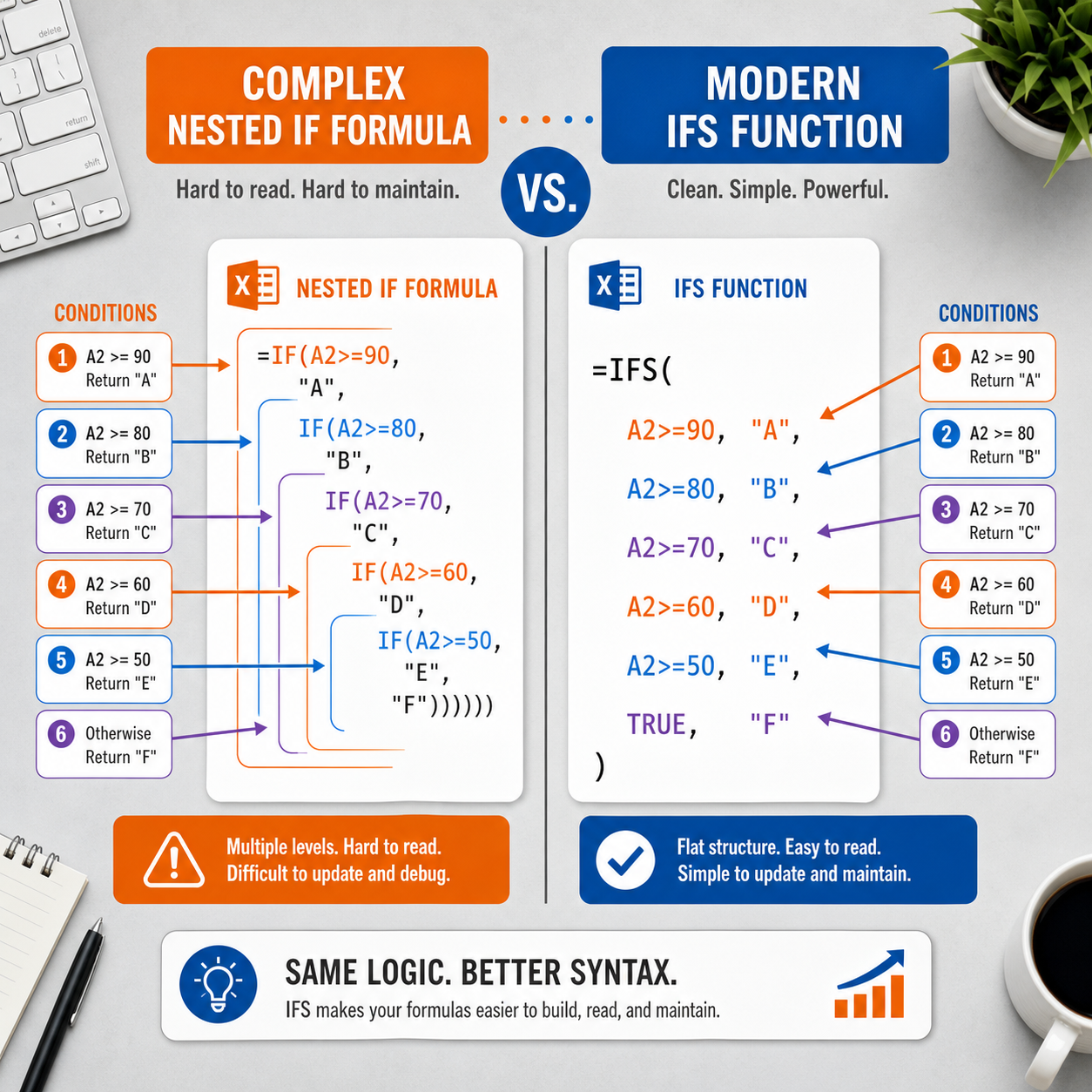
How Do I Use IF Statements with Text Values?
IF statements work perfectly with text, just wrap every text value in double quotes. [10] Excel treats text comparisons as case-insensitive by default, so “yes” and “YES” are treated the same.
Example:
<code>=IF(C2="Approved", "Process Payment", "Hold")
</code>
Common text-based use cases:
- Checking status fields (“Active”, “Inactive”, “Pending”)
- Flagging specific departments or categories
- Validating data entry (e.g., checking if a required field says “Complete”)
Edge case: If the cell contains a number stored as text, comparisons can behave unexpectedly. Always verify cell formatting when text-based IFs return surprising results.
How Do I Use IF Statements with Dates in Excel?
Dates in Excel are stored as serial numbers, so comparison operators like >, <, and = work directly in IF formulas. [3] Wrap date text in the DATEVALUE function or use cell references for the cleanest results.
Example, flag overdue items:
<code>=IF(B2<TODAY(), "Overdue", "On Track")
</code>
This compares the date in B2 to today’s date automatically. For more on working with dynamic dates in Excel, see this guide on adding date and time in Excel 365 with auto-updates.
Avoid hardcoding dates as text inside IF formulas (e.g., "12/31/2026"), use DATE(2026,12,31) instead to prevent format mismatch errors.
Can I Use IF Statements in Conditional Formatting?
Yes, conditional formatting in Excel accepts IF-style logical tests to automatically change cell colors, fonts, or borders based on values. [3] This is one of the most visual ways to apply logical testing without displaying formula results in a cell.
To apply it:
- Select the cells to format.
- Go to Home → Conditional Formatting → New Rule.
- Choose “Use a formula to determine which cells to format.”
- Enter a logical test, for example:
=B2<60 - Set the format (e.g., red fill) and click OK.
For a detailed walkthrough on color-based rules, see how to get a cell in Excel to change color based on its value. If you ever need to clean up formatting rules, this guide on removing conditional formatting in Excel is also worth bookmarking.
What Happens If My IF Statement Returns an Error?
An IF formula that returns an error usually has a syntax problem, a type mismatch, or a reference to an empty cell. The most common errors are #VALUE!, #NAME?, and #REF!.
How to troubleshoot an IF statement that’s not working:
- #NAME? error, check for missing quotes around text values or a typo in the function name.
- #VALUE! error, the formula is trying to compare incompatible data types (e.g., a number vs. text).
- #REF! error, a cell reference inside the formula has been deleted or moved.
- Formula shows as text, the cell is formatted as Text. Change it to General and re-enter the formula.
- Mismatched parentheses, count opening
(and closing), they must be equal.
Wrap with IFERROR for graceful handling:
<code>=IFERROR(IF(B2/C2>1, "Over Budget", "OK"), "Check Data")
</code>
This catches any error and shows a friendly message instead of a cryptic code.
What Are Common Mistakes People Make with Excel IF Statements?
Even experienced users run into the same handful of IF formula mistakes. Knowing them in advance saves a lot of troubleshooting time.
| Mistake | What Goes Wrong | Fix |
|---|---|---|
| Missing quotes around text | Returns #NAME? error | Wrap text in "double quotes" |
| Wrong comparison operator | Formula logic is reversed | Use >= not => |
| Omitting the false argument | Returns FALSE instead of blank | Add "" as the third argument |
| Hardcoded dates as text | Date comparison fails | Use DATE() or TODAY() |
| Too many nested IFs | Formula becomes unreadable | Switch to IFS function |
| Spaces inside text values | Comparison doesn’t match | Use TRIM() to clean data first |
Is There a Simpler Way to Do This Instead of IF Statements?
For certain tasks, yes, several Excel functions can replace IF statements with less complexity. The right alternative depends on what the formula needs to do.
- IFS, replaces nested IFs for multiple outcomes (Excel 2019+)
- SWITCH, matches a value against a list of options, great for category lookups
- CHOOSE, returns a value from a list based on an index number
- XLOOKUP / VLOOKUP, better for matching values across tables than a long nested IF
- SUMIF / COUNTIF / AVERAGEIF, handle conditional math without needing a helper IF column
Choose IF when: the decision is binary (two outcomes) or the logic is simple. Choose IFS or SWITCH when: there are three or more outcomes. Choose XLOOKUP when: the result comes from a reference table.
Conclusion
Making Excel IF statements work for everyday decisions doesn’t require advanced skills, it requires understanding the three-part structure and knowing when to add AND, OR, or IFS for more complex logic. Start with a simple Pass/Fail formula, then build up to combining conditions and handling dates or errors.
Actionable next steps:
- Open a real spreadsheet and write one basic
=IF()formula using data already there. - Add an AND or OR condition to make it test two things at once.
- Try replacing a nested IF with the IFS function and compare readability.
- Apply a conditional formatting rule using a logical test to highlight key rows visually.
- Bookmark the Mark’s Excel Tips formula tag for quick reference on related functions.
Excel IF statements made simple really does start with one formula. Once that clicks, the rest follows naturally.
FAQ
Q: Does the IF function work the same in Excel 365 and older versions?
The core =IF() syntax is identical across all modern Excel versions. IFS and SWITCH require Excel 2019 or Excel 365.
Q: Can I leave the false result blank?
Yes. Use "" (two double quotes with nothing between them) as the third argument to return an empty cell when the condition is false.
Q: Is the IF function case-sensitive?
No. =IF(A1="yes",...) will match “YES”, “Yes”, and “yes” equally. Use EXACT() inside the logical test if case sensitivity matters.
Q: Can I use IF with VLOOKUP?
Yes. For example: =IF(VLOOKUP(A2,Table,2,0)="Active","Process","Skip"), the VLOOKUP result becomes the logical test.
Q: How do I return a number instead of text from an IF formula?
Simply omit the quotes: =IF(B2>100, 500, 0) returns the number 500 or 0, not text.
Q: What’s the difference between IF and IFERROR? IF tests a logical condition you define. IFERROR specifically catches formula errors and returns a fallback value instead.
Q: Can IF formulas reference other sheets?
Yes. Use standard cross-sheet syntax: =IF(Sheet2!B2>0,"Yes","No").
Q: Why does my IF formula show TRUE or FALSE instead of my text?
The value_if_true or value_if_false argument is missing quotes. "Pass" works; Pass without quotes returns an error or unexpected result.
References
[3] Excel Functions Logical Testing – https://www.gleim.com/cpa-review/blog/excel-functions-logical-testing/ [5] Excel If Function And Multiple Conditions – https://www.excel-university.com/excel-if-function-and-multiple-conditions/ [9] If Function – https://support.microsoft.com/en-us/excel/functions/if-function [10] Excel If – https://www.w3schools.com/excel/excel_if.php