
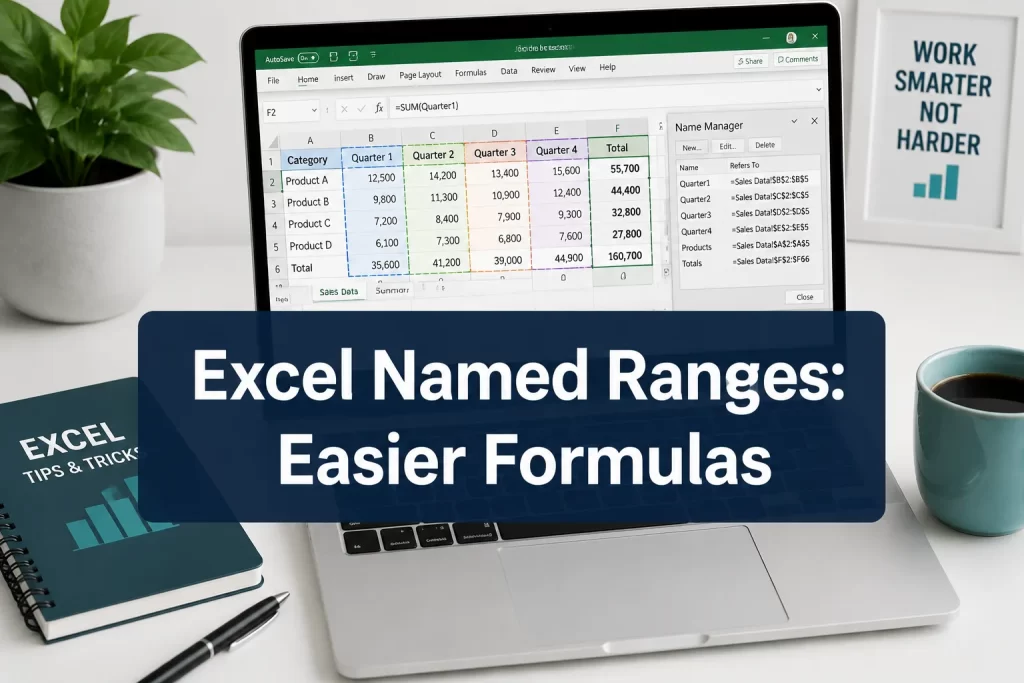
Last updated: July 22, 2026
Quick Answer: Excel named ranges let you assign a descriptive label (like
SalesDataorTaxRate) to a cell or group of cells. Instead of writing=SUM(B2:B100), you write=SUM(SalesData). The result is a formula that anyone can read at a glance, errors that are far easier to spot, and ranges you can reuse across sheets without retyping coordinates. Named ranges work in Excel 365, Excel 2019, and Excel 2021.
Key Takeaways
- Named ranges replace cryptic cell addresses (like
$B$2:$B$100) with plain-English labels anyone can understand. - You can create a named range in under 10 seconds using the Name Box in the top-left corner of Excel.
- Named ranges can be scoped to a single worksheet or to the entire workbook, which affects how they behave across sheets.
- Deleting a named range that’s still used in a formula causes a
#NAME?error, always check the Name Manager before deleting. - Dynamic named ranges (built with
OFFSETorINDEX) expand automatically as you add new data. - Named ranges work in Google Sheets too, though the interface differs slightly from Excel.
- Beginners should start simple: name a few key constants (like a tax rate or discount percentage) before naming large data ranges.
- The Name Manager (Ctrl + F3) is your central hub for viewing, editing, and deleting all named ranges in a workbook.
What Are Named Ranges in Excel and Why Should You Use Them?
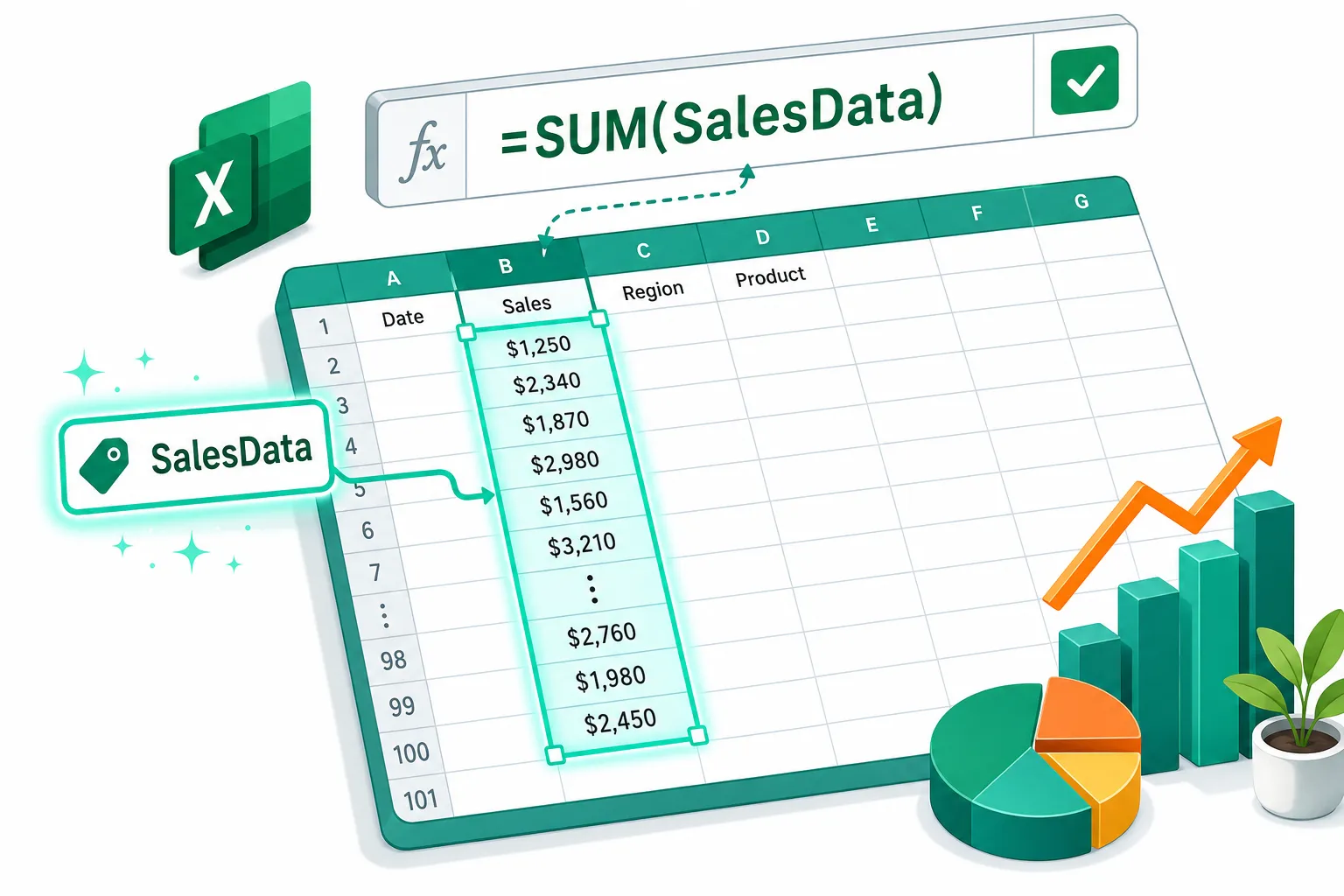
A named range is a cell or group of cells that has been given a custom label. Instead of referencing B2:B100 in every formula, you name that range SalesData once, and then use SalesData everywhere [1]. This is one of the most underused features in Excel, yet it directly solves three of the most common spreadsheet frustrations: unreadable formulas, hard-to-find errors, and formulas that break when data moves.
Why use named ranges?
- Readability:
=SUM(SalesData)tells you exactly what’s being summed.=SUM(B2:B100)tells you nothing without checking the sheet [1]. - Debugging: When a formula has a name like
TaxRateinstead of$D$4, you can immediately see what value it’s pulling [2]. - Reusability: Change the range once in the Name Manager, and every formula using that name updates automatically [2].
- Fewer typos: Typing
Revenueis less error-prone than typing'Sales Data'!$C$2:$C$500repeatedly.
💡 Best for: Anyone building shared workbooks, financial models, dashboards, or any spreadsheet that other people need to read or maintain.
If you’re newer to Excel, it’s worth reviewing the basics of how to use Excel for beginners before diving into named ranges.
How to Create a Named Range in Excel: Step by Step
Creating a named range takes less than 30 seconds. There are three methods, pick whichever fits your workflow.
Method 1: The Name Box (fastest)
- Select the cell or range you want to name (e.g.,
B2:B100). - Click the Name Box, the small field to the left of the formula bar that shows the current cell address.
- Type your desired name (e.g.,
SalesData) and press Enter.
Done. The range is now named.
Method 2: Define Name dialog
- Select your range.
- Go to Formulas tab → Define Name.
- Enter the name, choose the scope (Workbook or a specific sheet), add an optional comment, and click OK.
Method 3: Name Manager (Ctrl + F3)
- Press Ctrl + F3 to open the Name Manager.
- Click New, fill in the name and range, set the scope, and click OK.
Naming rules to follow:
- No spaces (use underscores:
Sales_DataorSalesData) - Cannot start with a number
- Cannot conflict with a cell address (e.g., don’t name a range
A1) - Keep names descriptive but concise [5]
Can You Use Named Ranges in Formulas Across Different Sheets?
Yes, named ranges with workbook scope are available on every sheet in the file. A range named TaxRate at the workbook level can be used in a formula on Sheet1, Sheet3, or any other sheet without any extra syntax [7].
Named ranges with worksheet scope are only recognized on the sheet where they were created. If you try to use a worksheet-scoped name on a different sheet, Excel will return a #NAME? error unless you prefix it with the sheet name (e.g., Sheet1!TaxRate).
Choose workbook scope when you need a range available everywhere. Choose worksheet scope when two sheets have ranges with the same name that refer to different data (for example, a Budget range on both a January sheet and a February sheet).
This is especially useful when building multi-sheet models. For example, if you’re calculating total cost across sheets, named ranges make the formulas much cleaner. See this guide on how to calculate total cost in Excel formulas for related context.
What’s the Difference Between Absolute and Relative Named Ranges?
Most named ranges are absolute by default, they always point to the exact same cells, no matter where the formula is placed. For example, SalesData always refers to $B$2:$B$100 [3].
Relative named ranges are less common but powerful. They adjust based on the position of the cell using the formula, similar to how a regular relative cell reference (like B2) shifts when copied. Relative names are mainly used in advanced scenarios like custom chart ranges or macro-driven formulas. They’re created by removing the $ signs from the range reference inside the Name Manager.
Quick rule: Unless you’re building something advanced, stick with absolute named ranges. They’re predictable and far less likely to cause confusion.

How Do Named Ranges Make Debugging Spreadsheets Easier?
Named ranges make debugging faster because the formula itself describes what it’s doing [2]. Compare these two formulas:
<code>=IF($D$4>$C$14, $B$2*$E$7, 0)
=IF(Revenue>Target, Bonus*Rate, 0)
</code>
The second version tells you immediately what condition is being tested and what each value represents. When something goes wrong, you can spot the logical error without cross-referencing every cell address.
Debugging advantages:
- Named ranges act as self-documenting labels, no need for a separate “key” tab explaining what each cell does.
- The Name Manager shows you every named range in the workbook, so you can verify that a name points to the right cells [6].
- When auditing formulas with Trace Precedents (Formulas tab → Trace Precedents), named ranges make the arrows easier to interpret.
⚠️ One caveat: Research published on arXiv noted that novice users can sometimes find named ranges harder to debug than direct cell references, particularly when they don’t know where a named range is defined [4]. The fix: always document your named ranges with comments in the Name Manager and keep a reference tab in shared workbooks.
This connects well with building logical tests in formulas, see Excel IF Statements Made Simple for how named ranges pair with IF logic.
Is It Better to Use Named Ranges or Cell References?
Named ranges are better for shared workbooks, financial models, and any formula that will be read or maintained by someone other than the original author. Direct cell references are fine for quick, personal, one-off calculations [2].
| Situation | Better Choice |
|---|---|
| Shared or team workbook | Named ranges |
| Formula references a constant (tax rate, discount) | Named range |
| Quick personal calculation | Cell reference |
| Multi-sheet model | Named range (workbook scope) |
| Beginner learning Excel basics | Cell reference first, then named ranges |
The honest answer: for anything beyond a simple personal spreadsheet, named ranges win on clarity and maintainability every time.
What Happens If You Delete a Named Range That’s Being Used in a Formula?
Excel immediately replaces the name in every formula that referenced it with #NAME?, a formula error that means Excel can’t recognize the name anymore [3]. The formula doesn’t revert to the original cell address; it simply breaks.
How to avoid this:
- Before deleting, press Ctrl + F3 to open the Name Manager.
- Select the name and check if any formulas reference it (use Ctrl+H to search the workbook for the name).
- Either update those formulas first or redirect the name to a new range rather than deleting it.
If you’ve already deleted a name and see #NAME? errors, use Ctrl + Z to undo immediately, or manually re-create the named range with the same name.
Can You Edit a Named Range After You’ve Already Created It?
Yes, and it’s straightforward. Open the Name Manager (Ctrl + F3), select the named range you want to change, and click Edit. You can update the name itself, the cell reference it points to, the scope, or the comment [6].
Every formula using that name will automatically reflect the updated range, you don’t need to touch the formulas at all. This is one of the biggest practical advantages of named ranges over hardcoded cell references.
How to See All the Named Ranges in Your Workbook
The Name Manager (Ctrl + F3) lists every named range in the workbook, including its current reference, scope, and any comments [6]. You can filter by scope (workbook vs. sheet) and sort by name or reference.
Two other ways to view named ranges:
- Name Box dropdown: Click the small arrow next to the Name Box (top-left of the formula bar) to see a list of all workbook-scoped named ranges. Clicking one jumps directly to that range.
- Paste Name dialog: Press F3 while inside a formula to insert a named range directly and see all available names.
For large workbooks with many named ranges, it’s good practice to add descriptive comments when creating each name, the Name Manager displays those comments as a quick reference.
What Are Common Mistakes People Make With Named Ranges?
Even experienced Excel users run into these issues [3][5]:
- Naming ranges with spaces:
Sales Datais invalid. UseSales_DataorSalesData. - Using a name that matches a cell address: Naming a range
C1confuses Excel. Always use descriptive, non-address names. - Ignoring scope: Creating two ranges with the same name at different scopes (workbook and worksheet) causes unexpected behavior. Be deliberate about scope from the start.
- Leaving orphaned names: Deleting rows or sheets can leave named ranges pointing to
#REF!. Clean these up regularly in the Name Manager. - Over-naming: Naming every single cell creates clutter. Focus on ranges that appear in multiple formulas or that represent key inputs.
Can Named Ranges Include Formulas, Not Just Cell References?
Yes. Excel allows you to define a named range that contains a formula rather than a fixed cell address [6]. This is how dynamic named ranges work. For example, a named range called DynamicSales might use:
<code>=OFFSET(Sheet1!$B$2, 0, 0, COUNTA(Sheet1!$B:$B)-1, 1)
</code>
This formula automatically expands the range as new rows are added to column B. Dynamic named ranges are especially useful for charts and VLOOKUP tables where the data size changes over time [3].
Named ranges can also be combined with Excel’s newer LET and LAMBDA functions to create reusable, named calculation logic, not just data ranges [6].
How to Share Named Ranges Between Different Excel Files
Named ranges don’t transfer automatically between workbooks. To reuse them, you have two main options:
- Copy the sheet: Copy a worksheet from one workbook to another (right-click the sheet tab → Move or Copy). Workbook-scoped names associated with that sheet’s data often carry over.
- Manual re-creation: Open the Name Manager in the destination workbook and recreate the named ranges. This takes a few minutes but gives you full control.
A formula can reference a named range in a different open workbook using the syntax =[WorkbookName.xlsx]RangeName, but this creates an external link dependency, if the source file moves or closes, the formula breaks. For shared workbooks in a team setting, it’s generally cleaner to keep named ranges self-contained within each file.
Are Named Ranges Supported in Google Sheets or Only Excel?
Google Sheets supports named ranges too, though the interface is slightly different. In Google Sheets, go to Data → Named ranges to create and manage them. The core behavior, replacing cell addresses with descriptive names in formulas, works the same way.
The main differences: Google Sheets doesn’t have a concept of worksheet-scoped vs. workbook-scoped names (all named ranges are workbook-level), and it doesn’t support dynamic named ranges using OFFSET in the same way Excel does. For teams that use both platforms, see this comparison of Google Apps Script vs Excel Macros for a broader look at cross-platform differences.
Conclusion: Start Using Named Ranges Today
Excel named ranges are one of the simplest changes you can make to dramatically improve how complex spreadsheet equations look, behave, and hold up over time. A formula like =IF(Revenue>Target, Bonus*Rate, 0) is faster to write, easier to check, and far less likely to confuse a colleague than its cell-reference equivalent.
Actionable next steps:
- Open a workbook you use regularly and identify 3-5 key constants or data ranges (tax rate, price list, date range).
- Name each one using the Name Box or Name Manager.
- Update the formulas that reference those cells to use the new names.
- Press Ctrl + F3 to review all names and add a short comment to each for documentation.
- Share the workbook with a colleague and ask if the formulas make more sense now.
For more ways to build cleaner, smarter spreadsheets, explore how Excel IF statements work with logical tests and how to calculate quantities and prices in Excel using structured formulas.
FAQ
Q: Can a named range span multiple non-contiguous cells? Yes. Hold Ctrl while selecting cells, then name the selection. Non-contiguous named ranges work in formulas like SUM but can’t be used as a data validation source.
Q: Do named ranges slow down Excel? Not meaningfully for most workbooks. Very large workbooks with hundreds of named ranges (especially dynamic ones using OFFSET) can see minor recalculation delays, but this is rarely a practical issue.
Q: Can I use spaces in a named range?
No. Excel does not allow spaces in named range names. Use underscores (Monthly_Sales) or camelCase (MonthlySales) instead.
Q: What’s the maximum length for a named range name? Excel allows up to 255 characters, but shorter, descriptive names (under 20 characters) are far more practical.
Q: Can named ranges be used in data validation drop-down lists?
Yes. When setting up a data validation list, type =YourRangeName in the Source field. This is a great way to keep drop-down lists dynamic. See how to add a drop-down list in Excel for a full walkthrough.
Q: Will named ranges survive if I sort or filter data? Absolute named ranges point to fixed cell addresses, so sorting data within a named range is fine, the name still covers the same cells. Inserting or deleting rows within the range will cause Excel to adjust the reference automatically.
Q: Can I protect a named range so others can’t edit it? You can protect the cells the named range points to using Excel’s cell locking feature. See how to lock cells in Excel for step-by-step instructions.
Q: What does #NAME? mean in a formula? It means Excel can’t find a named range (or function) with that label. The most common cause is a deleted or misspelled named range. Open the Name Manager (Ctrl + F3) to check.
References
[1] Excel Named Ranges – https://usefuldatatips.com/tips/excel/excel-named-ranges?utm_source=openai
[2] Named Ranges – https://exceljet.net/articles/named-ranges?utm_source=openai
[3] Excel Named Ranges Guide – https://www.xlnavigator.com/excel/tutorials/formulas/excel-named-ranges-guide?utm_source=openai
[4] arxiv – https://arxiv.org/abs/1111.6872?utm_source=openai
[5] Use Names In Formulas – https://support.microsoft.com/en-us/excel/use-names-in-formulas?utm_source=openai
[6] Define And Use Names In Formulas – https://support.microsoft.com/en-us/excel/get-started/define-and-use-names-in-formulas?utm_source=openai
[7] Names In Formulas – https://support.microsoft.com/en-us/excel/names-in-formulas?utm_source=openai