
Click here to view our video tutorial
Click here to download our PDF tutorial
Summer schedules have a way of filling up fast. Between camps, vacations, birthday parties, pool days, and family visits, it’s easy to lose track of who’s doing what and when, especially when the details are scattered across text messages, sticky notes, and half-remembered conversations. Excel 365 offers a simple way to bring all of that into one place, without having to design a calendar from scratch.
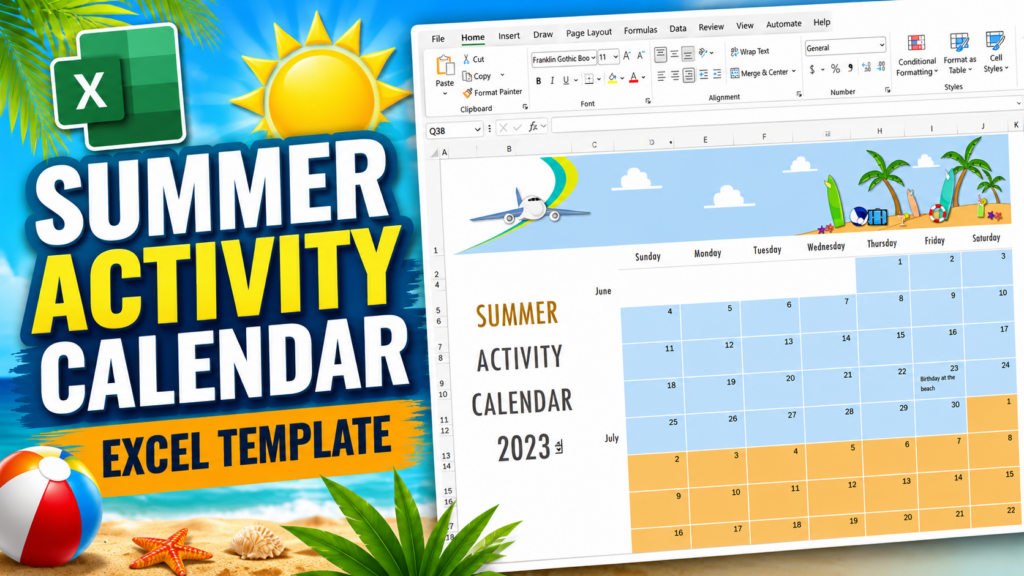
The Summer Activity Calendar is a ready-made template built right into Excel that gives you a clean, three-month calendar spanning June, July, and August. It’s designed to be a single, at-a-glance home base for your summer plans, complete with a year selector so the same template can be reused summer after summer, and open cells on every date where you can jot down notes and activities.
In this guide, we’ll walk through exactly how to find the Summer Activity Calendar template inside Excel, create your own copy, and then take a quick tour of the features that make it easy to use, including how to change the year and how to add your own notes to the calendar.
Step 1: Open the File Menu
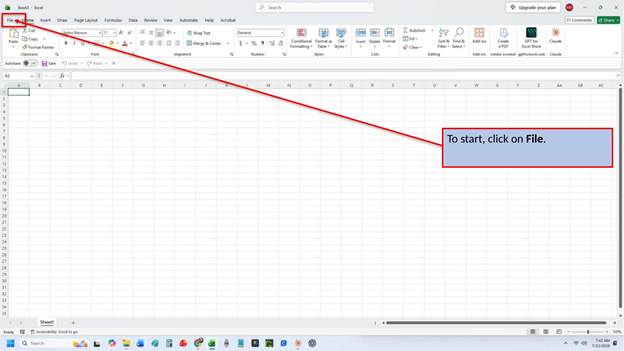
Like any new document in Excel, templates are accessed through the File menu. With Excel open, look to the top left corner of the ribbon and click on File to open Backstage view.
Step 2: Click New
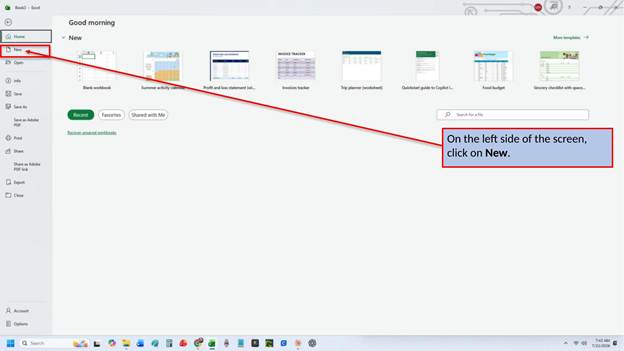
Once you’re in Backstage view, look to the left-hand side of the screen and click on New. This brings up Excel’s template gallery, a large collection of professionally designed workbooks you can use as a starting point instead of building a spreadsheet from a blank page.
Step 3: Search for a Summer Activity Calendar Template
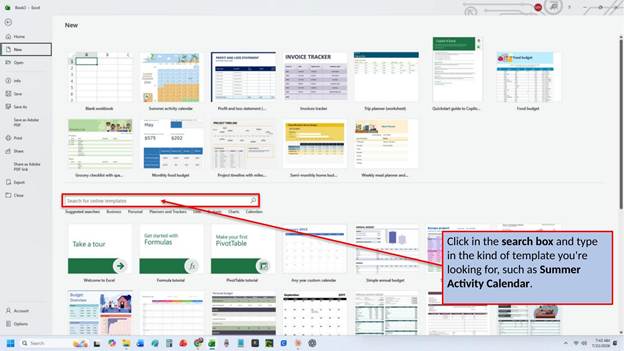
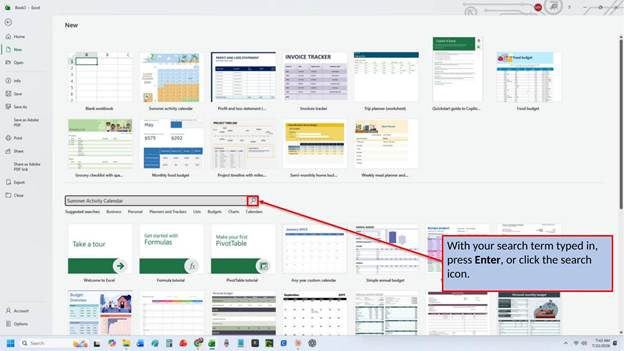
At the top of the template gallery, you’ll find a search box. Click inside it and type in the kind of template you’re looking for, in this case, Summer Activity Calendar. This same search box works for all kinds of templates, so it’s worth remembering the next time you need a budget, an invoice, or a planner for something else entirely.
Step 4: Run Your Search
With your search term typed in, press Enter on your keyboard, or click the magnifying glass icon next to the search box, to pull up the matching results.
Step 5: Select the Template
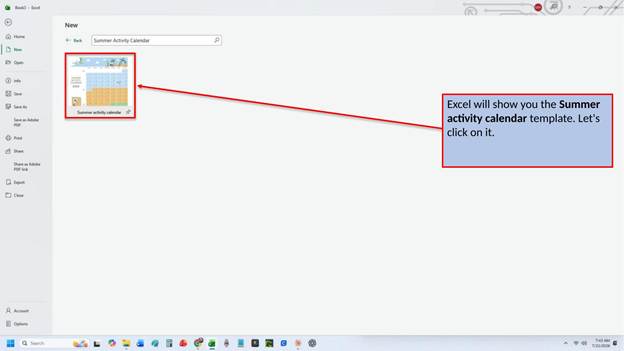
Excel will show you the Summer Activity Calendar template as a thumbnail preview. Click on it to open a closer look before creating your copy.
Step 6: Review and Create
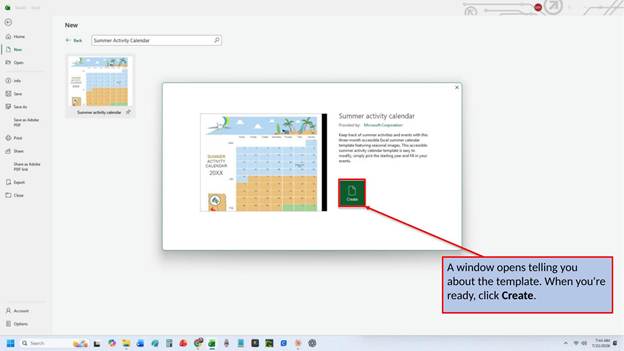
Selecting the thumbnail opens a preview window with a short description of what the template includes. Take a moment to read through it, and when you’re ready to get started, click Create.
Step 7: Your New Calendar Opens
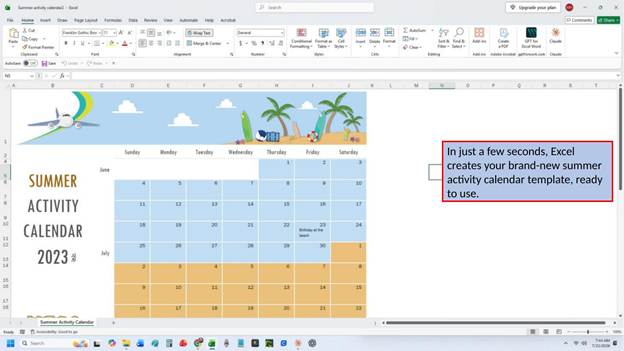
In just a few seconds, Excel builds a brand-new copy of the Summer Activity Calendar template, fully formatted and ready to use. There’s no setup required. You can start adding your plans right away.
Getting to Know Your Summer Activity Calendar
Once your calendar is open, you’ll notice it’s built around a few simple, easy-to-use features: a year selector at the top of the calendar, open cells for jotting down notes on any date, and a layout that scrolls through all three summer months in one continuous view. Let’s take a closer look at each of these.
Changing the Calendar Year
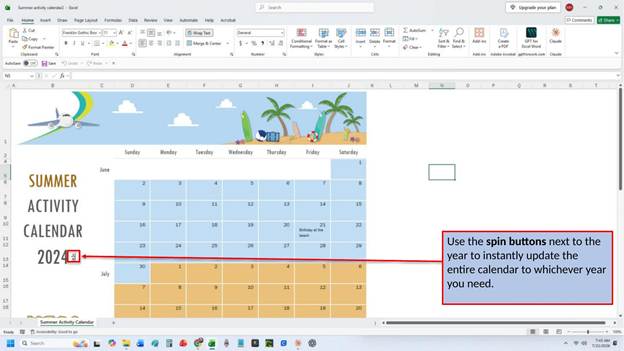
Next to the year displayed at the top of the calendar, you’ll find a small set of spin buttons. Clicking the up or down arrow instantly updates the entire calendar, including the day-of-week layout for June, July, and August, to match whichever year you choose. This means you don’t have to search for a new template every summer; the same workbook can be reused year after year just by adjusting this one control.
Adding Notes and Activities
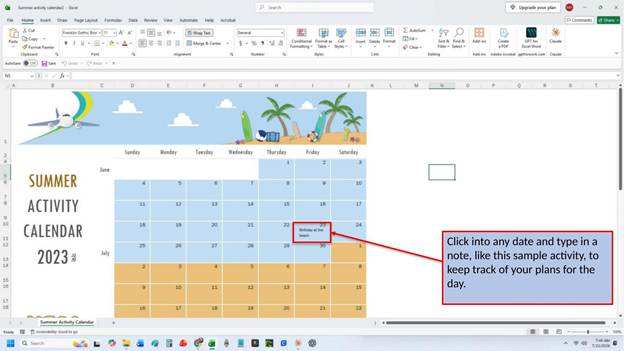
Every date on the calendar has an open cell beneath it, ready for you to type in a note. Whether it’s a camp drop-off time, a family trip, or a friend’s birthday party, simply click into the date you want and type in your plans. Because it’s a normal Excel cell, you can fit in as much detail as you need, and go back and edit or clear it at any time.
Scrolling Through the Full Summer
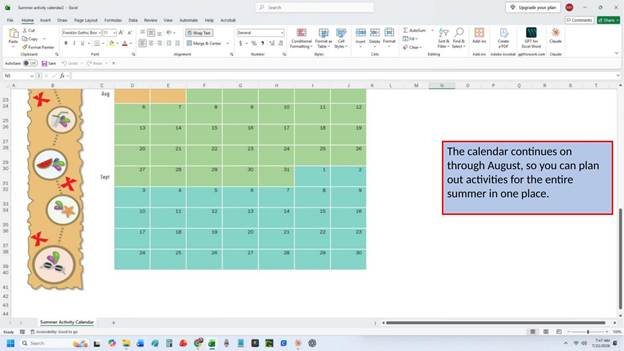
The calendar doesn’t stop at June. Scrolling down continues the layout through July and August, so all three months of summer live in one continuous workbook rather than three separate files. That makes it easy to plan ahead, since you can see an activity you scheduled in June alongside one you’re considering for August without switching between tabs or documents.
With just a few clicks, you now have a ready-to-use Summer Activity Calendar covering all of June, July, and August. Fill in your own dates, update the year whenever you need to reuse it, and you’ll have one clear place to keep track of everything your summer has planned. The next time you’re juggling camps, trips, and pool days, give Excel’s built-in Summer Activity Calendar template a try and see how much easier it makes keeping everyone on the same schedule.
Video Tutorial
Download PDF Below