Last updated: July 13, 2026
Quick Answer: Google Apps Script and Excel Macros are both powerful automation tools, but they serve different ecosystems. Google Apps Script runs in the cloud and connects natively with Gmail, Drive, and Google Sheets, while Excel Macros (VBA) run locally and integrate tightly with the Microsoft 365 suite. The right choice depends on where your team already works, not which tool is technically superior.
Key Takeaways
- Google Apps Script uses JavaScript-based code and runs entirely in the browser, no installation needed.
- Excel Macros use VBA (Visual Basic for Applications) and run inside the Excel desktop or web app.
- Apps Script is generally better for cloud-based, cross-app workflows (Gmail + Sheets + Calendar).
- Excel Macros are stronger for complex data manipulation, legacy systems, and offline use.
- Both tools are free to use at a basic level; costs come from the platforms themselves (Google Workspace vs Microsoft 365).
- Apps Script has a steeper initial learning curve for non-coders, but beginners can start with the macro recorder in both tools.
- Security policies are a real concern for Excel Macros in corporate environments [2].
- Google expanded Apps Script’s Workspace Core Service integration in June 2026, adding more automation triggers [4].
- For teams already on Google Workspace, Apps Script is the clear automation-first choice.
- For teams deep in Microsoft 365 with complex spreadsheets, Excel Macros (and Power Automate) remain the stronger option.
What Is Google Apps Script and How Does It Work?
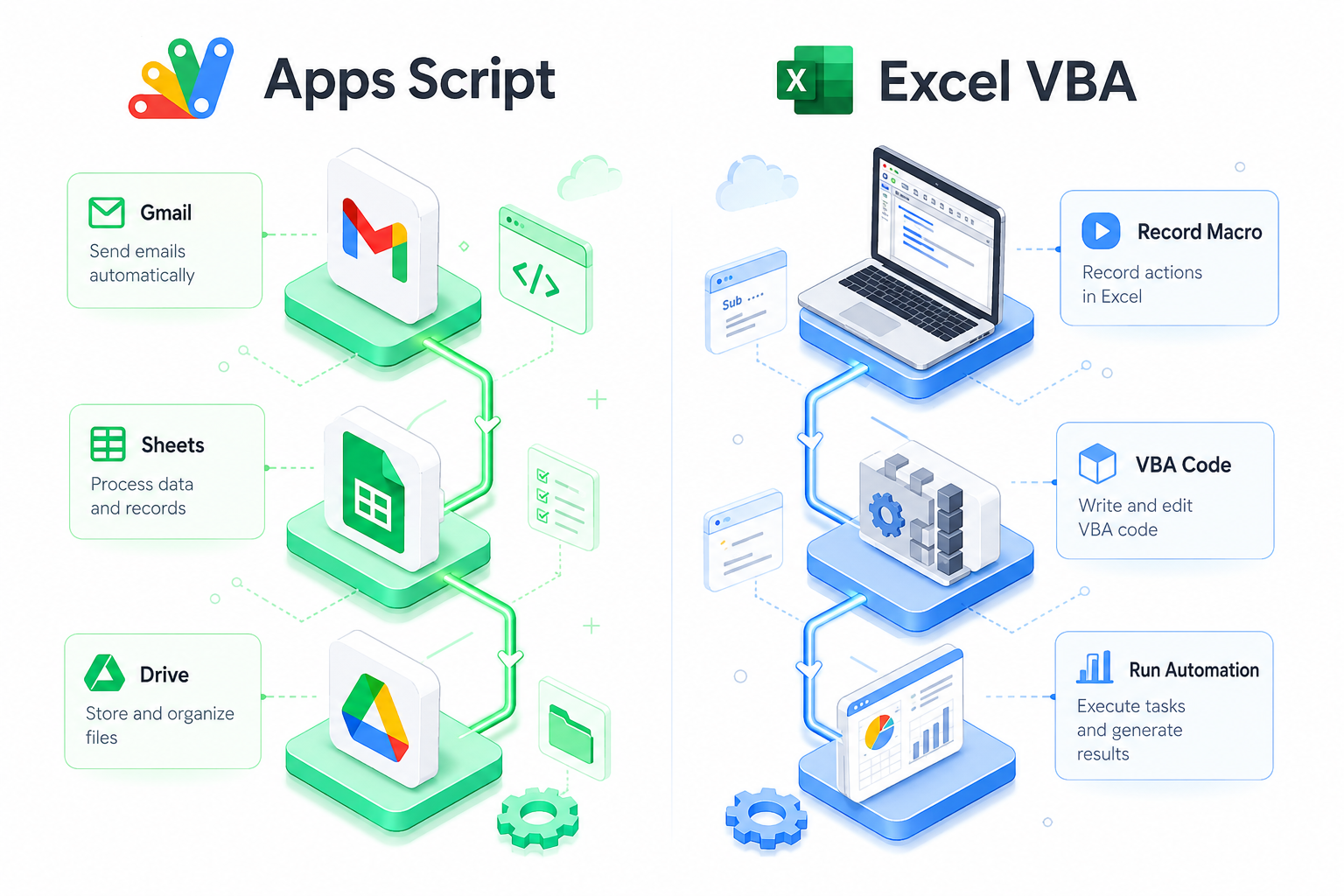
Google Apps Script is a cloud-based scripting platform built on JavaScript. It lets users automate tasks across Google Workspace apps, Sheets, Docs, Gmail, Calendar, Drive, and more, without installing any software.
Scripts run on Google’s servers, triggered by time intervals, form submissions, spreadsheet edits, or manual button clicks. You write code directly in the browser-based editor at script.google.com.
Key features:
- JavaScript syntax (familiar to web developers)
- Built-in services for Gmail, Sheets, Drive, Calendar, and Forms
- Time-based and event-based triggers
- Web app deployment (turn a script into a shareable URL)
- Free execution quota included with every Google account
In June 2026, Google expanded Apps Script’s Workspace Core Service, adding deeper integration with admin-level Workspace features and new trigger types [4]. This makes it an even stronger choice for teams managing shared Google Workspace environments.
Common real-world uses:
- Auto-sending email reports from Google Sheets data
- Cleaning and formatting imported data in Sheets
- Creating calendar events from form responses
- Generating PDF reports and saving them to Drive
What Are Excel Macros and When Should You Use Them?
Excel Macros are automated sequences of actions recorded or written in VBA (Visual Basic for Applications). They run inside Microsoft Excel, desktop or web, and can automate almost any action a user performs manually.
Use Excel Macros when your work lives in Microsoft 365, you need offline capability, or you’re working with complex data models that Excel handles better than Sheets.
Two ways to create them:
- Macro Recorder, record your clicks and keystrokes; Excel writes the VBA for you. Great for beginners.
- VBA Editor, write custom code for more complex logic, loops, and conditions.
Before you can run macros, you’ll need to enable them in your security settings. See this guide on how to enable macros in Excel for step-by-step instructions.
Best use cases:
- Automating repetitive formatting tasks (color-coding rows, merging cells)
- Batch-processing large datasets
- Generating structured reports from raw data
- Integrating with other Microsoft Office apps (Word, Outlook, Access)
Security is a growing concern. Corporate IT departments increasingly restrict macro execution by default, and unsigned macros from external sources are blocked in many enterprise environments [2].
Google Apps Script vs Excel Macros: Which Is Easier to Learn?
For most beginners, the Excel Macro Recorder has a lower entry barrier because you don’t need to write a single line of code to get started. Apps Script requires at least basic JavaScript knowledge from day one.
That said, JavaScript is far more widely taught and documented than VBA, so Apps Script learners often find more modern tutorials, Stack Overflow answers, and community support.
Learning curve comparison:
| Factor | Google Apps Script | Excel Macros (VBA) |
|---|---|---|
| Starting point | Basic JavaScript needed | Macro recorder (zero code) |
| Language popularity | JavaScript (very common) | VBA (niche, older) |
| Documentation quality | Excellent (Google Developers) | Good (Microsoft Learn) |
| Community size | Large, active | Large, but aging |
| Time to first automation | 30-60 minutes | 10-15 minutes (recorder) |
Most people can write their first useful Apps Script in under an hour if they know basic JavaScript. If you’re starting from zero on spreadsheets entirely, check out this beginner’s guide to Excel to build your foundation first.
For a structured learning path, this resource on how to learn MS Excel in 24 hours covers the core skills that make macro writing much easier.
Estimate: Most learners reach a productive level with either tool in 2-4 weeks of regular practice (roughly 1-2 hours per day). This is an estimate based on typical community-reported timelines, not a formal study.
Can Google Apps Script Do Everything Excel Macros Can Do?
No, and that’s not a flaw, it’s a design difference. Apps Script is built for Google Workspace workflows, while VBA is built for deep Excel manipulation.
What Apps Script does that VBA can’t:
- Send Gmail messages natively
- Create Google Calendar events from Sheets data
- Deploy scripts as web apps or APIs
- Trigger automations from Google Forms submissions
What VBA does that Apps Script can’t (or does less well):
- Manipulate complex Excel-specific features (pivot tables, named ranges, advanced charting)
- Run without an internet connection
- Interact with Windows system files and other desktop applications
- Handle very large datasets faster (Excel’s calculation engine is more powerful for heavy data)
Can you use Google Apps Script with Microsoft Excel files? Yes, partially. Apps Script can read and write .xlsx files stored in Google Drive by converting them to Google Sheets format first. However, Excel-specific features (like complex VBA macros embedded in the file) won’t carry over. It’s a workaround, not a native integration.
Google Apps Script Pricing Compared to Excel Macros Cost
Both tools are free to use at the scripting level. The real cost is the platform subscription.
- Google Apps Script is included with every Google account (free) and Google Workspace (from approximately $6/user/month as of 2026, per Google’s published pricing).
- Excel Macros are included with Microsoft 365 subscriptions (from approximately $6/user/month for business plans, per Microsoft’s published pricing).
Neither tool charges extra for automation features. The difference is in execution quotas:
- Apps Script has daily quotas (e.g., email sends, script runtime) that are higher for paid Workspace accounts than free accounts. Google publishes these limits in their developer documentation [1].
- Excel Macros have no execution quotas, they run as long as your machine allows.
Bottom line: If your team already pays for one platform, switching purely for automation cost savings doesn’t make sense. Standardize on the platform you already use.
How to Automate Google Sheets With Apps Script
Automating Google Sheets with Apps Script takes three steps: open the script editor, write your function, and set a trigger.
Step-by-step:
- Open a Google Sheet, click Extensions → Apps Script
- Delete the default code and write your function (example below)
- Click Save, then Run to test
- Go to Triggers (clock icon) to schedule it automatically
Simple example, auto-email a summary:
<code class="language-javascript">function sendWeeklySummary() {
  var sheet = SpreadsheetApp.getActiveSpreadsheet().getActiveSheet();
  var data = sheet.getRange("A1:B10").getValues();
  var body = data.map(row => row.join(": ")).join("n");
  MailApp.sendEmail("yourteam@example.com", "Weekly Summary", body);
}
</code>
Set this on a weekly time trigger and your team gets an automated email every Monday, no manual work required.
For more on writing formulas that work alongside your scripts, this beginner-to-advanced spreadsheet formulas guide is a solid companion resource.
Best Practices for Writing Excel Macros for Beginners
Start with the Macro Recorder to understand VBA syntax, then edit the recorded code to make it flexible and reusable.
Top beginner practices:
- Always save as
.xlsm, the macro-enabled format. Regular.xlsxfiles strip out your macros. - Use
Option Explicitat the top of every module to catch variable typos early. - Avoid selecting cells unnecessarily, recorded macros use
.Selecteverywhere; replace with direct references likeRange("A1").Value = "Done". - Add comments to explain what each section does, future you will thank present you.
- Test on a copy of your data before running on live files.
- Keep macros short and single-purpose, one macro, one job.
A common beginner mistake is writing one giant macro that does everything. When it breaks (and it will), you won’t know where to look. Small, focused macros are easier to debug and reuse.
If your macro manipulates data columns, you’ll find these guides useful: how to move columns in Excel and how to find duplicates in Excel.

Google Apps Script Limitations and What It Can’t Do
Apps Script is powerful, but it has real limits that matter for production use.
Hard limits (as documented by Google [1]):
- Script execution timeout: 6 minutes per run (30 minutes for Workspace Business/Enterprise)
- Daily email quota: 100 emails/day (free), 1,500/day (Workspace)
- No multi-threading, scripts run sequentially
- No access to the local file system
- Limited support for Excel-specific file features
Functional gaps:
- Can’t run offline
- Can’t interact with non-Google APIs without OAuth setup
- Complex UI automation (like controlling a browser) isn’t natively supported
- Debugging tools are more limited than a full IDE
Common mistakes people make with Google Apps Script:
- Forgetting to handle authorization scopes (your script silently fails if it lacks permission)
- Using
SpreadsheetApp.flush()too rarely in loops, causing data not to save - Not checking execution quotas before deploying to a large team
- Hardcoding email addresses or file IDs instead of using variables
A Reddit thread from early 2026 highlighted confusion around a recent Apps Script update that changed how certain triggers behave, worth checking the official release notes if your existing scripts suddenly stop working [3].
Is Google Apps Script Better for Cloud-Based Workflows?
Yes, clearly. Apps Script was designed from the ground up for cloud-based, multi-app workflows across Google Workspace.
If your team shares files in Drive, communicates via Gmail, and tracks work in Sheets, Apps Script connects all of those natively. A single script can read a Sheet, send a Gmail, create a Calendar event, and log results to Drive, all in one run.
Excel Macros, by contrast, are desktop-first. Microsoft Power Automate fills the cloud workflow gap for Microsoft 365 teams, but it’s a separate tool with its own learning curve.
Choose Apps Script if your team:
- Works primarily in Google Workspace
- Needs automations that span multiple Google apps
- Wants to share automations via a web app URL
- Has developers already familiar with JavaScript
Stick with Excel Macros if your team:
- Uses Microsoft 365 as its primary platform
- Needs offline automation capability
- Works with complex Excel models (financial models, pivot-heavy reports)
- Has existing VBA code that would be expensive to rewrite
Also see: Excel vs Google Sheets: Which Spreadsheet Tool Is Better for Your Workflow? for a deeper platform-level comparison.
Google Apps Script Alternatives for Automation
Apps Script isn’t the only option for Google Workspace automation or general no-code/low-code workflows.
Top alternatives:
- Zapier, connects 6,000+ apps with a no-code interface; no coding required but costs more at scale
- Make (formerly Integromat), visual workflow builder, more powerful than Zapier for complex logic
- Microsoft Power Automate, the Excel/Microsoft 365 equivalent of Apps Script for cloud workflows
- Python with gspread library, more powerful than Apps Script for data-heavy tasks, but requires a development environment
- Notion Automations / Airtable Automations, good for teams using those platforms as their data hub
When to pick an alternative over Apps Script:
- Your workflow spans both Google and non-Google apps (Zapier or Make)
- You need enterprise-grade error handling and logging (Python or Power Automate)
- Your team has no coding experience at all (Zapier’s no-code interface wins here)
Excel Macros Not Working: Troubleshooting Common Issues
The most common reason Excel Macros stop working is a security setting that blocks macro execution. Check this first before debugging your code.
Quick troubleshooting checklist:
- Macros disabled by policy, check Trust Center settings (File → Options → Trust Center → Macro Settings). In corporate environments, this may be locked by IT [2].
- File saved as
.xlsx, macros are stripped from non-macro-enabled formats. Re-save as.xlsm. - Wrong workbook active, if your macro references a specific sheet name that changed, it will fail silently.
- Missing references, VBA projects that reference external libraries (like Microsoft Scripting Runtime) break if those libraries aren’t installed.
- Protected sheet, macros can’t edit cells on a protected sheet without first unprotecting it in code.
- 64-bit vs 32-bit Excel, some older VBA code written for 32-bit Excel needs
PtrSafedeclarations to run on 64-bit.
FAQ
Q: Do I need to know JavaScript to use Google Apps Script? Yes, basic JavaScript knowledge is required. You don’t need to be an expert, but you’ll need to understand variables, functions, and loops to write anything beyond simple one-liners.
Q: Can Excel Macros run automatically without user input? Yes. Macros can be triggered by workbook open/close events, worksheet changes, or time-based triggers using the Windows Task Scheduler combined with Excel’s auto-open feature.
Q: Is Google Apps Script safe to use for sensitive business data? Apps Script runs on Google’s servers and is subject to Google Workspace’s security and compliance policies. For most businesses, this is acceptable. Check your organization’s data governance policy before automating workflows that handle personally identifiable information.
Q: How long does it take to learn Google Apps Script? Most learners with basic JavaScript knowledge can write useful automations within a few days. Starting from zero coding experience, expect 2-4 weeks of regular practice to reach a productive level.
Q: Can I share an Excel Macro with my team?
Yes, by sharing the .xlsm file or storing macros in a shared Personal Macro Workbook. Each team member will need macros enabled on their machine.
Q: What happened to Google Apps Script in 2026? Google announced expanded Workspace Core Service integration for Apps Script in June 2026, adding new triggers and deeper admin-level automation capabilities [4]. An April 2026 update also improved the script editor’s performance and debugging tools [7].
Q: Can Apps Script replace Power Automate for Microsoft 365 users? No. Apps Script only works within Google Workspace. Microsoft 365 users should use Power Automate for cloud-based workflow automation.
Q: Are Excel Macros being phased out? No. Microsoft continues to support VBA in Excel as of 2026. However, Microsoft actively promotes Power Automate and Office Scripts as modern alternatives for new automation projects.
Q: What’s the difference between Office Scripts and Excel Macros? Office Scripts use TypeScript (similar to JavaScript) and run in Excel for the web. They’re designed for cloud-first workflows and can be triggered by Power Automate. VBA Macros are older, desktop-first, and more feature-complete for complex tasks.
Q: Can Google Apps Script send automated emails?
Yes. Apps Script’s MailApp and GmailApp services make email automation straightforward. You can send emails, reply to threads, add attachments, and filter your inbox programmatically.
Conclusion
The Google Apps Script vs Excel Macros comparison isn’t really about which tool is better, it’s about which platform your team already lives in.
Actionable next steps:
- Audit your current stack. If 80%+ of your team’s work happens in Google Workspace, invest in Apps Script. If it’s Microsoft 365, build your VBA or Power Automate skills.
- Start small. Pick one repetitive task, a weekly report, a data cleanup, an email alert, and automate just that. Don’t try to automate everything at once.
- Use the recorder first. Both Excel and Apps Script have macro-recording equivalents. Record your actions, study the generated code, then modify it.
- Check your security settings. Corporate environments often block macros by default. Get IT involved early if you’re deploying automations to a team [2].
- Plan for quotas. If you’re building Apps Script automations for a large team, review Google’s execution quotas [1] before going live.
Automation is one of the highest-ROI skills for any spreadsheet user. Whether you start with a simple Excel Macro or a Google Apps Script email trigger, the best time to begin is now.
References
[1] Release Notes – https://developers.google.com/apps-script/release-notes [2] Excel Macro Security 2026 – https://www.easasoftware.com/insights/excel-macro-security-2026/ [3] Help Needed With Appsscript Update Please – https://www.reddit.com/r/GoogleAppsScript/comments/1iu3bwy/help_needed_with_appsscript_update_please/ [4] Google Apps Script Workspace Core Service – https://workspaceupdates.googleblog.com/2026/06/google-apps-script-workspace-core-service.html [7] Google Apps Script Update April 2026 – https://modelmonkey.io/blog/google-apps-script-update-april-2026