
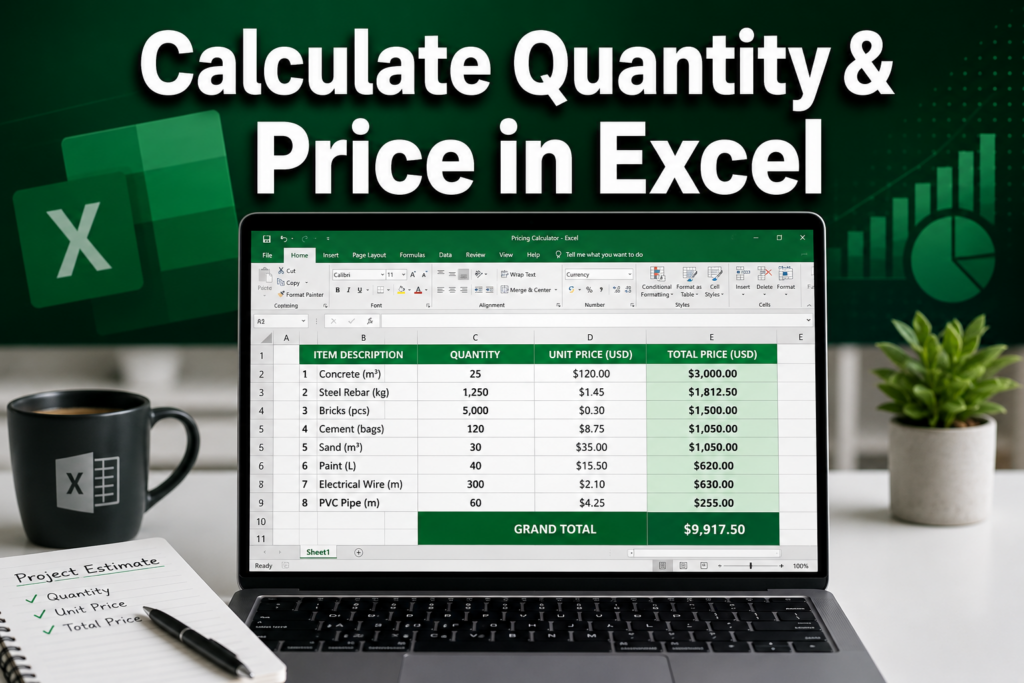
Last updated: June 16, 2026
Quick Answer: To calculate quantity and price in Excel, multiply the quantity cell by the unit price cell using a simple formula like
=B2*C2. For a full column of totals, copy that formula down the column or use=SUMPRODUCT(B2:B10,C2:C10)for a grand total. Excel handles everything from basic multiplication to bulk discounts, tax, and dynamic pricing with the right formulas.
Key Takeaways
- The core formula for total price is
=Quantity * Unit Price(e.g.,=B2*C2) - Use
SUMPRODUCTto get a grand total across all rows without a helper column - Absolute cell references (like
$D$1) keep tax rates and discount values locked when you copy formulas IFandIFSfunctions automate bulk discount tiers without manual overridesVLOOKUPorXLOOKUPcan pull unit prices automatically from a product list- Wrap division formulas in
IFERRORto prevent ugly #DIV/0! errors - Lock formula cells with sheet protection to prevent accidental edits
- Excel works well for small businesses — you don’t need enterprise software to build a solid pricing model
What’s the Basic Formula to Multiply Quantity and Price in Excel
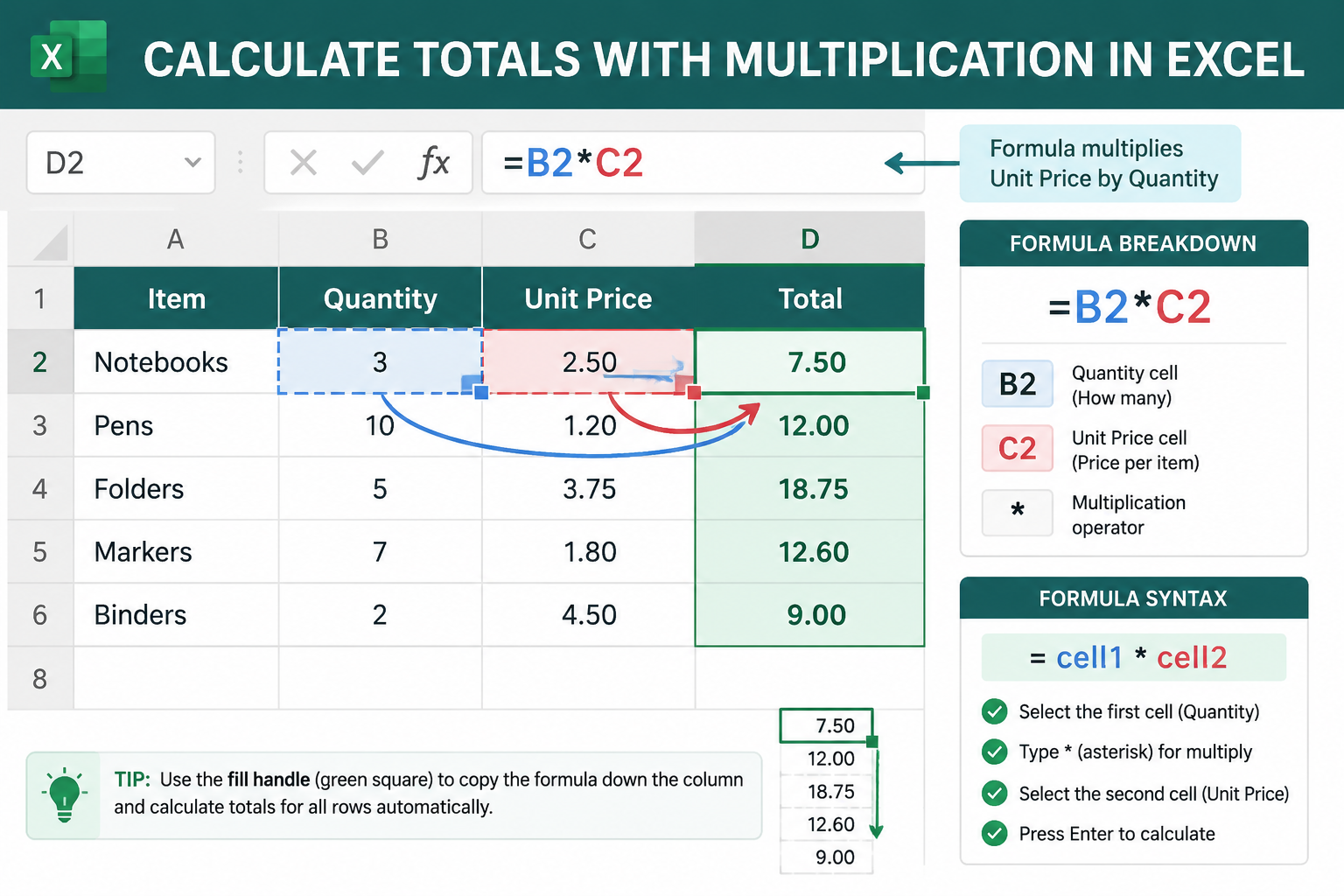
The simplest way to calculate a line total is =B2*C2, where B2 holds the quantity and C2 holds the unit price. This gives the total cost for that row instantly. [1]
Here’s a clean starting layout:
| Column A | Column B | Column C | Column D |
|---|---|---|---|
| Product | Quantity | Unit Price | Total |
| Widget A | 10 | $5.00 | =B2*C2 |
| Widget B | 25 | $3.50 | =B3*C3 |
Step-by-step setup:
- Label row 1: Product, Quantity, Unit Price, Total
- Enter your data in rows 2 onward
- In D2, type
=B2*C2and press Enter - Click D2, then drag the fill handle down to copy the formula to all rows
To find the price per unit when you only know the total, flip it: =D2/B2. Always wrap this in IFERROR to handle blank rows — =IFERROR(D2/B2,"") — so you don’t see error codes. [4]
For a broader foundation on Excel calculations, the guide on how to use Excel to calculate covers the essential building blocks.
How to Set Up an Automatic Total Column for Sales Calculations
Place your =B2*C2 formula in the Total column, then copy it down the entire column so every new row calculates automatically. For a running grand total at the bottom, use =SUM(D2:D100) or the faster Excel AutoSum shortcut (Alt + =).
Even faster: use SUMPRODUCT for the grand total directly.
<code>=SUMPRODUCT(B2:B10, C2:C10)
</code>
This multiplies each quantity by its matching price and sums everything in one step — no helper column needed. [7]
Pro tip: Format your Total column as Currency (Ctrl + 1, then Number > Currency) so values display cleanly. If you need to remove decimal places for whole-dollar displays, see this guide on removing numbers after the decimal in Excel.
To apply the formula to an entire column at once rather than dragging row by row, check out how to insert a formula in Excel for an entire column.
Difference Between Simple Multiplication and Advanced Pricing Formulas
Simple multiplication (=B2*C2) covers most everyday needs. Advanced pricing formulas add logic — markup percentages, margin targets, discount tiers, or dynamic lookups — and that’s where Excel really earns its keep.
Markup vs. Margin — two common formulas: [2]
- Selling price from markup:
=Cost * (1 + Markup%)→ e.g.,=C5*(1+D5) - Selling price from margin:
=Cost / (1 - Margin%)→ e.g.,=C5/(1-D5)
These look similar but produce different results. A 25% markup on a $10 item gives $12.50. A 25% margin target on a $10 item gives $13.33. Know which one your business uses before building the formula.
Weighted average price is another step up. If you buy the same product at different prices across multiple orders, the weighted average tells you the true average cost: [3]
<code>=SUMPRODUCT(B2:B10, C2:C10) / SUM(B2:B10)
</code>
Can Excel Calculate Bulk Discounts Automatically
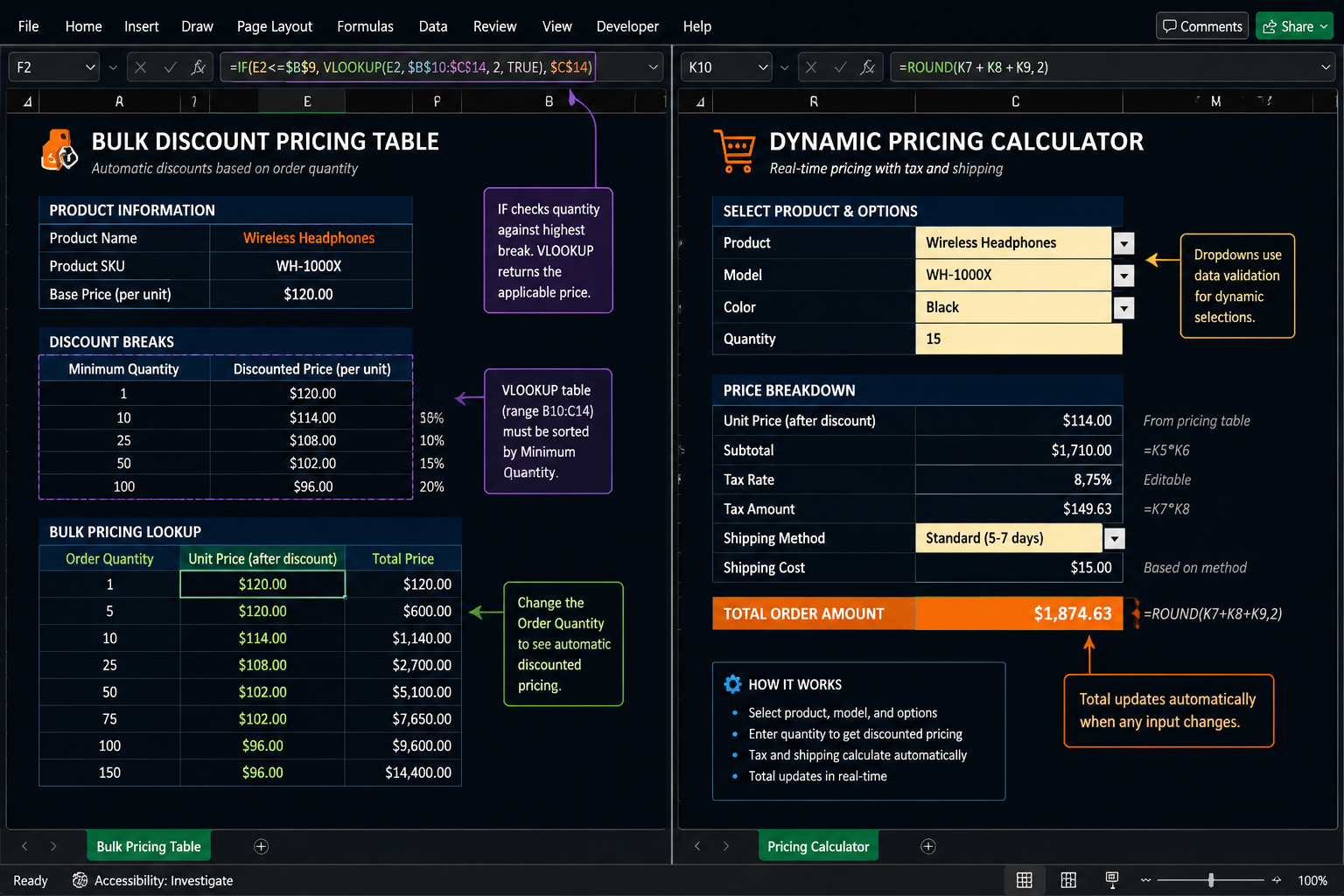
Yes — use an IF or IFS formula to apply discount tiers based on quantity. This removes manual overrides and keeps pricing consistent. [5]
Example: tiered discount formula
<code>=B2*C2*(1-IF(B2>=100, 0.15, IF(B2>=50, 0.10, IF(B2>=20, 0.05, 0))))
</code>
This reads as:
- 100+ units → 15% off
- 50–99 units → 10% off
- 20–49 units → 5% off
- Under 20 → no discount
Choose this approach if: you have 3–5 fixed discount tiers. For more complex pricing (customer-specific rates, contract pricing), a VLOOKUP against a discount table is cleaner and easier to maintain.
What Cell References Work Best for Quantity and Price Columns
Use relative references (like B2) for row-by-row calculations so the formula adjusts as you copy it down. Use absolute references (like $D$1) for fixed values — tax rates, discount percentages, or a standard markup — that should stay the same across all rows.
Example combining both:
<code>=B2*C2*(1+$F$1)
</code>
Here, $F$1 holds the tax rate. Copy this formula to 500 rows and it always pulls from F1. Change F1 once and every total updates instantly.
Common mistake: Using a relative reference for a shared rate cell. If your tax rate is in F1 and you write =B2*C2*(1+F1) without dollar signs, copying the formula down will shift F1 to F2, F3, etc. — pulling wrong or empty cells.
How to Handle Tax and Shipping in Excel Pricing Models
Add tax and shipping as separate rows or columns so they’re visible and easy to audit. The cleanest method stores the tax rate in a dedicated cell and references it with an absolute reference.
Simple tax calculation:
<code>=D2 * $G$1      ← where G1 = 0.08 for 8% tax
</code>
Adding shipping as a flat fee or percentage:
| Row | Label | Formula |
|---|---|---|
| Subtotal | Sum of all line totals | =SUM(D2:D20) |
| Tax | Subtotal × tax rate | =D22*$G$1 |
| Shipping | Flat fee or % of subtotal | =D22*0.05 or enter flat amount |
| Grand Total | =SUM(D22:D24) |
Keep tax rate and shipping rate in clearly labeled input cells (not buried in formulas). Anyone updating the sheet can change one cell instead of hunting through formulas.
How to Create a Dynamic Pricing Calculator in Excel
A dynamic pricing calculator uses VLOOKUP or XLOOKUP to pull unit prices from a product table automatically when a product code is entered. This prevents manual price entry errors and keeps everything tied to one master price list. [5]
Basic XLOOKUP setup:
- Create a product table on a separate sheet: columns for Product Code, Product Name, Unit Price
- In your order sheet, enter the product code in column A
- In the Unit Price column, use:
=XLOOKUP(A2, Products!A:A, Products!C:C) - Your Total column then calculates:
=B2*C2as normal
Why XLOOKUP over VLOOKUP: XLOOKUP works left-to-right or right-to-left, handles missing values more gracefully, and doesn’t break when you insert columns in the product table.
For dropdown-based product selection (so users pick from a list rather than typing codes), add Data Validation to the product code column: Data tab → Data Validation → List → select your product code range.
Best Excel Templates for Inventory and Pricing Tracking
A solid inventory pricing template needs at minimum: Product Name, SKU, Quantity on Hand, Unit Cost, Unit Price, and Total Value columns. Excel’s built-in table feature (Ctrl + T) makes filtering and sorting these columns effortless.
What to include in a complete pricing tracker:
- Product details (name, SKU, category)
- Quantity in stock
- Unit cost and unit price (separate columns)
- Calculated margin:
=(Price-Cost)/Price - Total inventory value:
=Quantity * Cost - Reorder threshold with conditional formatting to flag low stock
For visual clarity, applying color to alternate rows makes large pricing tables much easier to read at a glance.
If you’re tracking time-based costs alongside pricing (like labor per unit), a weekly timesheet template can integrate with your pricing sheet.
Is Excel Good for Small Business Pricing or Just Enterprise Use
Excel is genuinely well-suited for small businesses managing pricing and inventory — up to a few thousand SKUs and moderate order volumes. It requires no subscription beyond Microsoft 365, most business owners already know the basics, and it’s flexible enough for custom pricing rules that off-the-shelf software won’t support.
Excel works well when:
- You have fewer than 5,000 product lines
- Pricing rules are consistent and formula-driven
- One or two people manage the spreadsheet
- You need custom calculations (weighted averages, tiered discounts, margin targets)
Consider dedicated software when:
- Multiple people edit pricing simultaneously (version conflicts become a real problem)
- You need real-time inventory synced with sales channels
- Order volume exceeds what manual data entry can handle
For small businesses, Excel is a practical starting point — not a compromise.
How to Protect Pricing Formulas from Accidental Changes
Lock formula cells so they can’t be edited accidentally, while leaving data-entry cells (like quantity) open. Excel’s cell protection does exactly this. How to lock cells in Excel walks through the full process.
Quick steps:
- Select all cells (Ctrl + A), then open Format Cells (Ctrl + 1) → Protection tab → uncheck “Locked”
- Select only your formula cells, then re-check “Locked”
- Go to Review tab → Protect Sheet → set a password if needed
Now users can enter quantities and product codes freely, but can’t accidentally delete or overwrite a formula. This is especially important when sharing pricing sheets with colleagues who aren’t Excel-confident.
Common Mistakes in Excel Price Calculations
These errors show up constantly, even in spreadsheets built by experienced users.
- Hardcoding prices into formulas instead of referencing a cell — when the price changes, you have to find every formula manually
- Missing absolute references on shared rate cells (tax, markup) — causes formulas to pull wrong values after copying
- No error handling —
=D2/C2breaks with a #DIV/0! error on blank rows;=IFERROR(D2/C2,"")fixes it [4] - Mixing number formats — quantities stored as text (left-aligned numbers) won’t calculate; use Data → Text to Columns to convert
- No version control — save dated copies (e.g., Pricing_2026-06.xlsx) before major changes
FAQ
Q: What’s the simplest formula to multiply quantity by price in Excel?
Type =B2*C2 in the Total cell, where B2 is quantity and C2 is unit price. Copy the formula down the column for all rows.
Q: How do I calculate a grand total for all line items?
Use =SUM(D2:D100) on the Total column, or =SUMPRODUCT(B2:B100,C2:C100) to skip the Total column entirely.
Q: What’s the difference between markup and margin in Excel?
Markup: =Cost*(1+MarkupRate). Margin: =Cost/(1-MarginRate). A 25% markup and 25% margin produce different selling prices — markup is based on cost, margin is based on selling price.
Q: How do I stop my tax rate formula from breaking when I copy it down?
Use an absolute reference: =$G$1 instead of =G1. The dollar signs lock the cell so it doesn’t shift when copied.
Q: Can Excel automatically apply different prices for different customers?
Yes. Store customer-specific prices in a lookup table and use XLOOKUP or VLOOKUP to pull the right price based on the customer ID in each row.
Q: How do I prevent someone from deleting my formulas? Lock the formula cells and protect the sheet via Review → Protect Sheet. Unlocked cells (for data entry) remain editable.
Q: What function calculates a weighted average price across multiple purchases?
=SUMPRODUCT(Quantity_Range, Price_Range) / SUM(Quantity_Range) gives the true weighted average cost per unit.
Q: How do I handle a zero quantity without getting a division error?
Wrap the formula: =IFERROR(TotalPrice/Quantity, "") returns a blank instead of #DIV/0! when quantity is zero.
Q: Is VLOOKUP or XLOOKUP better for pricing tables? XLOOKUP is more flexible and doesn’t break when columns are inserted. Use XLOOKUP if your Excel version supports it (Microsoft 365 and Excel 2019+).
Q: Can I use Excel for bulk discount pricing automatically?
Yes. Nest IF functions: =B2*C2*(1-IF(B2>=100,0.15,IF(B2>=50,0.10,0))) applies tiered discounts based on quantity.
Conclusion
Knowing how to calculate quantity and price in Excel gives any business — from a solo freelancer to a growing retail operation — a reliable, flexible pricing engine without expensive software. Start with =B2*C2 for line totals, add SUMPRODUCT for grand totals, and build up to IF-based discount tiers and XLOOKUP price lookups as your needs grow.
Actionable next steps:
- Build a basic pricing table today with Product, Quantity, Unit Price, and Total columns
- Add a tax rate in a dedicated cell and reference it with
$absolute references - Lock your formula cells using sheet protection before sharing with anyone
- When ready, add a product lookup table and switch to
XLOOKUPfor dynamic price pulling - Bookmark the Excel shortcuts guide — faster navigation makes building and maintaining pricing sheets much less tedious
The formulas covered here scale from a 10-row quote sheet to a 5,000-row inventory tracker. Master the basics, add complexity only when you need it, and your Excel pricing model will stay accurate and maintainable for years.
References
[1] 365electric – https://www.365electric.com/smarthome/smartlife/131250.html?utm_source=openai [2] Calculate Selling Price In Excel – https://www.exceldemy.com/calculate-selling-price-in-excel/?utm_source=openai [3] Calculate Weighted Average Price In Excel – https://www.exceldemy.com/calculate-weighted-average-price-in-excel/?utm_source=openai [4] Excel Formula Unit Price Product – https://codepal.ai/excel-formula-generator/query/wzVJaVJu/excel-formula-unit-price-product?utm_source=openai [5] Price – https://excelinsider.com/excel-pro-tips/make-a-list/price/?utm_source=openai [7] Calculate Proper Weighted Average Buy – https://www.shareolite.com/2025/08/calculate-proper-weighted-average-buy.html?utm_source=openai