
Last updated: June 9, 2026
Quick Answer: Learning how to use Excel for beginners starts with understanding the grid of rows and columns, entering data, and writing simple formulas like SUM. Most people can handle everyday tasks — budgets, lists, basic calculations — within a few hours of practice. Excel works on Windows, Mac, and through a browser, and free options exist for students and casual users.
Key Takeaways
- Excel is a spreadsheet program made up of cells organized in rows and columns — data goes in, formulas do the math.
- The five formulas every beginner needs are: SUM, AVERAGE, IF, COUNT, and VLOOKUP.
- Microsoft 365 Personal costs around $69.99/year (as of 2026); free alternatives include Excel Online and Google Sheets.
- Common beginner mistakes include skipping cell formatting, mixing text and numbers in the same column, and forgetting to save.
- Excel is used in nearly every industry — from healthcare and finance to education and retail.
- Error messages like #VALUE! and #DIV/0! are fixable once you know what they mean.
- As of 2026, Excel includes smarter formula auto-completion and AI-powered error cards that explain mistakes in plain English [2].
- Students benefit just as much as business professionals — Excel works great for grade tracking, project planning, and budgets.
What Are the Basic Functions in Excel for Someone Who’s Never Used It Before
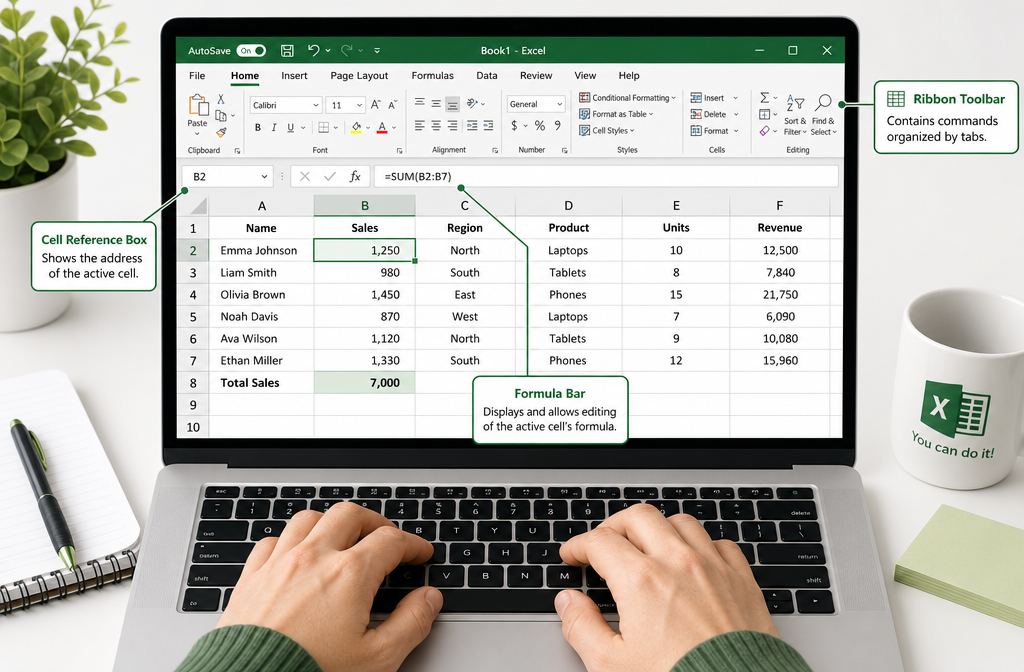
Excel is a spreadsheet program where data lives in individual boxes called cells, arranged in a grid of numbered rows and lettered columns. Each cell can hold text, a number, a date, or a formula that calculates something automatically.
Here are the core concepts every new user should know:
- Workbook: The file itself (saved as .xlsx).
- Worksheet (Sheet): A single tab inside a workbook. One workbook can have many sheets.
- Cell: One box in the grid. The cell named “B3” is in column B, row 3.
- Formula bar: The long input bar above the grid where you type formulas.
- Ribbon: The toolbar at the top with tabs like Home, Insert, Formulas, and Data.
Choose this if: You need to store, sort, or calculate any kind of data — from a grocery list to a monthly budget.
Microsoft’s official “Basic Tasks in Excel” guide is a reliable starting point that walks through these fundamentals step by step [4].
How Do I Create My First Spreadsheet in Excel
Creating your first spreadsheet takes less than five minutes. Open Excel, click Blank Workbook, and you’re ready to go.
Step-by-step for a simple budget sheet:
- Click cell A1 and type “Category.”
- Click cell B1 and type “Amount.”
- In A2, type “Rent.” In B2, type your rent amount (e.g., 1200).
- Continue adding rows for other expenses.
- Click an empty cell below your numbers (say, B10) and type
=SUM(B2:B9)to total everything. - Press Enter — Excel calculates the result instantly.
- Save with Ctrl+S (Windows) or Cmd+S (Mac).
A quick tip: if your columns are too narrow to show the full text, expand all columns in Excel at once with just a few clicks rather than resizing each one manually.
Common mistake: Typing a number as text (e.g., typing “1,200” with a comma in a cell formatted as text). Excel won’t include it in calculations. Always format number columns as “Number” or “Currency” first.
What Are the Top 5 Formulas Every Beginner Should Know
These five formulas cover the vast majority of what beginners actually need day-to-day.
| Formula | What It Does | Example |
|---|---|---|
=SUM(A1:A10) |
Adds a range of numbers | Total sales for the month |
=AVERAGE(B1:B10) |
Finds the mean of a range | Average test score |
=COUNT(C1:C10) |
Counts cells with numbers | How many entries exist |
=IF(D2>100,"Yes","No") |
Returns one value or another based on a condition | Flag items over budget |
=VLOOKUP(E2,A:B,2,0) |
Looks up a value in a table | Find a price by product name |
For adding up rows quickly, the guide to adding up a row of numbers in Excel shows a handy shortcut using the AutoSum button.
Excel’s 2026 formula auto-completion feature now suggests and completes formulas as you type, which reduces syntax errors significantly for new users [2].
How to Use Excel for Beginners: Excel vs. Google Sheets — Which One Should You Learn First
Learn Excel first if you’re entering the job market or working in a corporate environment — it’s the industry standard. Learn Google Sheets first if you primarily need free, browser-based collaboration with no software to install.
Key differences:
- Cost: Google Sheets is free. Excel requires Microsoft 365 (see pricing below) or a one-time purchase of Office.
- Collaboration: Google Sheets wins for real-time multi-user editing. Excel has caught up with its cloud version but isn’t quite as seamless.
- Features: Excel has more advanced functions, better pivot tables, and stronger data analysis tools.
- Compatibility: Most workplaces use Excel files (.xlsx). Sheets can open and export them, but formatting sometimes shifts.
Bottom line: The core skills transfer between both. If you learn formulas in Excel, you can use them in Sheets with minimal adjustment.
How Much Does Excel Cost for a Personal Computer
As of 2026, Microsoft 365 Personal costs $69.99/year (approximately $5.83/month), which includes Excel, Word, PowerPoint, and 1 TB of OneDrive storage. Microsoft 365 Family covers up to six users for around $99.99/year.
A one-time purchase option (Microsoft Office Home & Student) is also available for around $149.99 with no subscription required.
Free options:
- Excel Online (browser-based, free with a Microsoft account) — covers most beginner needs.
- Microsoft 365 Education — free for qualifying students and teachers through their school.
- Google Sheets — fully free and reads/writes .xlsx files.
Can I Learn Excel for Free Online
Yes — several high-quality free resources exist for learning how to use Excel for beginners without spending anything.
- Microsoft’s own support pages offer structured beginner guides covering workbooks, data entry, and basic formulas [4].
- Excel Easy provides free step-by-step tutorials organized by skill level, from absolute basics to advanced functions [5].
- YouTube has comprehensive beginner tutorials — the Excel Campus “Excel for Beginners” video is a thorough, free walkthrough covering navigation, charts, and pivot tables [3].
- Excel Online (free in a browser) lets you practice immediately without installing anything.
Edge case: Some “free” courses on learning platforms require payment for certificates or advanced modules. The core content is usually free, but check before enrolling.
Is Excel Hard to Learn for Someone With No Tech Background
No — the basics of Excel are genuinely accessible to anyone who can use a smartphone or browse the internet. The learning curve steepens with advanced features like macros and complex nested formulas, but those aren’t needed for everyday tasks.
Most beginners can:
- Enter and format data within 30 minutes
- Write basic formulas (SUM, AVERAGE) within 1–2 hours
- Build a functional budget or tracker within a few hours of practice
Excel’s 2026 updates make it even friendlier for newcomers. Smarter formula auto-completion suggests the right formula as you type [2], and the new AI-powered error cards explain mistakes in plain English rather than just showing a cryptic code [2].
In March 2026, OpenAI also launched ChatGPT for Excel, an add-in that lets users describe what they want in plain language and get formula suggestions or model-building help directly inside the workbook [1]. This lowers the barrier for non-technical users considerably.
How Do I Fix Common Excel Errors Like #VALUE or #DIV/0
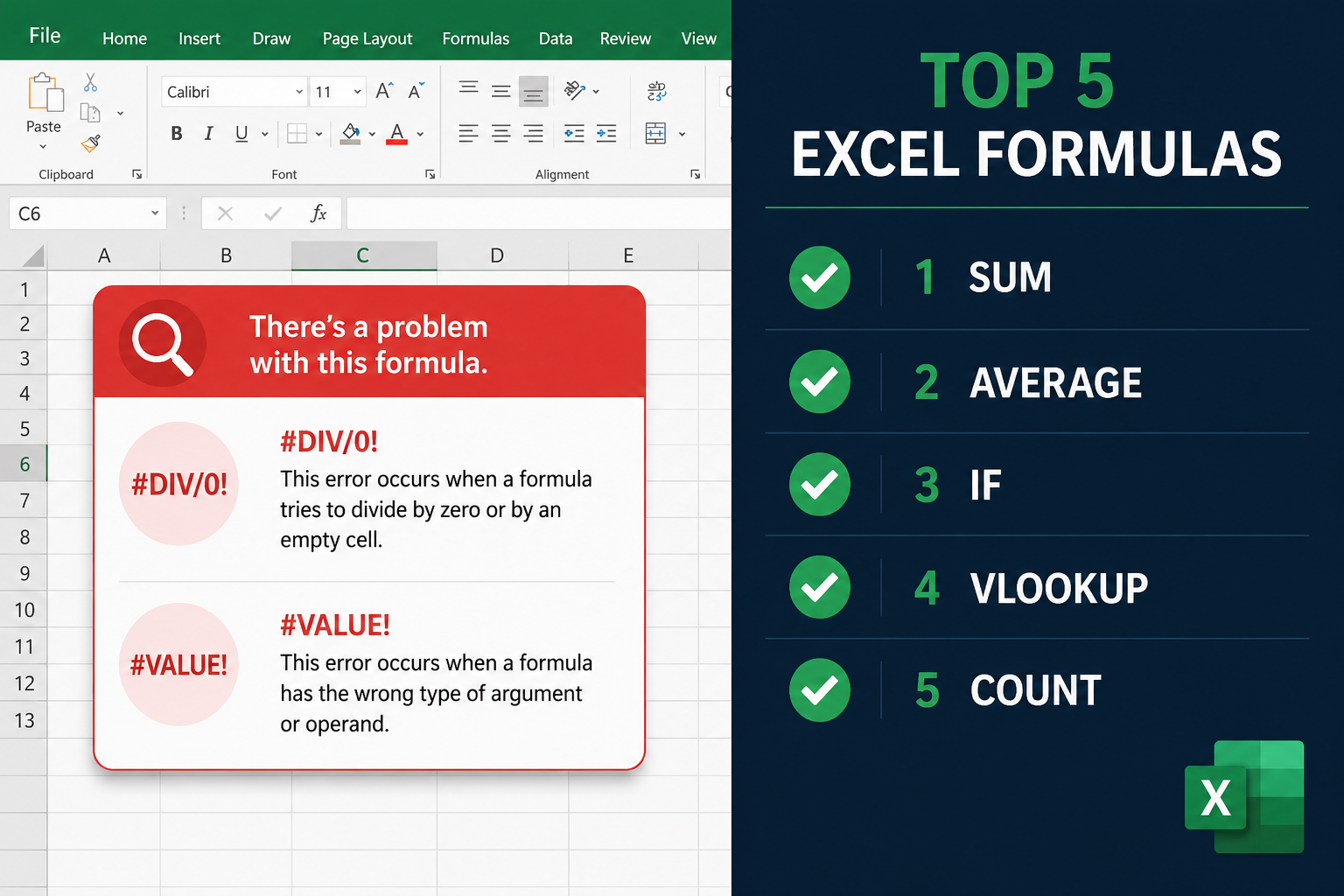
Excel error codes look scary but each one has a specific, fixable cause. Here’s what the most common ones mean:
| Error | Cause | Fix |
|---|---|---|
#DIV/0! |
Dividing by zero or an empty cell | Check the denominator cell isn’t blank or zero |
#VALUE! |
Wrong data type (e.g., text where a number is expected) | Make sure all cells in the formula contain numbers |
#REF! |
A cell reference points to a deleted row or column | Re-enter the formula with valid cell references |
#NAME? |
Excel doesn’t recognize the formula name | Check spelling — e.g., =SUMM() should be =SUM() |
#N/A |
A lookup formula can’t find the value | Confirm the lookup value exists in the source range |
As of 2026, Excel displays descriptive error cards that pop up with a plain-English explanation and suggested fix when you click on an error cell [2]. This is a genuine time-saver for beginners who’d otherwise spend time searching for answers.
What Jobs Require Excel Skills
Excel skills appear in job listings across almost every industry. It’s one of the most consistently requested software skills in hiring.
Jobs where Excel proficiency is commonly required or preferred:
- Accounting and finance (bookkeeping, financial analysis, budgeting)
- Marketing (campaign tracking, reporting, data analysis)
- Project management (timelines, resource tracking, status reports)
- Human resources (payroll, headcount tracking, scheduling)
- Healthcare administration (patient data, billing, scheduling)
- Retail and operations (inventory, sales reporting)
- Education (grade books, lesson planning — see this colorful weekly lesson planner template for Excel 365)
Even roles that don’t list Excel explicitly often use it informally. Knowing the basics makes you more productive regardless of your title.
Is Excel Good for Students or Just for Business Professionals
Excel is genuinely useful for students — not just professionals. It handles tasks that come up constantly in academic life.
Student use cases:
- Tracking grades and GPA calculations
- Managing a personal or household budget (useful for the credit card payoff calculator in Excel)
- Organizing research data for science or social studies projects
- Building a study schedule or assignment tracker
- Visualizing data for reports and presentations with charts
For students who want to practice chart-building, the guide on turning Excel data into a graph is a practical starting point.
Research also shows Excel is evolving from a simple ledger tool into a full analytics environment [8], which means the skills students build now will scale as their needs grow.
What Kind of Computer Do I Need to Run Excel Smoothly
Excel runs on most modern computers without any special hardware. Here are the practical minimums for 2026:
- Operating system: Windows 10 or later, macOS Monterey or later
- RAM: 4 GB minimum; 8 GB recommended for larger files
- Storage: At least 4 GB free disk space for the Microsoft 365 install
- Processor: Any modern dual-core processor (Intel Core i3, AMD Ryzen 3, or Apple M-series chip)
- Internet: Required for Microsoft 365 activation and cloud saving; not needed to run Excel offline
For browser-based Excel Online: Any computer with a modern browser (Chrome, Edge, Firefox, Safari) and a stable internet connection works fine — no installation needed.
Edge case: Very large spreadsheets (100,000+ rows with complex formulas) may run slowly on older machines with 4 GB RAM. For everyday beginner use, any laptop bought in the last five years will handle Excel without issues.
How to Use Excel for Beginners: Common Mistakes to Avoid
Even small habits make a big difference in how smoothly Excel works for you. These are the mistakes that trip up most new users.
- Mixing data types in a column — putting text like “N/A” in a column of numbers breaks formulas. Use a separate column for notes.
- Not formatting cells before entering data — set number, date, or currency format first so Excel interprets data correctly.
- Using spaces instead of empty cells — a cell with a space looks empty but isn’t. Use Delete to truly clear a cell.
- Hardcoding numbers in formulas — typing
=A1*0.08is fine, but putting the tax rate in its own cell (say C1) and using=A1*C1makes updates much easier. - Forgetting to lock cell references — when copying a formula, use
$A$1(absolute reference) to keep a reference fixed. Learn more about locking cells in Excel to protect important data. - Skipping keyboard shortcuts — learning just a handful of Excel keyboard shortcuts saves significant time. Ctrl+Z (undo), Ctrl+C/V (copy/paste), and Ctrl+Home (go to A1) are the most useful for beginners.
Conclusion
Getting started with Excel doesn’t require a tech background or a formal course. The basics — entering data, writing a SUM formula, and formatting a simple table — are learnable in an afternoon. From there, each new skill builds naturally on the last.
Actionable next steps:
- Open Excel (or Excel Online for free) and create a simple expense tracker using the steps above.
- Practice the five core formulas (SUM, AVERAGE, COUNT, IF, VLOOKUP) on real data you care about.
- Bookmark a free resource like Excel Easy [5] or Microsoft’s support pages [4] for reference when you get stuck.
- Learn three keyboard shortcuts this week — Ctrl+S, Ctrl+Z, and Ctrl+Home will immediately speed up your workflow.
- Build something practical — a weekly timesheet, a budget, or a grade tracker. Real projects teach faster than exercises.
The skills you build now will serve you in almost any career path. Start simple, stay consistent, and the rest follows.
Frequently Asked Questions
Q: Do I need to know math to use Excel? No. Excel does the math for you. You just need to know which formula to use and where to put it. Basic arithmetic understanding helps, but it’s not required.
Q: Can I use Excel on a phone or tablet? Yes. The Microsoft Excel app is free for iOS and Android on devices under 10.1 inches. Larger tablets require a Microsoft 365 subscription for full editing features.
Q: How long does it take to learn Excel well enough for a job? Most people can reach a job-ready beginner level in 10–20 hours of focused practice. Intermediate skills (pivot tables, VLOOKUP, basic charts) typically take another 10–15 hours.
Q: What’s the difference between a formula and a function in Excel?
A formula is any expression starting with = that calculates a result. A function is a built-in named operation like SUM or AVERAGE. All functions are formulas, but not all formulas use functions (e.g., =A1+B1 is a formula without a function).
Q: Is Excel Online the same as the desktop version? Excel Online covers most beginner and intermediate needs but lacks some advanced features like macros (VBA), certain chart types, and some data analysis tools. For everyday use, it’s more than sufficient.
Q: How do I add today’s date in Excel automatically?
Type =TODAY() in any cell for a date that updates daily, or press Ctrl+; to insert today’s date as a fixed value. See the full guide on inserting today’s date in Excel with just two keystrokes.
Q: What is a pivot table and do beginners need to know it? A pivot table summarizes large datasets with drag-and-drop simplicity. Beginners don’t need it immediately, but it’s worth learning once you’re comfortable with basic formulas — it’s one of Excel’s most powerful features.
Q: Can Excel handle dates and time calculations? Yes. Excel stores dates as numbers internally, which makes date math straightforward. Functions like DATEDIF calculate the difference between two dates easily — see the Excel DATEDIF guide for details.
Q: Is it safe to share Excel files with others? Yes, but be careful with sensitive data. You can protect specific cells or sheets with a password to prevent accidental edits. The guide to locking cells in Excel walks through the process.
Q: What’s the fastest way to learn Excel for beginners in 2026? Build a real project you actually care about (a budget, a tracker, a schedule), look up what you need as you go, and use Excel’s built-in help and AI features to troubleshoot. Passive tutorials help, but hands-on practice is what makes skills stick.
References
[1] ChatGPT for Excel – https://openai.com/index/chatgpt-for-excel/?utm_source=openai
[2] Excel Automation in 2026: The Features That Are Changing How Teams Work With Data – https://www.excelhelp.com/excel-automation-in-2026-the-features-that-are-changing-how-teams-work-with-data/?utm_source=openai
[3] Excel for Beginners Tutorial – Everything You Need to Know (YouTube) – https://www.youtube.com/watch?v=mLzHd1XSTbk&utm_source=openai
[4] Basic Tasks in Excel – Microsoft Support – https://support.microsoft.com/en-us/office/basic-tasks-in-excel-dc775dd1-fa52-430f-9c3c-d998d1735fca?utm_source=openai
[5] Excel Easy – Free Excel Tutorials – https://www.excel-easy.com/?utm_source=openai
[6] Spreadsheet-RL: Advancing Large Language Model Agents on Realistic Spreadsheet Tasks – https://arxiv.org/abs/2605.22642?utm_source=openai
[8] Excel: Automated Ledger or Analytics IDE? – https://arxiv.org/abs/2409.12976?utm_source=openai