
Last updated: July 25, 2026
Quick Answer: For most everyday tasks, Google Sheets wins on collaboration and zero cost, while Excel Online wins on formula depth and compatibility with existing .xlsx files. The right choice depends on what your team already uses, how complex your data is, and whether you need offline access. Neither tool is objectively “better”, but one is almost certainly better for you.
Key Takeaways
- 🟢 Google Sheets is free, always auto-saves to the cloud, and is the fastest tool for real-time team editing.
- 🔵 Excel Online is included with Microsoft 365 (from ~$6/user/month) and handles more complex formulas, pivot tables, and large datasets better.
- Both tools open .xlsx files, but formatting and advanced features can break when switching between them.
- Google Sheets handles up to 10 million cells per spreadsheet; Excel Online can handle significantly more rows before slowing down.
- For beginners, Google Sheets has a gentler learning curve. For finance and accounting pros, Excel Online is the safer bet.
- Offline mode is limited in both tools, but Excel Online (with OneDrive sync) is more reliable for offline editing.
- Macros exist in both, but Excel’s VBA ecosystem is far more mature than Google Apps Script.
- If your workplace already runs Microsoft 365, Excel Online is the path of least resistance.
What’s the Difference Between Google Sheets and Excel Online?
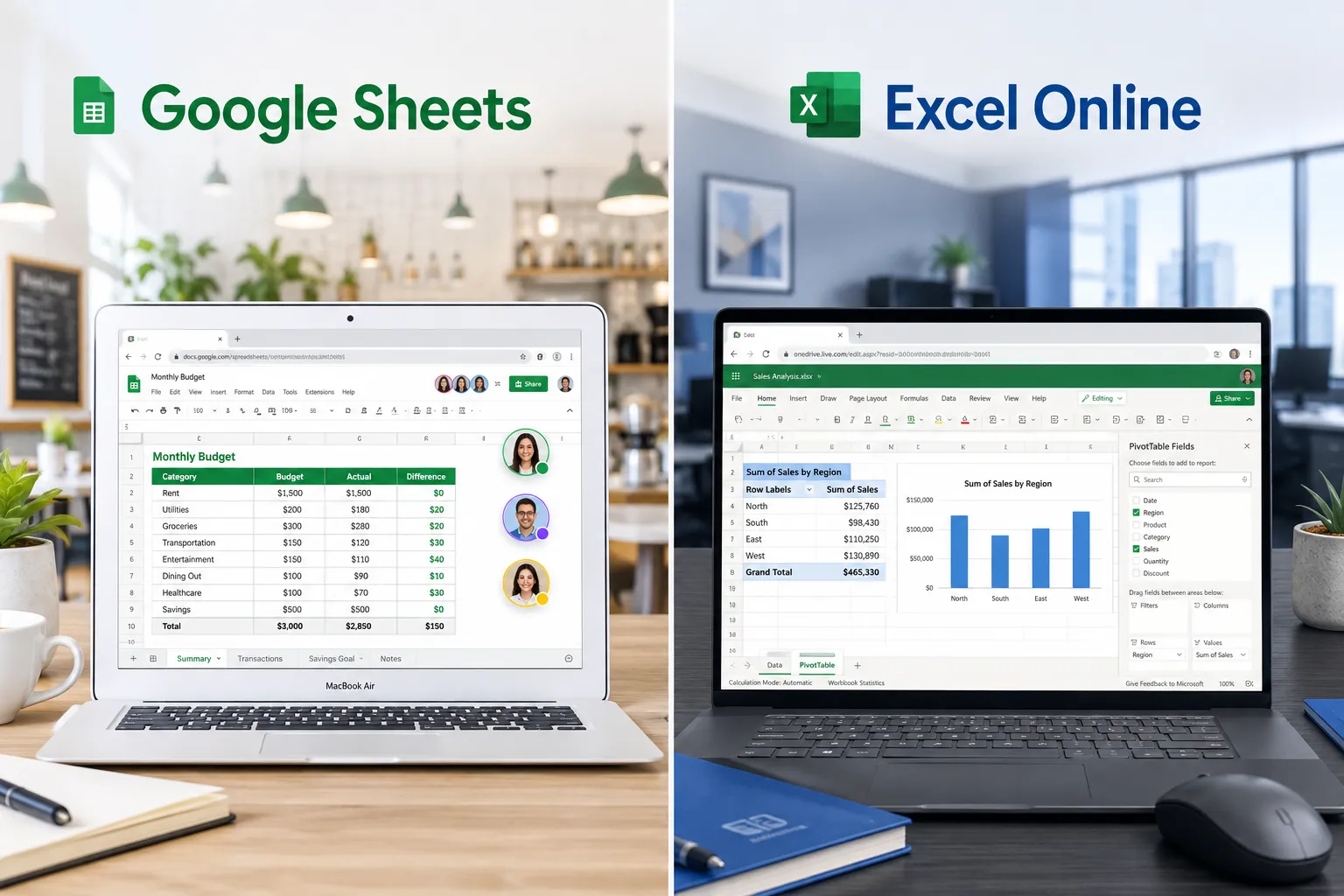
Google Sheets is a browser-based spreadsheet tool from Google, included free with any Google account. Excel Online is Microsoft’s browser version of Excel, available as part of a Microsoft 365 subscription or free in a limited capacity through Microsoft’s web portal.
The core difference is ecosystem. Google Sheets lives entirely in Google Drive and integrates tightly with Gmail, Google Docs, and Google Forms. Excel Online is a lighter version of the desktop Excel app, syncing through OneDrive and Microsoft Teams. Both run in a browser with no software install required.
Key structural differences at a glance:
| Feature | Google Sheets | Excel Online |
|---|---|---|
| Cost | Free | Free (limited) / Microsoft 365 from ~$6/user/mo |
| Storage | Google Drive (15 GB free) | OneDrive (5 GB free) |
| Max cells | ~10 million | Larger (desktop-level limits) |
| Offline editing | Limited (Chrome app) | Better via OneDrive sync |
| Real-time collaboration | Excellent | Good |
| Formula library | Strong | Deeper / more advanced |
| Macro support | Google Apps Script | VBA (desktop) / Office Scripts (online) |
For a deeper feature-by-feature breakdown, see this complete Google Sheets vs Excel comparison for 2026.
Google Sheets vs Excel Online for Collaboration
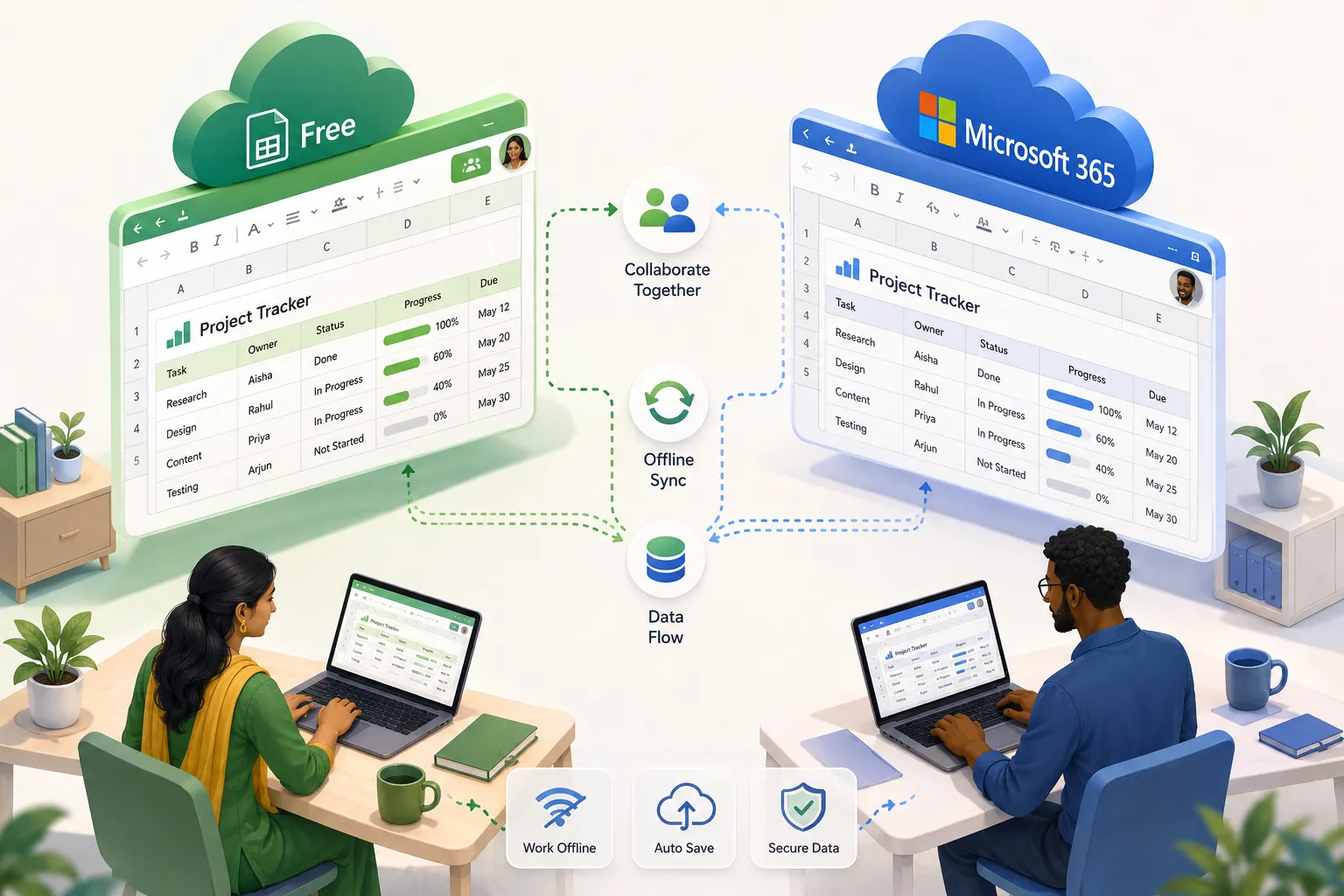
Google Sheets is the stronger collaboration tool. Multiple users can edit the same file simultaneously, see each other’s cursors in real time, and leave comments, all without any setup beyond sharing a link.
Excel Online also supports co-authoring, but it has historically lagged slightly behind Google Sheets in how smoothly simultaneous edits sync. Microsoft has improved this significantly, and for teams already in Microsoft Teams, Excel Online integrates cleanly into that workflow.
Choose Google Sheets if: your team is distributed, uses different devices, or needs to share files with people outside your organization quickly.
Choose Excel Online if: your team lives in Microsoft Teams and SharePoint, and file permissions are managed by IT.
💡 Common mistake: Sharing an Excel file as an email attachment instead of a shared link. Both tools work best when the file stays in the cloud, not bouncing around as attachments.
Excel Online Pricing vs Google Sheets Cost
Google Sheets is completely free for personal use with a Google account. Google Workspace (for businesses) starts at around $6/user/month and adds admin controls, more storage, and business email.
Excel Online is technically free at microsoft.com with limited functionality. Full Excel Online features require a Microsoft 365 subscription, which starts at about $6/user/month for business plans (Microsoft 365 Business Basic as of 2026).
For individuals and small teams on a tight budget, Google Sheets is the clear winner on cost. For organizations already paying for Microsoft 365 (which many do for Outlook and Teams), Excel Online adds no extra cost.
Which Is Faster, Google Sheets or Excel Online?
For light to medium workloads (under 50,000 rows), both tools feel similarly fast in a modern browser. Google Sheets tends to feel snappier for quick edits and formula entry. Excel Online can feel slightly heavier to load, especially on slower connections.
For large files (100,000+ rows, complex formulas), Excel Online generally holds up better. Google Sheets can become sluggish as cell counts climb toward the 10-million-cell ceiling.
Bottom line: If speed matters for large data, Excel Online (or better yet, desktop Excel) is the safer choice. For quick everyday tasks, Google Sheets is fast enough for most people.
Can I Open Excel Files in Google Sheets Without Losing Formatting?
You can open .xlsx files in Google Sheets, but some formatting and features will not survive the conversion. Simple spreadsheets with basic formulas, fonts, and colors transfer cleanly. Complex files with conditional formatting rules, named ranges, pivot tables, or VBA macros will often break or lose functionality.
Common issues when importing Excel files into Google Sheets:
- VBA macros are stripped entirely (Google Sheets uses Apps Script, not VBA)
- Some advanced conditional formatting rules don’t translate
- Certain Excel-only functions (like
STOCKHISTORYorXLOOKUPwith spill behavior) may not work identically - Charts sometimes reformat or lose custom styling
If your Excel file is formatting-heavy or macro-dependent, test it thoroughly before committing to Google Sheets. For formula syntax differences between the two platforms, this guide on spreadsheet formulas in Google Sheets vs Excel covers the most common translation issues.
Why Is My Excel File Not Working in Google Sheets?
The most common reasons an Excel file breaks in Google Sheets are VBA macros, unsupported functions, and data validation rules that don’t translate.
Quick troubleshooting checklist:
- Macros not running, Google Sheets doesn’t support VBA. You’d need to rewrite the logic in Google Apps Script.
- Formula errors (#NAME?, #REF!), The function name may differ between platforms. Check the formula syntax differences guide for a translation reference.
- Conditional formatting missing, Some Excel CF rules use formulas that Google Sheets interprets differently.
- Pivot table gone, Pivot tables created in Excel don’t import as editable pivot tables in Google Sheets. They paste as static data.
- Charts look wrong, Reformat the chart type after import.
If the file is critical, consider keeping it in Excel Online instead of migrating it to Google Sheets.
Google Sheets vs Excel Online for Large Datasets
Excel Online handles larger datasets more reliably. Google Sheets caps at roughly 10 million cells per spreadsheet. Excel Online doesn’t have the same hard cap and can handle files that would make Google Sheets crawl.
That said, neither browser-based tool is ideal for truly massive datasets (millions of rows with complex calculations). For serious data work, desktop Excel or a dedicated database tool is a better fit. See this guide on Excel for data analysis for techniques that work at scale.
Choose Excel Online if: you’re working with 100,000+ rows, multiple linked sheets, or complex array formulas.
Google Sheets vs Excel Online for Formulas and Macros
Excel Online has a deeper formula library and a far more mature macro ecosystem. Excel’s formula engine includes functions like LAMBDA, LET, XLOOKUP, and dynamic array spill behavior that Google Sheets has only partially matched. VBA macros (available in desktop Excel) give power users enormous automation capability, though VBA doesn’t run in Excel Online’s browser version.
Google Sheets has its own strengths: IMPORTRANGE, GOOGLEFINANCE, QUERY, and ARRAYFORMULA are genuinely useful functions with no direct Excel equivalent. Google Apps Script is also capable for automation, just less powerful than VBA.
For beginners learning formulas, both tools are fine starting points. Check out this beginner-to-advanced guide to writing spreadsheet formulas, most concepts apply to both platforms.
⚠️ Edge case: Excel Online doesn’t run VBA macros in the browser. If your workflow depends on VBA, you still need desktop Excel. Office Scripts (the browser-based alternative) is improving but isn’t a full VBA replacement yet.
Can I Use Pivot Tables in Google Sheets Like Excel?
Yes, Google Sheets has pivot tables, but they’re less powerful than Excel’s. Google Sheets pivot tables handle basic grouping, filtering, and summarizing well. Excel’s pivot tables support more advanced features: calculated fields, slicers, timeline filters, and Power Pivot integration for data models.
For everyday reporting (monthly summaries, sales breakdowns, budget tracking), Google Sheets pivot tables are more than adequate. For complex financial models or multi-table data analysis, Excel Online’s pivot tables are closer to what most finance teams need.
Excel Online Offline Mode vs Google Sheets
Neither tool works perfectly offline, but Excel Online has the edge. With OneDrive’s sync client installed on a Windows or Mac computer, Excel files can be edited offline and synced when the connection returns. The experience is close to working in a local file.
Google Sheets offers offline editing through the Chrome browser with Google Drive offline mode enabled, but it requires setup and only works in Chrome. It’s less seamless than OneDrive’s approach.
If reliable offline access matters (traveling, poor connectivity, remote sites), Excel Online with OneDrive sync is the better choice.
Which Spreadsheet Software Is Better for Beginners?
Google Sheets is slightly easier for beginners because there’s nothing to install, no subscription required, and the interface is clean and uncluttered. Sharing a file with a classmate or colleague takes seconds.
Excel Online is also accessible, but new users sometimes feel overwhelmed by the ribbon interface and the broader Microsoft 365 ecosystem. That said, learning Excel skills has long-term career value, Excel remains the standard in finance, accounting, and corporate environments.
For students and casual users: Start with Google Sheets. It’s free and frictionless. If you’re aiming for a business or finance career, learning Excel early pays off. This comparison of Excel vs Google Sheets for students covers the student-specific tradeoffs in detail.
Excel Online vs Google Sheets for Accounting and Finance
Excel Online is the better choice for accounting and finance work. The finance industry standardized on Excel decades ago, and that hasn’t changed. Excel’s formula depth (financial functions, array formulas, Power Query), its pivot table capabilities, and its compatibility with accounting software exports make it the go-to tool for serious number work.
Google Sheets can handle basic bookkeeping and budget tracking well. But if you’re building financial models, reconciling accounts, or producing auditable reports, Excel Online (or desktop Excel) is the professional standard.
For a practical starting point, this balance sheet template guide for Excel 365 shows how to structure financial documents properly. And if you need a quick P&L setup, the profit and loss statement template guide is a solid reference.
Who Should Use Google Sheets Instead of Excel Online?
Google Sheets is the right choice for people who prioritize free access, easy sharing, and real-time collaboration over formula depth. It’s ideal for:
- Freelancers and small businesses without a Microsoft 365 subscription
- Teams that collaborate across different companies or devices
- Educators and students who need quick, shareable documents
- Anyone using Google Workspace (Gmail, Docs, Drive) as their primary tool
- Projects that involve form-based data collection (Google Forms feeds directly into Sheets)
Stick with Excel Online if:
- Your organization already pays for Microsoft 365
- Your files are .xlsx format with complex formulas or formatting
- You work in finance, accounting, or data analysis
- You need more reliable offline access
- You rely on pivot tables, Power Query, or VBA macros
Conclusion
The Google Spreadsheets vs Excel Online: Which Web-Based Spreadsheet Is Better for Everyday Work? question doesn’t have a single universal answer, but it does have a clear answer for most people.
Start with Google Sheets if you want something free, fast to share, and easy to use with no setup. It handles 90% of everyday tasks without friction.
Go with Excel Online if your team runs on Microsoft 365, your files are complex, or you work in a field where Excel is the professional standard.
Actionable next steps:
- Audit your current files. If most are simple lists and shared reports, Google Sheets is probably enough.
- Check your existing subscriptions. Already paying for Microsoft 365? Excel Online costs you nothing extra.
- Test the import. If you have existing Excel files, open them in Google Sheets and check for broken formulas or missing features before committing.
- Skill up on formulas. Whichever tool you choose, strong formula skills transfer between platforms. This custom cursors and keyboard automation guide covers speed techniques that work in both.
The best spreadsheet tool is the one your team will actually use consistently.
Frequently Asked Questions
Q: Is Google Sheets really free forever? A: Yes, Google Sheets is free for personal use with a Google account. Google Workspace (business version) is paid, but the core tool remains free for individuals.
Q: Can Excel Online replace desktop Excel? A: For most everyday tasks, yes. But Excel Online doesn’t run VBA macros, and some advanced features (Power Query, Power Pivot) are limited or unavailable in the browser version.
Q: Does Google Sheets work on iPhone and Android? A: Yes. Google Sheets has dedicated mobile apps for both iOS and Android that work well for viewing and light editing.
Q: Can two people edit the same Excel Online file at the same time? A: Yes. Excel Online supports co-authoring, so multiple users can edit simultaneously. Changes sync in near real time, similar to Google Sheets.
Q: Will my Google Sheets formulas work if I export to Excel? A: Most basic formulas (SUM, IF, VLOOKUP) transfer cleanly. Google-specific functions like IMPORTRANGE, GOOGLEFINANCE, and QUERY will not work in Excel and will show errors.
Q: Which tool is better for making charts and dashboards? A: Both tools create solid charts. Excel Online offers more chart customization options and integrates better with Power BI for advanced dashboards. Google Sheets is faster for quick, shareable charts.
Q: Is there a file size limit for Google Sheets? A: Google Sheets caps at approximately 10 million cells per spreadsheet. Files larger than this will slow down or fail to open.
Q: Can I use Google Sheets without internet? A: Yes, but only in the Chrome browser with offline mode enabled in Google Drive settings. It’s functional but requires setup and doesn’t work in other browsers.
Q: Which tool is better for VLOOKUP and XLOOKUP? A: Both support VLOOKUP. XLOOKUP is available in Excel Online and has been added to Google Sheets as well, though Excel’s implementation is more mature and feature-complete.
Q: Do I need to know both tools? A: Knowing both is useful, especially in professional settings. The core concepts (formulas, pivot tables, charts) transfer between platforms, so learning one makes the other easier to pick up.
References
- Google. Google Sheets Help Center. https://support.google.com/docs/
- Microsoft. Excel for the web, Microsoft Support. https://support.microsoft.com/en-us/excel
- Microsoft. Microsoft 365 Business Plans and Pricing. https://www.microsoft.com/en-us/microsoft-365/business/compare-all-plans (2024)
- Google. Google Workspace Plans and Pricing. https://workspace.google.com/pricing (2024)