
Last updated: June 29, 2026
Quick Answer: To unhide columns in Excel, select the columns on either side of the hidden ones, right-click the selection, and choose Unhide. To unhide all columns at once, press Ctrl + A to select the entire sheet, then right-click any column header and select Unhide. This works across Excel 2010 through Microsoft 365 on both Windows and Mac.
Key Takeaways
- Hidden columns are not deleted — the data is still there, just invisible.
- The fastest way to unhide columns is to select adjacent columns, right-click, and choose Unhide.
- To unhide all columns at once, select the entire sheet first (Ctrl + A), then use the right-click menu.
- Column A requires a special approach: use the Name Box to navigate to cell A1 first.
- The keyboard shortcut Alt → H → O → U → L (Windows) works without a mouse.
- On Mac, Cmd + Shift + 0 is the quickest shortcut (though it may conflict with system shortcuts on some setups).
- If unhiding isn’t working, the sheet may be protected — you’ll need to unprotect it first.
- Google Sheets uses a nearly identical right-click method.
- The Excel mobile app supports unhiding columns through a tap-and-hold menu.
- A double vertical line between column headers is the visual clue that columns are hidden.
What Does It Mean to Hide Columns in Excel?
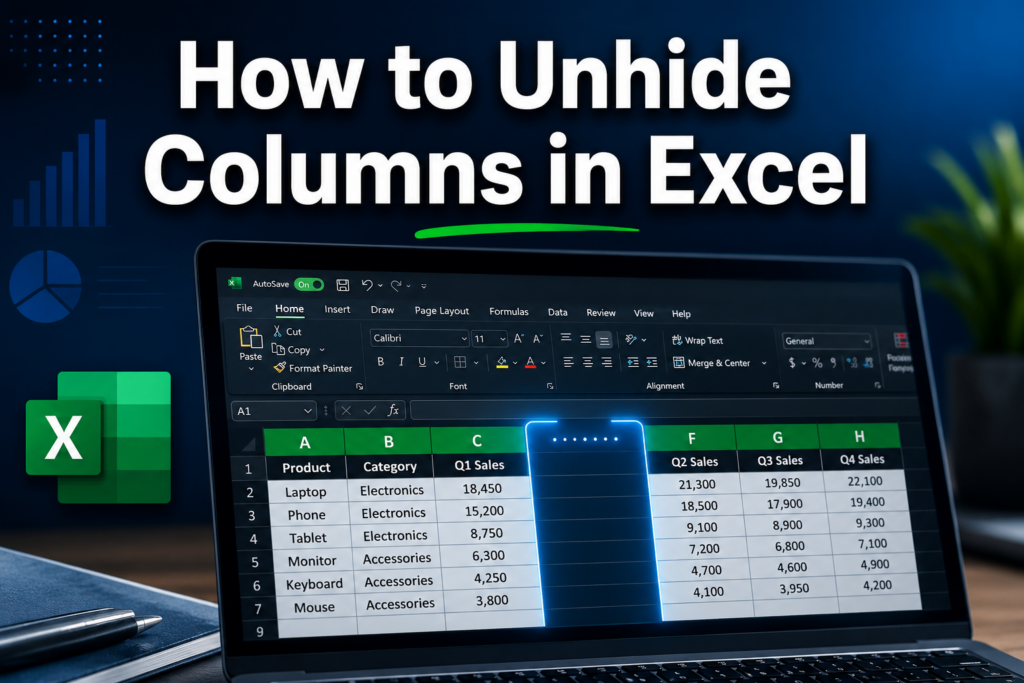
Hiding a column in Excel makes it invisible on screen without removing any data. The column still exists, its values still participate in formulas, and it reappears the moment you unhide it. [1]
Think of it like folding a piece of paper — the content underneath is intact, just out of view. Hidden columns are marked by a gap in the column header letters (for example, jumping from B to D means column C is hidden) and a faint double-line between the headers.
Hidden ≠ Deleted. This distinction matters. If you delete a column, the data is gone. If you hide it, the data is safe.
Why Would You Hide Columns in Excel?
Hiding columns is a practical way to simplify a spreadsheet without destroying data. It’s useful in several situations:
- Presenting data: Remove helper columns or raw data columns before sharing a report.
- Reducing clutter: Large datasets with dozens of columns become easier to read when irrelevant columns are hidden.
- Protecting intermediate calculations: Keep formula logic out of sight for end users.
- Printing: Hide columns you don’t want to appear on a printed page.
If you’re building templates or dashboards, hiding columns is a common technique. For a deeper look at organizing spreadsheet data effectively, check out this guide on how to use Excel for beginners.
What’s the Difference Between Hiding and Deleting Columns in Excel?
Hiding a column keeps all data intact and reversible. Deleting a column permanently removes the data and shifts all subsequent columns left.
| Action | Data Status | Reversible | Affects Formulas |
|---|---|---|---|
| Hide | Intact | Yes | No (data still used) |
| Delete | Gone | No (unless Undo) | Yes (references break) |
| Clear contents | Cells emptied | No (unless Undo) | Yes (returns blanks) |
Choose hiding when you want to temporarily remove a column from view. Choose deleting only when you’re certain the data is no longer needed anywhere in the workbook.
How to Unhide Columns in Excel: The Standard Method
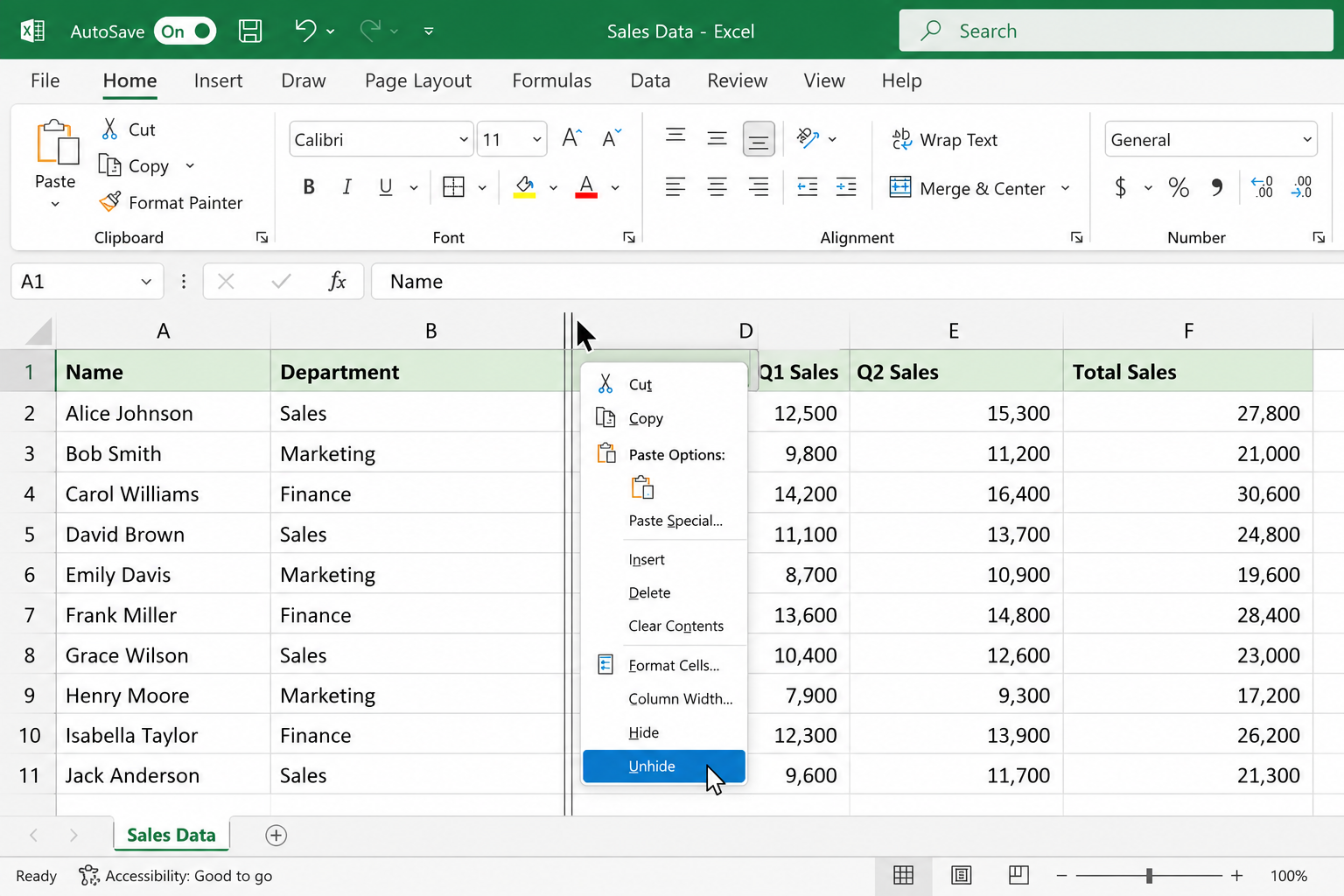
The standard method works in every Excel version from 2010 to Microsoft 365. [1][2]
Step-by-step:
- Identify the hidden column. Look for a double vertical line between column headers or a skip in the letter sequence (e.g., A, B, D — column C is hidden).
- Select the surrounding columns. Click the column header to the left of the gap, hold Shift, then click the header to the right. For example, click column B, then Shift-click column D to capture hidden column C.
- Right-click the selected headers. A context menu appears.
- Click Unhide. The hidden column reappears immediately.
💡 Pro tip: You can also double-click directly on the double-line indicator between column headers to unhide a column instantly — no right-click needed. [2]
Common mistake: Selecting only one adjacent column instead of both. If you select just column D and right-click, Excel may not detect which hidden column to restore. Always select one column on each side.
How to Unhide Multiple Columns at Once in Excel
To unhide several columns at once, select a range that spans all the hidden columns, then use the same right-click Unhide method. [6]
For example, if columns C, D, and E are all hidden:
- Click the column B header.
- Shift-click the column F header.
- Right-click and choose Unhide.
All hidden columns within that selection reappear at once. This saves time compared to unhiding one column at a time.
How to Unhide All Columns in Excel
To unhide every hidden column in a worksheet in one action: [1][8]
- Press Ctrl + A (Windows) or Cmd + A (Mac) to select the entire sheet. Alternatively, click the small triangle in the top-left corner of the spreadsheet (above row 1, left of column A).
- Right-click any column header.
- Select Unhide.
Every hidden column on the sheet becomes visible. This is the fastest approach when you’re not sure which columns are hidden or when there are many hidden columns scattered throughout.
How to Unhide Columns in Excel Without Right-Click (Keyboard Shortcuts)
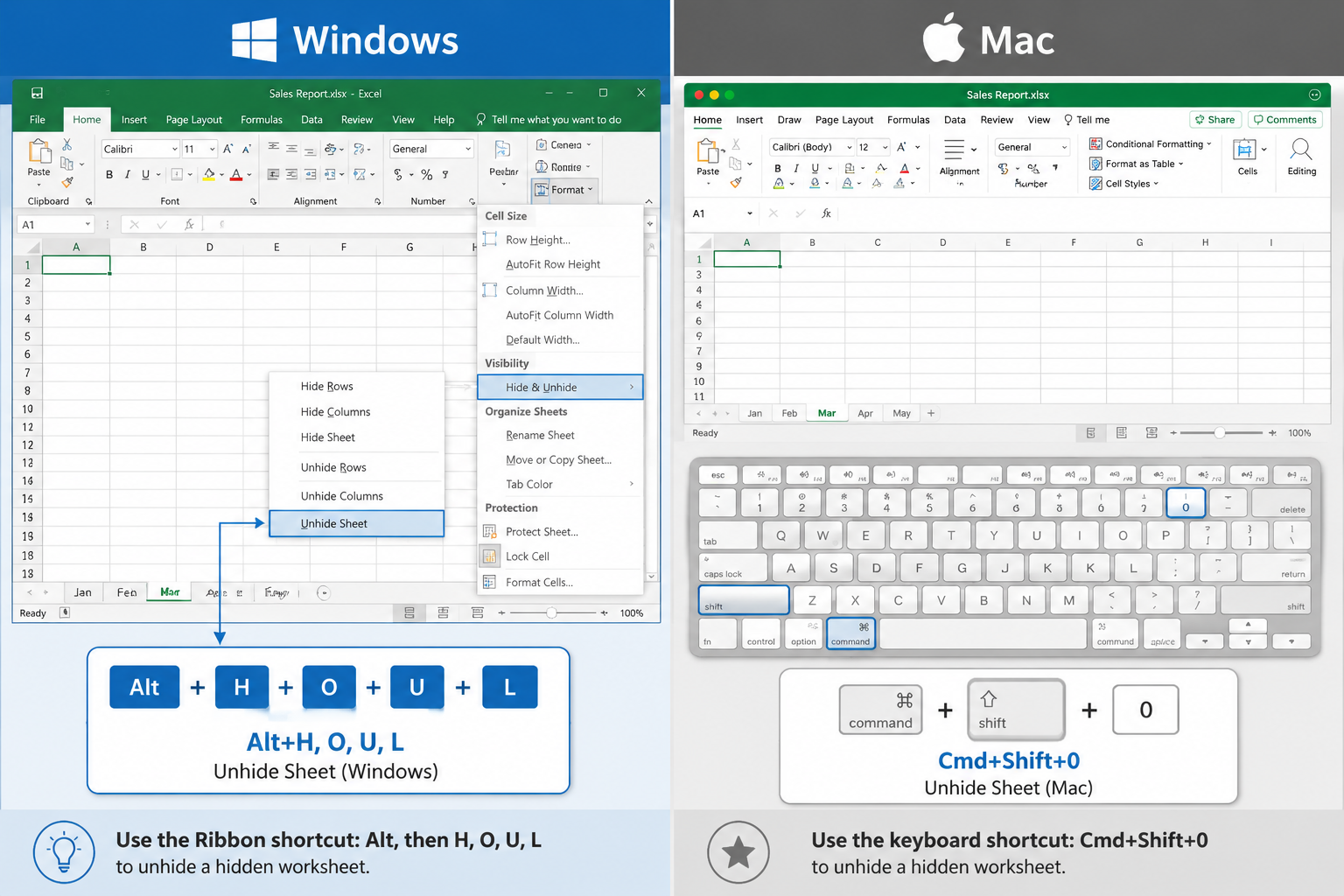
There are two keyboard-based approaches that don’t require a mouse. [7][8]
Windows — Ribbon keyboard sequence:
- Select the columns surrounding the hidden one(s).
- Press Alt, then H, then O, then U, then L (one key at a time).
- This navigates: Home → Format → Hide & Unhide → Unhide Columns.
Windows/Mac — Direct shortcut:
- Ctrl + Shift + 0 (Windows)
- Cmd + Shift + 0 (Mac)
⚠️ Note: On some Windows systems, Ctrl + Shift + 0 may be overridden by an IME (Input Method Editor) language shortcut. If it doesn’t work, use the Alt ribbon sequence instead. On Mac, this shortcut can conflict with macOS system shortcuts — you may need to disable the conflict in System Settings first. [7]
For more keyboard efficiency in Excel, see this guide on Alt key shortcuts in Excel.
How to Unhide the First Column in Excel (Column A)
Column A is a special case because there’s no column to its left to select as a neighbor. [4]
Method 1 — Name Box:
- Click the Name Box (the cell reference box at the top-left, usually showing a cell address like “B2”).
- Type A1 and press Enter. This navigates to cell A1 even though column A is hidden.
- Go to Home → Format → Hide & Unhide → Unhide Columns.
Method 2 — Go To dialog:
- Press Ctrl + G (or F5) to open the Go To dialog.
- Type A1 in the Reference box and click OK.
- Use the ribbon: Home → Format → Hide & Unhide → Unhide Columns.
Method 3 — Drag the column border: Move your cursor to the very left edge of the column B header until it becomes a resize cursor. Drag right to manually expand column A back into view.
How to Unhide Columns in Excel on Mac
On a Mac, the process is nearly identical to Windows. [6]
- Select the column headers on either side of the hidden column.
- Right-click (or Control-click) the selection.
- Choose Unhide from the context menu.
Mac keyboard shortcut: Cmd + Shift + 0 — select the surrounding columns first, then press the shortcut.
Via the menu bar: With columns selected, go to Format → Column → Unhide.
The visual cue (double-line between headers) is the same on Mac as on Windows.
Can You Unhide Columns in Excel If You Forgot Which Ones Are Hidden?
Yes. Excel gives you a visual clue even when you don’t remember which columns were hidden. [2]
Look at the column header row. If the letters skip (e.g., A, B, E — columns C and D are hidden) or if you see a thicker line between two adjacent headers, those are your hidden columns.
To find all hidden columns quickly:
- Select the entire sheet (Ctrl + A), then right-click any column header and choose Unhide. This reveals everything at once without needing to hunt for each hidden column individually.
For spreadsheets with many columns, you can also use Ctrl + End to jump to the last used cell, which gives you a sense of the full data range even if some columns are hidden.
How to Unhide Columns in Excel That Are Locked (Sheet Protection)
If a worksheet is protected, the Unhide option may be greyed out or unavailable. [8]
To fix this:
- Go to Review → Unprotect Sheet.
- Enter the password if prompted.
- Once unprotected, use the standard unhide method.
If you don’t have the password, you cannot unhide locked columns without the sheet owner’s permission. This is by design — sheet protection is used to prevent accidental or unauthorized changes.
Edge case: Even in a protected sheet, the column may be visible if the sheet was protected without locking column visibility. Check with the file owner about the protection settings. For more on locking and protecting cells, see the tag page on protecting cells in Excel.
Unhide Columns in Excel Not Working — What to Do
If the Unhide option is greyed out or nothing happens after clicking it, here are the most common causes and fixes: [8][10]
| Problem | Likely Cause | Fix |
|---|---|---|
| Unhide is greyed out | Sheet is protected | Unprotect via Review → Unprotect Sheet |
| Nothing happens after Unhide | Column width set to 0 | Select column, right-click → Column Width → set to a number like 8.43 |
| Can’t select column headers | Sheet is in Edit mode | Press Escape first, then try again |
| Shortcut Ctrl+Shift+0 doesn’t work | System shortcut conflict | Use Alt → H → O → U → L instead |
| Column A still hidden | Special case | Use Name Box method (type A1, press Enter, then unhide) |
Column width trick: Sometimes a column appears hidden but is actually just set to a width of zero. If right-clicking and choosing Unhide does nothing, select the surrounding columns, right-click, choose Column Width, and set it to the default (8.43 for most Excel versions).
How to Unhide Columns in Google Sheets
Google Sheets uses a nearly identical method to Excel. [6]
- Look for the small arrow icons (▶ ◀) that appear on the column headers adjacent to hidden columns — this is Google Sheets’ visual indicator.
- Click either arrow to unhide the column immediately.
Alternative method:
- Select the columns on either side of the hidden one.
- Right-click and choose Unhide columns.
The main difference from Excel: Google Sheets shows clickable arrow indicators directly on the header, making hidden columns even easier to spot.
How to Unhide Columns in Excel Mobile App
On the Excel mobile app (iOS or Android), unhiding columns is done through a tap-and-hold gesture. [10]
- Tap the column header to the left of the hidden column.
- Tap and hold to open the context menu.
- Drag the selection to include the column header on the right side of the gap.
- Tap Unhide from the menu that appears.
The mobile app has fewer options than the desktop version, but the core unhide function works the same way. For more tips on using Excel on your phone, see how to use Excel on your phone.
Conclusion
Knowing how to unhide columns in Excel is one of those skills that saves real time — especially when you inherit a spreadsheet from someone else or return to a file you built months ago. The right-click method works in almost every situation. For Column A, use the Name Box. For locked sheets, unprotect first. And when nothing seems to work, check whether the column width is simply set to zero.
Actionable next steps:
- Open a spreadsheet and practice hiding a column (right-click a header → Hide), then unhide it using each method described above.
- If you work with large datasets, try the “select all → right-click → Unhide” method to clear all hidden columns at once.
- Bookmark the keyboard shortcut Alt → H → O → U → L for mouse-free workflows.
For more Excel fundamentals, check out how to use Excel for beginners or explore how to easily expand all columns in Excel at once to keep your spreadsheets tidy and readable.
FAQ
Q: Why can’t I see the Unhide option when I right-click? A: The sheet is likely protected. Go to Review → Unprotect Sheet, enter the password if needed, then try again.
Q: Does hiding a column affect my formulas? A: No. Hidden columns still participate fully in calculations. Formulas that reference hidden cells continue to work normally.
Q: How do I know if a column is hidden vs. just very narrow? A: A hidden column shows a double-line between headers and skips a letter. A very narrow column still shows its letter header, just squeezed. Set the column width manually if you suspect it’s a width issue.
Q: Can I unhide columns in Excel Online (browser version)? A: Yes. Select adjacent columns, right-click, and choose Unhide. The behavior mirrors the desktop app.
Q: Is there a way to unhide all columns with one keyboard shortcut? A: Not a single shortcut, but you can press Ctrl + A to select all, then use Alt → H → O → U → L to unhide all columns quickly without a mouse.
Q: What’s the quickest way to unhide Column A specifically? A: Click the Name Box, type A1, press Enter, then go to Home → Format → Hide & Unhide → Unhide Columns. [4]
Q: Can I unhide columns on a shared/co-authored Excel file? A: Yes, as long as the sheet isn’t protected. In co-authoring mode, changes sync to all users, so unhiding a column will be visible to everyone viewing the file.
Q: Does Ctrl + Shift + 0 always work to unhide columns? A: Not always. On some Windows systems it conflicts with language input shortcuts, and on Mac it may conflict with system shortcuts. Use the Alt ribbon sequence as a reliable fallback. [7]
References
[1] Hide Or Show Rows Or Columns – https://support.microsoft.com/en-us/excel/get-started/hide-or-show-rows-or-columns [2] How To Unhide Columns In Excel – https://www.arcade.software/guides/how-to-unhide-columns-in-excel [4] Unhide The First Column Or Row In A Worksheet – https://support.microsoft.com/en-us/office/unhide-the-first-column-or-row-in-a-worksheet-d6b47608-80ee-4021-9b51-6a1f57269ec9 [6] How To Unhide Columns In Excel – https://www.advancedexcel.net/blog/how-to-unhide-columns-in-excel/ [7] How To Unhide Columns In Excel – https://www.wallstreetprep.com/knowledge/how-to-unhide-columns-in-excel/ [8] Unhide Columns In Excel – https://www.datacamp.com/tutorial/unhide-columns-in-excel [10] How To Unhide Columns In Excel – https://www.capterra.com/resources/how-to-unhide-columns-in-excel/