
Last updated: June 20, 2026
Quick Answer: Learning how to use Excel for beginners free is entirely possible in 2026 — no paid software or course required. Microsoft offers Excel Online at no cost, and dozens of free tutorials, courses, and templates can take a complete newcomer from zero to functional in a few hours. Start with the basics: open a spreadsheet, enter data, write a simple formula, and build from there.
Key Takeaways
- ✅ Excel Online (via Microsoft 365 for the web) is completely free — no download needed
- ✅ Free beginner courses from GoSkills, LogicExcel, and Cursa cover everything from data entry to charts
- ✅ The core skills every beginner needs: navigating the interface, entering data, writing formulas, and formatting cells
- ✅ SUM, AVERAGE, COUNT, and IF are the four most useful functions for beginners to learn first
- ✅ Templates save hours — use built-in Excel templates for budgets, lists, and planners
- ✅ Keyboard shortcuts dramatically speed up your workflow once you know the basics
- ✅ Charts can be created in seconds using the Alt + F1 shortcut
- ✅ Most beginners can reach a working level of Excel proficiency in under 10 hours of practice
What Is Excel and Why Should Beginners Learn It?
Excel is a spreadsheet program made by Microsoft that organizes data into rows and columns. It’s used for everything from personal budgets to business reports, and it remains one of the most in-demand software skills in the job market.
For beginners, the good news is that the basics are genuinely simple. A spreadsheet is just a grid. Each box in that grid is called a cell, and cells can hold text, numbers, or formulas. Once that clicks, everything else builds naturally on top of it.
Who benefits most from learning Excel:
- Job seekers who want to boost their resume
- Students managing assignments or grades
- Small business owners tracking income and expenses
- Anyone who wants to organize information more efficiently than a paper list allows
Where to Learn How to Use Excel for Beginners Free
Free Excel learning resources are everywhere in 2026, and several are genuinely excellent. The best options depend on how you prefer to learn.
Free platforms worth bookmarking:
| Platform | Format | Time Required |
|---|---|---|
| Microsoft Support [1] | Written guide + screenshots | 30–60 min |
| GoSkills “Excel in an Hour” [2] | Video course | 1 hr 15 min |
| LogicExcel [3] | Interactive practice | Self-paced |
| Cursa Crash Course [5] | Video + exercises | ~2 hours |
| YouTube (TrumpExcel) [10] | Video tutorial | 1–3 hours |
For a structured, step-by-step walkthrough, the how to use excel step-by-step for beginners guide covers the full learning path in one place. If you prefer a downloadable reference, the how to use excel step by step pdf is a handy offline option.
💡 Pro tip: Don’t just watch tutorials — follow along with a real spreadsheet open. Active practice beats passive watching every time.
How to Get Excel for Free in 2026
You don’t need to buy Microsoft 365 to use Excel. Here are three legitimate free options:
- Excel Online — Go to office.com, sign in with a free Microsoft account, and use Excel directly in your browser. Full basic functionality, no download needed.
- Microsoft 365 Free Trial — Microsoft offers a one-month trial of the full desktop version.
- School or Work License — Many schools and employers provide Microsoft 365 at no cost to students and employees. Check with your IT department or student portal.
Choose Excel Online if: you just want to practice basics, you’re on a Chromebook, or you don’t want to install software. Choose the desktop version if: you’re working with large datasets, need offline access, or want advanced features like Power Query.
Understanding the Excel Interface: Key Terms for Beginners
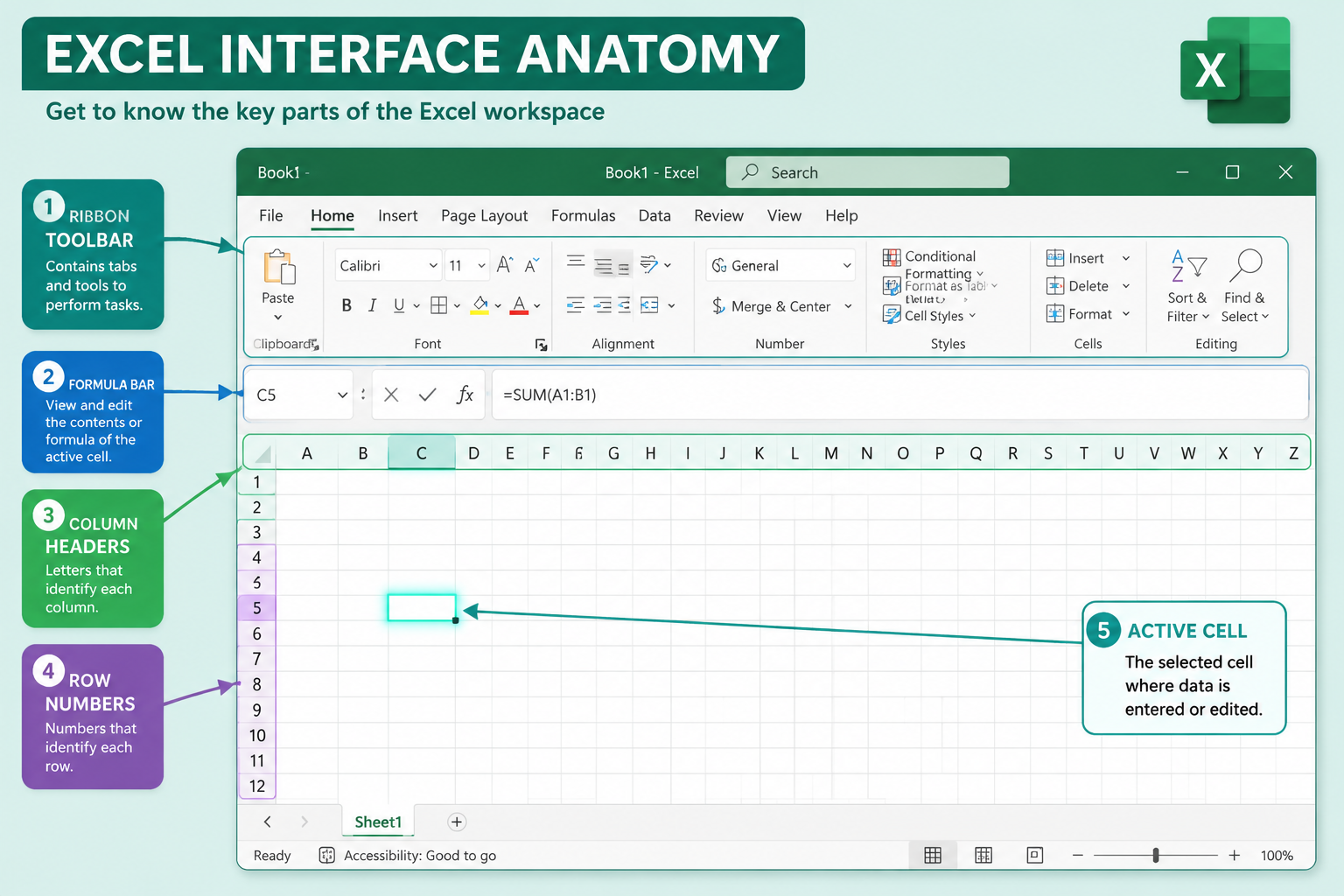
Before writing a single formula, it helps to know what you’re looking at. Microsoft’s official guide breaks the interface into a few key areas [1]:
- Workbook — the entire Excel file (like a binder)
- Worksheet — a single tab within the workbook (like a page in the binder)
- Cell — one individual box in the grid, identified by a column letter and row number (e.g., B3)
- Ribbon — the toolbar at the top with tabs like Home, Insert, and Formulas
- Formula Bar — the input bar above the grid where you type formulas
- Name Box — shows the address of the currently selected cell
Common mistake: New users often confuse the workbook with the worksheet. A workbook can contain many worksheets — look for the tabs at the bottom of the screen.
How to Enter and Format Data in Excel for Beginners Free
Data entry is the foundation of every spreadsheet. Click any cell and start typing — it’s that straightforward.
Basic data entry steps:
- Click the cell where you want to enter data
- Type your text or number
- Press Enter to move down, or Tab to move right
- To edit a cell, double-click it or press F2
Formatting basics:
- Bold: Ctrl + B
- Resize columns: Double-click the column border to auto-fit, or select all columns and resize at once (see this guide on resizing all columns in Excel at once)
- Format cells dialog: Press Ctrl + 1 to open the Format Cells dialog box for number formats, borders, and alignment
- Color-code rows: Use Format as Table to apply color to alternate rows for easier reading
For a deeper dive into organizing information efficiently, the how to use excel for data entry guide covers best practices for clean, error-free spreadsheets.
How to Use Excel Formulas for Beginners Free
Formulas are what make Excel powerful. Every formula starts with an equals sign (=). After that, you type a function name or a math operation.
The four formulas every beginner should learn first:
| Formula | What It Does | Example |
|---|---|---|
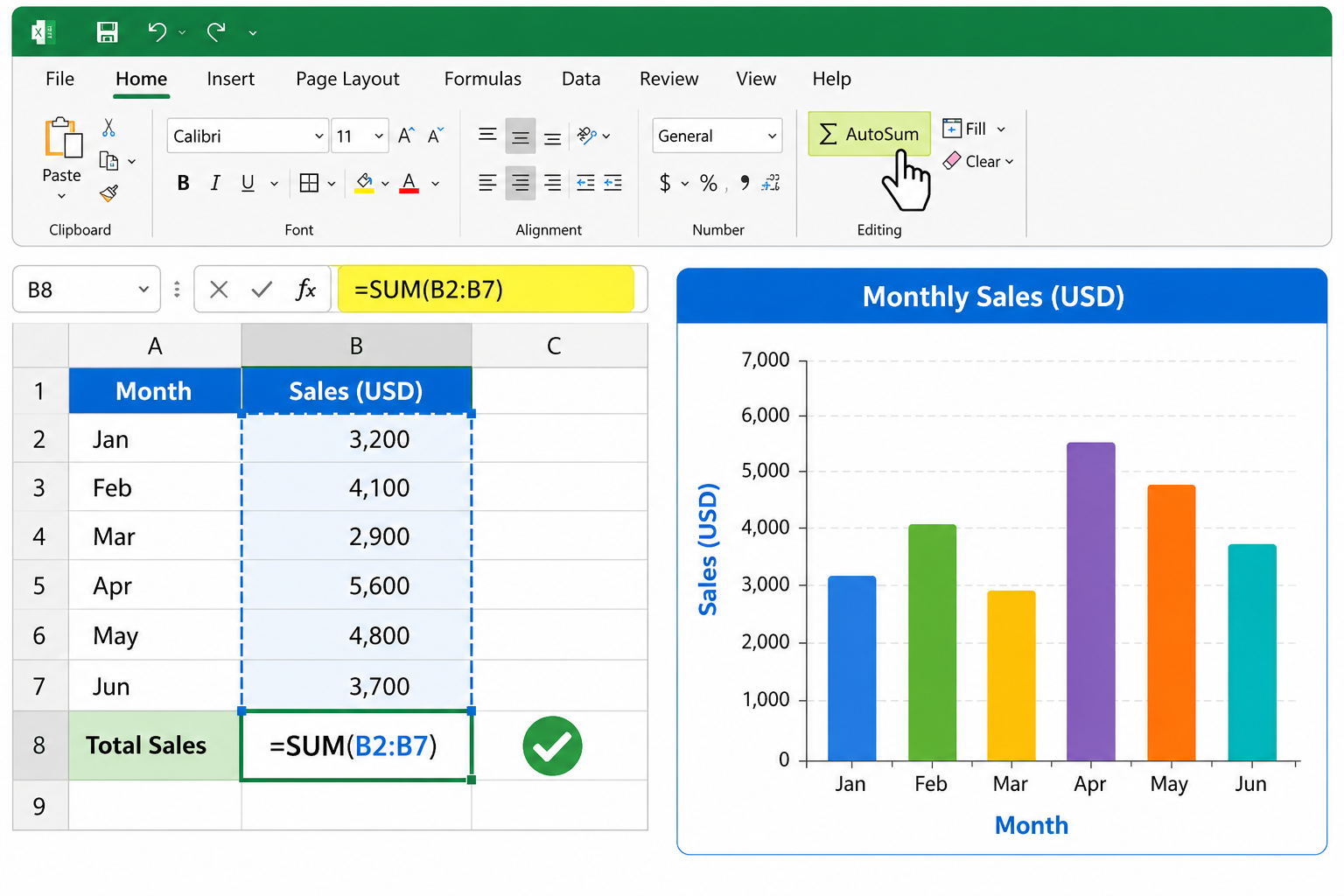
| =SUM(A1:A10) | Adds a range of numbers | Total sales for the month |
| =AVERAGE(B1:B10) | Calculates the mean | Average test score |
| =COUNT(C1:C10) | Counts cells with numbers | Number of entries |
| =IF(D1>100,”Yes”,”No”) | Tests a condition | Flag values over 100 |
The fastest way to add numbers is the AutoSum shortcut. Select the cell below your data and press Alt + = — Excel fills in the SUM formula automatically. For a full breakdown of this trick, see the Excel AutoSum shortcut guide.
For more formula techniques beyond the basics, the how to use excel with formulas guide is a solid next step.
Common mistake: Forgetting the equals sign. Typing SUM(A1:A10) without the = just displays text — Excel won’t calculate anything.
How to Create Charts and Visualize Data
Charts turn raw numbers into something people can actually understand. Excel makes this surprisingly quick.
Fastest way to create a chart:
- Select your data (including headers)
- Press Alt + F1 — Excel instantly inserts a chart on the same sheet
- Click the chart to access design and format options in the ribbon
For more chart-building techniques, the ten tips for Excel charts series is worth bookmarking.
Choose the right chart type:
- Bar/Column chart — comparing categories (sales by month, scores by student)
- Line chart — showing trends over time
- Pie chart — showing parts of a whole (keep to 5 or fewer slices)
Beginner-Friendly Excel Templates to Practice With
Templates are one of the fastest ways to learn because you can see how a working spreadsheet is built and then customize it. Excel includes dozens of free templates, and more are available online.
Good starter templates for beginners:
- Wedding budget template — great for practicing SUM and category totals
- Grocery list template — simple data entry practice
- Meal planner template — introduces formatting and layout
To open a template in Excel: File → New → search for a category (Budget, Calendar, List).
FAQ: How to Use Excel for Beginners Free
Q: Can I really use Excel for free without buying Microsoft 365? Yes. Excel Online is free at office.com with a Microsoft account. It covers all core features beginners need, including formulas, charts, and formatting.
Q: How long does it take to learn Excel basics? Most beginners reach a functional level in 5–10 hours of practice. GoSkills’ free crash course covers the essentials in about 75 minutes [2].
Q: What’s the difference between a workbook and a worksheet? A workbook is the entire Excel file. A worksheet is a single tab inside that file. One workbook can hold many worksheets.
Q: What is the most important formula for beginners to learn? SUM is the most universally useful. It adds numbers in a range and appears in nearly every real-world spreadsheet.
Q: How do I stop Excel from changing my numbers to dates? Format the cell as “Text” before entering the value, or type an apostrophe (‘) before the number. This tells Excel to treat the entry as text.
Q: Is Excel the same as Google Sheets? They’re similar but not identical. Google Sheets is free and browser-based. Excel has more advanced features and is the standard in most workplaces. Skills transfer between the two easily.
Q: How do I undo a mistake in Excel? Press Ctrl + Z to undo. You can press it multiple times to step back through recent actions.
Q: Where can I find free Excel video tutorials? YouTube channels like TrumpExcel offer free beginner courses [10]. The Excel how-to videos library is also a practical resource for visual learners.
Conclusion
Learning how to use Excel for beginners free in 2026 doesn’t require spending money or committing to a long course. Start with Excel Online, practice entering data and writing a few formulas, and use free templates to build real-world skills quickly.
Actionable next steps:
- Open Excel Online at office.com and create your first workbook
- Enter a small dataset (a list of expenses, for example) and practice SUM and AVERAGE
- Try the Alt + F1 shortcut to create a chart from your data
- Bookmark a free course from GoSkills or LogicExcel for structured learning
- Explore a beginner template to see how a complete spreadsheet is organized
The best way to learn Excel is to use it for something real — a budget, a list, a schedule. Pick one task from your daily life and build a spreadsheet around it. That hands-on approach will teach you more than any tutorial on its own.
References
[1] Basic Tasks In Excel – https://support.microsoft.com/en-us/office/basic-tasks-in-excel-dc775dd1-fa52-430f-9c3c-d998d1735fca?utm_source=openai
[2] Learn Excel Tutorial – https://www.goskills.com/course/learn-excel-tutorial?utm_source=openai
[3] Excel Courses – https://logicexcel.com/learn/excel-courses?utm_source=openai
[5] Excel For Beginners 2 Hour Crash Course In Formulas Charts And Pivot Tables – https://cursa.app/en/free-course/excel-for-beginners-2-hour-crash-course-in-formulas-charts-and-pivot-tables-fefa?utm_source=openai
[10] Getting Started with Excel for Beginners (YouTube) – https://www.youtube.com/watch?v=UPABcYhugZk&utm_source=openai