
Last updated: June 28, 2026
Quick Answer: To unprotect an Excel sheet when you know the password, go to the Review tab, click Unprotect Sheet, and enter the password when prompted. If no password was set, clicking Unprotect Sheet removes protection instantly. If you’ve forgotten the password, there’s no official Microsoft recovery tool — but a widely used XML workaround exists for the .xlsx format.
Key Takeaways
- The standard method takes under 30 seconds: Review → Unprotect Sheet → enter password
- Sheet protection and workbook protection are two different things — each needs its own removal step
- Microsoft has no built-in password recovery tool for forgotten sheet passwords [1][2]
- The XML/.zip method can bypass sheet-level passwords on .xlsx files without any software
- Workbook encryption (File → Info → Encrypt with Password) is much stronger and has no bypass
- On Mac and Windows, the steps are nearly identical — just the menu layout differs slightly
- Unprotecting a sheet you don’t own without permission may violate laws or workplace policies
- Google Sheets can open .xlsx files but won’t automatically remove Excel sheet protection
Why Would You Want to Unprotect an Excel Sheet?
Unprotecting a sheet is necessary any time you need to edit cells, change formulas, add rows, or modify formatting that the sheet owner locked down. Common reasons include:
- Editing a shared template that was locked to prevent accidental changes
- Updating a budget or timesheet where only certain cells were meant to be editable (for example, a weekly timesheet template that needs new employee rows)
- Fixing a formula error in a protected range
- Taking over a file from a colleague who has left the organization
- Learning and auditing how a workbook was built
Sheet protection is a convenience feature, not a security feature. Microsoft’s own documentation makes clear it’s designed to prevent accidental edits, not to encrypt or truly secure data [1].
What’s the Difference Between Sheet Protection and Workbook Protection in Excel?
These two features protect different things, and confusing them is one of the most common mistakes people make.
| Feature | What It Protects | How to Remove |
|---|---|---|
| Sheet Protection | Editing cells, formatting, inserting rows on one sheet | Review → Unprotect Sheet |
| Workbook Protection | Adding, moving, deleting, or renaming sheets | Review → Protect Workbook (toggle off) |
| Encrypt with Password | The entire file — no one can open it | File → Info → Protect Workbook → Encrypt with Password → clear the field |
Sheet protection controls what users can do inside a worksheet — editing cells, changing formatting, inserting rows [1]. Workbook protection locks the structure of the workbook itself, such as preventing someone from adding or deleting sheets [3]. File encryption is the strongest level: it scrambles the entire file, and if that password is lost, Microsoft has no recovery method [3][6].
Choose the right removal method: If you can still open the file but can’t edit a sheet, it’s sheet protection. If you can’t add or rename tabs, it’s workbook protection. If you can’t open the file at all, it’s file encryption.
How to Unprotect an Excel Sheet (When You Know the Password)
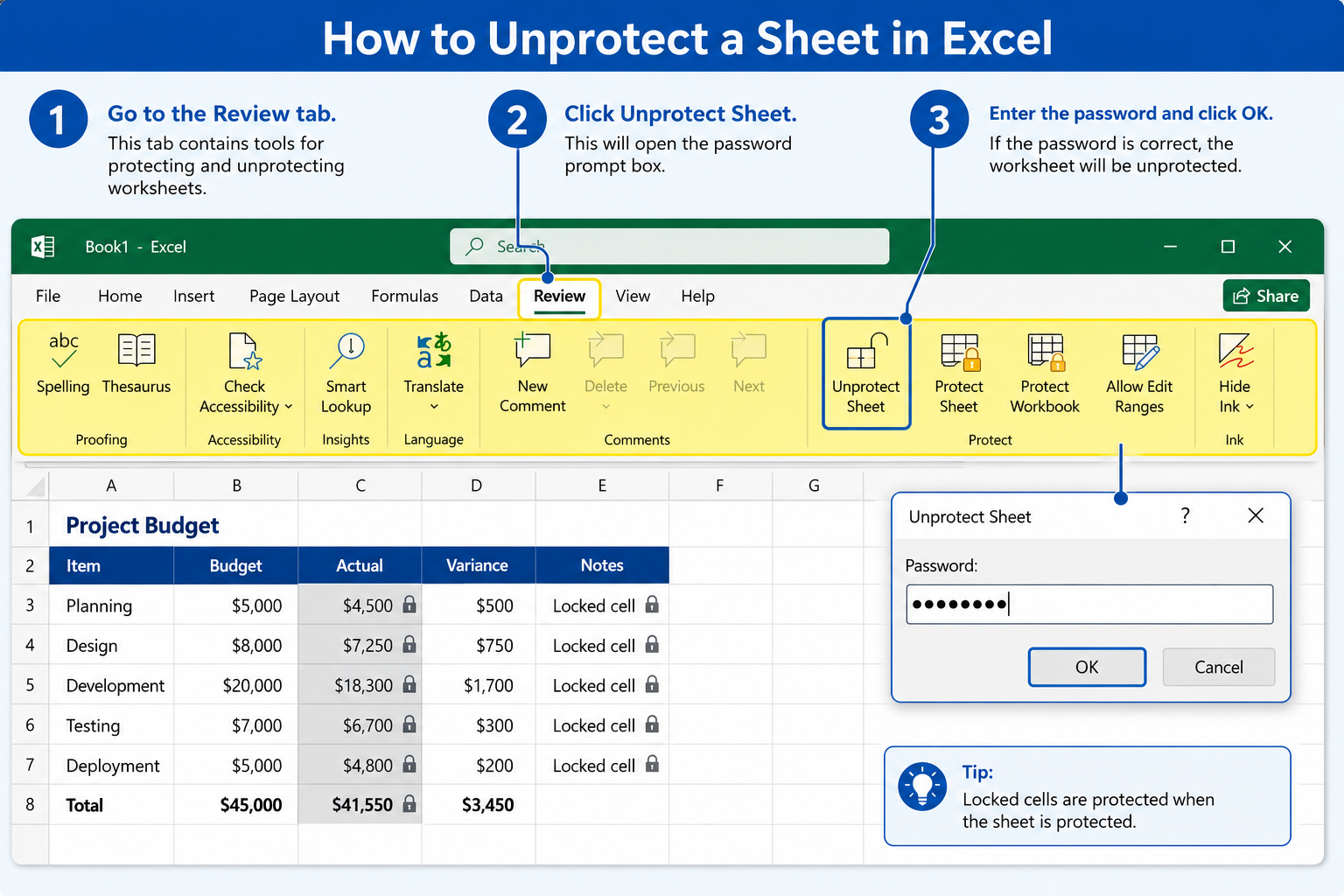
This is the standard method and takes less than a minute [1][4].
Step-by-step on Windows:
- Open the workbook in Excel
- Click the sheet tab you want to unprotect
- Go to the Review tab in the ribbon
- Click Unprotect Sheet
- If prompted, type the password and click OK
Step-by-step on Mac:
- Open the workbook
- Select the sheet tab
- Go to Tools in the menu bar (or the Review tab in newer Excel for Mac versions)
- Click Unprotect Sheet
- Enter the password if asked
If no password was ever set, clicking Unprotect Sheet removes protection immediately with no prompt [4].
To remove workbook-level protection, go to Review → Protect Workbook and click it again to toggle it off (entering the password if required) [3].
If you’re new to Excel and want to build your skills beyond just protection settings, the beginner’s guide to using Excel is a great starting point.
How to Unprotect an Excel Sheet Without a Password
The most reliable no-software method uses the fact that .xlsx files are actually ZIP archives containing XML files. You can edit those XML files directly to strip the protection tag [4][5][8].
The XML/.zip method (Windows or Mac):
- Make a backup copy of your file first
- Rename the file extension from
.xlsxto.zip(confirm when prompted) - Open the .zip archive using your file explorer or a tool like 7-Zip
- Navigate to the
xl/worksheets/folder - Open the relevant sheet file (e.g.,
sheet1.xml) in a plain text editor like Notepad - Find and delete the entire
<sheetProtection ... />tag - Save the file, then rename the extension back from
.zipto.xlsx - Open the file in Excel — the sheet will now be unprotected
⚠️ This method only works for sheet-level protection on .xlsx files. It does not work on file-level encryption (where you can’t open the file at all) [3][6].
Common mistake: People try this on .xls (older format) files, which aren’t ZIP archives and require different tools.
Can You Unprotect an Excel Sheet If You Forgot the Password?
Microsoft provides no built-in recovery tool for forgotten sheet passwords. Official documentation and the Microsoft Tech Community both confirm that if you’ve forgotten the password, Microsoft cannot retrieve it for you [1][2][9].
Your options are:
- Try the XML method above — it bypasses sheet-level passwords on .xlsx files without needing to know the password [4][5]
- Check a password manager or any notes where you might have stored it
- Contact the original creator of the file
- Recreate the workbook if all else fails — as suggested in Microsoft’s own community forums [2]
“If you forgot the password, Microsoft itself cannot provide it and there is no supported recovery feature.” — Microsoft Tech Community [2]
For file-level encryption (the Encrypt with Password option), there is genuinely no bypass. That password is required to open the file, and there’s no workaround short of third-party brute-force tools, which are not guaranteed to work [3][6].
How to Remove Password Protection from an Excel Sheet: Mac vs. Windows

The process is nearly identical on both platforms, with minor UI differences [4][8].
| Step | Windows | Mac |
|---|---|---|
| Open Review tab | Ribbon → Review | Ribbon → Review (or Tools menu) |
| Unprotect Sheet | Click “Unprotect Sheet” | Click “Unprotect Sheet” |
| Password prompt | Dialog box appears | Dialog box appears |
| Result | Sheet editable | Sheet editable |
The XML/.zip method also works on Mac. On a Mac, you can rename file extensions in Finder by enabling “Show all filename extensions” in Finder preferences, then renaming the file normally.
Can You Unprotect an Excel Sheet That Someone Else Protected?
Technically, yes — the XML method works regardless of who set the password. But whether you should is a separate question entirely.
If you own the file or have been given permission by the owner, there’s no issue. If the file belongs to your employer and you have a legitimate work reason, check with your IT department first.
Is it legal to unprotect an Excel sheet you don’t own?
This depends on jurisdiction and context. In many cases, bypassing protection on a file you don’t own or aren’t authorized to access could violate:
- Computer fraud laws (such as the Computer Fraud and Abuse Act in the US)
- Workplace IT policies
- Data protection regulations
Always get explicit permission before unprotecting a file that isn’t yours. The technical ability to do something doesn’t make it permissible.
What Happens When You Unprotect an Excel Sheet?
When you unprotect a sheet, all previously locked cells become fully editable. Any restrictions on formatting, inserting/deleting rows, sorting, or using AutoFilter are also lifted [1].
The data itself is unchanged — unprotecting doesn’t delete anything. If the sheet had specific cells marked as “unlocked” (which were editable even while protected), those cells remain exactly as they were.
This is also reversible: you can re-protect the sheet at any time via Review → Protect Sheet. If you want to lock specific cells rather than an entire sheet, see this guide on how to lock cells in Excel.
How to Unprotect Multiple Sheets at Once in Excel
Excel has no built-in “unprotect all sheets” button. The fastest approaches are:
Option 1 — VBA Macro (if sheets share the same password):
<code class="language-vba">Sub UnprotectAllSheets()
    Dim ws As Worksheet
    For Each ws In ActiveWorkbook.Worksheets
        ws.Unprotect Password:="yourpassword"
    Next ws
End Sub
</code>
Run this via Developer → Macros → Run. Replace "yourpassword" with the actual password (or remove the Password:= argument if no password was set).
Option 2 — XML method for each sheet file: Inside the .zip archive, each sheet has its own XML file (sheet1.xml, sheet2.xml, etc.). Remove the <sheetProtection> tag from each one.
Option 3 — Manual: If there are only a few sheets, clicking through Review → Unprotect Sheet on each tab is fastest.
How Long Does It Take to Unprotect an Excel Sheet?
- With the password: Under 30 seconds
- XML/.zip method (no password): 5–10 minutes if you’ve done it before; 15–20 minutes the first time
- VBA macro for multiple sheets: 2–3 minutes to write and run
Excel Sheet Unprotect Not Working — What Do I Do?
If the Unprotect Sheet button is greyed out or the password isn’t accepted, check these things:
- Wrong sheet selected: Make sure you’ve clicked the correct tab
- Workbook is open in Protected View: Click “Enable Editing” at the top first
- File is read-only: Check file properties and remove read-only status
- Password has a typo: Passwords are case-sensitive — try Caps Lock variations
- It’s workbook protection, not sheet protection: Go to Review → Protect Workbook instead
- File is encrypted: If you can’t open the file, it’s file-level encryption, not sheet protection
If you’re working with formulas and the sheet is blocking edits, it may also help to review how to insert a formula in Excel for an entire column once the sheet is unprotected.
Tools to Unprotect Excel Sheets Online
Several online tools claim to remove Excel sheet protection by uploading your file. These can work for sheet-level passwords but come with real risks:
- Privacy: You’re uploading potentially sensitive data to a third-party server
- Security: Some sites may store or misuse your files
- Reliability: Results vary; many only work on older .xls formats
Recommendation: Use the XML/.zip method instead — it’s free, works offline, and doesn’t require sharing your file with anyone. Only use online tools for files with no sensitive data.
How to Unprotect an Excel Sheet in Google Sheets Instead
Google Sheets can import .xlsx files, but it doesn’t automatically strip Excel sheet protection. When you open a protected .xlsx file in Google Sheets, the protection settings are usually preserved or the sheet may appear editable depending on how the protection was applied.
To work around this:
- Use the XML method to remove protection from the .xlsx file first
- Then upload the cleaned file to Google Drive and open it in Google Sheets
Google Sheets has its own separate protection system (via Data → Protect sheets and ranges) that’s completely independent of Excel’s protection.
Common Mistakes When Trying to Unprotect Excel Sheets
- Confusing sheet protection with file encryption — the XML method won’t help if you can’t open the file
- Forgetting to back up the file before editing XML
- Editing the wrong XML file inside the .zip archive (there are multiple XML files; only
xl/worksheets/sheetX.xmlfiles contain sheet protection tags) - Using the method on .xls files — only .xlsx (and .xlsm, .xlsb with modification) works as a ZIP archive
- Assuming “Protect Workbook” and “Protect Sheet” are the same thing — they’re not [1][3]
For related Excel skills that often come up after unprotecting a sheet, check out how to remove duplicates in Excel and how to create a dropdown menu in Excel.
FAQ
Q: Can I unprotect an Excel sheet without any software? Yes. The XML/.zip method requires only a text editor (like Notepad), which comes pre-installed on Windows and Mac. No third-party software is needed.
Q: Does unprotecting a sheet delete any data? No. Unprotecting only removes the editing restrictions. All cell values, formulas, and formatting remain intact [1].
Q: What if the Unprotect Sheet option is greyed out? The workbook may be open in Protected View or marked as read-only. Click “Enable Editing” at the top of the screen, or check the file’s read-only status in its properties.
Q: Can Excel’s file encryption be bypassed the same way? No. File-level encryption (Encrypt with Password) scrambles the entire file. The XML method doesn’t work because you can’t open or extract the archive without the password [3][6].
Q: Is the XML method safe to use?
It’s safe for the file as long as you back it up first and edit only the <sheetProtection> tag. Deleting other XML content can corrupt the file.
Q: Does this work on Excel for the web (Office 365 online)? The XML method must be done on a local copy. Excel for the web follows the same Review → Unprotect Sheet path for password-known scenarios.
Q: How do I know if a sheet is protected? Right-click the sheet tab. If you see “Unprotect Sheet” in the context menu (instead of “Protect Sheet”), the sheet is currently protected.
Q: Can I protect just specific cells instead of the whole sheet? Yes. Excel lets you mark individual cells as “locked” or “unlocked” before applying sheet protection. See the guide on how to protect specific cells in Excel for details.
Q: Does the XML method work on .xlsm (macro-enabled) files? Yes — .xlsm files are also ZIP-based archives and the same process applies.
Q: What’s the fastest way to unprotect multiple sheets?
A short VBA macro that loops through all worksheets and calls .Unprotect on each one is the fastest approach, especially if all sheets share the same password.
Conclusion
Knowing how to unprotect an Excel sheet is a practical skill that saves time and frustration. Here’s a quick action plan based on your situation:
- You know the password: Review → Unprotect Sheet → enter password. Done in under 30 seconds [1].
- No password was set: Same steps — Excel removes protection without prompting.
- Forgot the password: Use the XML/.zip method on .xlsx files. Back up first, rename to .zip, edit the sheet XML, rename back [4][5].
- File-level encryption: No bypass exists — try to recover the password from notes or a password manager [3][6].
- Multiple sheets: Write a quick VBA macro to loop through all sheets at once.
Once your sheet is unprotected, you can edit formulas, restructure data, and make the changes you need. If you want to re-apply protection afterward — or lock only specific cells — the guide to locking cells in Excel walks through exactly how to do that.
References
[1] Protect A Worksheet – https://support.microsoft.com/en-us/excel/protect-a-worksheet [2] techcommunity.microsoft – https://techcommunity.microsoft.com/discussions/excelgeneral/how-to-unprotect-excel-sheet-if-forgot-the-password/4180681 [3] Change Or Remove Workbook Passwords – https://support.microsoft.com/en-us/office/change-or-remove-workbook-passwords-1c17af87-25e2-4dc6-94f0-19ce21ad0b68 [4] How To Unprotect A Sheet In Excel – https://www.geeksforgeeks.org/excel/how-to-unprotect-a-sheet-in-excel/ [5] Unprotect Excel Sheet – https://www.datacamp.com/tutorial/unprotect-excel-sheet [6] Remove An Encrypted Password From An MS Excel Workbook – https://learn.microsoft.com/en-us/answers/questions/5286691/remove-an-encrypted-password-from-an-ms-excel-work [8] Unprotect Excel Sheet – https://www.xelplus.com/unprotect-excel-sheet/ [9] Unprotect Excel Sheets – https://learn.microsoft.com/en-my/answers/questions/5703849/unprotect-excel-sheets