
Last updated: June 11, 2026
Quick Answer: Learning how to use Excel step-by-step for beginners starts with understanding the basic layout (rows, columns, and cells), entering data, and writing simple formulas like SUM and AVERAGE. Most beginners can handle everyday tasks within a few hours of practice. Excel is available as a paid Microsoft 365 subscription or free through Excel Online, so there’s no barrier to getting started today.
Key Takeaways
- Excel’s grid is made of cells (the intersection of rows and columns) — everything happens inside them.
- The most important beginner formulas are SUM, AVERAGE, COUNT, IF, and VLOOKUP.
- Excel is not hard to learn if you start with the basics and build gradually; most people feel comfortable within 1–4 weeks of regular use.
- Microsoft 365 Personal costs around $69.99/year (as of 2026); Excel Online is completely free.
- Excel works on both Mac and Windows, though a few keyboard shortcuts and menu layouts differ between platforms.
- Common beginner mistakes include skipping cell formatting, not saving often, and mixing data types in the same column.
- Excel skills are required or preferred in roles like accounting, marketing, project management, data analysis, and administration.
- Free learning resources include Excel Easy, GoSkills, freeCodeCamp on YouTube, and Coursera.
What Are the Basic Excel Skills You Need to Learn First?
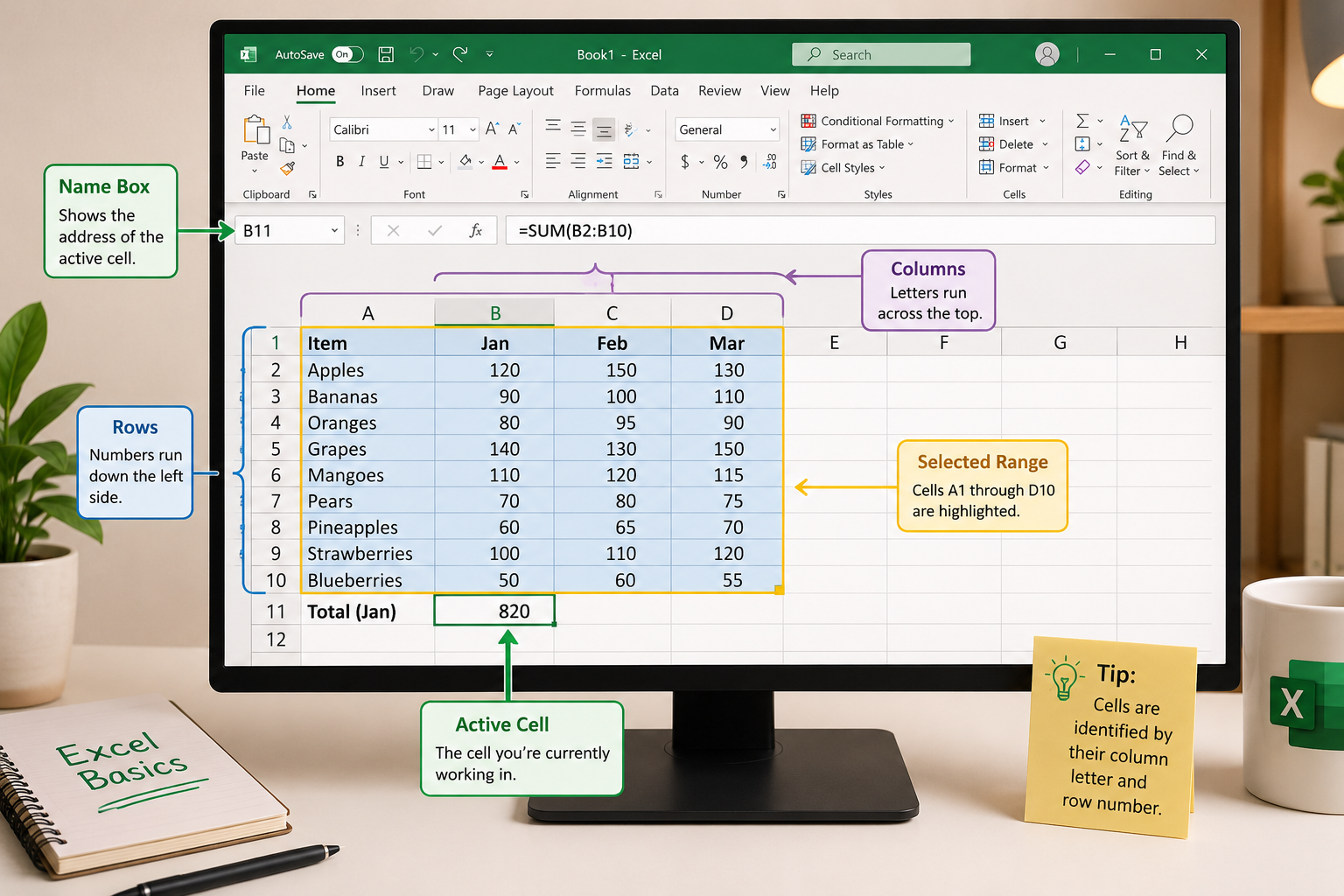
The four foundational skills every beginner needs are: navigating the grid, entering and editing data, formatting cells, and writing basic formulas. Everything else in Excel builds on these four areas.
Here’s a practical order to learn them:
- Understand the grid — Columns run vertically (labeled A, B, C…) and rows run horizontally (labeled 1, 2, 3…). A cell is named by its column + row, so “B3” means column B, row 3.
- Enter data — Click a cell, type your content, and press Enter to move down or Tab to move right.
- Format cells — Change number formats (currency, percentage, date), adjust column width, and wrap text in cells so long entries are fully visible.
- Write a formula — Every formula starts with
=. Type=SUM(A1:A5)to add up five cells. - Save your work — Use Ctrl+S (Windows) or Cmd+S (Mac) constantly. Enable AutoSave if you’re using Microsoft 365.
Choose this path if… you’re starting from zero. Skipping step 3 (formatting) is the most common beginner mistake — unformatted data is hard to read and easy to misinterpret.
How Do I Create My First Spreadsheet in Excel?
Creating your first spreadsheet takes less than five minutes. Open Excel, click Blank Workbook, and you’re looking at a ready-to-use grid.
Step-by-step: Build a simple monthly budget
- Click cell A1 and type “Category.”
- Click B1 and type “Amount.”
- In A2, type “Rent.” In B2, type your rent amount (e.g., 1200).
- Add more categories in A3, A4, A5 (Groceries, Transport, Utilities) with matching amounts in column B.
- Click B6, type
=SUM(B2:B5), and press Enter. Excel instantly totals your expenses. - Bold row 1 by selecting it and pressing Ctrl+B.
- Easily expand all columns at once so your text isn’t cut off — select all cells with Ctrl+A, then double-click any column border.
That’s a working spreadsheet. From here, you can add more rows, create a chart, or build a second sheet for income.
Practical templates to try next:
- Monthly schedule template for tracking tasks and deadlines
- Weekly timesheet template for logging work hours
- Home inventory template for tracking household items
What Are the Most Common Excel Formulas for Beginners?
The five formulas below cover roughly 80% of what most beginners need. Each one follows the same pattern: =FORMULANAME(range or values).
| Formula | What It Does | Example |
|---|---|---|
=SUM(B2:B10) |
Adds all numbers in a range | Total expenses |
=AVERAGE(B2:B10) |
Calculates the mean | Average monthly spend |
=COUNT(B2:B10) |
Counts cells with numbers | How many entries exist |
=IF(B2>500,"High","Low") |
Tests a condition, returns one of two results | Flag large expenses |
=MAX(B2:B10) |
Finds the largest value | Highest monthly bill |
Quick tip: Use the AutoSum shortcut to add a column of numbers without typing a formula at all — just select the cell below your data and press Alt + = (Windows).
For dates specifically, Excel has handy shortcuts too. You can insert today’s date with just two keystrokes using Ctrl + ;.
Common mistake: Beginners often type numbers as text (e.g., typing
'1200with an apostrophe). Formulas won’t calculate text values. If SUM returns zero, check that your numbers aren’t stored as text.
Is Excel Hard to Learn for Someone With No Computer Background?
Excel is not hard to learn for beginners, especially when approached step-by-step. The core skills — entering data, formatting, and basic formulas — are straightforward enough that most people can handle simple spreadsheets within a few hours.
The learning curve steepens only when you move into advanced features like pivot tables, VLOOKUP, or macros. But those aren’t required for everyday use.
What makes it easier:
- Excel’s interface is visual and forgiving — mistakes are easy to undo with Ctrl+Z.
- Formulas show error messages (like
#VALUE!or#REF!) that tell you what went wrong. - Free resources are plentiful (more on those below).
What can slow beginners down:
- Not understanding the difference between a value and a formula.
- Confusing relative and absolute cell references (e.g.,
B2vs.$B$2). - Trying to learn too many features at once instead of practicing one thing at a time.
Can I Use Excel for Free, and How Much Does It Cost?
Excel is available both free and paid, depending on how you access it. Excel Online (at office.com) is completely free with a Microsoft account and covers most beginner needs.
Pricing overview (2026):
| Option | Cost | Best For |
|---|---|---|
| Excel Online | Free | Basic spreadsheets, cloud access |
| Microsoft 365 Personal | ~$69.99/year | Full desktop features, 1 user |
| Microsoft 365 Family | ~$99.99/year | Up to 6 users |
| One-time purchase (Office 2024) | ~$149.99 | No subscription, limited updates |
Choose Excel Online if… you’re just learning and don’t need advanced features like Power Query or macros. It’s a perfectly capable learning environment.
Google Sheets is also a free alternative that works similarly and is worth considering if you’re budget-conscious.
What’s the Difference Between Excel for Mac and Windows?
Excel for Mac and Windows are functionally the same for beginners — the formulas, cell structure, and core features are identical. The differences are mostly in keyboard shortcuts and a few menu layouts.
Key differences to know:
- Ctrl on Windows = Cmd on Mac for most shortcuts (e.g., Ctrl+C vs. Cmd+C to copy).
- Some Windows-only features like certain Power Query tools have limited Mac support.
- The ribbon layout looks slightly different, but all the same options are there.
For beginners, the platform difference is minor. Pick whichever computer you already have.
What Kinds of Jobs Require Excel Skills?
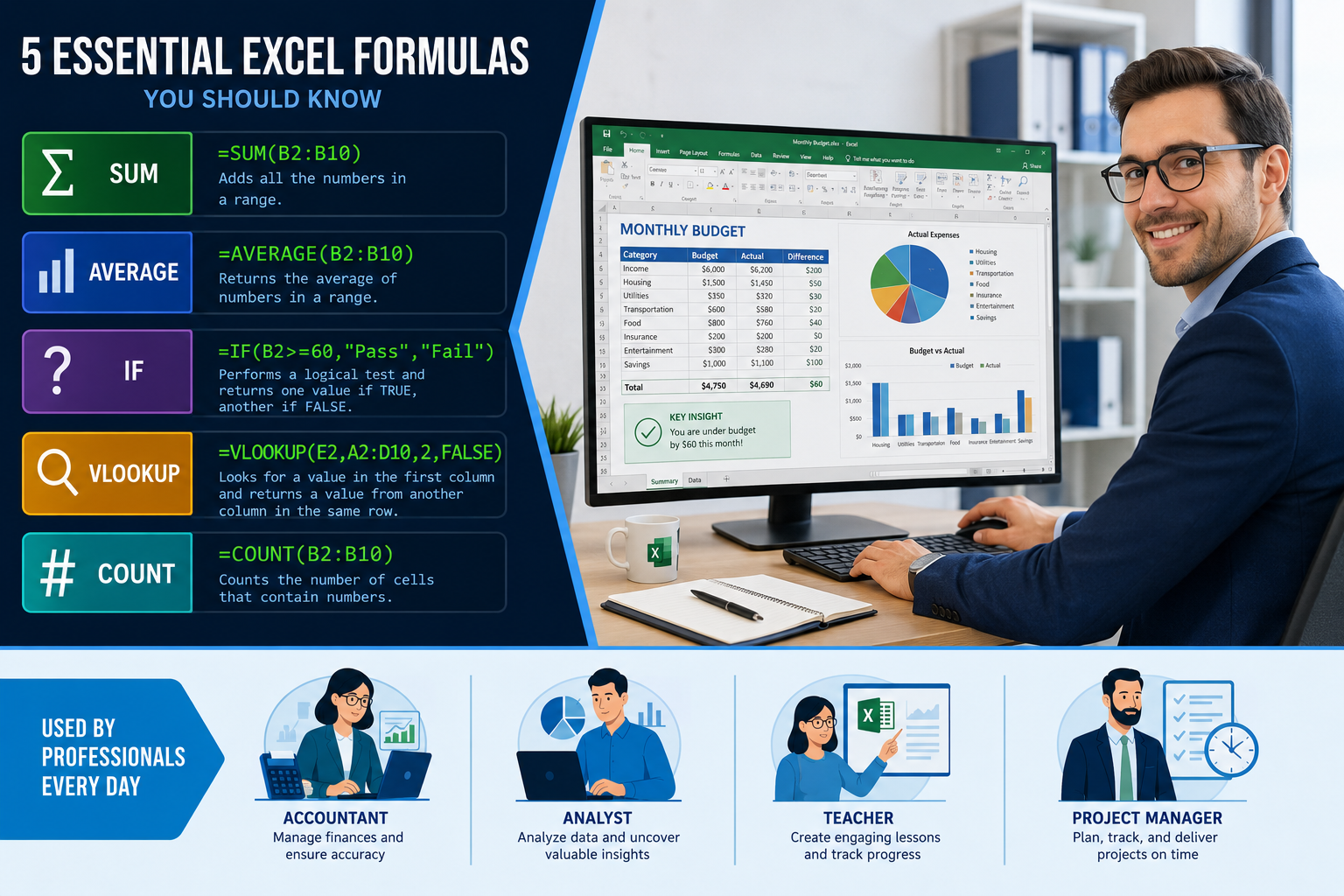
Excel skills are expected or preferred in a wide range of roles across almost every industry. It’s one of the most commonly requested software skills in job postings globally.
Jobs where Excel is regularly used:
- Accountants and bookkeepers — budgets, financial statements, expense tracking. See this guide on creating a balance sheet in Excel.
- Project managers — timelines, resource planning, task tracking. A project timeline template is a great starting point.
- Marketing analysts — campaign data, ROI calculations, reporting.
- HR professionals — employee records, payroll, scheduling.
- Administrative assistants — data entry, scheduling, inventory.
- Teachers and educators — grade tracking, attendance, lesson planning.
Even roles not traditionally associated with data — like retail management or healthcare administration — increasingly expect basic spreadsheet competency.
What Are the Biggest Mistakes New Excel Users Make?
The most common beginner mistakes are avoidable once you know to watch for them. Here are the top ones and how to fix them:
- Not formatting numbers correctly — Always set currency cells to currency format and date cells to date format. Mixed formats cause formula errors.
- Merging cells too aggressively — Merged cells look tidy but break sorting and filtering. Use “Center Across Selection” instead when possible.
- Hardcoding values instead of using formulas — If your total is typed as “3500” instead of
=SUM(B2:B10), it won’t update when data changes. - Skipping keyboard shortcuts — Learning even 10 shortcuts dramatically speeds up your work. Start with the 50 most useful Excel keyboard shortcuts.
- Not freezing header rows — When scrolling through long data, headers disappear. Use View > Freeze Panes > Freeze Top Row to keep them visible.
- Putting multiple data types in one column — Mixing text and numbers in a single column breaks formulas and sorting.
How Long Does It Take to Become Good at Using Excel?
Most beginners can handle everyday Excel tasks within 1–4 weeks of regular practice (roughly 30–60 minutes per day). Reaching an intermediate level — comfortable with pivot tables, VLOOKUP, and conditional formatting — typically takes 2–3 months of consistent use.
Realistic timeline:
- Day 1–3: Navigate the grid, enter data, write SUM and AVERAGE.
- Week 1–2: Build simple budgets, use basic formatting, create a chart.
- Month 1: Comfortable with IF statements, sorting, filtering, and basic charts.
- Month 2–3: Pivot tables, VLOOKUP/XLOOKUP, conditional formatting.
The fastest way to learn is to use Excel for a real task you care about — a personal budget, a workout tracker, or a project plan — rather than working through abstract exercises.
Are There Free Online Courses to Learn Excel Basics?
Yes, several high-quality free resources exist for learning Excel from scratch. You don’t need to pay for a course to build solid beginner skills.
Top free options:
- Excel Easy (excel-easy.com) — structured, text-based tutorials from absolute basics to advanced.
- GoSkills — offers a free Excel crash course covering essential functions in about an hour.
- freeCodeCamp on YouTube — a full-length beginner tutorial covering data entry through pivot tables, completely free.
- Coursera — some Excel beginner courses can be audited for free (certificate costs extra).
- W3Schools Excel — clean, quick reference tutorials with an optional paid certification exam.
Recent research published in 2025 explored automated methods for generating Excel tutorials from plain-language descriptions, suggesting that self-guided learning tools are becoming more accessible and personalized over time [1].
For paid options, Udemy’s “Microsoft Excel for Absolute Beginners” course is frequently discounted and taught by certified instructors — worth considering if you prefer structured video lessons.
What Are Real-World Examples of How People Use Excel at Work?
Excel shows up in practical, everyday work situations far more than most beginners expect. Here are concrete examples across different roles:
- A small business owner tracks monthly revenue and expenses, then uses a formula to calculate profit margin automatically.
- A teacher builds a grade book where final averages calculate instantly when new scores are entered.
- A nurse manager creates a staff scheduling spreadsheet that flags when shifts are understaffed using conditional formatting. Learn how to change cell color based on value to set this up.
- A marketing coordinator tracks campaign clicks and conversions, then turns the data into a chart for a weekly report. Turning Excel data into a graph takes just a few clicks.
- A freelancer uses Excel to calculate invoices and track which clients have paid.
These aren’t advanced use cases — they’re achievable within the first month of learning.
Frequently Asked Questions
Do I need to memorize formulas to use Excel? No. Excel’s formula autocomplete suggests options as you type, and the Insert Function button (fx) walks you through any formula step by step. Understanding what formulas do matters more than memorizing their exact syntax.
What’s the difference between a workbook and a worksheet? A workbook is the entire Excel file. A worksheet (or “sheet”) is a single tab within that file. One workbook can contain many worksheets, which is useful for organizing related data (e.g., one sheet per month).
Can Excel handle large amounts of data? Each Excel worksheet supports up to 1,048,576 rows and 16,384 columns — far more than most users ever need. For very large datasets (millions of rows), tools like Power Query or a database are more appropriate.
What does the # sign mean in a cell? It means the column is too narrow to display the value. Click and drag the column border to widen it, or expand all columns at once with a double-click on any column border after selecting all.
Is it better to learn Excel or Google Sheets first? Either works for beginners — the concepts are nearly identical. Excel has more advanced features and is more common in corporate environments. Google Sheets is free and easier to share. Learn one and you’ll adapt to the other quickly.
How do I undo a mistake in Excel? Press Ctrl+Z (Windows) or Cmd+Z (Mac) to undo the last action. You can press it multiple times to undo several steps in sequence.
What is a cell reference, and why does it matter?
A cell reference is the address of a cell (like B3). Formulas use references so they update automatically when data changes. If you type =B2+B3 instead of =1200+300, the formula recalculates whenever B2 or B3 changes.
Can I make charts as a beginner? Yes. Select your data, press Alt+F1 (Windows) to instantly create a chart, then customize it from there. It’s one of the quickest wins for new users.
Conclusion
Learning how to use Excel step-by-step for beginners is genuinely achievable — and faster than most people expect. Start with the grid basics, build one real spreadsheet (a budget, a schedule, or a tracker), and practice a handful of formulas. That foundation carries you further than any course outline.
Your next steps:
- Open Excel Online for free at office.com and create a blank workbook.
- Build a simple 5-row budget using SUM — it takes under 10 minutes.
- Bookmark one free resource (Excel Easy or freeCodeCamp) and spend 20 minutes on it today.
- Pick one keyboard shortcut to learn this week — start with Ctrl+Z (undo) and Ctrl+S (save).
- When you’re ready to go further, explore Excel shortcut keys to work faster without touching the mouse.
The best Excel lesson is the one you apply to something real. Start small, stay consistent, and the skills build themselves.
References
[1] No More Manual Guides: Automatic and Scalable Generation of High-Quality Excel Tutorials — https://arxiv.org/abs/2509.21816?utm_source=openai