
Last updated: June 10, 2026
Quick Answer: Yes, you can learn MS Excel in 24 hours — not every feature, but enough to handle real tasks confidently. Focus your time on navigation, core formulas, charts, and pivot tables. Spread those 24 hours across a few days in focused sessions, and you’ll be genuinely useful in any office setting by the end.
Key Takeaways
- 24 hours is enough to go from zero to functional in Excel if you follow a structured plan
- Start with navigation, data entry, and basic formulas before touching anything advanced
- Free resources from GoSkills, Simplilearn, and Cursa cover most beginner needs at no cost
- Excel and Google Sheets share roughly 80% of the same logic — skills transfer easily
- You do not need to be good at math; Excel does the calculations for you
- The most job-relevant skills are SUM/VLOOKUP formulas, pivot tables, and basic charting
- Paid courses range from free to around $200, depending on depth and certification
- Microsoft 365 (Excel 365) is the version worth learning in 2026
- The biggest beginner mistakes are skipping keyboard shortcuts and not practicing on real data
- Self-teaching works well for Excel — a tutor is rarely necessary at the beginner level
Is Excel Hard to Learn for Beginners?
Excel is not hard to learn at the beginner level. The interface is logical, most functions are self-explanatory, and Microsoft has built in helpful prompts that guide you as you type formulas. The learning curve steepens when you move into advanced topics like macros and VBA, but basic-to-intermediate Excel is accessible to almost anyone.
Most beginners feel comfortable navigating spreadsheets, entering data, and writing simple formulas within the first few hours. The key is starting with the right skills in the right order — not trying to learn everything at once.
Common beginner concern: “I’m not a tech person.” Excel was designed for office workers, not programmers. If you can use a smartphone, you can learn Excel.
What Are the Basic Skills You Need to Know in Excel?
The foundational skills every Excel beginner needs cover six core areas. Master these first, and everything else builds on top of them.
- Navigation — Moving between cells, worksheets, and workbooks using keyboard shortcuts
- Data entry — Typing text, numbers, and dates; understanding cell formats
- Basic formulas — SUM, AVERAGE, MIN, MAX, COUNT
- Cell referencing — Understanding the difference between relative (A1) and absolute ($A$1) references
- Formatting — Bold, borders, cell colors, and number formats (currency, percentage, date)
- Sorting and filtering — Organizing data quickly to find what you need
Once those are solid, the next tier includes:
- VLOOKUP / XLOOKUP — Looking up values across tables (one of the most-used office skills)
- IF statements — Making cells show different results based on conditions
- Pivot tables — Summarizing large datasets in seconds
- Charts — Turning numbers into visuals; see this guide on how to create a pie chart in Excel to get started
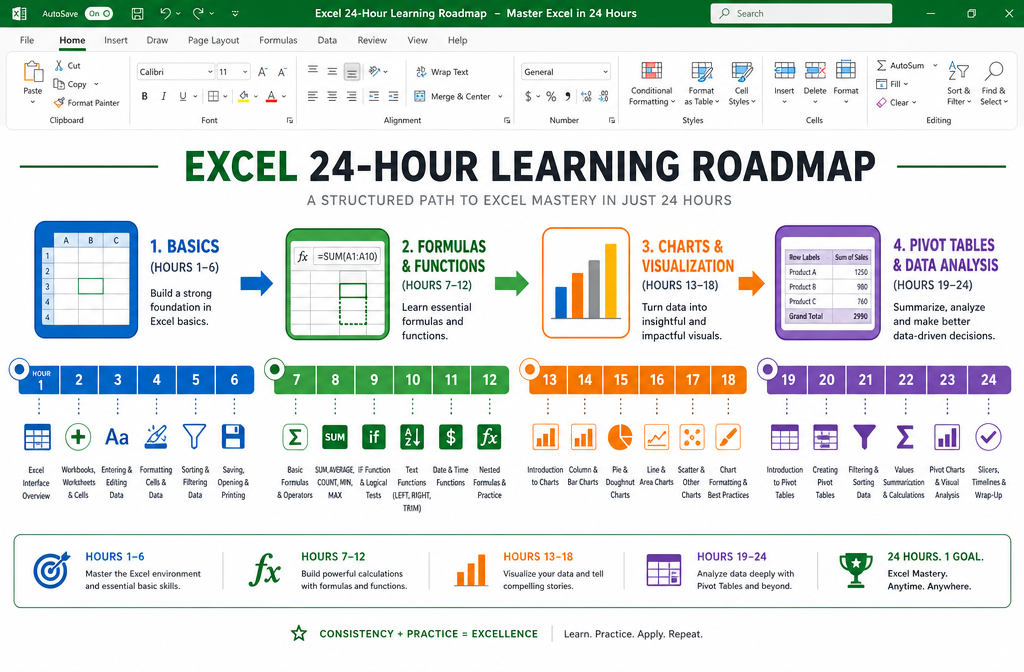
How to Learn MS Excel in 24 Hours: A Realistic Hour-by-Hour Plan
Here’s a practical breakdown of how to spread 24 hours of learning across a week. This plan works whether you’re using a free YouTube course or a structured program. [1][8]
| Hours | Focus Area | What to Practice |
|---|---|---|
| 1–3 | Interface & navigation | Rows, columns, worksheets, keyboard shortcuts |
| 4–6 | Data entry & formatting | Number formats, cell colors, freeze panes |
| 7–10 | Core formulas | SUM, AVERAGE, IF, COUNT, date formulas |
| 11–14 | Lookup functions | VLOOKUP, XLOOKUP, INDEX/MATCH |
| 15–18 | Pivot tables | Build, filter, and format pivot tables |
| 19–21 | Charts & visuals | Bar, line, pie charts; chart formatting tips |
| 22–24 | Real project | Build a budget, tracker, or simple report |
Pro tip: The final 2–3 hours on a real project matter more than any lecture. Building something you actually need — like a credit card payoff spreadsheet or a weekly schedule — forces you to apply everything at once.
Are There Free Resources to Learn Excel Quickly?
Several high-quality free resources exist for learning Excel fast, and you don’t need to spend anything to reach a solid intermediate level.
Top free options in 2026:
- GoSkills Free Excel Crash Course — 1 hour 15 minutes; covers everyday formulas and tools for complete beginners [5]
- Simplilearn “Excel Full Course 2026” on YouTube — A 24-hour comprehensive video covering basics through pivot tables and data analysis [8]
- Cursa MS Excel Beginner to Advanced — 10 hours of free video covering formulas, charts, pivot tables, and shortcuts [7]
- Microsoft’s own support site — Free written tutorials and video clips for every Excel version
- Mark’s Excel Tips — Practical short tutorials on specific tasks; check out the Excel how-to video library for quick wins
Choose free if: You’re self-motivated, learning for personal use, or testing whether Excel is worth investing more time into.
How Much Does an Excel Course Cost Online?
Online Excel courses range from completely free to around $200 for instructor-led programs with certification.
| Course Type | Price Range | Best For |
|---|---|---|
| Free YouTube / crash courses | $0 | Beginners, casual learners |
| Self-paced platforms (GoSkills, Cursa) | $0–$30/month | Structured beginners |
| Mid-tier self-paced (Master of Project Academy) | $30–$80 | Career-focused learners [2] |
| Live instructor-led (LearnExcel-Online) | $150–$300 | Those who need accountability [3] |
| Comprehensive bundles (EDUCBA) | $50–$200/year | Deep learners, 134+ hours of content [4] |
Certifications from paid platforms are worth having on a resume, but they’re not required to get started. Free resources are genuinely good enough to learn the basics.
Can I Learn Excel by Myself, or Do I Need a Tutor?
Self-teaching works extremely well for Excel. Unlike coding languages, Excel has a visual interface with instant feedback — you type a formula, press Enter, and immediately see if it worked. That loop makes solo learning efficient.
A tutor or live class adds value in two specific situations:
- You need to learn quickly for a job that starts soon
- You’re stuck on advanced topics like VBA, macros, or complex nested formulas
For most beginners, a structured free or low-cost course plus consistent practice is all that’s needed. LearnExcel-Online’s live course, for example, dedicates over 120 minutes specifically to pivot tables and 150+ minutes to VLOOKUP/XLOOKUP — useful if you want guided depth. [3]
What’s the Difference Between Excel and Google Sheets?
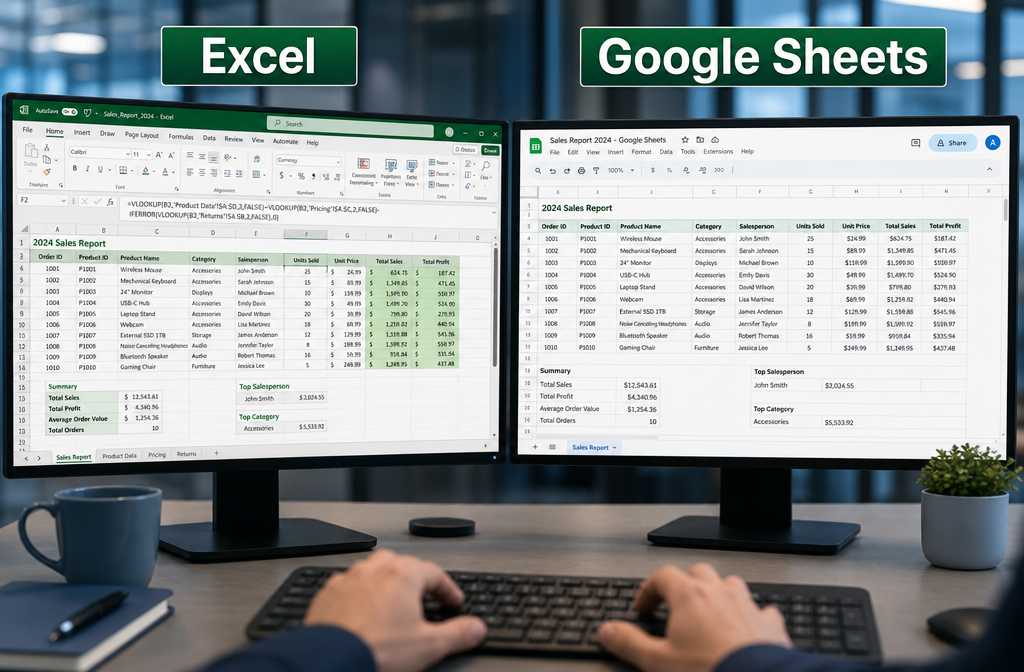
Excel and Google Sheets are both spreadsheet tools that share most core functions, but they differ in a few meaningful ways.
| Feature | Microsoft Excel | Google Sheets |
|---|---|---|
| Cost | Requires Microsoft 365 subscription | Free with Google account |
| Offline use | Yes, full functionality | Limited without internet |
| Advanced features | More powerful (Power Query, VBA) | More limited |
| Collaboration | Good (cloud version) | Excellent (real-time) |
| Formula compatibility | ~80% overlap with Sheets | ~80% overlap with Excel |
Bottom line: If you learn Excel, you can use Google Sheets with minimal adjustment, and vice versa. For jobs and career purposes, Excel is still the standard in most industries. Google Sheets is better for small teams and personal projects where budget matters.
Which Excel Skills Are Most Useful for Office Jobs?
The skills that appear most often in job descriptions and daily office work are a short, learnable list. Hiring managers in 2026 consistently look for these:
- SUM, AVERAGE, COUNT — Used in almost every data task
- VLOOKUP or XLOOKUP — Cross-referencing data between tables
- IF and nested IF formulas — Conditional logic in reports
- Pivot tables — Summarizing sales, budgets, or any large dataset
- Conditional formatting — Highlighting key data visually; for example, changing cell color based on value
- Charts and graphs — Presenting data clearly to non-technical colleagues
- Data sorting and filtering — Organizing lists quickly
- Basic keyboard shortcuts — Speeding up repetitive tasks
Choose to prioritize VLOOKUP and pivot tables if you’re learning for a specific job. These two skills alone appear in more job listings than any other Excel feature.
What Jobs Require Strong Excel Skills?
Excel proficiency is listed as a requirement or preferred skill across a wide range of roles. The strongest demand comes from:
- Accounting and finance — Budgeting, forecasting, financial modeling
- Data analysis — Cleaning, sorting, and summarizing datasets
- Project management — Tracking timelines, resources, and milestones; see how to create a schedule template in Excel
- Marketing — Campaign tracking, ROI reporting, customer lists
- HR and administration — Employee records, payroll summaries, scheduling
- Operations and logistics — Inventory tracking, supply chain data
Even roles that don’t list Excel explicitly often use it daily. Being competent in Excel makes you more productive and more promotable in almost any office environment.
What Version of Excel Should I Start Learning?
Start with Microsoft Excel 365, which is the subscription-based version available in 2026. It receives regular updates and includes newer functions like XLOOKUP, FILTER, and dynamic arrays that older versions lack.
If your workplace uses Excel 2019 or 2021, those versions are still widely used and cover 90% of everyday tasks. The core skills — formulas, pivot tables, charts — work the same across versions.
Avoid learning on Excel 2010 or older. Some functions you’ll learn won’t exist in those versions, which creates confusion. If cost is a barrier, use the free web version of Excel at office.com — it covers all beginner and intermediate skills.
Can I Learn Excel If I’m Not Good at Math?
Yes, and this is one of the most common misconceptions about Excel. Excel does the math for you. You don’t need to know how to calculate an average manually — you just type =AVERAGE(A1:A10) and Excel handles it.
What you do need is logical thinking: understanding what you want to calculate and which function achieves that. That’s a different skill from arithmetic, and most people pick it up quickly through practice.
The Alex Nordeen “Learn Excel in 24 Hours” guide specifically addresses this, covering everything from basic operators to personal finance case studies without requiring any math background. [1]
What Are the Most Common Excel Mistakes Newbies Make?
Knowing what to avoid saves hours of frustration. These are the mistakes beginners make most often:
- Not using keyboard shortcuts — Relying only on menus slows everything down; learn Ctrl+C, Ctrl+V, Ctrl+Z, and Ctrl+Home from day one
- Mixing data types in a column — Putting text in a number column breaks formulas
- Using spaces instead of zeros — Empty cells and zero-value cells behave differently in formulas
- Forgetting absolute references — Dragging a formula without locking the right cells ($A$1 vs. A1) produces wrong results
- Not saving regularly — Use Ctrl+S obsessively until AutoSave becomes a habit
- Skipping practice on real data — Watching tutorials without building anything means skills don’t stick
- Overcomplicating early — Trying to learn macros before mastering SUM is a common time-waster
A practical trick: after each tutorial session, close the video and rebuild what you just watched from scratch. That single habit accelerates learning faster than rewatching content.
How Long Does It Really Take to Become Proficient in Excel?
“Proficient” means different things depending on the role. Here’s a realistic breakdown:
- Basic competency (data entry, SUM, simple formatting): 4–8 hours
- Functional for most office jobs (VLOOKUP, pivot tables, charts): 20–40 hours
- Intermediate (nested formulas, Power Query, advanced charts): 3–6 months of regular use
- Advanced (VBA, macros, complex data modeling): 1–2 years of consistent practice
The “24 hours” goal in this guide targets functional competency — enough to handle real office tasks and list Excel on a resume honestly. EDUCBA’s full MS Excel program, for comparison, runs over 134 hours for those who want deep expertise. [4]
What Are the Top Online Platforms to Learn Excel Fast?
The best platforms balance structure, quality, and speed. Here are the top options for 2026:
- Simplilearn (YouTube) — Free 24-hour full course, updated for 2026, covers basics to advanced [8][9]
- GoSkills — Free crash course in 75 minutes; paid plans for deeper content [5]
- Cursa — Free 10-hour beginner-to-advanced course with shortcuts and pivot tables [7]
- Master of Project Academy — 8+ hours, 100+ lectures, self-paced, strong for career learners [2]
- LearnExcel-Online — Live instructor-led 24-hour course with homework and a 240-page manual [3]
- EDUCBA — Comprehensive 134-hour bundle for those who want certification and depth [4]
- Mark’s Excel Tips — Short, task-specific tutorials perfect for filling skill gaps quickly
Choose a platform based on your learning style:
- Self-directed and free? Start with Simplilearn on YouTube or GoSkills
- Need structure and accountability? LearnExcel-Online’s live course is worth the cost
- Want certification for a resume? EDUCBA or Master of Project Academy
How to Learn MS Excel in 24 Hours: Avoiding Common Pitfalls
The biggest reason people fail to learn Excel in 24 hours isn’t difficulty — it’s poor session structure. Here’s what actually works:
- Block 2–3 hour sessions rather than 20-minute clips; shorter sessions don’t build enough momentum
- Practice immediately after each topic — don’t move on until you’ve built something with the skill
- Use real data — download a free dataset or use your own budget/expense data
- Learn how to transpose rows to columns and other data-manipulation tricks early; they save enormous time
- Review date and time formulas in a dedicated session — date math trips up more beginners than any other topic
- Don’t skip formatting — a well-formatted spreadsheet communicates professionalism and makes data easier to read
Frequently Asked Questions
Q: Can a complete beginner really learn Excel in 24 hours? Yes. A complete beginner can reach functional competency — enough for most office tasks — in 24 focused hours. Advanced features like macros take longer, but core skills are accessible quickly.
Q: What’s the fastest way to learn Excel for a job interview? Focus on SUM/AVERAGE formulas, VLOOKUP, pivot tables, and basic chart creation. These are the skills most commonly tested. Spend 8–10 focused hours on just these four areas.
Q: Is Microsoft Excel 365 different from older Excel versions? Excel 365 includes newer functions like XLOOKUP and FILTER that don’t exist in Excel 2016 or older. The core interface and most formulas are the same, but 365 is worth learning for its additional tools.
Q: Do I need to buy Excel to learn it? No. The free web version at office.com covers all beginner and intermediate skills. A Microsoft 365 subscription (around $7–$10/month in 2026) unlocks the full desktop version.
Q: How do I practice Excel without a dataset? Create a personal budget, track your monthly expenses, or build a simple to-do list with due dates. Real-life data makes practice more engaging and the skills stick better.
Q: Is a certificate from an online Excel course worth anything? Certificates from recognized platforms (EDUCBA, GoSkills, LinkedIn Learning) add credibility to a resume, especially for entry-level roles. They signal initiative even if the employer doesn’t specifically require them.
Q: What’s the single most important Excel skill to learn first? Cell referencing — understanding relative vs. absolute references ($A$1 vs. A1). Everything else, including VLOOKUP and pivot tables, depends on getting this right.
Q: Can Excel be used on a Mac? Yes. Excel for Mac is nearly identical to the Windows version for everyday tasks. A small number of advanced features (some VBA macros) behave differently, but beginners won’t notice.
Q: How is Excel used in personal finance? Excel is widely used for budgeting, debt tracking, and financial planning. A practical starting point is building a credit card debt payoff calculator — it uses real formulas in a context that directly benefits you.
Q: What keyboard shortcuts should I learn first? Start with: Ctrl+C (copy), Ctrl+V (paste), Ctrl+Z (undo), Ctrl+S (save), Ctrl+Home (go to A1), and Ctrl+End (go to last used cell). These alone save significant time daily.
Conclusion
Learning how to learn MS Excel in 24 hours is a realistic, achievable goal — not a marketing slogan. The key is a structured plan: start with navigation and basic formulas, build toward VLOOKUP and pivot tables, and finish with a real project that forces you to apply everything.
Actionable next steps:
- Choose one free resource — GoSkills, Simplilearn on YouTube, or Cursa — and start today
- Follow the hour-by-hour plan in this guide, blocking 2–3 hour sessions
- Practice on real data from your own life or work
- After 24 hours, build one complete spreadsheet project from scratch
- Bookmark Mark’s Excel Tips for quick answers when you get stuck on specific tasks
Excel is a skill that compounds. Every hour you invest makes the next task faster. Start with 24 hours, and you’ll have a foundation that pays off for years.
References
[1] Learn Excel in 24 Hours (Apple Books) – https://books.apple.com/gb/book/learn-excel-in-24-hours/id1595147639?utm_source=openai
[2] Microsoft Excel Training Online Ms Excel Course – https://masterofproject.com/p/microsoft-excel-training-online-ms-excel-course?utm_source=openai
[3] Excel Online (LearnExcel-Online) – https://learnexcel-online.com/classes/excel-online/?utm_source=openai
[4] MS Excel Course For All (EDUCBA) – https://www.educba.com/excel/courses/ms-excel-course-for-all/?utm_source=openai
[5] Learn Excel Tutorial (GoSkills) – https://www.goskills.com/course/learn-excel-tutorial?utm_source=openai
[6] Excel Mastery Program In Hindi (Excel Superstar) – https://excelsuperstar.org/courses/excel-mastery-program-in-hindi/?utm_source=openai
[7] MS Excel Beginner To Advanced – Formulas, Charts, Pivot Tables and Shortcuts (Cursa) – https://cursa.app/en/free-course/ms-excel-beginner-to-advanced-formulas-charts-pivot-tables-and-shortcuts-fdgj?utm_source=openai
[8] Excel Full Course 2026 (Simplilearn, YouTube) – https://www.youtube.com/watch?v=VlprXLxeVm8&utm_source=openai
[9] Excel Expert Full Course 2026 (Simplilearn, YouTube) – https://www.youtube.com/watch?v=yCqxdtE2JXE&utm_source=openai