
Last updated: June 18, 2026
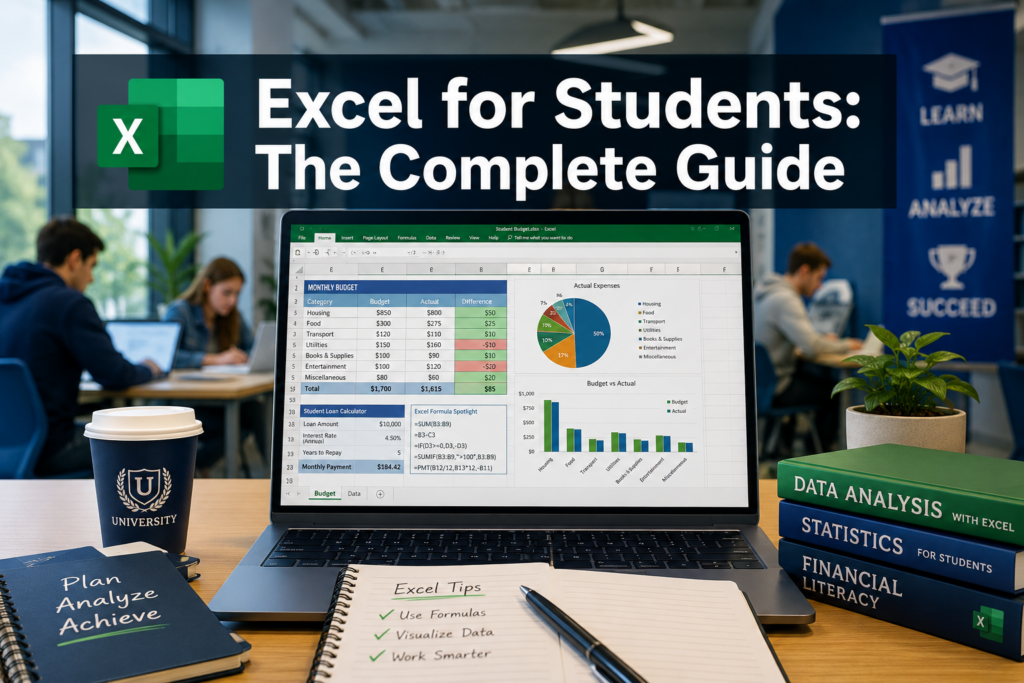
Quick Answer: Learning how to use Excel for students means starting with three core skills — entering data, writing basic formulas, and creating charts. From there, students can handle homework, research projects, budgets, and lab reports all in one tool. Excel is free for most students through Microsoft 365 Education, and it takes only a few hours of practice to become comfortable with the basics.
Key Takeaways
- 🎓 Most students get Microsoft 365 (including Excel) free through their school or university
- 📊 The five must-know skills are: data entry, formulas, charts, sorting/filtering, and tables
- ⚡ Keyboard shortcuts cut spreadsheet work time significantly — start with just 5-10
- 🤖 Excel’s Copilot AI (rolling out broadly in 2026) can write formulas and summarize data for you
- 📐 Engineering and science students use Excel differently — more functions, more data, more charts
- 💼 Excel proficiency is one of the most requested skills in entry-level job postings
- 🆓 Google Sheets is the best free alternative if Excel isn’t available
- 🚫 The most common student mistake is skipping tables and working with raw data ranges instead
What Are the Basic Excel Skills Every Student Should Learn?
Every student needs five foundational Excel skills before anything else: data entry, basic formulas, charts, sorting/filtering, and tables. These cover 80% of what students actually use Excel for — from tracking grades to presenting survey results in a research paper.
Here’s a practical starter checklist:
- Data entry: Type data into cells, use the fill handle to copy patterns down a column
- Basic formulas: SUM, AVERAGE, COUNT, MIN, MAX — see our guide on how to use Excel with formulas for a full walkthrough
- Charts: Select data, press Insert > Chart, choose a chart type
- Sorting and filtering: Right-click a column header or use the Data tab
- Tables: Press Ctrl+T to convert a data range into a structured table — this makes filtering, sorting, and formulas much easier
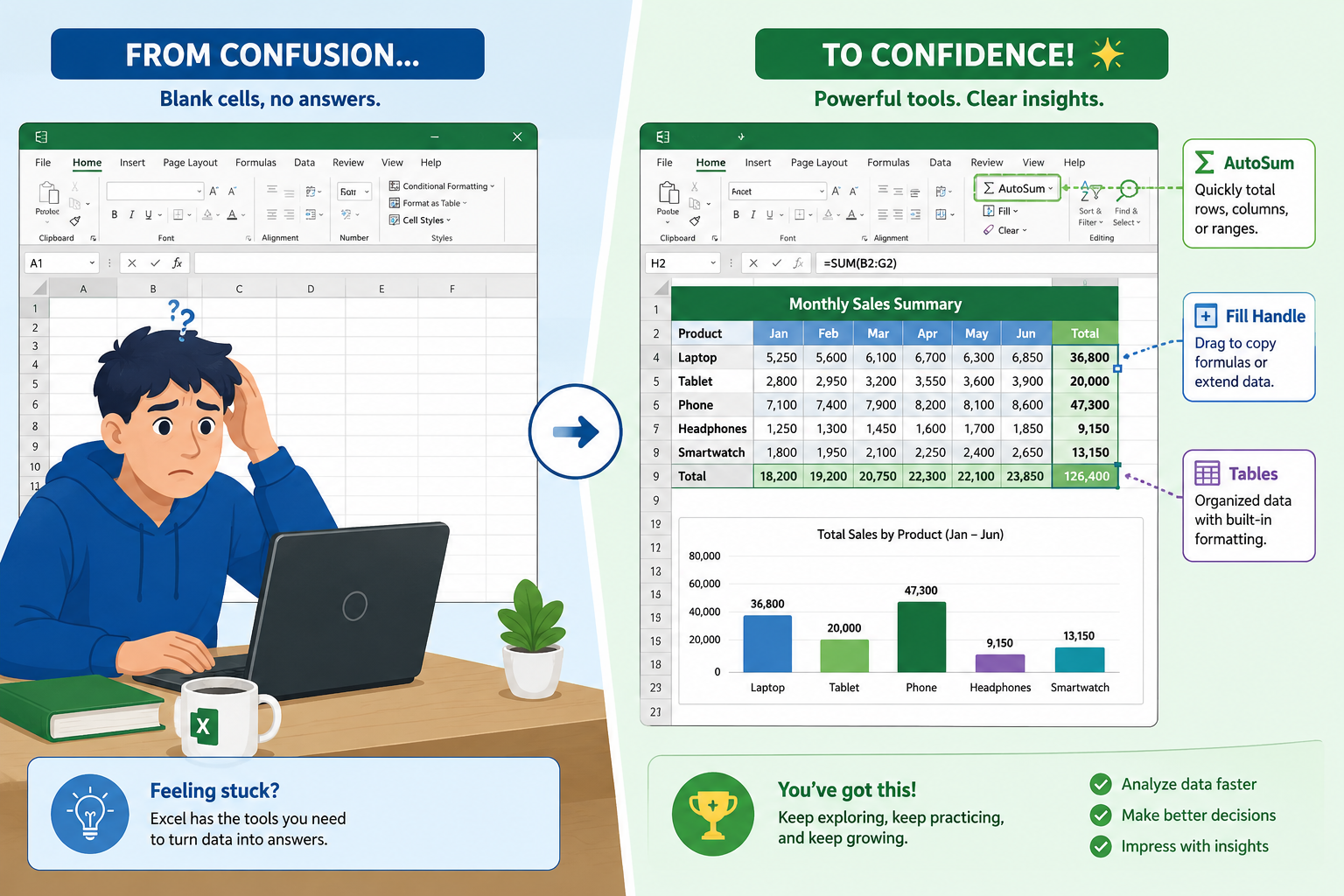
Microsoft’s 2026 Beginners Tutorial highlights three of these as the most important starting points for new users: the fill handle, tables, and the new Copilot AI assistant [5].
Is Excel Hard to Learn for Beginners?
Excel is not hard to learn for beginners — the basics take a few hours, not weeks. Most students feel confident with data entry and simple formulas after one focused session. The learning curve steepens only when you move into advanced features like pivot tables, VLOOKUP, or macros, which most students don’t need right away.
A realistic timeline for students:
| Skill Level | What You Can Do | Time to Get There |
|---|---|---|
| Beginner | Enter data, SUM, basic charts | 2–4 hours |
| Intermediate | AVERAGE, IF, filters, tables | 1–2 weeks of practice |
| Advanced | VLOOKUP, pivot tables, macros | 1–3 months |
If you want a fast-track approach, the guide on how to learn MS Excel in 24 hours is a great starting point. For a true step-by-step walkthrough, check out how to use Excel step-by-step for beginners.
Free Excel Courses for College Students — and How Much Does Excel Cost?
Excel is free for most college and university students through Microsoft 365 Education. Students with a valid school email address (.edu in the US, or equivalent) can sign up at microsoft.com/education at no cost. This includes the full desktop version of Excel, not just the web app [6].
If your school doesn’t offer this:
- Microsoft 365 Personal costs around $70/year (as of 2026) for individuals
- Excel standalone is available but rarely worth buying separately
- Free courses: Microsoft Learn (free), Coursera’s Excel Learning Roadmap [1], and YouTube tutorials [2][3][4] cover everything a student needs
💡 Pro tip: Before paying anything, check with your school’s IT department or library. Most institutions already have Microsoft 365 licenses available for enrolled students.
Can Excel Help Me With Math and Statistics Homework?
Yes — Excel handles a wide range of math and statistics tasks that students encounter in coursework. For basic math, formulas like =SUM(), =AVERAGE(), and =ROUND() replace a calculator. For statistics, Excel includes built-in functions for standard deviation (=STDEV()), correlation (=CORREL()), and regression analysis through the Data Analysis ToolPak add-in.
Useful functions for homework:
=AVERAGE(A1:A20)— mean of a dataset=STDEV(A1:A20)— standard deviation=MEDIAN(A1:A20)— median value=CORREL(A1:A20, B1:B20)— correlation between two variables=IF(A1>60, "Pass", "Fail")— conditional logic for grading
For research papers, functions like =COUNTIF() and =SUMIF() help analyze survey data quickly. The Data Analysis ToolPak (enable it under File > Options > Add-ins) adds even more statistical tools including t-tests and histograms.
What Excel Functions Are Most Useful for Research Papers?
For research papers and academic projects, the most useful Excel functions are IF, COUNTIF, SUMIF, AVERAGE, and VLOOKUP. These let students analyze survey responses, calculate descriptive statistics, and cross-reference data from different sources.
Top research functions explained:
=IF()— categorize responses (e.g., “Agree” vs. “Disagree”)=COUNTIF()— count how many responses meet a condition=SUMIF()— add up values that match a specific category=VLOOKUP()— pull data from one table into another=AVERAGEIF()— average only the values that match your criteria
When presenting research data, always convert your results into a chart. The guide on turning Excel data into a graph walks through this cleanly.
How to Make Graphs and Charts for School Projects
Select your data range, go to Insert > Charts, and choose the chart type that fits your data. Excel will generate a chart instantly. For school projects, bar charts work best for comparisons, line charts for trends over time, and pie charts for showing proportions.
Step-by-step for a basic chart:
- Enter your data in two columns (labels in column A, values in column B)
- Select both columns
- Click Insert > Recommended Charts
- Choose your chart type and click OK
- Click the chart title to rename it
- Use the Chart Design tab to change colors and style
For more chart control, the ten tips for Excel charts series covers filtering chart data, linking titles to cells, and other tricks that make school presentations look polished. If you need a timeline for a project, the infographic timeline template for Excel is a fast shortcut.
Best Excel Shortcuts for Students to Save Time
The best Excel shortcuts for students are Ctrl+C (copy), Ctrl+V (paste), Ctrl+Z (undo), Alt+= (AutoSum), and Ctrl+T (create table). Learning just these five cuts repetitive work in half. Adding 10–15 more shortcuts over time makes a noticeable difference in how fast you can complete assignments.
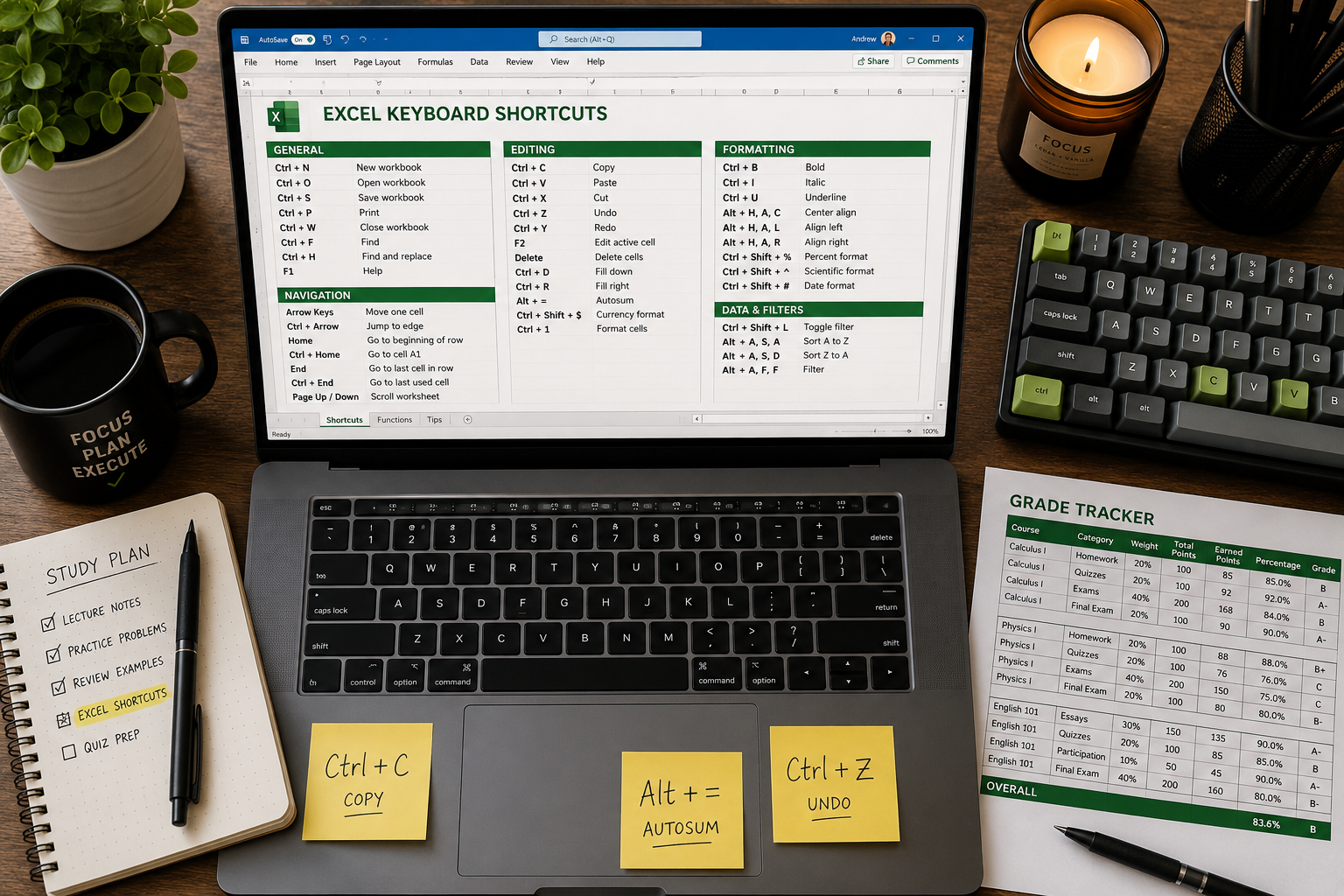
Essential shortcuts for students (Windows):
| Shortcut | Action |
|---|---|
Ctrl + C / V / X |
Copy, Paste, Cut |
Ctrl + Z |
Undo |
Alt + = |
AutoSum (adds a column instantly) |
Ctrl + T |
Create a table |
Ctrl + Arrow key |
Jump to edge of data |
F2 |
Edit a cell |
Ctrl + Shift + L |
Toggle filters |
Ctrl + Home |
Go to cell A1 |
For a deeper dive, the 50 time-saving keyboard shortcuts for Excel guide and the Alt key shortcuts reference are worth bookmarking.
How Do Engineering Students Use Excel Differently?
Engineering students use Excel more intensively than most — running iterative calculations, plotting experimental data, and building models that update automatically when inputs change. They rely heavily on array formulas, named ranges, and the Data Analysis ToolPak for regression and statistical analysis.
Engineering-specific Excel uses:
- Unit conversion tables — build once, reference everywhere
- Lab data analysis — import sensor data, calculate means and standard deviations
- Regression analysis — use the ToolPak to fit trendlines to experimental results
- Iterative solvers — use Goal Seek (Data > What-If Analysis) to back-calculate unknowns
- Engineering charts — scatter plots with trendlines and R² values for lab reports
Engineering students also benefit from learning how to lock cells in Excel to protect formula cells in shared lab workbooks.
Alternatives to Excel That Are Cheaper or Free
Google Sheets is the best free Excel alternative for students — it’s browser-based, saves automatically to Google Drive, and supports most of the same formulas. For most coursework, Sheets handles everything Excel does at the beginner and intermediate level.
Quick comparison:
| Tool | Cost | Best For |
|---|---|---|
| Microsoft Excel | Free (edu) / ~$70/yr | Full-featured work, complex data |
| Google Sheets | Free | Collaboration, quick projects |
| LibreOffice Calc | Free | Offline use without a subscription |
| Apple Numbers | Free (Mac/iOS) | Simple data, visual presentations |
Choose Excel if: your school or employer uses it, you need advanced functions, or you’re building skills for a resume. Choose Google Sheets if: you’re collaborating in real time or don’t have a school Microsoft account.
Can I Learn Excel Without Taking a Formal Class?
Yes — most students learn Excel effectively through self-study using free resources. YouTube tutorials [2][7], Microsoft’s own learning platform, and hands-on practice with real assignments are enough to reach a solid intermediate level. A formal class helps with structure and accountability, but it’s not required [1].
Self-study path that works:
- Watch a beginner overview video (Microsoft’s 2026 tutorial is the current best starting point [5])
- Practice with a real task — track your grades, build a weekly budget
- Learn one new function or shortcut per week
- Use the Excel Help function (press F1) when you get stuck
📌 Good to know: Excel’s new Copilot feature (rolling out broadly in 2026) lets students type plain-English requests like “calculate the average of column B” and Copilot writes the formula automatically [5][6]. This makes self-learning significantly faster than it was even a year ago.
Common Mistakes Students Make When Using Excel
The most common student mistake is working with raw data ranges instead of converting them to tables first. Tables (Ctrl+T) make filtering, sorting, and formula writing much easier and prevent many errors.
Other frequent mistakes:
- Mixing data types in one column — numbers stored as text break formulas
- Hardcoding values in formulas — type
=A1*B1not=A1*0.2so the formula stays flexible - Not saving backups — use AutoSave or save to OneDrive
- Skipping cell references — always reference cells, don’t retype numbers
- Ignoring error messages —
#VALUE!,#REF!, and#DIV/0!each point to a specific fixable problem
Excel Skills That Look Good on a Resume
The Excel skills employers value most are pivot tables, VLOOKUP/XLOOKUP, data visualization, and the ability to build clean, functional spreadsheets from scratch. Even at the entry level, listing “Microsoft Excel (intermediate)” is meaningful — but being specific about what you can do is more impressive.
Resume-worthy Excel skills by level:
- Beginner: Data entry, SUM/AVERAGE, basic charts, sorting and filtering
- Intermediate: IF statements, VLOOKUP, pivot tables, conditional formatting
- Advanced: Macros (VBA), Power Query, complex nested formulas, dashboard building
Students who can build a working budget tracker, analyze survey data, or create a project timeline in Excel have concrete examples to mention in interviews. For a practical project to build your portfolio, try creating a monthly budget template in Excel or a weekly lesson planner.
FAQ
Q: What version of Excel should students use in 2026? Excel 365 (part of Microsoft 365) is the best version for students in 2026. It includes Copilot AI, gets regular updates, and is free through most educational institutions.
Q: How long does it take to learn Excel well enough for school? Most students reach a functional beginner level in 2–4 hours. Intermediate skills — enough for most coursework — take 1–2 weeks of regular practice.
Q: Can I use Excel on a Chromebook or iPad? Yes. Excel has web and mobile apps that work on Chromebooks and iPads. The web version covers most student needs; advanced features like macros require the desktop app.
Q: What is Excel Copilot and should students use it? Excel Copilot is an AI assistant built into Excel 365 that writes formulas, creates charts, and summarizes data based on plain-English prompts. It’s rolling out broadly in 2026 and is genuinely useful for students who are still learning formulas [5][6].
Q: Is Google Sheets good enough for college coursework? For most coursework, yes. Google Sheets handles formulas, charts, and collaboration well. It falls short only for advanced statistical analysis or complex macros.
Q: Do I need to know math to use Excel? No. Excel does the math for you. You just need to know which formula to use and where your data is. Basic arithmetic knowledge helps, but it’s not a prerequisite.
Q: What’s the fastest way to add up a column of numbers in Excel? Click the cell below your data and press Alt+=. Excel will automatically write a SUM formula for the column above. This is the AutoSum shortcut and it works instantly.
Q: Can Excel replace a graphing calculator for science classes? For many tasks, yes. Excel can plot functions, calculate statistics, and run regression analysis. It won’t replace a calculator during exams, but it’s more powerful for lab reports and data analysis assignments.
Conclusion
Learning how to use Excel for students doesn’t require a formal class, expensive software, or weeks of study. Start with the five core skills — data entry, formulas, charts, sorting, and tables — and build from there based on what your coursework actually needs.
Actionable next steps:
- Check if your school offers Microsoft 365 for free — most do, and it takes five minutes to set up
- Watch Microsoft’s 2026 Beginners Tutorial to get oriented quickly [5]
- Practice with a real project — a grade tracker or weekly budget works well
- Learn 5 keyboard shortcuts this week — start with Ctrl+T, Alt+=, and Ctrl+Z
- Explore Copilot if you’re on Excel 365 — it makes learning formulas much faster
Excel is one of the few tools that’s useful in every field, from biology to business to engineering. The time invested now pays off throughout your academic career and well beyond it.
References
[1] Excel Learning Roadmap – https://www.coursera.org/resources/excel-learning-roadmap [2] Watch – https://www.youtube.com/watch?v=cH-39wa7oNU [3] Watch – https://www.youtube.com/watch?v=Ex2qyJIWsf4 [4] Watch – https://www.youtube.com/watch?v=a2_zMywcqbQ [5] techcommunity.microsoft – https://techcommunity.microsoft.com/blog/microsoftmechanicsblog/microsoft-excel-beginners-tutorial-2026/4520866 [6] M365 June 2026 Updates – https://www.shu.edu/technology/news/m365-june-2026-updates.html [7] Watch – https://www.youtube.com/watch?v=ceLXUlSMCyw