
Last updated: June 19, 2026
Quick Answer: Learning how to use Excel for beginners step by step starts with understanding the basic interface, entering data into cells, and writing simple formulas like SUM and AVERAGE. Most people can handle everyday tasks — budgeting, lists, basic calculations — within a few hours of focused practice. No prior experience is required.
Key Takeaways
- Excel’s grid is made of rows (numbered) and columns (lettered); each box is a cell, identified by a reference like A1 or B3.
- The five most useful beginner functions are: SUM, AVERAGE, COUNT, IF, and VLOOKUP.
- A basic spreadsheet takes under 10 minutes to create once you know where to click.
- Excel is available as a paid Microsoft 365 subscription (starting around $6.99/month) or free through Microsoft’s browser-based version at Office.com.
- Google Sheets is a free alternative that works well for most beginner tasks.
- Common beginner mistakes include skipping the equals sign (=) before formulas and mixing text into number columns.
- Free tutorials from Microsoft Support [1], Excel Easy [4], and YouTube [8][9] cover everything a beginner needs.
- Most entry-level office jobs list basic Excel skills as a requirement.
- Students in finance, business, science, and marketing benefit most from learning Excel early.
- Learning the basics takes 1–3 days; becoming genuinely comfortable takes 4–8 weeks of regular use.
How to Use Excel for Beginners Step by Step: Getting Started with the Interface
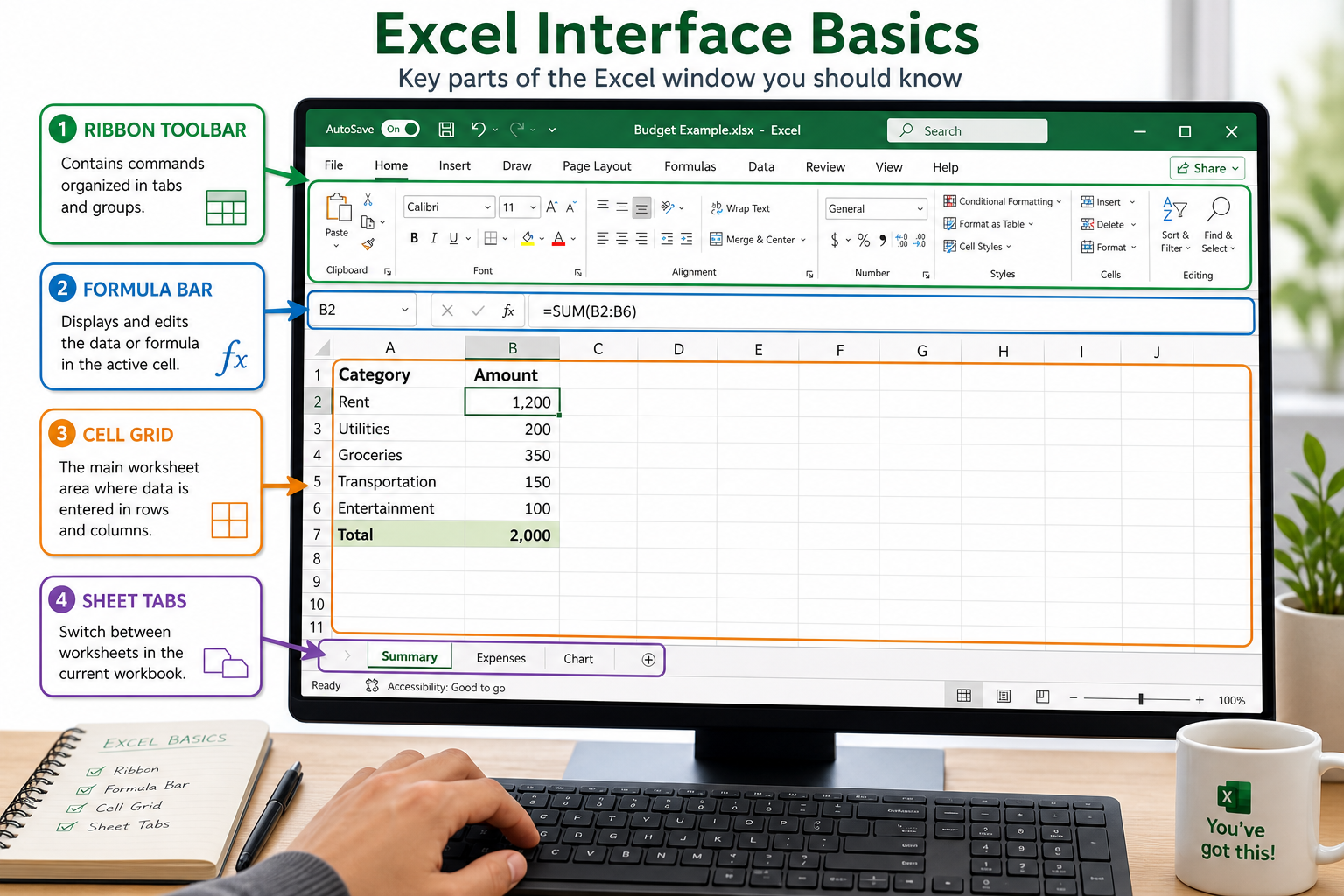
Excel opens to a grid of rectangles called cells. That grid is your workspace. Before typing anything, it helps to know what you’re looking at [1]:
- Ribbon: The toolbar at the top with tabs like Home, Insert, and Formulas.
- Formula Bar: The long bar just above the grid where you see or type cell content.
- Cell Reference Box: Top-left corner; shows which cell is selected (e.g., A1).
- Sheet Tabs: At the bottom; each tab is a separate spreadsheet inside the same file.
To open Excel: Click the Excel icon, then choose Blank Workbook. That’s it — you’re in.
💡 Quick tip: Click any cell and start typing. Press Enter to move down, Tab to move right.
How Do I Create a Simple Spreadsheet in Excel?
Creating a basic spreadsheet takes about five minutes. Here’s a step-by-step process for building a simple monthly budget:
- Click cell A1 and type “Category.”
- Click B1 and type “Amount.”
- In A2 through A5, type your expense categories: Rent, Food, Transport, Utilities.
- In B2 through B5, type the dollar amounts for each.
- Click B6, type
=SUM(B2:B5), and press Enter. This adds up your total. - Click File > Save As, name your file, and choose a location.
That’s a working spreadsheet. For a ready-made starting point, check out this college budget template for Excel 365 — it’s free and already formatted.
Common mistake: Typing a number with a dollar sign manually (like $500) can cause Excel to treat it as text. Type 500 and then format the cell as currency using the Home tab.
What Are the Basic Excel Functions I Should Learn First?
Five functions cover the vast majority of what beginners actually need [4][7]:
| Function | What It Does | Example |
|---|---|---|
SUM |
Adds a range of numbers | =SUM(A1:A10) |
AVERAGE |
Calculates the mean | =AVERAGE(B1:B10) |
COUNT |
Counts cells with numbers | =COUNT(C1:C20) |
IF |
Returns one value if true, another if false | =IF(A1>100,"High","Low") |
VLOOKUP |
Finds a value in a table | =VLOOKUP(D2,A:B,2,0) |
Every formula in Excel starts with an equals sign (=). Forgetting that is the single most common beginner error.
For a fast way to add up columns, the Excel AutoSum shortcut lets you total a column without typing a formula at all — just select the cells and press Alt + =.
Is Excel Hard to Understand for Someone with No Computer Background?
No — Excel’s core features are genuinely beginner-friendly. The learning curve feels steep only when people try to learn everything at once. Stick to data entry, SUM, and basic formatting for the first week, and the rest follows naturally [3].
People with zero spreadsheet experience typically get comfortable with:
- Entering and editing data: Day 1
- Writing SUM and AVERAGE formulas: Day 1–2
- Sorting, filtering, and basic formatting: Week 1
- IF statements and charts: Week 2–3
The interface is visual and forgiving — pressing Ctrl+Z undoes any mistake instantly.
What’s the Difference Between Google Sheets and Microsoft Excel?
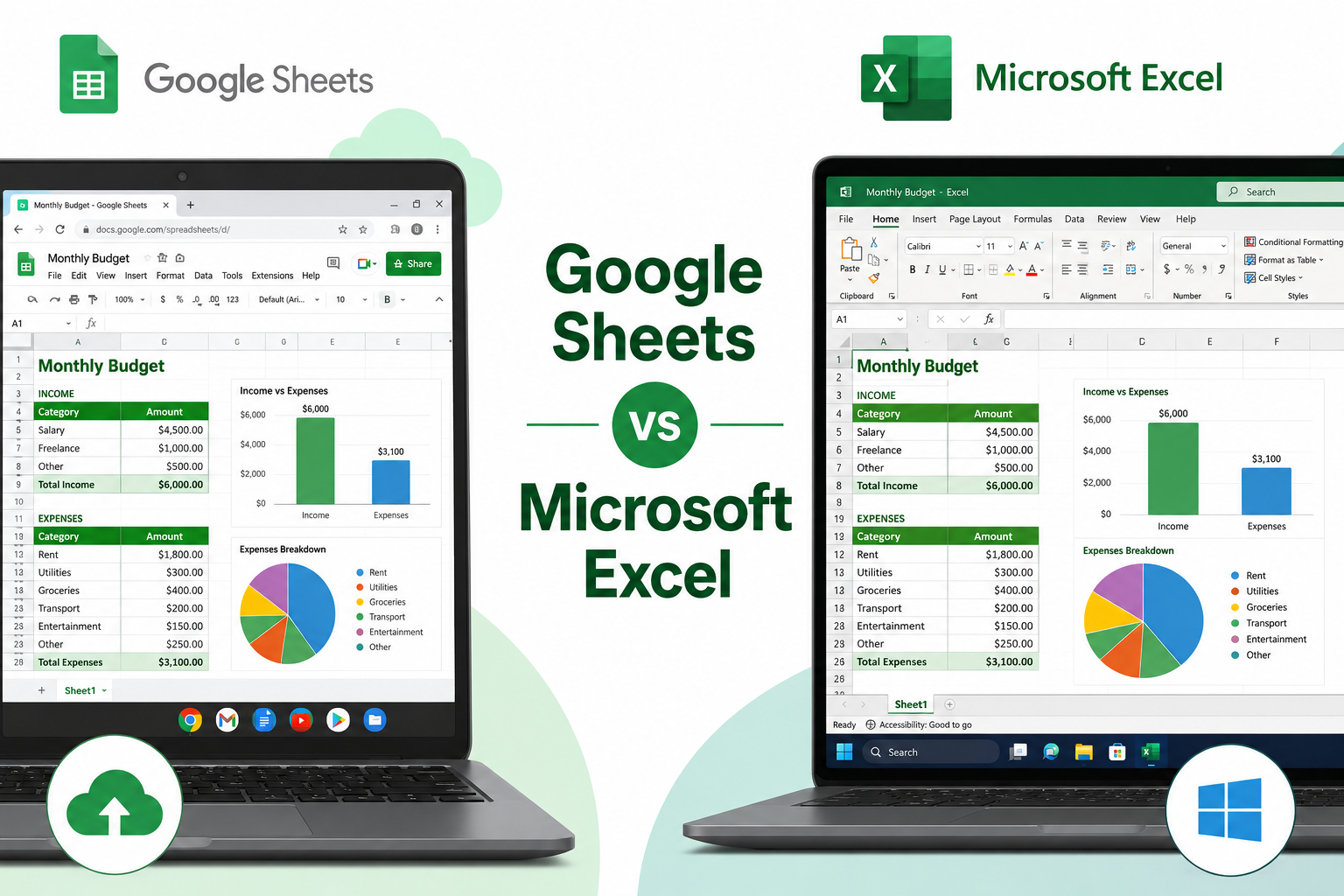
Google Sheets is free and browser-based; Microsoft Excel is a paid desktop app with more advanced features. For most beginner tasks — budgets, lists, simple formulas — both work equally well.
| Feature | Google Sheets | Microsoft Excel |
|---|---|---|
| Cost | Free | From ~$6.99/month (Microsoft 365) |
| Access | Browser (any device) | Desktop app + browser version |
| Collaboration | Real-time, built-in | Available with Microsoft 365 |
| Advanced features | Limited | Extensive (Power Query, macros) |
| Offline use | Limited | Full offline access |
Choose Google Sheets if you need free, quick collaboration. Choose Excel if your job or school requires it, or if you plan to use advanced data tools later.
How Much Does Excel Cost for a Beginner?
Excel is free to use in a browser at Office.com with a Microsoft account — no credit card needed. The browser version covers most beginner needs.
For the full desktop app, Microsoft 365 Personal costs approximately $6.99/month or $69.99/year (as of 2026). Students often get Microsoft 365 free through their school — check with your institution’s IT department first.
Can I Learn Excel for Free Online?
Yes, and there are excellent options. The best free resources for beginners include:
- Microsoft Support [1] — official tutorials covering every basic task.
- Excel Easy [4] — structured lessons from beginner to advanced, all free.
- GoSkills “Excel in an Hour” [3] — a quick crash course, no signup required.
- YouTube tutorials [8][9] — FreeCodeCamp and Kevin Stratvert both offer full beginner courses.
- Davidson College on edX [2] — a self-paced free course with a certificate option.
For a downloadable reference, the how to use Excel for beginners PDF guide is a handy offline companion.
What Are Common Mistakes People Make When Learning Excel?
Knowing these pitfalls saves hours of frustration [7]:
- Forgetting the = sign before a formula (Excel treats it as plain text).
- Mixing data types — putting “N/A” in a number column breaks SUM formulas.
- Not freezing headers — scrolling down loses track of column labels. Fix this with Freeze Top Row.
- Hard-coding values inside formulas instead of referencing cells (makes updates painful).
- Skipping data validation — entering dates as text (like “June 5”) instead of actual date values.
- Overcomplicating early — beginners often try to learn pivot tables before mastering SUM.
What Should I Do If I Keep Making Formula Errors?
Formula errors have specific codes that tell you exactly what went wrong:
- #VALUE! — wrong data type (text where a number is expected).
- #REF! — a cell reference is broken (usually from deleting a row/column).
- #DIV/0! — formula is dividing by zero or an empty cell.
- #NAME? — Excel doesn’t recognize a function name (check spelling).
Fix it: Click the cell with the error, look at the formula bar, and check each cell reference. For step-by-step help with calculations, see this guide on how to calculate quantity and price in Excel.
What Jobs Require Basic Excel Skills?
Basic Excel skills appear in job listings across nearly every industry. Roles that commonly require them include:
- Administrative assistant / office manager
- Bookkeeper or accounting clerk
- Marketing coordinator (campaign tracking, budget management)
- Sales representative (pipeline tracking, reporting)
- Data entry specialist — see how to use Excel for data entry for a practical walkthrough.
- Project coordinator
- HR assistant (employee records, payroll tracking)
Finance and accounting roles expect more advanced skills (VLOOKUP, pivot tables, financial modeling). A good starting project for finance learners is this balance sheet template in Excel 365.
Are There Excel Tutorials for Specific Industries Like Finance or Marketing?
Yes. Most major tutorial platforms organize content by industry use case [5][6]:
- Finance: Budgeting templates, financial statements, loan calculators.
- Marketing: Campaign trackers, percentage change formulas, chart creation.
- HR: Employee databases, attendance sheets, payroll calculators.
- Education: Grade books, lesson planners, attendance records.
Udemy’s “Microsoft Excel for Absolute Beginners” [6] and LearnExcel.io [5] both offer role-specific learning paths.
Is Excel Useful for Students, and Which Ones?
Excel is genuinely useful for students, especially those studying business, finance, science, engineering, or marketing. For a full breakdown, see how to use Excel for students.
Practical student uses include:
- Tracking grades and GPA
- Managing a college budget
- Organizing research data
- Building simple charts for presentations
Even students outside technical fields benefit — tracking assignments, expenses, and schedules in Excel builds habits that carry into any career.
What Computer Do I Need to Run Excel Well?
Almost any modern computer runs Excel without issues. Microsoft’s minimum requirements for Excel (Microsoft 365, 2026) are modest:
- Windows: Windows 10 or later, 4 GB RAM, 4 GB storage.
- Mac: macOS Monterey or later, 4 GB RAM.
- Browser version: Any modern browser (Chrome, Edge, Firefox, Safari) — no installation needed.
A laptop bought in the last five years handles Excel comfortably. Chromebook users can access the browser version or Google Sheets as a free alternative.
How Long Does It Take to Become Good at Excel?
Basic competency (data entry, SUM, simple formatting): 1–3 days of focused practice. Comfortable for everyday work tasks: 4–8 weeks of regular use. Intermediate skills (VLOOKUP, pivot tables, charts): 3–6 months.
The fastest path is project-based learning — build something real, like a personal budget or a grade tracker, rather than watching tutorials passively.
FAQ
Q: Do I need to memorize formulas? No. Excel’s formula autocomplete suggests functions as you type. Start with SUM and AVERAGE; the rest comes naturally with practice.
Q: Can I use Excel on a phone? Yes. The Excel mobile app (iOS and Android) is free for basic use on devices under 10.1 inches.
Q: What’s the fastest way to add up a column of numbers? Click the cell below the column, press Alt + =, then Enter. Excel inserts a SUM formula automatically.
Q: How do I insert today’s date quickly?
Press Ctrl + ; (semicolon) to insert a static date. For a formula that updates daily, type =TODAY().
Q: Can I undo mistakes in Excel? Yes — press Ctrl+Z to undo. Excel keeps a history of recent actions, so you can undo multiple steps.
Q: Is the Excel browser version as good as the desktop app? For beginners, yes. It handles formulas, formatting, and basic charts. Advanced features like macros and Power Query require the desktop app.
Q: How do I make a chart from my data? Select your data, click Insert > Chart, and choose a chart type. Excel builds it automatically.
Q: What’s a cell reference and why does it matter? A cell reference (like B3) tells Excel exactly which cell to use in a formula. Using references instead of typing numbers means your formulas update automatically when data changes.
Conclusion
Learning how to use Excel for beginners step by step doesn’t require a technical background or expensive training. Start with the basics: open a blank workbook, enter some data, and write your first SUM formula. From there, each new skill builds on the last.
Actionable next steps:
- Open Excel (or the free browser version at Office.com) and create a simple expense list today.
- Practice the five core functions: SUM, AVERAGE, COUNT, IF, VLOOKUP.
- Bookmark one free resource — Microsoft Support [1] or Excel Easy [4] — and work through one lesson per day.
- Build a real project: a personal budget, a grade tracker, or a shopping list.
- When you’re ready to go deeper, explore how to use Excel for data entry and the beginner PDF guide for offline reference.
Consistency beats intensity. Thirty minutes a day for a month is all it takes to feel genuinely confident in Excel.
References
[1] Basic Tasks In Excel – https://support.microsoft.com/en-us/office/basic-tasks-in-excel-dc775dd1-fa52-430f-9c3c-d998d1735fca?utm_source=openai
[2] Davidson College Excel For Beginners – https://www.edx.org/learn/excel/davidson-college-excel-for-beginners?campaign=Excel+for+Beginners&product_category=course&webview=false&utm_source=openai
[3] Learn Excel Tutorial (GoSkills) – https://www.goskills.com/course/learn-excel-tutorial?utm_source=openai
[4] Excel Easy – https://www.excel-easy.com/?utm_source=openai
[5] LearnExcel.io – https://learnexcel.io/?utm_source=openai
[6] Learn Excel Tutorial For Beginners (Udemy) – https://www.udemy.com/course/learn-excel-tutorial-for-beginners/?utm_source=openai
[7] Excel Basics (ExcelDemy) – https://www.exceldemy.com/excel-basics/?utm_source=openai
[8] Excel Tutorial for Beginners (Kevin Stratvert, YouTube) – https://www.youtube.com/watch?v=e7xGuGqgp-Q&utm_source=openai
[9] Microsoft Excel Tutorial for Beginners (FreeCodeCamp, YouTube) – https://www.youtube.com/watch?v=Vl0H-qTclOg&utm_source=openai