
Last updated: June 17, 2026
Quick Answer: A how to use excel step by step PDF is a downloadable guide that walks beginners through Microsoft Excel’s core features — from entering data to writing formulas — in a structured, printable format. Free options are available directly from Microsoft and trusted educational sites. Most beginners can cover the basics in 5 to 10 hours of focused practice.
Key Takeaways
- Free, high-quality Excel PDF tutorials exist from Microsoft, GCFGlobal, and university open-courseware sites.
- A beginner can learn essential Excel skills (data entry, basic formulas, formatting, charts) in roughly one weekend.
- PDF guides work best alongside hands-on practice — reading alone won’t build muscle memory.
- Microsoft 365’s built-in Help center and support pages offer free, version-specific PDF-style documentation.
- The most in-demand Excel skills for jobs are VLOOKUP/XLOOKUP, PivotTables, conditional formatting, and data sorting.
- Common beginner mistakes include skipping keyboard shortcuts, ignoring cell references, and never saving work.
- Paid PDF courses from platforms like Udemy or Coursera range from $10 to $200, but free resources are strong enough for most users.
- PDF guides are better for structured, self-paced learning; YouTube is better for visual, real-time demonstrations.
What Are the Basic Steps to Learn Excel for Beginners?
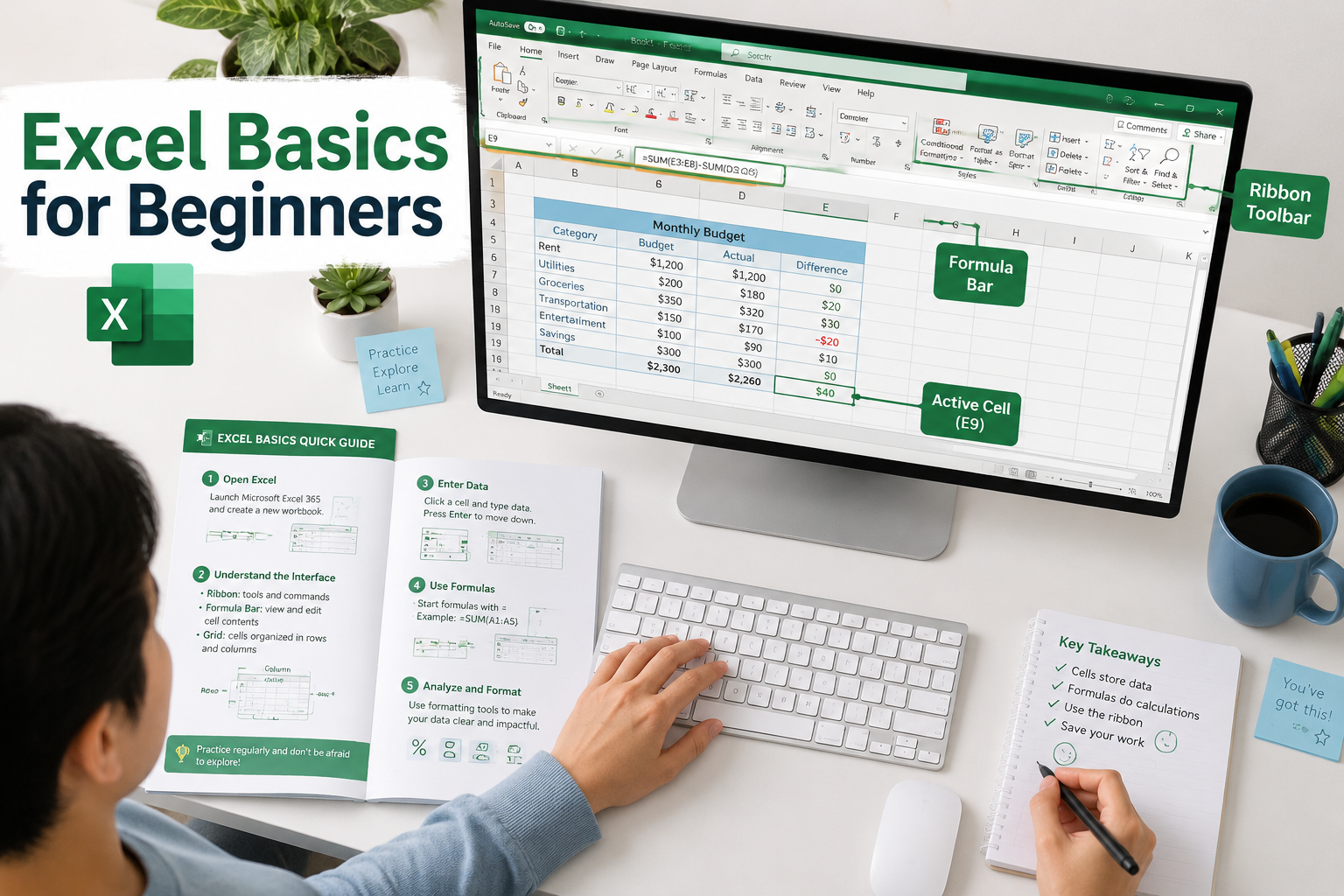
Learning Excel follows a clear progression. Start with the interface, then move to data entry, then formulas, then formatting, and finally charts and analysis tools.
Here’s a practical learning path for absolute beginners:
- Get familiar with the Excel interface — Understand the ribbon, formula bar, cell grid, and sheet tabs.
- Enter and edit data — Type text, numbers, and dates into cells. Practice selecting ranges.
- Write basic formulas — Start with
=SUM(),=AVERAGE(),=MIN(), and=MAX(). For a quick win, see this guide on how to add up a row of numbers in Excel. - Format your spreadsheet — Adjust column widths, apply bold/color, and wrap text. You can easily expand all columns in Excel at once with just a few clicks.
- Sort and filter data — Learn to organize lists and find specific records quickly.
- Create a basic chart — Turn a data range into a bar or pie chart.
- Save and share files — Use
.xlsxformat and understand how to export as PDF.
Choose this path if: You have zero prior Excel experience and want a logical, frustration-free start.
For a full walkthrough of each step, the how to use Excel step-by-step for beginners guide covers every stage in detail.
How Do I Download a Free Excel Tutorial PDF?
Several reputable sources offer free Excel PDFs with no signup required.
Best free sources in 2026:
| Source | What’s Included | Cost |
|---|---|---|
| Microsoft Support (support.microsoft.com) | Official quick-start guides, version-specific | Free |
| GCFGlobal.org | Beginner-friendly, printable lessons | Free |
| Chandoo.org | Practical Excel PDF cheat sheets | Free |
| Coursera (audit mode) | Structured course materials | Free to audit |
| University open courseware (MIT, etc.) | Academic-level Excel workbooks | Free |
How to download from Microsoft directly:
- Go to support.microsoft.com and search “Excel quick start guide.”
- Select your Excel version (Excel 365, Excel 2021, etc.).
- Click the PDF download link on the guide page.
Common mistake: Downloading a PDF for the wrong Excel version. Excel 2016 and Excel 365 have different features, so confirm your version first (go to File → Account → About Excel).
Which Excel PDF Guide Is Best for Absolute Beginners?
For absolute beginners, GCFGlobal’s free Excel tutorial series is consistently recommended because it uses plain language, real screenshots, and short lessons. Microsoft’s own Quick Start PDF is also excellent for getting oriented with the ribbon and basic navigation.
What to look for in a beginner PDF:
- Screenshots that match your version of Excel
- Numbered steps (not just descriptions)
- Practice exercises at the end of each section
- Coverage of formulas, formatting, and charts
Edge case: If English isn’t your first language, Microsoft’s support site offers Quick Start guides in over 40 languages — worth checking before settling for a generic third-party PDF.
Can I Learn Excel From a PDF Without Any Prior Experience?
Yes — a well-structured how to use excel step by step PDF is specifically designed for people with zero prior experience. The key is to open Excel alongside the PDF and practice each step immediately rather than reading through first and practicing later.
Tips for learning from a PDF with no background:
- Work through one section per session (30–45 minutes max).
- Recreate every example in a real spreadsheet as you read.
- Use the Excel AutoSum shortcut early — it builds confidence fast.
- Don’t skip the keyboard shortcuts section; they save enormous time later.
If you’re aiming to learn quickly, the how to learn MS Excel in 24 hours guide pairs well with any PDF tutorial.
What Are the Most Common Mistakes People Make When Learning Excel?
Most beginners waste time because of a handful of avoidable errors.
Top mistakes and how to fix them:
- Hardcoding numbers instead of using cell references — Always reference cells (e.g.,
=A1+B1) rather than typing values directly into formulas. This makes updates instant. - Not saving frequently — Use Ctrl+S as a reflex. Better yet, enable AutoSave in Excel 365.
- Ignoring keyboard shortcuts — Mouse-only workflows are slow. Even learning 5 shortcuts (Ctrl+C, Ctrl+V, Ctrl+Z, Ctrl+S, Ctrl+Home) speeds things up noticeably. See this Alt key shortcuts guide for more.
- Skipping data validation — Entering inconsistent data (mixing text and numbers in one column) breaks formulas.
- Never using PivotTables — Many beginners avoid them out of fear, but PivotTables are one of Excel’s most powerful tools for summarizing data.
- Forgetting to lock cells — When sharing spreadsheets, unprotected cells get accidentally overwritten. Learn how to lock specific cells in Excel early.
How Much Does a Professional Excel Training PDF Cost?
Free PDFs cover 80–90% of what most users need. Paid options add structured curricula, exercises with answer keys, and certificates.
Typical price ranges (2026 estimates):
- Free: Microsoft Quick Start guides, GCFGlobal, Chandoo cheat sheets
- $10–$30: Udemy PDF-based course materials (often bundled with video)
- $50–$100: Specialist Excel PDFs from training companies (e.g., ExcelJet, Mynda Treacy’s courses)
- $100–$200+: Corporate training packages with instructor support
Choose paid if: You need a certificate for a job application, require advanced topics (VBA, Power Query, Power BI integration), or want structured exercises with graded feedback.
Choose free if: You’re learning for personal use, building basic job skills, or just getting started.
Are There Free Excel Step by Step PDFs From Microsoft?
Yes. Microsoft publishes free Quick Start guides for every major Excel version, including Excel 365, Excel 2021, and Excel 2019. These are official, accurate, and updated when major features change.
How to find them:
- Visit support.microsoft.com.
- Search “Excel for Windows Quick Start.”
- Download the PDF directly — no account needed.
Microsoft also offers free training courses at support.microsoft.com/en-us/training, many of which include downloadable reference sheets that function as step-by-step PDFs.
What Skills Can I Learn in an Excel PDF Tutorial?
A solid how to use excel step by step PDF typically covers a wide range of practical skills, from basic to intermediate.
Core skills covered in most beginner-to-intermediate PDFs:
- Navigating the Excel interface and ribbon
- Entering, editing, and formatting data
- Writing formulas: SUM, AVERAGE, IF, VLOOKUP/XLOOKUP, COUNTIF
- Formatting: fonts, borders, cell colors, number formats
- Sorting and filtering datasets
- Creating charts (bar, line, pie)
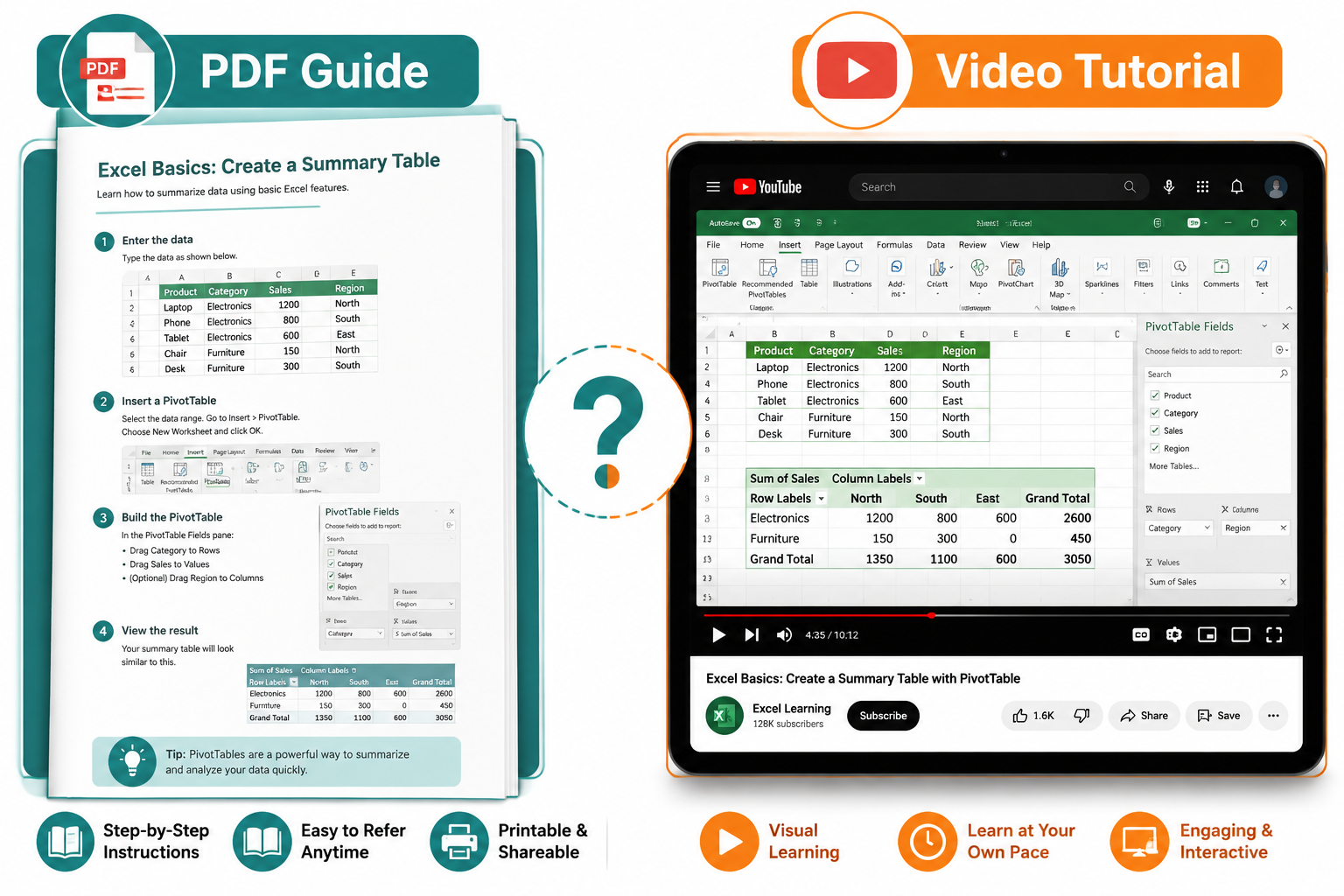
- Using PivotTables for data summaries
- Printing and exporting spreadsheets as PDFs
- Basic data validation and cell protection
Intermediate skills in advanced PDFs:
- Conditional formatting (e.g., applying color to alternate rows)
- Named ranges and dynamic arrays
- Power Query basics
- Macros and basic VBA
Is a PDF Guide Better Than YouTube Tutorials for Learning Excel?
Neither format is universally better — they serve different learning styles and goals.
| Factor | PDF Guide | YouTube Tutorial |
|---|---|---|
| Self-paced | ✅ Excellent | ⚠️ Requires pausing |
| Offline access | ✅ Yes | ❌ Needs internet |
| Searchable | ✅ Ctrl+F | ❌ No |
| Visual demonstration | ⚠️ Screenshots only | ✅ Real-time video |
| Printable reference | ✅ Yes | ❌ No |
| Free availability | ✅ Many free options | ✅ Abundant |
Best approach: Use a how to use excel step by step PDF as your structured reference and use YouTube for specific tasks you need to see in motion (like building a chart or writing a complex formula).
What Version of Excel Does the Step by Step PDF Cover?
Most free PDFs specify a version on the cover page or in the introduction. Always check before downloading.
- Excel 365 is the current subscription version and receives regular feature updates.
- Excel 2021 is the one-time purchase version with a fixed feature set.
- Excel 2019/2016 are older but still widely used in workplaces.
Core features (SUM, charts, PivotTables, formatting) work the same across all modern versions. Differences appear in newer functions like XLOOKUP, dynamic arrays, and LAMBDA — which are Excel 365-only.
Rule of thumb: If a PDF was written before 2020, it won’t cover XLOOKUP or dynamic arrays. Look for guides updated in 2023 or later for the most current content.
How Long Does It Take to Learn Excel From a PDF Guide?
Most beginners can cover essential Excel skills in 5 to 10 hours of focused, hands-on practice. Reaching intermediate proficiency (PivotTables, VLOOKUP, conditional formatting) typically takes 20 to 40 hours spread over several weeks.
Realistic time estimates by skill level:
- Basic (data entry, SUM, formatting): 3–5 hours
- Intermediate (VLOOKUP, PivotTables, charts): 15–25 hours total
- Advanced (Power Query, VBA, complex formulas): 50+ hours
Consistency matters more than marathon sessions. Practicing 30 minutes daily produces better retention than a single 5-hour session on a weekend.
What Jobs Require Strong Excel Skills?
Excel proficiency appears in job listings across almost every industry. According to Burning Glass Technologies labor market data (cited in multiple workforce reports), Excel is one of the most frequently requested software skills in U.S. job postings.
Jobs that commonly require Excel:
- Financial analyst
- Accountant / bookkeeper
- Project manager
- Data analyst
- Marketing coordinator
- Operations manager
- Administrative assistant
- Human resources specialist
- Supply chain coordinator
For practical applications, try building real-world projects like a monthly food budget template or a balance sheet template to build portfolio-ready skills.
Can I Print an Excel Tutorial PDF for Offline Learning?
Yes, and printing is one of the main advantages of PDF-format guides. A printed tutorial sits beside your keyboard so you can follow steps without switching windows.
Tips for printing Excel PDFs effectively:
- Print in grayscale to save ink — most Excel screenshots are readable in black and white.
- Use “fit to page” settings so wide screenshots don’t get cut off.
- Print two pages per sheet for condensed reference cards.
- Highlight key steps with a marker as you complete them.
Offline learning works especially well for commuters, students without reliable internet, or anyone who retains information better from physical materials.
Frequently Asked Questions
Q: Is Microsoft Excel free? Excel is not free as a standalone app. It’s included with Microsoft 365 subscriptions (starting around $6.99/month in 2026) or available as a one-time purchase. A limited free version exists at Excel.com (online only).
Q: What’s the difference between a workbook and a worksheet in Excel? A workbook is the entire Excel file (.xlsx). A worksheet is a single tab (sheet) inside that file. One workbook can contain many worksheets.
Q: Can I use a Mac Excel PDF guide on Windows Excel? Mostly yes. Core features are identical. The main differences are keyboard shortcuts (Command vs. Ctrl) and some menu locations. Look for notes in the PDF about platform differences.
Q: What’s the first formula every beginner should learn?
Start with =SUM(). It adds up a range of cells and teaches the core concept of cell references and function syntax that applies to every other formula.
Q: Do I need to know math to learn Excel? No. Excel handles the calculations — you just need to tell it what to calculate. Basic arithmetic understanding helps, but advanced math skills are not required for most Excel tasks.
Q: How do I know if my Excel PDF is outdated? Check the publication or revision date on the cover or first page. If it predates 2019, some features (especially dynamic arrays and XLOOKUP) won’t be covered.
Q: Can children or students learn from an Excel step by step PDF? Yes. GCFGlobal and similar sites offer beginner PDFs written at a middle-school reading level, making them accessible to students from around age 12 upward.
Q: Is there a difference between learning Excel and learning Google Sheets? The concepts are very similar, but the interfaces and some formulas differ. Excel PDFs don’t directly translate to Sheets, though a beginner who learns one picks up the other quickly.
Q: What’s the fastest way to build confidence in Excel? Build something real. Create a personal budget, a grocery list, or a simple tracker. Practical projects cement skills faster than exercises in a vacuum.
Q: Are Excel certifications worth getting? Microsoft’s MO-201 (Excel Expert) certification is recognized by employers, particularly in finance and administration roles. It’s worth pursuing after reaching intermediate skill level.
Conclusion
A well-chosen how to use excel step by step PDF is one of the most efficient ways to build real Excel skills — especially for learners who prefer structured, self-paced study over passive video watching. Start with a free guide from Microsoft or GCFGlobal, open Excel alongside it, and practice every concept immediately.
Actionable next steps:
- Download a free Excel Quick Start PDF from support.microsoft.com today.
- Open Excel and complete the first two sections of the guide before closing your laptop.
- Build one practical project this week — a budget, a list, or a simple tracker — using only what you’ve learned.
- Bookmark the Mark’s Excel Tips blog for quick reference guides on specific tasks as questions come up.
- Once comfortable with basics, explore intermediate skills like PivotTables, conditional formatting, and keyboard shortcuts to move from beginner to confident user.
The gap between “never used Excel” and “competent Excel user” is smaller than most people expect. A good PDF guide and a few hours of honest practice close it faster than any other method. 📊