
Last updated: June 15, 2026
Quick Answer: To use Excel on your phone, download the free Microsoft Excel app from the App Store (iPhone) or Google Play Store (Android), sign in with a Microsoft account, and open or create a spreadsheet. The app supports formulas, charts, and cloud syncing via OneDrive. A Microsoft 365 subscription unlocks the full feature set, but basic editing is free for screens under 10.1 inches.
Key Takeaways
- The Excel mobile app is free to download on both iPhone and Android; a Microsoft 365 subscription is needed for advanced features
- Files saved to OneDrive or SharePoint sync automatically between your phone and computer
- Most common formulas work on mobile, including IFS, MAXIFS, MINIFS, SWITCH, CONCAT, and TEXTJOIN [1]
- Cards View makes editing table rows much easier on small screens [2]
- The “Insert Data from Picture” feature lets you photograph a printed table and convert it to a spreadsheet [4]
- PivotTables can be viewed, refreshed, sorted, and filtered on mobile [1]
- iPhones and Android phones with screens 6 inches or larger offer the best experience
- AutoSave keeps your work safe automatically when you’re connected to the cloud [3]
Is Excel Free on Mobile?
Yes, Excel is free to download and use for basic tasks on phones with screens under 10.1 inches. You’ll need a free Microsoft account to sign in, and that gets you viewing, editing, and saving files to OneDrive at no cost. A Microsoft 365 subscription (starting at around $6.99/month as of 2026) unlocks advanced features like full PivotTable creation, certain add-ins, and premium templates.
Choose free if: you mainly view files, make small edits, or track a personal budget. Choose Microsoft 365 if: you use Excel for work, need collaboration tools, or rely on advanced formulas and data analysis.
How to Use Excel in Phone: Getting Started
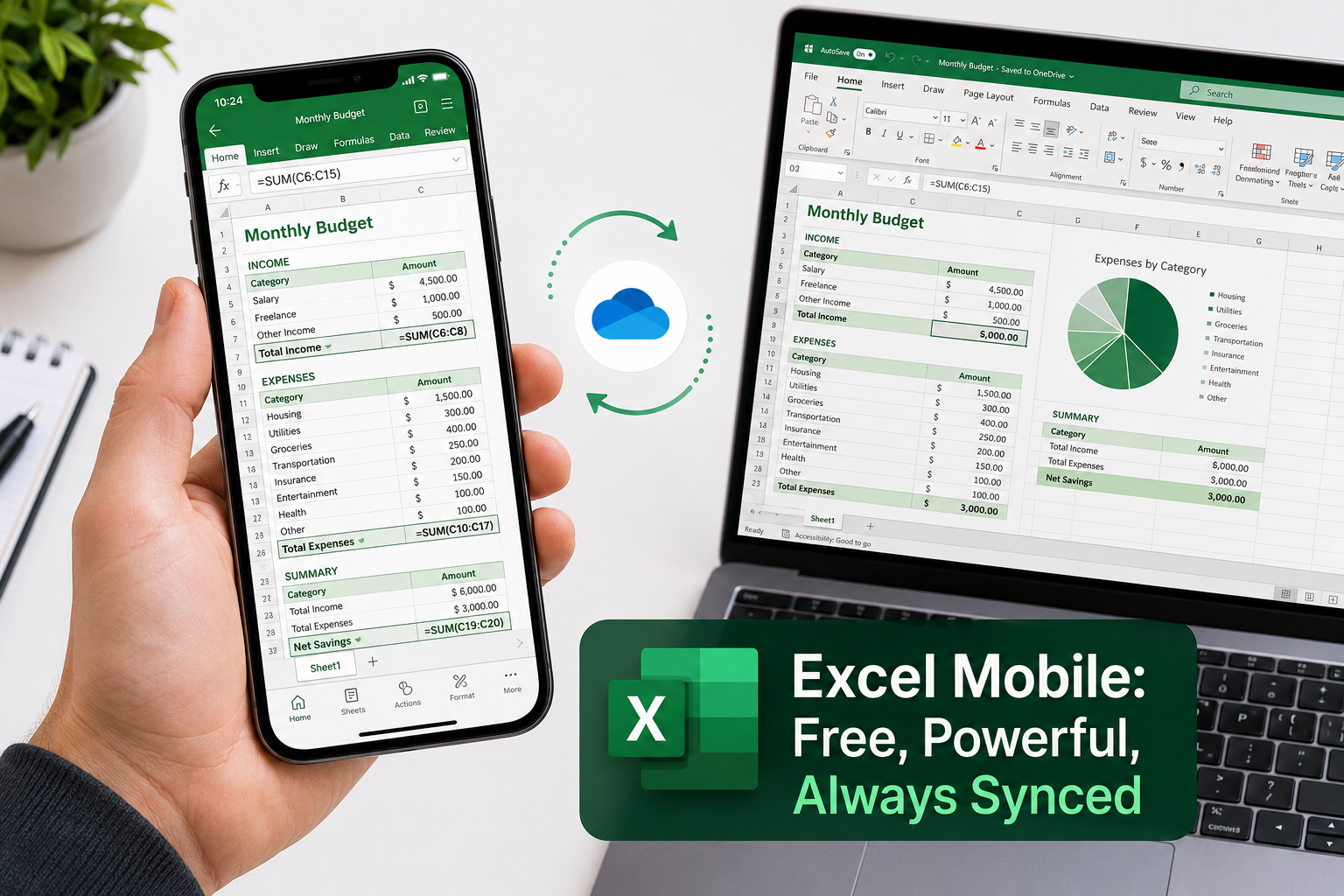
Getting started with how to use Excel on your phone takes less than five minutes. Here’s the step-by-step process:
- Download the app — Search “Microsoft Excel” in the App Store or Google Play and install it (it’s free)
- Sign in — Use your Microsoft account or create one free at microsoft.com
- Open a file — Tap “Open” to browse OneDrive, your phone’s local storage, or recent files
- Create a new spreadsheet — Tap the “+” icon and choose a blank workbook or a template
- Start editing — Tap any cell to select it, then type in the formula bar that appears at the top
💡 Pro tip: Use the Tell Me feature (the search bar at the top of the app) to type commands in plain language. For example, type “insert chart” and it walks you through the steps. [1]
If you’re brand new to spreadsheets altogether, the how to use Excel for beginners guide is a great starting point before diving into the mobile version.
How Do I Open Excel Spreadsheets on My iPhone?
On an iPhone, you can open Excel files directly from the Excel app, the Files app, email attachments, or any cloud storage link. Here’s how each method works:
- From the Excel app: Open Excel, tap “Open,” and browse OneDrive, iCloud Drive, or local storage
- From an email attachment: Tap the .xlsx file in Mail, then tap “Open in Excel”
- From the Files app: Navigate to the file, tap it, and iOS will ask which app to open it with — choose Excel
- From a shared link: Tap the link in Safari or Messages and it opens directly in the app
The iPhone app also supports OpenDocument (.ods) files, so files created in Google Sheets or LibreOffice open without conversion [1]. iPad users get an extra bonus: the Draw tab lets you annotate spreadsheets with your finger or Apple Pencil [1].
Can You Edit Excel Files on Android?
Yes, Android phones fully support editing Excel files through the Microsoft Excel app, available free on Google Play. The Android version matches the iOS version in nearly all features, including formula entry, cell formatting, chart creation, and cloud sync.
A few things worth knowing for Android users:
- Files stored on Google Drive can be opened in Excel mobile, but save back to OneDrive for best compatibility
- The app supports touch gestures like pinch-to-zoom and swipe-to-scroll for easier navigation [5]
- Android tablets with larger screens get a layout closer to the desktop version
Common mistake: Saving an edited file as a Google Sheets format instead of .xlsx. Always check the file format before closing, especially if the file will be opened on a desktop later.
What’s the Difference Between Excel Mobile and Desktop Versions?
Excel mobile covers about 80% of what most everyday users need, but the desktop version is still more powerful for complex work. Here’s a clear breakdown:
| Feature | Mobile App | Desktop (Microsoft 365) |
|---|---|---|
| Basic formulas (SUM, IF, VLOOKUP) | ✅ Yes | ✅ Yes |
| Advanced functions (IFS, TEXTJOIN) | ✅ Yes | ✅ Yes |
| PivotTable creation | ❌ View/refresh only | ✅ Full creation |
| Macros (VBA) | ❌ No | ✅ Yes |
| Charts and graphs | ✅ Most types | ✅ All types |
| Funnel charts | ✅ Yes | ✅ Yes |
| Keyboard shortcuts | Limited | ✅ Full set |
| Cards View for tables | ✅ Mobile only | ❌ No |
| Insert data from picture | ✅ Yes | ✅ Yes |
For tasks like using Excel to calculate figures or building a monthly food budget template, the mobile app handles things just fine.
Can I Do Complex Formulas in Excel Mobile?
Yes, Excel mobile supports a wide range of complex formulas, including functions added specifically for mobile users: IFS, MAXIFS, MINIFS, SWITCH, CONCAT, and TEXTJOIN [1]. The formula AutoComplete feature now returns all partial matches, not just exact ones, which makes entering longer formulas faster [1].
For example, you can enter =IFS(A1>90,"A",A1>80,"B",A1>70,"C") directly in the mobile formula bar. Nesting functions, referencing other sheets, and using named ranges all work as expected.
Where it gets tricky: Entering long, nested formulas on a small keyboard is slow and error-prone. For anything with more than two or three nested functions, it’s worth building the formula on desktop first, then editing values on mobile.
If you work with numbers that need rounding, check out this guide on how to round numbers in Excel — the same functions apply on mobile.
Tips for Typing in Excel on a Small Screen
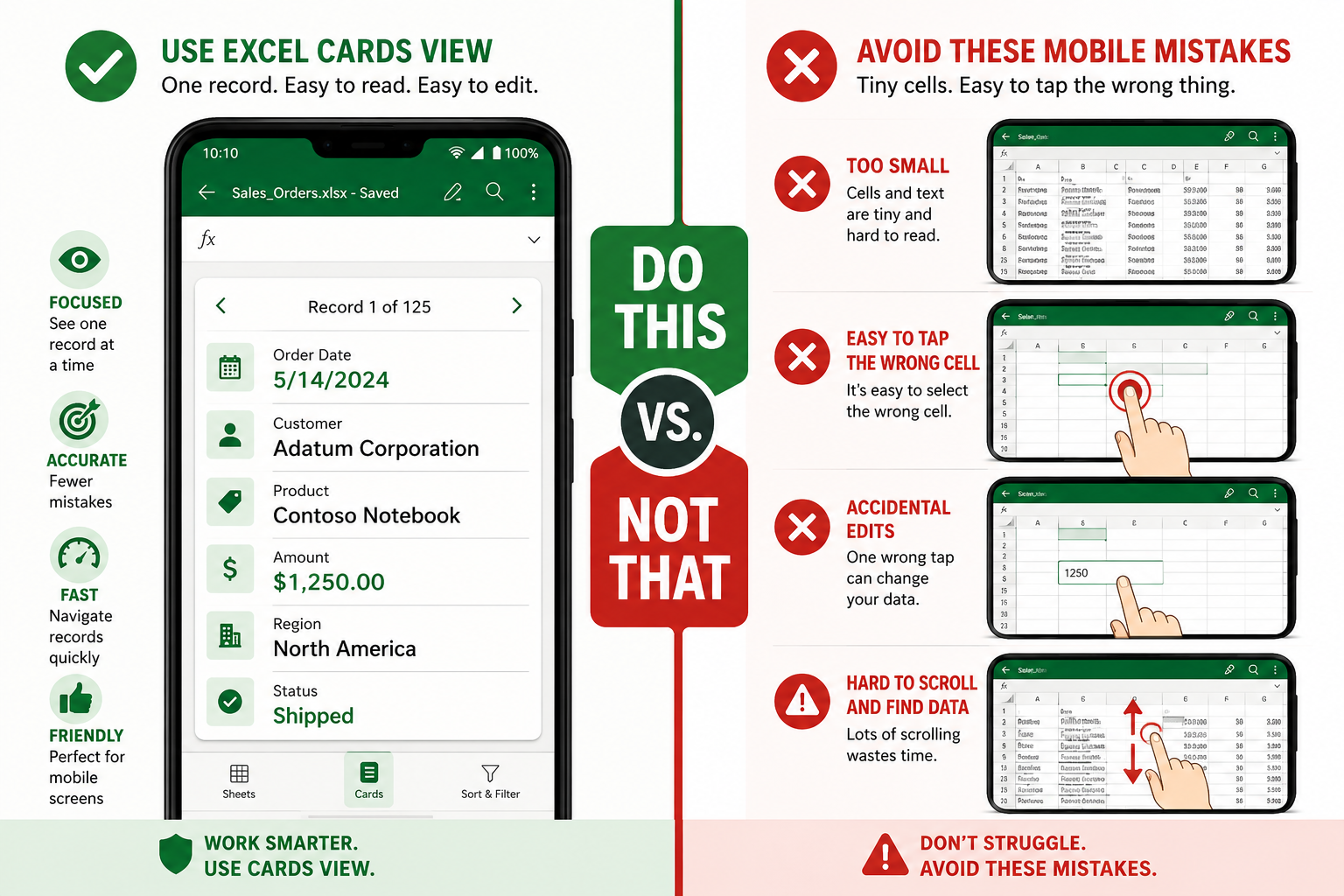
The biggest challenge with using Excel on a phone is accurate cell selection and data entry on a small touchscreen. These tips make a real difference:
- Use Cards View for data tables — it shows one row at a time in a large, readable card format, making entry much less error-prone [2]
- Pinch to zoom in before tapping a specific cell to avoid selecting the wrong one
- Use the formula bar at the top rather than typing directly in the cell — it gives more space
- Rotate to landscape mode for a wider view of columns
- Use the “Insert Data from Picture” feature to photograph a printed table instead of retyping it [4]
- Freeze the top row so headers stay visible while you scroll — the same logic from the freeze top row and first column guide applies in mobile too
- Connect a Bluetooth keyboard for serious data entry sessions — Excel mobile responds well to external keyboards
How to Share Excel Files from Mobile
Sharing an Excel file from your phone takes two taps. Open the file, tap the share icon (the arrow pointing up on iPhone, or the share button on Android), and choose how to send it.
Options include:
- Share a link (via OneDrive) — recipients can view or edit depending on permissions you set
- Send as attachment — sends the .xlsx file directly through email or messaging apps
- Share to Teams or SharePoint — best for workplace collaboration
For real-time collaboration, sharing a OneDrive link is better than sending an attachment, because everyone edits the same file and changes appear instantly. AutoSave keeps everything current [3].
How to Sync Excel Files Between Phone and Computer
Excel files sync automatically between your phone and computer when saved to OneDrive or SharePoint. Open the file on your phone, make edits, and those changes appear on your desktop the next time you open the file — no manual transfer needed [3].
Steps to set up sync:
- Save your Excel file to OneDrive (not just local phone storage)
- On your computer, make sure you’re signed into the same Microsoft account in Excel
- Open the file from OneDrive on either device — AutoSave handles the rest
Edge case: If you edit the same file on two devices simultaneously without a connection, you may get a conflict. Excel will flag this and ask which version to keep. To avoid it, always close the file on one device before opening it on another.
Which Phones Work Best With the Excel App?
Any modern iPhone (iPhone 12 or newer) or Android phone with at least 3GB of RAM and Android 10 or later runs Excel mobile smoothly. Larger screens make a noticeable difference in usability.
Best choices by category:
- Best overall experience: iPhone 15 or newer, Samsung Galaxy S23 or newer
- Best for budget users: Any phone running Android 12+ with a 6.5-inch screen
- Best for heavy use: A phone with a 6.7-inch screen or a foldable like the Samsung Galaxy Z Fold series
Phones with screens under 5 inches technically run the app but make editing genuinely frustrating. If the phone is used primarily for viewing files rather than editing, screen size matters less.
Is Excel Mobile Good for Business or Just Personal Use?
Excel mobile is genuinely useful for business, not just personal tasks, especially for roles that involve reviewing data, approving figures, or making quick updates while away from a desk. Sales teams, field workers, project managers, and finance staff all benefit from mobile access to live spreadsheets.
That said, it has real limits for heavy business use:
- No VBA macros or custom add-ins
- PivotTable creation requires a desktop
- Complex dashboards with many charts can feel cramped
For personal use cases like a college budget template, a meal planner, or a credit card payoff calculator, the mobile app is more than capable.
Common Mistakes When Using Excel on Phone
The most common mistake is editing a local copy of a file instead of the OneDrive version, which means changes don’t sync and can get lost. Here are the other mistakes to watch for:
- Tapping the wrong cell — zoom in first, especially in dense spreadsheets
- Accidentally deleting data — undo with the back-arrow button immediately if this happens
- Saving in the wrong format — always save as .xlsx unless you specifically need another format
- Ignoring Cards View — most users don’t know it exists, but it’s the best tool for mobile data entry [2]
- Entering formulas without checking cell references — small screens make it easy to misread which cells are selected
- Not using AutoSave — if you’re working offline, remember to manually save before closing
Conclusion
Using Excel on your phone is more capable than most people expect. The free app covers everyday tasks like budgeting, tracking, and data review, while a Microsoft 365 subscription extends it to near-desktop-level work. The key to a smooth experience is saving files to OneDrive for automatic sync, using Cards View for table editing, and zooming in before tapping cells on small screens.
Actionable next steps:
- Download the Excel app and sign in with your Microsoft account today
- Move your most-used spreadsheets to OneDrive so they’re always accessible
- Try Cards View the next time you need to enter data into a table on your phone
- Explore the how to use Excel to calculate guide to get more from the formulas available on mobile
FAQ
Q: Do I need Wi-Fi to use Excel on my phone? No. You can open and edit files stored locally without Wi-Fi. However, syncing to OneDrive and AutoSave require an internet connection.
Q: Can I print directly from Excel mobile? Yes. Tap the three-dot menu, select “Print,” and choose a printer connected to your network via AirPrint (iPhone) or Google Cloud Print alternatives (Android).
Q: Does Excel mobile support multiple sheets in one workbook? Yes. You can view, add, rename, and switch between sheets using the tab bar at the bottom of the screen.
Q: Can I create charts in Excel on my phone? Yes. Select your data, tap “Insert,” and choose a chart type. Most chart types are available, including bar, line, pie, and funnel charts. For tips on chart creation, see this guide on turning Excel data into a graph.
Q: Is the Excel mobile app the same as Excel Online? No. Excel Online runs in a browser and requires an internet connection. The Excel mobile app is a native app that works offline and has features like Cards View that the web version doesn’t.
Q: Can I use conditional formatting on my phone? You can view and apply basic conditional formatting on mobile. For more complex rules, desktop is easier to use.
Q: What file types does Excel mobile open? It opens .xlsx, .xls, .xlsm, .csv, and OpenDocument (.ods) files [1].
Q: Is there a tablet version of Excel that’s better than the phone version? Yes. On iPads and Android tablets with screens over 10.1 inches, the app layout is closer to the desktop version, with more toolbar options visible at once.
Q: Can I password-protect a file in Excel mobile? Password protection must be set on the desktop version. Once set, the mobile app will prompt for the password when opening the file.
Q: Does Excel mobile support right-to-left languages? Yes. Excel mobile supports bi-directional text, including Arabic and Hebrew [1].
References
[1] What’s New in Excel on Mobile Platforms – https://support.microsoft.com/en-us/excel/what-s-new-in-excel-on-mobile-platforms
[2] Use Cards View to Work with Table Data on Your Phone – https://support.microsoft.com/en-us/office/use-cards-view-to-work-with-table-data-on-your-phone-fda6099e-2de8-4a52-a926-90a7ee61a32b
[3] Excel Mobile – Microsoft 365 – https://www.microsoft.com/en-us/microsoft-365/p/excel-mobile/9wzdncrfjbh3
[4] Excel on Mobile – Glide Apps Blog – https://www.glideapps.com/blog/excel-on-mobile
[5] Here’s How to Use Microsoft Excel on Your Phone – Yahoo Tech – https://tech.yahoo.com/apps/articles/heres-way-microsoft-excel-phone-173015764.html
[6] Excel for Android Phones Help – https://support.microsoft.com/en-us/office/excel-for-android-phones-help-f818cb37-bfac-485d-8480-363b3da40596
[7] Excel for iPhone Help – https://support.microsoft.com/en-US/Excel/excel-for-iphone-help