
Last updated: June 14, 2026
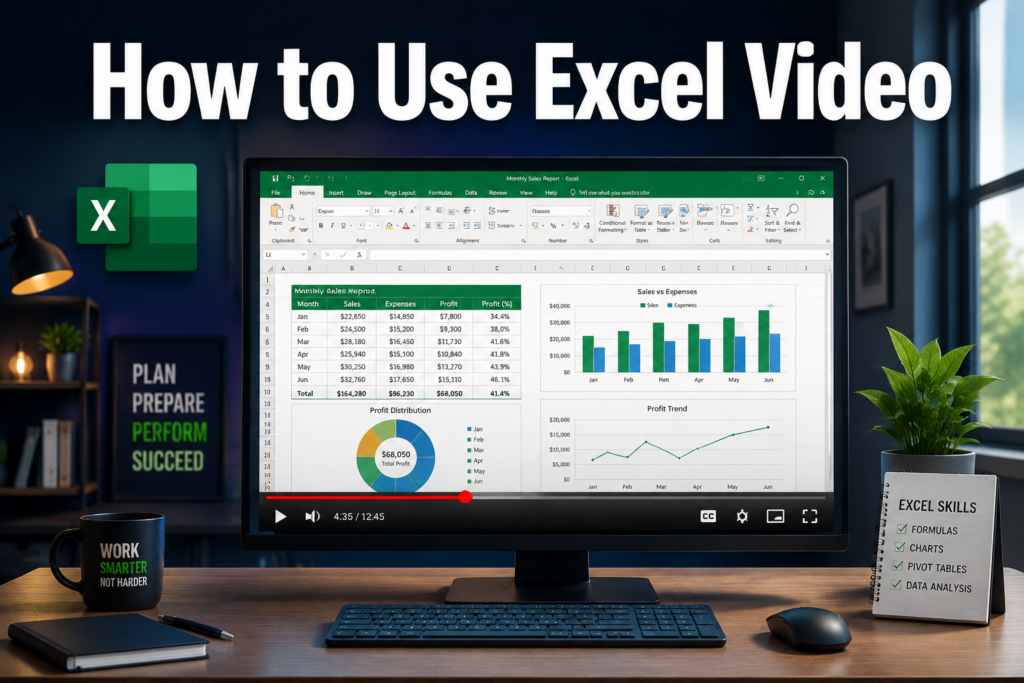
Quick Answer: The best way to use Excel video tutorials is to watch a short lesson, pause it, and immediately replicate every step in a live spreadsheet. Free resources like Microsoft’s official training videos [1] and Purdue University’s complete beginner course [2] cover everything from basic navigation to formulas and charts. Most learners reach functional proficiency in 10–20 hours of focused video practice.
Key Takeaways
- Watch, pause, practice — the single most effective method for learning from any how to use excel video tutorial.
- Free video courses (YouTube, Microsoft Support, university platforms) are good enough for most learners; paid courses add structure and accountability.
- No prior software knowledge is required to start Excel video training — basic computer literacy is enough.
- Beginner learners should focus on: navigation, data entry, SUM/AVERAGE formulas, formatting, and simple charts.
- Data analysts, finance professionals, and marketers each need different Excel skill sets — choose a course that matches your job role.
- Practicing on real data (your own budget, work files) accelerates learning far faster than passive watching.
- Microsoft 365 (subscription) or a one-time Excel purchase is needed to follow along with most tutorials.
- Common mistakes include skipping practice, jumping to advanced topics too early, and not using keyboard shortcuts.
What Are the Best Excel Tutorial Videos for Beginners?
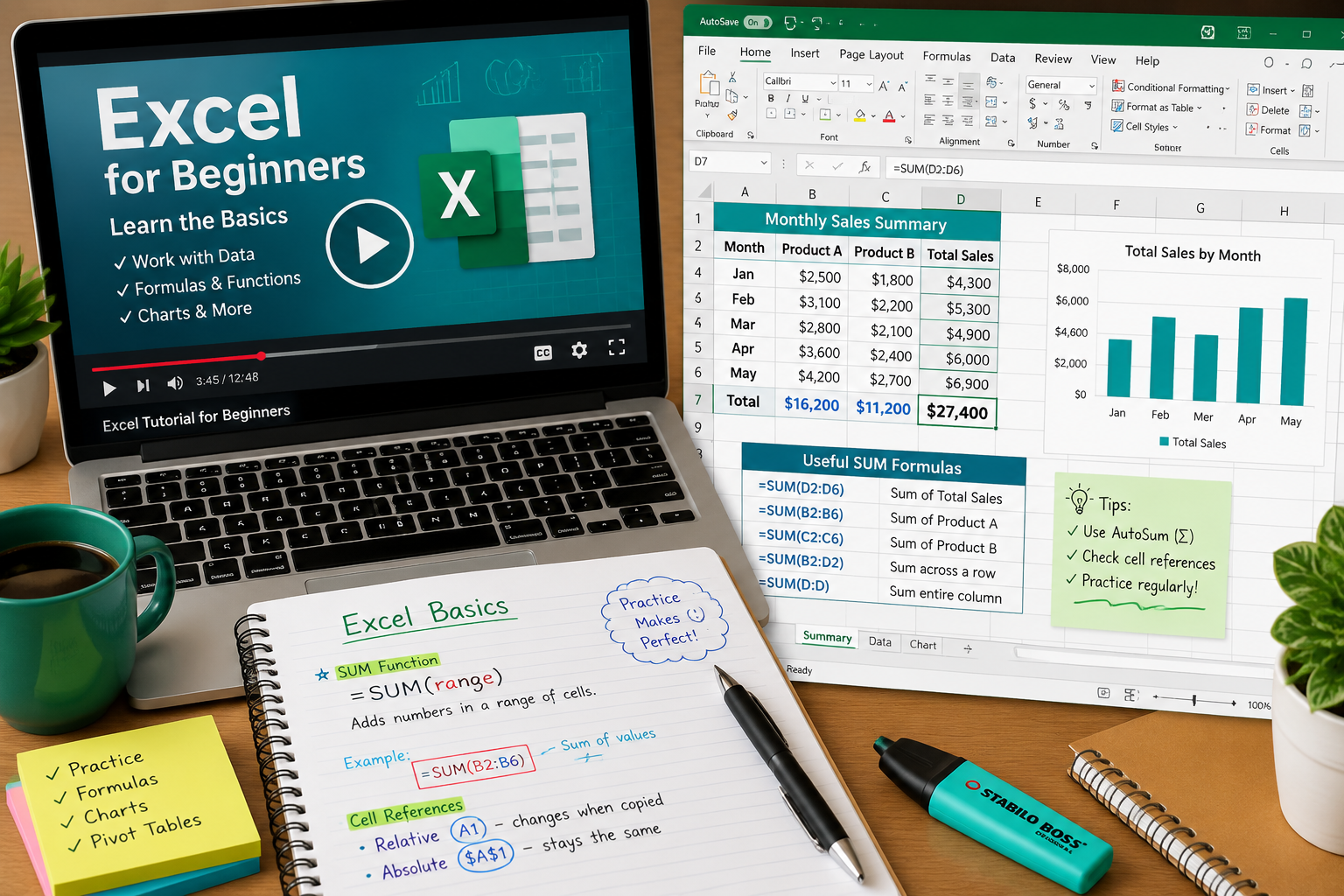
The best beginner Excel tutorial videos combine clear narration, visible keystrokes, and downloadable practice files. Microsoft’s own “Intro to Office Basics” video series [1] is a reliable starting point because it reflects the current version of Excel and covers navigation, templates, and collaboration. Purdue University’s “Excel for Beginners — The Complete Course” [2] is another strong option, covering spreadsheet terminology, data entry, formulas, formatting, and chart creation in a single structured session.
Top beginner-friendly sources:
- Microsoft Support (support.microsoft.com): Free, official, always up to date [1]
- Purdue Global MediaSpace: Full beginner course, free to watch [2]
- Limbtec Limited tutorials: Short, task-specific videos on freezing headers, Flash Fill, and navigating large datasets [3]
- Michigan State University SpartansLearn: Curated playlists covering workbook navigation, formatting, and shortcuts [4]
- Weill Cornell IT tutorials: YouTube playlist covering pivot tables, macros, charts, and formulas [5]
Choose based on your learning style: If you prefer bite-sized lessons (under 10 minutes), go with Limbtec or Microsoft Support. If you want one long, structured session, Purdue’s complete course is the better fit.
How Long Does It Take to Learn Excel from YouTube Videos?
Most beginners reach a working level of Excel proficiency in 10–20 hours of video-based learning, assuming they practice alongside each video. Getting to an intermediate level (pivot tables, VLOOKUP, conditional formatting) typically takes another 15–30 hours. Advanced skills like Power Query, macros, and complex nested formulas can take months of consistent practice.
Rough time estimates by skill level:
| Skill Level | Typical Hours of Video + Practice |
|---|---|
| Beginner (basic formulas, formatting) | 10–20 hours |
| Intermediate (pivot tables, VLOOKUP) | 30–50 hours total |
| Advanced (macros, Power Query) | 80+ hours total |
The biggest variable is how much you practice between sessions. Watching videos without opening Excel barely moves the needle. If you want to compress the timeline, check out this guide on how to learn MS Excel in 24 hours for an intensive approach.
Free vs. Paid Excel Video Courses: Which Is Better?
Free Excel video courses are genuinely good enough for most learners, especially beginners and intermediate users. Microsoft’s official tutorials [1], university platforms like Purdue [2] and MSU [4], and YouTube channels cover the full range of core skills at no cost. Paid courses (such as those on O’Reilly [6] or LinkedIn Learning) add structured learning paths, progress tracking, certificates, and instructor support.
Choose free if:
- You’re self-motivated and comfortable setting your own pace.
- You need beginner-to-intermediate skills for personal or general professional use.
- Budget is a constraint.
Choose paid if:
- You need a certificate for a job application or promotion.
- You want a curated curriculum with no gaps.
- You’re learning advanced topics like Power Query or VBA macros.
O’Reilly’s “Excel Essentials” courses, for example, cover Excel 2019 and Microsoft 365 in structured on-demand modules [6] — useful if your employer provides access through a subscription.
Can You Learn Excel Completely Through Online Videos?
Yes — it’s entirely possible to learn Excel to a professional level using only online video resources. The key condition is consistent hands-on practice. Passive video watching alone won’t build muscle memory for shortcuts or formula logic. Learners who pair each video with live practice in a real spreadsheet consistently outperform those who only watch.
A 2025 research paper from arXiv demonstrated that high-quality Excel tutorials can even be generated automatically from natural language task descriptions [7], which signals just how well-documented and video-friendly Excel’s feature set has become.
What video learning can and can’t do:
| ✅ Video learning covers well | ⚠️ Needs extra practice beyond video |
|---|---|
| Step-by-step feature walkthroughs | Memorizing keyboard shortcuts |
| Formula syntax and logic | Troubleshooting your own data errors |
| Chart and formatting techniques | Building complex multi-sheet models |
What Skills Do You Need Before Starting Excel Video Training?
No specialized skills are required before starting Excel video training. Basic computer literacy — knowing how to open applications, type, copy/paste, and save files — is enough to begin. Most beginner how to use excel video courses assume zero prior spreadsheet knowledge.
Helpful but not required:
- Familiarity with basic math concepts (addition, percentages, averages)
- Comfort navigating file folders and browser tabs
- A Microsoft 365 subscription or standalone Excel install (more on this below)
What Software Do You Need to Follow Along with Excel Video Tutorials?
To follow along with most Excel video tutorials, you need Microsoft Excel installed on your computer. Microsoft 365 Personal or Family (subscription-based) gives access to the latest Excel features covered in current tutorials. A one-time purchase of Excel 2021 also works for most beginner and intermediate content.
Software options at a glance:
- Microsoft 365 (subscription): Best for staying current with tutorial content; includes Excel, Word, and OneDrive.
- Excel 2021 (one-time purchase): Good for learners who don’t need the latest features.
- Excel Online (free, browser-based): Limited features — some tutorial steps won’t be available.
- Google Sheets (free): Not Excel, but shares many concepts; some tutorials won’t translate directly.
For most how to use excel video tutorials published in 2026, Microsoft 365 is the recommended choice.
How to Find Reliable Excel Tutorial Videos on YouTube
Reliable Excel tutorial videos on YouTube come from channels with consistent upload histories, visible version labels (e.g., “Excel 365” or “Excel 2021”), and tutorials that show keystrokes on screen. Avoid videos that don’t display the Excel ribbon clearly or that were published before 2020, as the interface has changed significantly.
Signs of a trustworthy Excel tutorial channel:
- Labels the Excel version in the title or description
- Shows keyboard shortcuts visually (on-screen key overlays)
- Has downloadable practice files
- Comments section shows active learner questions and responses
- Affiliated with a university, Microsoft, or a known training provider
Michigan State University’s SpartansLearn platform [4] and Weill Cornell’s IT department [5] both maintain curated YouTube playlists that meet these standards.
Are Microsoft’s Official Excel Training Videos Worth Watching?
Microsoft’s official Excel training videos are worth watching, especially for beginners. They’re free, accurate, and updated to reflect the current version of Excel [1]. The “Intro to Office Basics” series covers navigation, templates, SmartArt, and collaboration features in short, digestible segments. The main limitation is depth — Microsoft’s videos tend to be introductory rather than advanced.
Best use case: Use Microsoft’s official videos to get oriented with the interface, then move to more specialized tutorials for specific skills like pivot tables or conditional formatting.
For example, after watching Microsoft’s basics video, you could practice applying color to alternate rows using conditional formatting or learn how to use conditional formatting traffic lights in Excel — both practical skills that build directly on beginner foundations.
Which Excel Video Course Is Best for Data Analysis?
For data analysis, the best Excel video courses focus on pivot tables, VLOOKUP/XLOOKUP, Power Query, conditional formatting, and charting. Weill Cornell’s tutorial playlist [5] covers pivot tables and macros well. O’Reilly’s structured courses [6] are strong for learners who need a formal curriculum with Microsoft 365 coverage.
Data analysis skills to prioritize in video training:
- Pivot tables and pivot charts (see using pivot charts when data isn’t summarized)
- VLOOKUP, XLOOKUP, INDEX/MATCH
- Conditional formatting for data visualization
- Data validation and filtering
- Basic macros and recorded actions
Excel Video Training for Different Job Roles
Different job roles need different Excel skill sets, and the best how to use excel video training matches your actual work tasks.
By role:
- Finance professionals: Focus on financial formulas (PMT, NPV, IRR), date functions, and budget templates. Practical resources like a monthly food budget template or a college budget template show real-world formula application.
- Project managers: Prioritize Gantt charts, timeline templates, and date functions. The project timeline template for Excel is a practical starting point.
- Marketers: Focus on data sorting, filtering, charting, and basic pivot tables for campaign reporting.
- HR professionals: Learn data validation, conditional formatting, and basic lookup functions for employee records.
- Students: General spreadsheet skills plus formula basics and chart creation cover most academic needs.
Common Mistakes People Make When Learning Excel from Videos
The most common mistake is watching videos without pausing to practice. Learners who watch passively retain far less than those who replicate each step in real time.
Other frequent mistakes:
- Skipping fundamentals: Jumping to VLOOKUP before understanding absolute vs. relative cell references causes persistent confusion.
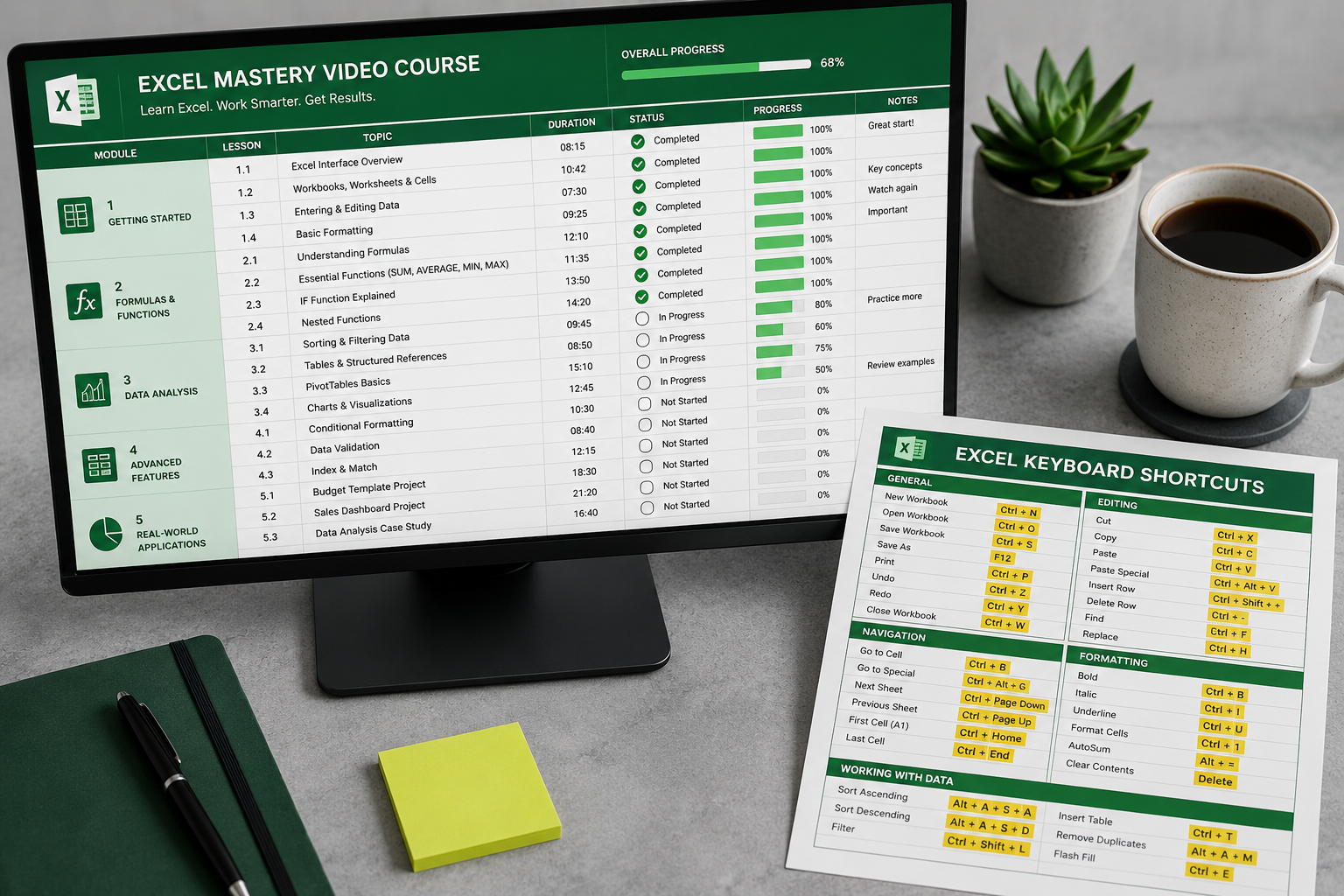
- Ignoring keyboard shortcuts: Shortcuts like Alt key navigation and merging cells with shortcut keys dramatically speed up work — most beginners skip them.
- Not using real data: Practicing on tutorial sample data is fine, but applying skills to your own files (a personal budget, a work report) cements learning much faster.
- Watching outdated videos: Excel’s interface changes between versions. A 2016 tutorial may show menus that no longer exist in Excel 365.
- Not revisiting videos: Most learners need to watch a tutorial 2–3 times before a concept fully sticks.
How to Practice Excel Skills After Watching Tutorial Videos
The most effective practice method is to immediately recreate what the video demonstrated — without rewinding. This forces active recall rather than passive recognition.
Structured practice approach:
- Watch a tutorial section (5–10 minutes max).
- Close or minimize the video.
- Recreate the task from memory in a blank or real spreadsheet.
- Rewatch only the parts where you got stuck.
- Apply the same skill to a real-world file (your budget, a work dataset).
Good practice projects for beginners:
- Build a personal monthly budget (practice SUM, formatting, and basic charts)
- Track a project timeline using date formulas — the DATEDIF function is a useful skill here
- Create a simple inventory list with conditional formatting to flag low stock
Conclusion
Learning Excel through video tutorials is one of the most accessible and effective paths to spreadsheet proficiency in 2026. The formula is straightforward: find a reliable source (Microsoft’s official videos [1], Purdue’s beginner course [2], or a role-specific playlist), watch in short segments, and practice every step immediately in a live spreadsheet.
Actionable next steps:
- Start today: Bookmark Microsoft’s free “Intro to Office Basics” video [1] and watch the first 15 minutes with Excel open beside it.
- Pick your path: Choose a free course for general skills or a paid course if you need a certificate or structured curriculum.
- Practice on real files: Apply each new skill to something you actually use — a budget, a work report, or a personal tracker.
- Build on the basics: Once you’re comfortable with formulas and formatting, move into pivot tables, conditional formatting, and keyboard shortcuts.
- Revisit regularly: Even 20 minutes of practice three times a week compounds quickly into genuine Excel fluency.
The gap between “I watched some Excel videos” and “I’m actually good at Excel” comes down to one thing: how much time you spend with your hands on the keyboard.
FAQ
Q: Can a complete beginner start with how to use excel video tutorials? A: Yes. No prior spreadsheet experience is needed. Microsoft’s official beginner videos and Purdue’s complete beginner course are both designed for people starting from zero.
Q: What’s the best free Excel video course in 2026? A: Purdue University’s “Excel for Beginners — The Complete Course” and Microsoft’s official support videos are both free and cover all core beginner skills comprehensively.
Q: How many hours of Excel video should I watch per week to learn quickly? A: 3–5 hours per week of video plus practice is a sustainable pace. At that rate, most beginners reach functional proficiency within 4–6 weeks.
Q: Do I need Microsoft 365 to follow Excel tutorial videos? A: Most current tutorials are recorded using Microsoft 365. Excel 2021 works for most content, but Excel Online (free) lacks some features shown in tutorials.
Q: Are paid Excel video courses better than free ones? A: Not necessarily. Free courses from Microsoft, Purdue, and MSU cover beginner to intermediate skills well. Paid courses add structure, certificates, and support — useful for career-focused learners.
Q: What’s the fastest way to practice after watching an Excel video tutorial? A: Close the video, try to recreate the task from memory, then rewatch only the parts where you got stuck. Applying the skill to a real file you own cements it faster than any sample dataset.
Q: Which Excel skills are most in demand for jobs in 2026? A: Pivot tables, VLOOKUP/XLOOKUP, conditional formatting, Power Query, and basic charting are consistently requested in job postings across finance, marketing, operations, and HR roles.
Q: Can I learn Excel macros from video tutorials? A: Yes. Weill Cornell’s tutorial playlist and O’Reilly’s courses both cover macros. Macro tutorials work best when you have a repetitive real-world task to automate — otherwise the learning doesn’t stick.
Q: How do I know if an Excel YouTube tutorial is outdated? A: Check the publish date and the Excel version shown in the video. If the ribbon layout looks different from your version, or if the video is from before 2020, find a more recent alternative.
Q: Is Google Sheets good enough instead of Excel for following tutorials? A: Google Sheets shares many concepts with Excel but differs in menus, some functions, and advanced features. For Excel-specific tutorials, use Excel — otherwise you’ll spend time translating steps rather than learning.
References
[1] Video Intro To Office Basics – https://support.microsoft.com/en-us/office/video-intro-to-office-basics-41684255-24dc-4078-92c2-9a05f6684f63
[2] Excel for Beginners – The Complete Course (Purdue Global) – https://mediaspace.purdueglobal.edu/media/Excel%2Bfor%2BBeginners%2B-%2BThe%2BComplete%2BCourse/1_otvp2gvc/141753331
[3] Excel How To Videos (Limbtec Limited) – https://www.limbtec.com/excel-how-to-videos/
[4] Microsoft Excel Training Resources (Michigan State University SpartansLearn) – https://spartanslearn.msu.edu/training-resources/technical-skills/microsoft-excel.html
[5] Microsoft Excel Video Tutorials (Weill Cornell) – https://its.weill.cornell.edu/guides/microsoft-excel-video-tutorials
[6] Excel Essentials Courses (O’Reilly) – https://www.oreilly.com/videos/excel-essentials-for/9781484279106/
[7] Automatic Generation of Excel Tutorials Research (arXiv, 2025) – https://arxiv.org/abs/2509.21816