
Last updated: July 21, 2026
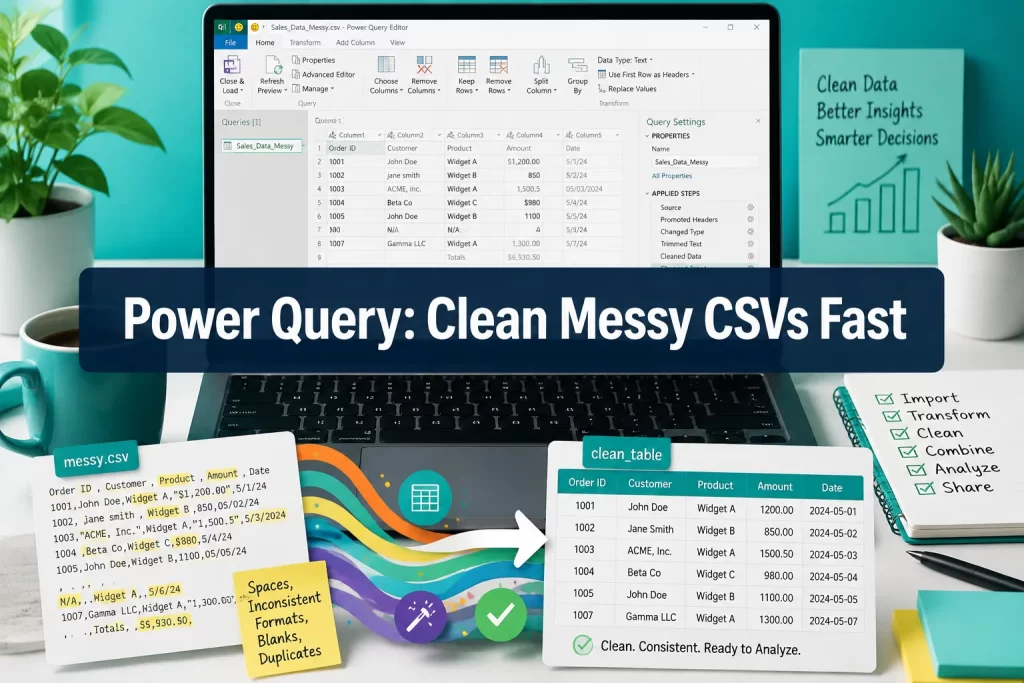
Quick Answer: Excel Power Query for data cleaning lets you import messy CSV files and log exports, apply a repeatable series of transformations (removing duplicates, fixing data types, splitting columns, handling blanks), and load a clean table back into Excel, all without touching the original file or doing any manual editing. Once you set it up, refreshing takes one click.
Key Takeaways
- Power Query is built into Excel 2016 and later (including Microsoft 365), no add-in needed for most users
- It records every cleaning step as a reusable recipe, so you never repeat the same manual fixes twice
- Power Query can handle datasets exceeding 2.5 million rows, well beyond Excel’s standard worksheet limit [4]
- Common tasks, removing duplicates, fixing date formats, splitting columns, filling blanks, take seconds in the Power Query editor
- Refreshing a query automatically re-applies all your cleaning steps when new data arrives
- Excel 2021 users on build older than 16.0.14334.20754 must update by July 24, 2026 to keep organizational account authentication working [1]
- Excel for the web now supports Power Query refresh for authenticated data sources [2]
- Python pandas is more flexible for complex logic, but Power Query wins for Excel-native, no-code data cleaning
What Is Power Query in Excel and How Does It Work?
Power Query is Excel’s built-in data transformation engine. It connects to a data source (CSV, Excel file, database, folder, web page), lets you apply cleaning and shaping steps visually, and loads the result into a worksheet or data model, without altering the original source.
Every action you take in the Power Query editor gets recorded as a step in the Applied Steps panel on the right. These steps run in sequence, top to bottom, every time you refresh the query. Think of it as a cleaning macro that’s easy to read, edit, and share.
How to open Power Query:
- Go to the Data tab in Excel
- Click Get Data (or From Text/CSV for a quick import)
- Select your source file
- Click Transform Data to open the Power Query editor
The editor shows a preview of your data, a ribbon of transformation tools, and the Applied Steps list. When you’re done, click Close & Load to push the clean table into Excel. [9]
💡 Power Query uses a language called M (Power Query Formula Language) behind the scenes. You rarely need to write M manually, the editor generates it for you, but knowing it exists helps when troubleshooting.
How Do I Clean Messy CSV Files Using Power Query?
Power Query can automatically fix the most common CSV problems: disappearing leading zeros, scrambled date formats, merged text fields, and inconsistent column names, all without touching the original file. [4]
Step-by-step workflow for cleaning a messy CSV:
- Import the file: Data → Get Data → From Text/CSV → select your file
- Promote headers: If row 1 contains column names, click Use First Row as Headers
- Set data types: Click the type icon (ABC/123) on each column header and choose the correct type (Text, Date, Whole Number, etc.)
- Remove blank rows: Home tab → Remove Rows → Remove Blank Rows
- Trim whitespace: Select a text column → Transform tab → Format → Trim
- Remove duplicates: Select the key column(s) → Home tab → Remove Rows → Remove Duplicates
- Replace errors: Right-click a column → Replace Errors → enter a default value
- Rename columns: Double-click any column header to rename it
- Close & Load: Push the clean table to a worksheet
Common mistake: Skipping the data type step. If Excel guesses “Text” for a date column, every date-based calculation downstream will break. Always set types explicitly.
For a broader look at working with Excel data, the guide on Excel for Data Analysis: From Raw Spreadsheet to Insightful Dashboard covers what to do once your data is clean.
Power Query vs. Manual Data Cleaning: Which Is Faster?
For a one-time, 50-row dataset, manual editing is faster. For anything recurring, multi-file, or over a few hundred rows, Power Query wins decisively, because the setup cost is paid once, and every future refresh is one click.
Side-by-side comparison:
| Scenario | Manual Editing | Power Query |
|---|---|---|
| One-time, small file | ✅ Faster | Overkill |
| Weekly recurring report | Slow, error-prone | ✅ One-click refresh |
| Multiple CSV files combined | Very tedious | ✅ Folder connector automates it |
| Audit trail needed | None | ✅ Applied Steps are visible |
| Non-technical user | Familiar | Small learning curve |
Power Query also eliminates copy-paste errors, which are a silent killer in manual workflows. When you automate cleanup of exports from systems like QuickBooks or CRMs, you remove a whole category of human error. [8]
Can Power Query Remove Duplicates and Handle Missing Data?
Yes. Power Query has dedicated, one-click tools for both tasks, and they apply to the entire column or a combination of columns.
Removing duplicates:
- Select one or more columns that define a unique record
- Home tab → Remove Rows → Remove Duplicates
- Power Query keeps the first occurrence and removes the rest
Handling missing data (nulls and blanks):
- Remove blank rows: Home → Remove Rows → Remove Blank Rows
- Fill down: If a value repeats across merged cells in the source, select the column → Transform → Fill → Down
- Replace nulls: Right-click a column → Replace Values → replace
nullwith a default (0, “Unknown”, etc.) - Filter out nulls: Click the column dropdown → uncheck
null
Edge case: “Blank” and null are different in Power Query. A blank is an empty string (""), while null means no value at all. Use Replace Values to convert blanks to null first if you want consistent handling.
Power Query Tutorial for Beginners: Cleaning Log Files
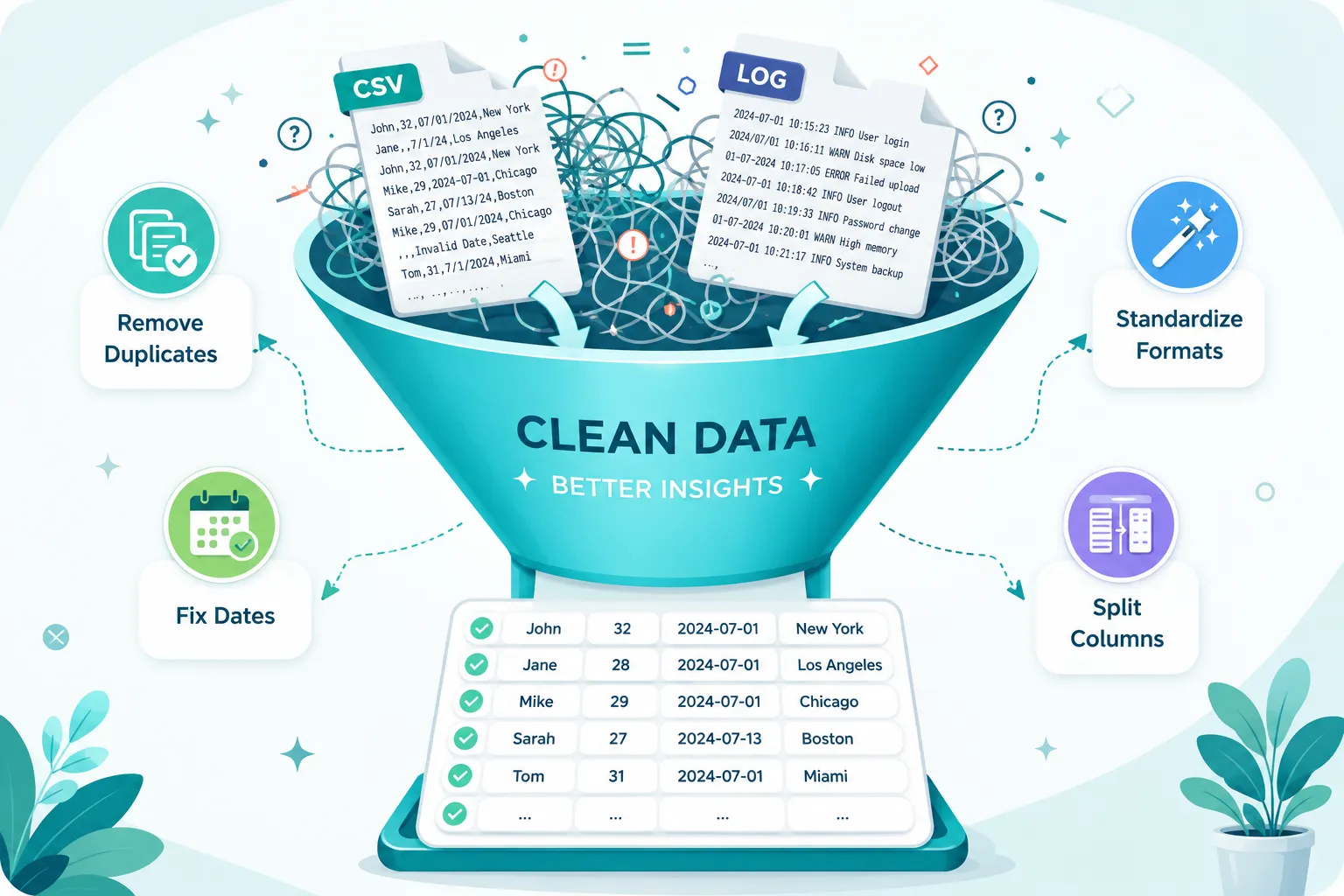
Log files are notoriously messy, timestamps mixed with text, inconsistent delimiters, and status codes crammed into a single column. Power Query handles this well with its Split Column and Parse tools.
Quick log-cleaning workflow:
- Import the log as a CSV or text file
- Use Split Column → By Delimiter to separate fields (comma, pipe, tab, or custom character)
- Use Split Column → By Number of Characters for fixed-width logs
- Change the timestamp column type to Date/Time
- Use Add Column → Extract → Text Between Delimiters to pull out specific codes
- Filter rows by status (e.g., keep only “ERROR” rows)
- Load to worksheet
If you’re new to Excel generally, the how to use Excel for beginners guide is a good starting point before tackling Power Query. [5]
How to Split Columns and Merge Tables in Power Query
Splitting and merging are two of the most-used transformations in Power Query for data cleaning. Both are available from the ribbon with no formula writing required.
Splitting a column:
- Select the column → Transform tab → Split Column
- Choose: By Delimiter, By Number of Characters, By Positions, By Lowercase/Uppercase transitions
- Power Query creates new columns automatically and names them Column.1, Column.2 (rename them immediately)
For example, a “Full Name” column can split into First and Last Name by delimiter (space). A similar result can be achieved with formulas, see this guide on how to split first and last name into two columns in Excel, but Power Query does it without any formula syntax.
Merging tables (like a VLOOKUP, but better):
- Home tab → Merge Queries
- Select the key column in each table
- Choose join type: Left Outer, Inner, Full Outer, etc.
- Expand the merged column to pull in the fields you need
Choose Merge if: you need to combine two tables on a shared key (order ID, customer ID) and want the result to refresh automatically when either table updates.
How to Automate Data Cleaning with Power Query Refresh
Once a query is set up, refreshing it re-runs every cleaning step on fresh data. This is the core automation benefit of Power Query for data cleaning.
Refresh options:
- Manual refresh: Data tab → Refresh All (or right-click the query → Refresh)
- On file open: Right-click the query in the Queries & Connections pane → Properties → check Refresh data when opening the file
- Scheduled refresh (Power BI Service): For enterprise use, publish to Power BI and set a schedule
Combining multiple CSV files automatically: If new files land in a folder regularly, use Get Data → From Folder, point Power Query at that folder, and it will combine all CSVs into one table. Add a new file to the folder, hit Refresh, and it’s included. [3]
Excel for the web now supports Power Query refresh for queries connected to authenticated data sources, so team members can refresh reports in a browser without needing the desktop app. [2]
⚠️ 2026 authentication update: If you’re on Excel 2021 version 21.08 or older, update to build 16.0.14334.20754 or later before July 24, 2026. Older builds will lose the ability to authenticate with organizational accounts (Microsoft Entra ID) in Power Query. Microsoft 365 users are unaffected. [1]

Is Power Query Available in Excel 2016, or Do I Need a Newer Version?
Power Query is built into Excel 2016, 2019, 2021, and Microsoft 365 on Windows. Mac users get Power Query in Microsoft 365 for Mac (added in 2019, with ongoing feature parity improvements). Excel 2013 users can install it as a free add-in from Microsoft, but that version is now very outdated.
Version summary:
- Excel 2013: Free add-in (limited, unsupported)
- Excel 2016/2019/2021: Built-in, under the Data tab
- Microsoft 365: Built-in, receives the latest features
- Excel for Mac (Microsoft 365): Built-in, feature parity improving
- Excel for the web: Supports query refresh as of 2026 [2]
Choose Microsoft 365 if you want the newest connectors, the latest ODBC improvements, and web refresh support. Excel 2016 covers all the core cleaning tasks described in this article.
Can Power Query Handle Large Datasets and Millions of Rows?
Power Query can process datasets exceeding 2.5 million rows, well beyond Excel’s standard worksheet limit of about 1 million rows. [4] When loading to the Data Model (Power Pivot) instead of a worksheet, the practical limit is determined by available RAM, not a hard row cap.
Best practices for large datasets:
- Filter rows early in the query (before other steps) to reduce the data volume Power Query processes
- Remove columns you don’t need as the first or second step
- Load to the Data Model instead of a worksheet for very large tables
- Avoid loading the same large table into multiple worksheets, use one query and reference it
Limitation to know: Power Query loads data into memory during a refresh. On machines with limited RAM (under 8 GB), very large transforms can be slow or cause crashes. This is where Python pandas has a practical edge for truly massive datasets.
Power Query vs. Python Pandas for Cleaning Data
Power Query is better for Excel-native, no-code workflows. Python pandas is better for complex logic, custom functions, and datasets too large for Excel’s memory. They’re not competitors for most users, they solve different problems.
| Factor | Power Query | Python Pandas |
|---|---|---|
| Coding required | No (M generated automatically) | Yes (Python) |
| Excel integration | Native | Requires openpyxl or xlrd |
| GUI / visual editor | Yes | No |
| Custom logic | Limited | Unlimited |
| Performance on huge data | Good up to ~2.5M rows | Better for 10M+ rows |
| Reproducibility | Applied Steps panel | Script file |
| Learning curve | Low | Medium, High |
Choose Power Query if: you live in Excel, your team doesn’t code, and your data fits within Excel’s memory. Choose pandas if: you need regex-heavy transformations, complex conditional logic, or you’re building a data pipeline outside Excel.
For users who want to stay in Excel but go deeper with formulas and automation, Master Spreadsheet Equations in Excel: Step-by-Step Examples for Real Workflows and Custom Cursors and Keyboard Automation for Faster Spreadsheet Work are worth reading next.
Who Should Use Power Query: Data Analysts or Just Excel Users?
Power Query is for anyone who regularly imports, cleans, or reshapes data in Excel, not just analysts. Finance teams cleaning accounting exports, operations staff combining weekly reports, HR teams standardizing survey data, and small business owners tidying up CRM exports all benefit. [9]
Good fit for:
- Excel users who spend 30+ minutes per week on manual data cleanup
- Anyone who receives the same messy file format on a recurring schedule
- Teams that need a documented, auditable cleaning process
- Analysts who want to spend time on analysis, not prep
Not the right tool for:
- One-time, tiny datasets where manual edits take under 5 minutes
- Users who need real-time streaming data (Power Query is batch-based)
- Workflows requiring complex machine learning or statistical modeling
Power Query Not Working: Troubleshooting Common Errors
Power Query errors are usually one of four types: connection errors, data type mismatches, formula errors in M, or authentication failures.
Common errors and fixes:
- “DataFormat.Error: Could not convert to Date”, The column has mixed formats. Add a step to replace errors, or use
Text.BeforeDelimiterto extract the date portion first. - “Expression.Error: The column X was not found”, The source file’s column name changed. Go to Applied Steps, find the rename/select step, and update the column name.
- “Please sign in” / authentication loop, Check that your Excel build is up to date (see the 2026 authentication note above [1]). For web sources, re-enter credentials in Data → Queries & Connections → right-click → Data Source Settings.
- Query refresh is very slow, Move filter steps earlier in the Applied Steps list. Filtering before expanding or merging dramatically reduces processing time.
- “Formula.Firewall” error, Power Query’s privacy settings are blocking a cross-source merge. Go to File → Options → Trust Center → Privacy → set to “Ignore the Privacy Levels.”
Power Query Alternatives for Data Cleaning: Free Tools
Power Query is the best free option for Excel users, but several alternatives exist depending on your environment.
- Google Sheets + QUERY function: Good for simple cleaning in a browser, but lacks Power Query’s step-by-step editor
- OpenRefine: Free, open-source, excellent for messy text data and clustering similar values, no Excel required
- Python pandas: Free, highly capable, requires coding
- Trifacta / Alteryx: Commercial tools with visual data prep interfaces, significantly more expensive
- Power BI Desktop: Free download, uses the same Power Query engine as Excel, a good option if you want to publish dashboards
For most Excel users, Power Query is the obvious first choice because it’s already installed, free, and deeply integrated with the rest of Excel’s toolset. If you’re also working in Google Sheets, the Spreadsheet Formulas in Google Sheets vs Excel guide explains where the two platforms diverge.
Common Mistakes People Make with Power Query
Even experienced users run into these pitfalls. Knowing them in advance saves significant debugging time.
- Not renaming queries: Default names like “Query1” make large workbooks impossible to manage. Rename every query immediately.
- Setting data types too late: If you filter or merge before setting types, you may filter on incorrect values. Set types as step 2 or 3, right after promoting headers.
- Hardcoding file paths: If a query references
C:UsersYourNameDownloadsdata.csv, it breaks on anyone else’s machine. Use relative paths or a parameter for the file location. - Loading everything to worksheets: Large queries loaded to worksheets slow down the workbook. Load to the Data Model when you only need the data for PivotTables or charts.
- Ignoring the Applied Steps order: Steps run top to bottom. Moving a filter step below an expensive merge means Power Query processes more rows than necessary.
- Not documenting transformations: Add step descriptions (right-click any Applied Step → Properties → add a description) so colleagues understand what each step does.
FAQ
Q: Does Power Query change my original CSV file? No. Power Query reads the source file and applies transformations in memory. The original file is never modified. [4]
Q: Can I undo steps in Power Query? Yes. Click the X next to any step in the Applied Steps panel to remove it. Steps can also be reordered by dragging.
Q: How do I combine 10 CSV files from the same folder automatically? Use Get Data → From Folder, select the folder, then combine and transform. Power Query stacks all files into one table and refreshes automatically when new files are added. [3]
Q: Is Power Query the same in Power BI and Excel? The Power Query editor is nearly identical in both. Queries created in Excel can often be copied to Power BI and vice versa, though some connectors differ.
Q: Can Power Query connect to databases, not just CSV files? Yes. It connects to SQL Server, MySQL, PostgreSQL, Azure, SharePoint, web APIs, OData feeds, and many more sources via the Get Data menu.
Q: What happens if a column is renamed in the source file? The query will throw an “Expression.Error: The column X was not found” error. Fix it by updating the column name reference in the affected Applied Step.
Q: Do I need to know M language to use Power Query? No. The visual editor generates M automatically. Learning basic M helps for advanced scenarios, but it’s not required for everyday data cleaning.
Q: Can Power Query handle Excel files with multiple sheets? Yes. When importing an Excel file, the Navigator lets you select one or more sheets. You can also use Combine Files to stack the same sheet from multiple workbooks.
Q: Is there a row limit in Power Query? Power Query itself has no hard row limit. Loading to a worksheet is capped at ~1 million rows. Loading to the Data Model removes that cap, limited only by available RAM. [4]
Q: Can I schedule Power Query to refresh automatically without opening Excel? Not in Excel desktop alone. For scheduled, unattended refresh, publish the workbook to Power BI Service or use a macro/VBA trigger. Excel for the web now supports manual refresh from a browser. [2]
Conclusion
Excel Power Query for data cleaning is one of the highest-leverage skills an Excel user can develop in 2026. The setup investment, learning to import, transform, and load a query, pays back every time a recurring report arrives in your inbox. Instead of spending 45 minutes fixing dates, removing duplicates, and splitting columns manually, you spend 3 seconds clicking Refresh.
Actionable next steps:
- Start with one real file you clean regularly. Import it into Power Query this week and replicate your manual steps as Applied Steps.
- Set data types explicitly on every column before doing anything else, this prevents 80% of downstream errors.
- Name your queries and document your steps from day one. Future-you will be grateful.
- Try the Folder connector if you combine multiple CSVs regularly, it’s the single biggest time-saver Power Query offers.
- Check your Excel version if you’re on Excel 2021 and use organizational accounts, update to build 16.0.14334.20754 or later before July 24, 2026. [1]
Once your data is clean and loaded, you’re ready to build analysis on top of it. The Excel for Data Analysis: From Raw Spreadsheet to Insightful Dashboard guide is the natural next step. And if you want to move faster inside Excel while you work, Excel Keyboard Shortcuts for Busy Professionals is worth bookmarking.
References
[1] Mc1403409 – https://mc.merill.net/message/MC1403409?utm_source=openai [2] techcommunity.microsoft – https://techcommunity.microsoft.com/blog/excelblog/new-in-excel-for-the-web-power-query-refresh–data-source-settings-for-authentic/4422757/replies/4462747?utm_source=openai [3] Excel Power Query Combine Csv Folder – https://hatimdev.com/2026/01/23/excel-power-query-combine-csv-folder/?utm_source=openai [4] Power Query Fixes Messy Csv Files In Excel Automatically – https://logicity.in/en/blog/power-query-fixes-messy-csv-files-in-excel-automatically?utm_source=openai [5] How To Use Power Query In Excel – https://coefficient.io/excel-tutorials/how-to-use-power-query-in-excel?utm_source=openai [6] 6 Updates In Power Query For Excel – https://www.microsoft.com/en-us/microsoft-365/blog/2015/07/15/6-updates-in-power-query-for-excel/?utm_source=openai [7] Power Query Tutorial For Beginners Power Bi – https://www.globaltechcouncil.org/data-science/power-query-tutorial-for-beginners-power-bi/?utm_source=openai [8] Data Export Cleanup – https://www.excelcampus.com/powerquery/data-export-cleanup/?utm_source=openai [9] Power Query In Excel – https://www.myexcelonline.com/blog/power-query-in-excel/?utm_source=openai