
Last updated: July 23, 2026
Quick Answer: For most students in 2026, Google Sheets wins on cost and collaboration, while Excel wins on advanced analytics and career preparation. The right choice depends on your major, your budget, and what your professors and future employers actually expect from you.
Key Takeaways
- Google Sheets is free for anyone with a Google account, with no device or OS restrictions.
- Most colleges provide Excel through Microsoft 365 Education at no cost to enrolled students.
- Google Sheets leads for real-time group projects, no file-sharing friction, no version conflicts.
- Excel has significantly deeper tools for data analysis, Power Query, and complex modeling.
- Both tools share the vast majority of everyday formulas; syntax differences are minor but real.
- Professors can open Google Sheets files, but submitting as
.xlsxis the safest default. - Employers, especially in finance, consulting, and data roles, still prioritize Excel proficiency.
- You can convert between formats easily, but some formatting and advanced features don’t survive the trip.
- Students switching between the two most often trip up on formula syntax and keyboard shortcuts.
- Learning both is realistic and genuinely valuable; start with whichever your coursework demands first.

What’s the Difference Between Excel and Google Sheets for Students?
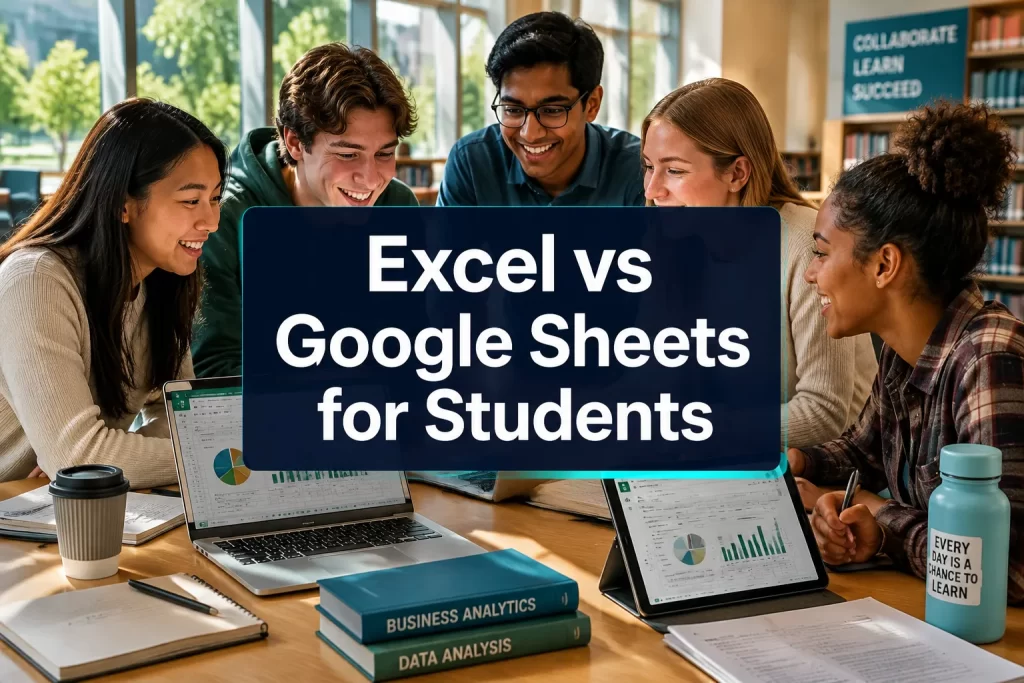
Google Sheets is a browser-based spreadsheet app from Google, free, cloud-first, and built for sharing. Microsoft Excel is a desktop application (also available online) with a longer history, deeper feature set, and stronger presence in professional environments. For students weighing Excel vs Google Sheets for students: choosing the right tool for assignments, group projects, and data courses, the core difference comes down to this: Sheets prioritizes accessibility and collaboration, while Excel prioritizes analytical power and industry compatibility. [1]
Both tools handle the tasks that show up in most coursework, budgets, grade trackers, data tables, charts, and basic formulas. The gaps become meaningful only when you hit advanced territory: large datasets, statistical modeling, automation, or employer-specific workflows.
For a broader look at how these two tools compare across all use cases, see this detailed Excel vs Google Sheets comparison for different workflows.
Is Google Sheets Free for Students?
Yes, Google Sheets is completely free for anyone with a Google account, including students. There are no tiers, no trial periods, and no storage limits that affect typical student work. Access it from any browser on any device, including low-budget Chromebooks or shared library computers. [7]
Microsoft 365 (which includes Excel) is not free by default, but most colleges and universities provide it to enrolled students at no cost through the Microsoft 365 Education program. Check your school’s IT or student portal before paying for anything. If your school doesn’t offer it, Excel Online (the browser version) is free, though it lacks some desktop features.
Bottom line on cost:
- Google Sheets: Free, always, no conditions.
- Excel desktop: Free through most universities; otherwise ~$70/year for Microsoft 365 Personal.
- Excel Online: Free, but limited compared to the full desktop app.
Can You Use Excel Offline, or Do You Need Internet?
Excel’s desktop app works fully offline, no internet required once it’s installed. This matters for students in areas with unreliable Wi-Fi, on long commutes, or working from locations without strong connectivity.
Google Sheets can work offline too, but you need to enable offline mode in advance through Google Drive settings, and it requires the Chrome browser or the mobile app. If you forget to turn it on before losing connection, you’re stuck.
Choose Excel if: you regularly work without internet, use a university computer lab, or need to process large files without lag. Choose Google Sheets if: you’re always online and want zero setup friction across multiple devices.
Which Is Better for Group Projects: Excel or Google Sheets?
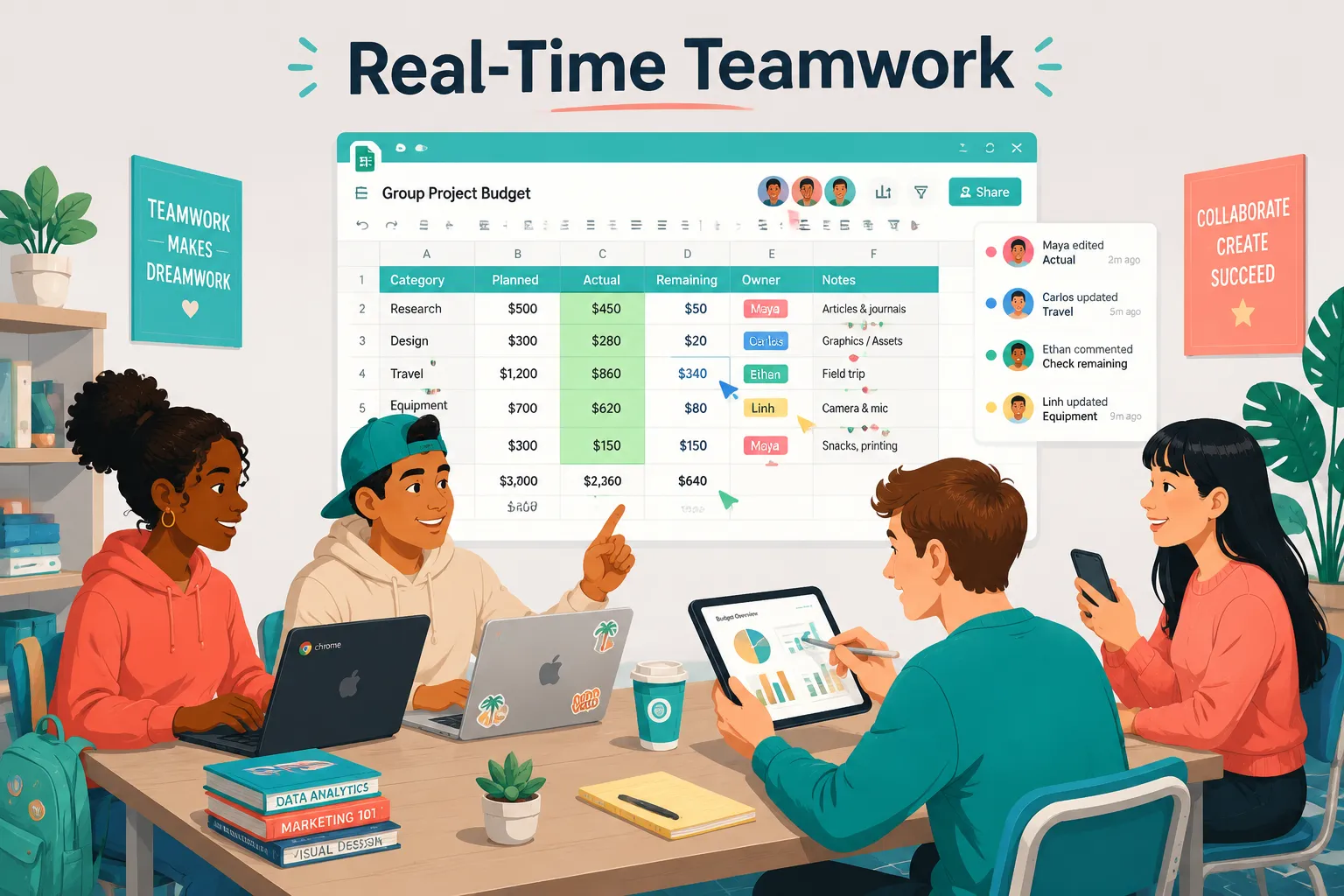
Google Sheets is the stronger choice for group projects. It was built for real-time collaboration, multiple people can edit the same file simultaneously, see each other’s cursors, leave comments, and track changes, all without emailing files back and forth. [3]
Excel has improved its co-authoring features through Microsoft 365, but it requires everyone to be signed into a Microsoft account and working through OneDrive or SharePoint. That’s an extra setup step that often breaks down in mixed-device groups.
Why Sheets wins for group work:
- Share via link, no account required for viewers.
- Real-time editing with zero version conflicts.
- Built-in comment threads tied to specific cells.
- Works on any device, including phones and Chromebooks.
- Free for every team member, no exceptions.
For managing group timelines and deliverables, a project timeline template in Excel can be a useful starting point if your group is already working in Excel.
Does Google Sheets Have All the Same Formulas as Excel?
Google Sheets covers roughly 90% of the formulas students use day-to-day, including SUM, AVERAGE, IF, VLOOKUP, INDEX/MATCH, COUNTIF, and most text and date functions. The syntax is nearly identical for common functions. [8]
However, there are real gaps. Excel has functions like XLOOKUP, LET, LAMBDA, and a full suite of statistical and engineering functions that Sheets either lacks or handles differently. Some array formula behavior also differs between the two platforms.
For a thorough breakdown of where the syntax diverges, see this guide on spreadsheet formulas in Google Sheets vs Excel.
Common formula differences to watch:
IFERRORworks in both;IFNAworks in both but behaves slightly differently.ARRAYFORMULAin Sheets replaces Ctrl+Shift+Enter array entry in Excel.QUERYis a Sheets-only function with no direct Excel equivalent.UNIQUEandFILTERexist in both, but were added to Excel later and require Microsoft 365.
Can Professors Open Google Sheets Files, or Do They Need Excel?
Professors can open Google Sheets files, but the safest submission format is still .xlsx. Most learning management systems (Canvas, Blackboard, Moodle) accept both, but some older systems or professor preferences default to Excel format. When in doubt, export your Google Sheet as .xlsx before submitting, it takes two clicks (File → Download → Microsoft Excel).
One exception: if your professor specifically asks for a Google Sheets link (common in collaborative assignments), share the link directly and make sure the sharing permissions allow viewing.
Quick checklist before submitting:
- Check the assignment instructions for a specified format.
- If no format is listed, export as
.xlsx. - Open the exported file once to verify formatting survived the conversion.
- For group projects, confirm all collaborators have edit access before the deadline.
Is Excel Harder to Learn Than Google Sheets?
For absolute beginners, Google Sheets has a slightly lower barrier to entry, the interface is cleaner, there’s no installation, and the learning curve for basic tasks is gentle. Excel’s interface has more menus, more options, and more ways to accidentally change settings. [4]
That said, the core skills transfer almost completely between the two. If you can write a VLOOKUP in Sheets, you can write one in Excel. The biggest friction points are keyboard shortcuts and menu locations, not the underlying logic.
For students starting from zero, the how to use Excel for students guide is a practical starting point, and there’s also a beginner-friendly Excel PDF resource worth bookmarking.
What Can You Do in Excel That You Can’t Do in Google Sheets?
Excel has several capabilities that Google Sheets simply doesn’t match, particularly for students in data-heavy majors. [9]
Key Excel-only or Excel-superior features:
- Power Query: Automates data cleaning and transformation, essential for data science and business analytics courses.
- Power Pivot: Handles multi-table data models and DAX formulas for advanced analysis.
- VBA macros: Automate repetitive tasks with custom code; Sheets uses Google Apps Script instead, which is less widely taught.
- Solver and Analysis ToolPak: Built-in add-ins for optimization and statistical analysis, commonly required in engineering and economics courses.
- Larger dataset handling: Excel manages millions of rows more smoothly; Sheets slows down noticeably past ~100,000 rows.
- Advanced charting options: More chart types, finer formatting control. For example, pivot charts for unsummarized data are an Excel strength.
Do Colleges Provide Excel or Google Sheets to Students?
Most four-year colleges and universities in the US provide Microsoft 365 (including Excel) free to enrolled students through Microsoft’s Education licensing program. Google Workspace for Education is also widely deployed, especially at community colleges and K-12 institutions. [6]
Check your school’s IT portal or student software page, you likely already have access to both without paying anything. Many students don’t realize this and either go without Excel or pay for it unnecessarily.
By institution type (general pattern, not universal):
- Large research universities: Usually Microsoft 365 + Google Workspace both available.
- Community colleges: Often Google Workspace primary, Microsoft 365 sometimes available.
- K-12 (dual enrollment): Google Workspace dominates.
- Online-only institutions: Varies widely, check before enrolling in a data course.
How Do You Collaborate in Real Time on Excel vs Google Sheets?
Google Sheets handles real-time collaboration natively and with zero friction. Open a file, click Share, paste a link, and everyone’s in. Changes sync instantly, color-coded cursors show who’s editing what, and the version history is automatic. [10]
Excel’s real-time co-authoring works well when everyone uses OneDrive or SharePoint and has a Microsoft account, but that’s a bigger ask for a mixed group. The desktop app also occasionally shows a slight sync delay compared to Sheets.
For group projects specifically:
- Google Sheets: Share a link, start editing, done.
- Excel Online: Works similarly to Sheets but requires Microsoft accounts.
- Excel Desktop: Requires saving to OneDrive/SharePoint first; co-authoring then works reasonably well.
💡 Pro tip: If your group insists on Excel but collaboration is a priority, use Excel Online through OneDrive rather than the desktop app. It’s closer to the Sheets experience.
Which Tool Is Better for Data Analysis Courses?
Excel is the stronger tool for most undergraduate data analysis and business analytics courses, primarily because of Power Query, the Analysis ToolPak, and the depth of its statistical functions. Graduate-level data science programs often move to Python or R, but Excel remains the bridge tool in many curricula. [1]
Google Sheets is adequate for introductory stats, basic data visualization, and courses that emphasize collaboration over computation. It also connects well with Google Data Studio (Looker Studio) for dashboarding, which is a legitimate skill in marketing and business programs.
Recommendation by major:
| Major | Recommended Tool | Reason |
|---|---|---|
| Business / Finance | Excel | Industry standard, Power Query, financial modeling |
| Data Science | Excel + Python | Excel for cleaning/EDA, Python for modeling |
| Marketing | Google Sheets | Looker Studio integration, collaboration |
| Engineering | Excel | Solver, Analysis ToolPak, large datasets |
| Social Sciences | Either | Depends on professor preference |
| Education | Google Sheets | Free, easy sharing, Chromebook-friendly |
For building reusable analytical workflows in either tool, this guide on spreadsheet equations for real analytics is worth reading before your first data course.
Can You Convert Between Excel and Google Sheets Files Easily?
Yes, converting between the two formats is straightforward, but not always perfect. Google Sheets opens .xlsx files directly, and you can download any Sheet as .xlsx in two clicks. Excel opens .csv and .xlsx without issue. [3]
What survives conversion well:
- Data, text, and numbers.
- Basic formulas (SUM, IF, VLOOKUP, etc.).
- Standard charts and basic formatting.
What often breaks or changes:
- Complex conditional formatting rules.
- Excel-specific functions (XLOOKUP, LET, LAMBDA) show as errors in Sheets.
- Sheets-only functions (QUERY, ARRAYFORMULA) break in Excel.
- VBA macros don’t transfer to Sheets at all.
- Some advanced chart types lose formatting.
Best practice: Always open the converted file and scan for #NAME? or #REF! errors before submitting.
Do Employers Care If You Know Excel or Google Sheets?
Employers care about Excel more than Google Sheets, especially in finance, consulting, accounting, operations, and data roles. Excel proficiency appears explicitly in job postings far more often than Google Sheets. That said, Google Sheets familiarity is increasingly valued in startups, marketing agencies, and tech companies. [7]
The good news: the skills transfer. If you can demonstrate Excel competency, most employers assume you can handle Sheets, and vice versa. The reverse is less reliably true, Sheets-only experience may raise questions in Excel-heavy industries.
Career-focused recommendation:
- Finance, accounting, consulting, operations: Prioritize Excel.
- Tech startups, marketing, nonprofits, education: Google Sheets is fine, Excel is a bonus.
- Data science / analytics: Excel for entry-level; Python/SQL matter more at senior levels.
What Are Common Mistakes Students Make Switching Between the Two?
The most common mistake is assuming the tools are identical. They’re close, but the differences catch students off guard at the worst times, right before a deadline. [8]
Top mistakes to avoid:
- Pasting Excel formulas into Sheets without checking syntax. Functions like
XLOOKUPdon’t exist in Sheets;ARRAYFORMULAwrapping is needed for array behavior. - Forgetting to enable offline mode in Sheets before working without internet.
- Submitting a Google Sheets link when a file was requested. Always export as
.xlsxunless told otherwise. - Assuming keyboard shortcuts are the same. Many Excel shortcuts (like Ctrl+Shift+Enter for arrays) don’t work in Sheets. Check out keyboard automation tips for faster spreadsheet work to build the right muscle memory for each tool.
- Ignoring version history. Both tools have it, but students often forget to use it when a collaborator accidentally deletes data.
- Using Excel’s desktop app for group work without setting up OneDrive first. The file ends up on one person’s hard drive and nobody else can access it.
Conclusion
Choosing between Excel and Google Sheets as a student isn’t an either/or decision, it’s a “which one first” decision. Start with whatever your current course or professor requires. If you’re in a business, finance, or data program, invest time in Excel early; the analytical depth pays off in internships and job applications. If you’re doing group projects, writing papers with supporting data, or working on a Chromebook, Google Sheets removes friction and gets the job done.
Actionable next steps:
- Check your school’s IT portal today, you likely already have Microsoft 365 for free.
- Pick one tool for your current semester and go deep rather than splitting attention.
- Learn the formula syntax differences before switching between tools mid-project.
- For data courses: get comfortable with Excel’s Analysis ToolPak and Power Query before the midterm.
- For group projects: default to Google Sheets unless your professor specifies otherwise.
- Build your Excel skills progressively, start with the how to use Excel for students guide and add skills each semester.
The students who stand out in 2026 aren’t the ones who picked the “right” tool, they’re the ones who became genuinely competent in at least one and functional in both.
FAQ
Q: Can I do my statistics homework in Google Sheets instead of Excel? Yes, for most introductory stats courses. Google Sheets handles descriptive statistics, basic regression, and chart creation. For courses requiring the Analysis ToolPak (ANOVA, t-tests, advanced regression), Excel is the more reliable choice.
Q: Does Google Sheets work on a Chromebook? Yes, perfectly. Google Sheets is native to Chromebooks and runs entirely in the browser with no installation needed. Excel Online also works on Chromebooks through a browser, though the desktop app does not.
Q: What if my professor uses Excel but I only have Google Sheets?
Export your Google Sheet as .xlsx before submitting (File → Download → Microsoft Excel). Check the file in Excel Online to confirm it looks correct before turning it in.
Q: Is Excel Online the same as the desktop version? No. Excel Online covers everyday tasks well but lacks Power Query, VBA macros, the Analysis ToolPak, and some advanced charting options. For data courses, the desktop version is worth installing.
Q: Can I use Google Sheets for financial modeling? For basic models, yes. For complex multi-sheet financial models with scenario analysis, sensitivity tables, and large datasets, Excel is significantly more capable and is the industry standard.
Q: Which tool should a business major prioritize? Excel. Finance, accounting, and operations roles expect Excel proficiency. Internship applications and case competitions almost universally use Excel. Learn Google Sheets as a secondary skill.
Q: Do both tools have pivot tables? Yes. Both Excel and Google Sheets support pivot tables. Excel’s pivot tables are more feature-rich (with slicers, calculated fields, and Power Pivot integration), but Sheets’ pivot tables handle most undergraduate coursework needs.
Q: Is it hard to learn both tools at the same time? Not really. The core logic, formulas, cell references, charts, pivot tables, is the same. The differences are mostly in menu locations, keyboard shortcuts, and a handful of advanced features. Learning one makes learning the other much faster.
Q: What’s the file size limit for Google Sheets? Google Sheets supports up to 10 million cells per spreadsheet. For most coursework this is plenty, but large datasets (hundreds of thousands of rows) will cause noticeable slowdowns. Excel handles larger files more smoothly.
Q: Can I run macros in Google Sheets? Not VBA macros, those are Excel-only. Google Sheets uses Google Apps Script (JavaScript-based) for automation. The two are not compatible, so macros don’t transfer between platforms.
References
[1] Excel Vs Google Sheets Which Is Better In 2026 – https://spreadsheetshub.com/blogs/articles/excel-vs-google-sheets-which-is-better-in-2026
[3] Google Sheets Vs Excel – https://smoothsheet.com/blog/comparisons/google-sheets-vs-excel/
[4] Google Sheets Vs Microsoft Excel Which – https://shruticreates.blogspot.com/2026/03/google-sheets-vs-microsoft-excel-which.html
[6] Bett26 – https://www.controlaltachieve.com/2026/01/bett26.html
[7] Google Sheets Vs Excel – https://learn.g2.com/google-sheets-vs-excel
[8] Google Sheets Vs Excel – https://www.sheetxai.com/blog/google-sheets-vs-excel
[9] Google Sheets Vs Excel In 2026 Complete Feature By Feature Comparison For Serious Spreadsheet Work – https://marksexceltips.com/2026/07/17/google-sheets-vs-excel-in-2026-complete-feature-by-feature-comparison-for-serious-spreadsheet-work/
[10] Google Sheets Vs Microsoft Excel – https://www.sheetgo.com/blog/spreadsheets-tips/google-sheets-vs-microsoft-excel/