
Last updated: July 20, 2026
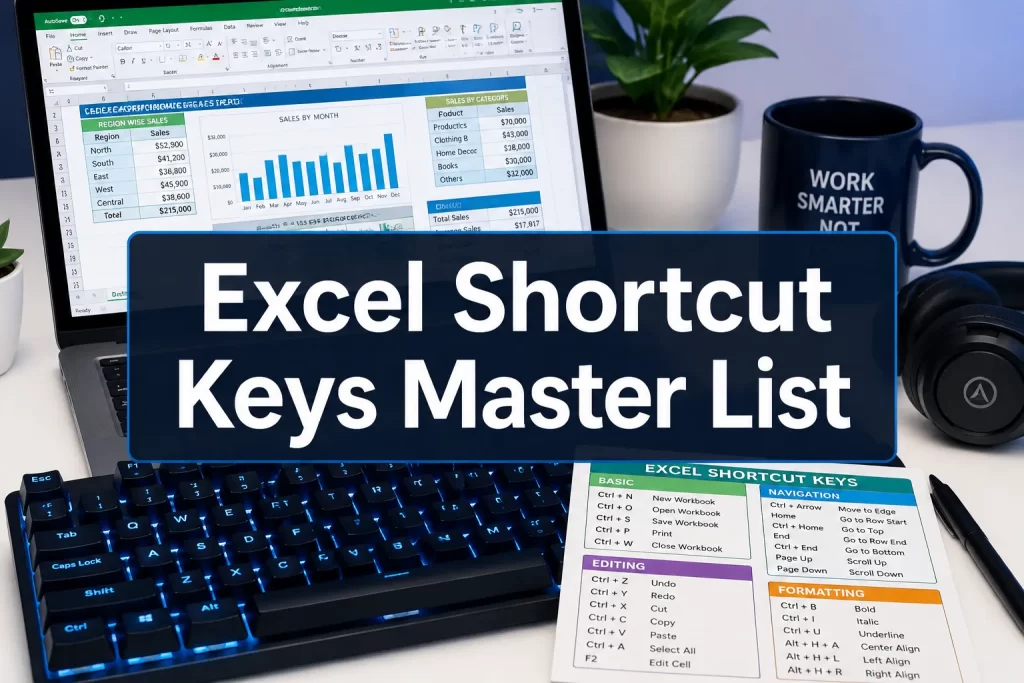
Quick Answer: Excel shortcut keys are keyboard combinations that replace mouse clicks to perform tasks faster. This complete master list of Excel shortcut keys, organized by task (Navigation, Editing, Formatting, Formulas, and Data Tools), covers Windows and Mac shortcuts so any user can find exactly what they need in seconds. Mastering even 20-30 of these shortcuts can cut repetitive spreadsheet work by a significant margin. [1][2]
Key Takeaways
- Ctrl + C / Ctrl + V are just the start, dozens of shortcuts go far deeper into editing, formatting, and formula work.
- Windows and Mac shortcuts differ mainly in the modifier key: Ctrl on Windows becomes Command (⌘) on Mac for most tasks.
- Navigation shortcuts like Ctrl + Arrow Keys and Ctrl + End are the fastest way to move through large datasets.
- Ctrl + Z undoes and Ctrl + Y redoes, both work across virtually every Excel version.
- Paste Special (Ctrl + Alt + V) is one of the most underused yet powerful shortcuts in Excel.
- Selecting entire rows (Shift + Space) or columns (Ctrl + Space) takes less than a second with the right shortcut.
- Formula shortcuts like Alt + = (AutoSum) and F4 (lock cell references) save enormous time when building calculations.
- Excel shortcuts do NOT transfer directly to Google Sheets, some overlap, but many differ.
- Custom shortcuts in Excel require a macro or Quick Access Toolbar setup; there’s no native “remap key” menu.
- Most shortcuts work across Excel 2016, 2019, 2021, and Microsoft 365. [1][9]
What Are the Most Useful Excel Shortcuts Everyone Should Know?
Every Excel user, regardless of skill level, benefits from a core set of shortcuts that cover the most frequent tasks. These are the shortcuts that appear in every productivity guide because they genuinely save time every single day.
Essential shortcuts for all users (Windows / Mac):
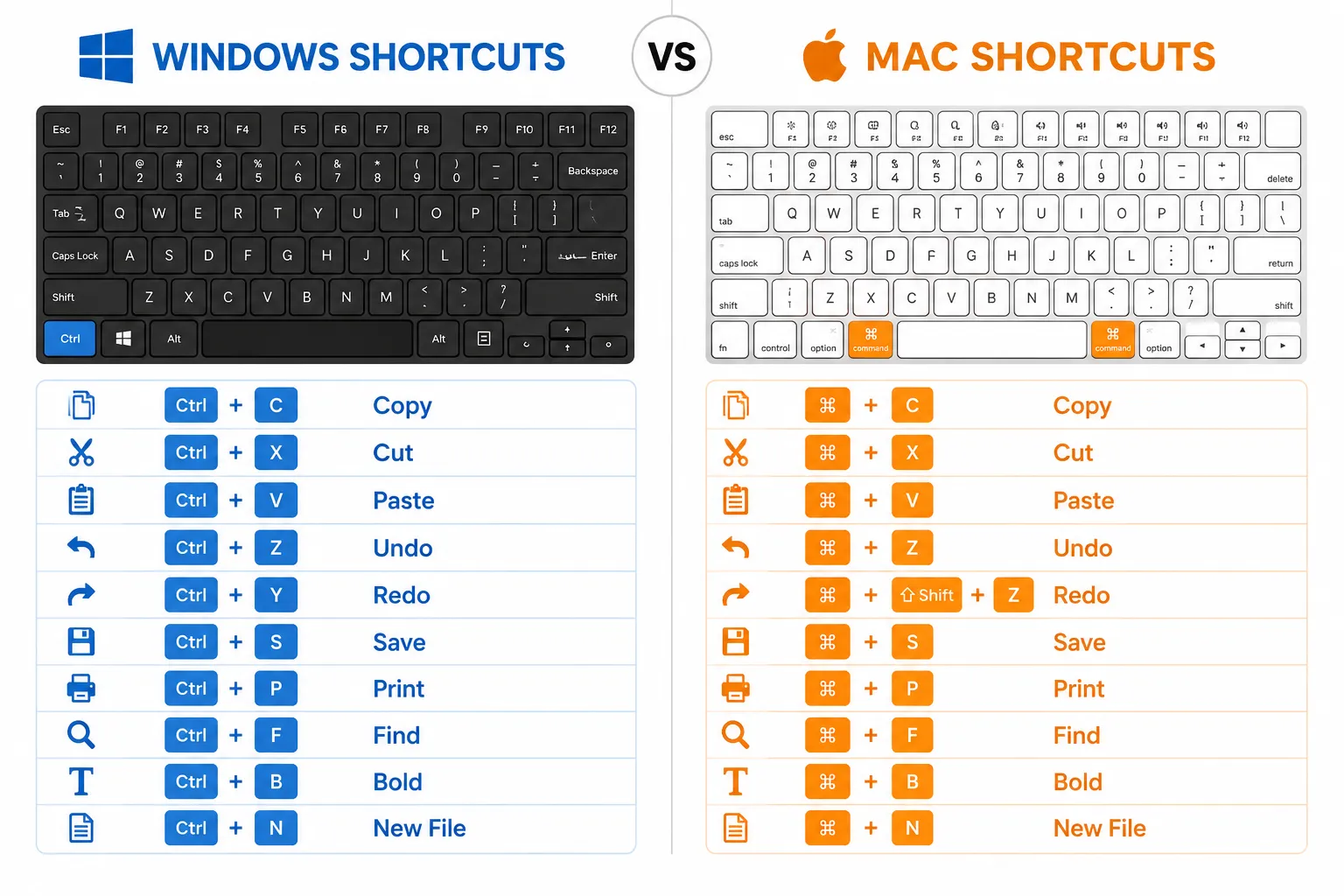
| Task | Windows | Mac |
|---|---|---|
| Copy | Ctrl + C | ⌘ + C |
| Paste | Ctrl + V | ⌘ + V |
| Cut | Ctrl + X | ⌘ + X |
| Undo | Ctrl + Z | ⌘ + Z |
| Redo | Ctrl + Y | ⌘ + Y |
| Save | Ctrl + S | ⌘ + S |
| Find | Ctrl + F | ⌘ + F |
| Select All | Ctrl + A | ⌘ + A |
| Bold | Ctrl + B | ⌘ + B |
| New Workbook | Ctrl + N | ⌘ + N |
| Open Workbook | Ctrl + O | ⌘ + O |
| Close Workbook | Ctrl + W | ⌘ + W |
💡 Pro tip: Ctrl + S should become a reflex. Save every few minutes, especially before running macros or sorting large datasets.
These shortcuts come from Microsoft’s official keyboard shortcut documentation [1] and are consistent across Excel 2016 through Microsoft 365.
How Do Excel Shortcuts Differ Between Windows and Mac?
The core difference is the modifier key. On Windows, most shortcuts use Ctrl. On Mac, the equivalent is usually Command (⌘). However, some shortcuts use different keys entirely, and a handful of Windows shortcuts have no direct Mac equivalent.
Key differences to know:
- Repeat last action: Windows uses F4; Mac uses ⌘ + Y or Ctrl + Y depending on the version.
- Format Cells dialog: Windows uses Ctrl + 1; Mac uses ⌘ + 1.
- Insert new line in cell: Windows uses Alt + Enter; Mac uses Ctrl + Option + Return. [7]
- Paste Special: Windows uses Ctrl + Alt + V; Mac uses ⌘ + Ctrl + V.
- Function keys (F1, F12): On many Mac laptops, you need to press Fn first unless function keys are set as standard keys in System Preferences.
Common mistake: Mac users often press Ctrl out of habit from Windows and get unexpected results. Always check whether the Mac version uses ⌘ or Ctrl, both modifier keys exist on Mac keyboards and serve different functions in Excel. [1]
What’s the Fastest Way to Navigate Large Excel Spreadsheets?
Navigation shortcuts are the single biggest time-saver for anyone working with large datasets. Instead of scrolling endlessly, these key combinations jump directly to the data you need.
Navigation shortcuts (Windows / Mac):
| Action | Windows | Mac |
|---|---|---|
| Move to last used cell | Ctrl + End | ⌘ + End |
| Move to cell A1 | Ctrl + Home | ⌘ + Home |
| Jump to edge of data | Ctrl + Arrow Key | ⌘ + Arrow Key |
| Move between sheets | Ctrl + Page Up/Down | Fn + Ctrl + Up/Down |
| Go To specific cell | Ctrl + G | ⌘ + G |
| Scroll without moving cursor | Scroll Lock + Arrow Keys | N/A |
Choose Ctrl + Arrow Keys if your data is in a continuous block, the cursor jumps to the last filled cell in that direction. If there are blank cells in the middle, it stops at each gap.
For keeping headers visible while scrolling, check out this guide on how to freeze a row in Excel, it pairs perfectly with navigation shortcuts.
Also see: Select the Entire Worksheet in Excel Using ONLY Shortcut Keys for a deeper look at selection-based navigation.
How to Select Entire Rows or Columns in Excel Quickly
Selecting entire rows and columns is one of the most common spreadsheet tasks, and doing it by keyboard is much faster than clicking row/column headers.
- Select entire row: Shift + Space
- Select entire column: Ctrl + Space
- Select entire worksheet: Ctrl + A (press twice if inside a data table)
- Extend selection by one row/column: Shift + Arrow Key
- Select to last used cell: Ctrl + Shift + End
Edge case: Inside a formatted Excel Table (not just a data range), Ctrl + A first selects only the table data. Press it a second time to select the entire worksheet. [1]
Excel Shortcuts for Formatting Cells and Changing Fonts
Formatting shortcuts let you apply styles, adjust alignment, and change number formats without ever opening the ribbon. The Format Cells dialog (Ctrl + 1) is the hub for almost every formatting option. [7]
Formatting shortcuts (Windows):
| Action | Shortcut |
|---|---|
| Open Format Cells dialog | Ctrl + 1 |
| Bold | Ctrl + B |
| Italic | Ctrl + I |
| Underline | Ctrl + U |
| Strikethrough | Ctrl + 5 |
| Apply currency format | Ctrl + Shift + $ |
| Apply percentage format | Ctrl + Shift + % |
| Apply date format | Ctrl + Shift + # |
| Apply general format | Ctrl + Shift + ~ |
| Add borders | Alt + H, B (then choose border type) |
| Increase font size | Alt + H, FG |
| Decrease font size | Alt + H, FK |
For adding borders specifically without a mouse, this detailed walkthrough is worth bookmarking: Master Excel Like a Pro: Genius Shortcut Keys to Add Borders.
If you work with conditional formatting rules, see How to Remove Conditional Formatting in Excel for keyboard-friendly cleanup steps.
Keyboard Shortcuts for Excel Formulas and Functions
Formula shortcuts speed up everything from entering a SUM to recalculating all worksheets. These are especially useful for anyone building financial models or data reports. [6]
Formula shortcuts (Windows / Mac):
| Action | Windows | Mac |
|---|---|---|
| AutoSum | Alt + = | ⌘ + Shift + T |
| Enter array formula | Ctrl + Shift + Enter | ⌘ + Shift + Enter |
| Toggle absolute/relative reference | F4 | ⌘ + T |
| Show all formulas | Ctrl + ` | Ctrl + ` |
| Calculate all worksheets | F9 | F9 |
| Calculate active worksheet | Shift + F9 | Shift + F9 |
| Full recalculation (force) | Ctrl + Alt + F9 | ⌘ + Ctrl + Alt + F9 |
| Insert function dialog | Shift + F3 | Shift + F3 |
| Name a range | Ctrl + F3 | ⌘ + F3 |
💡 F4 is a formula superstar. While editing a cell reference, pressing F4 cycles through all four reference types: A1 → $A$1 → A$1 → $A1. This saves enormous time when building formulas that need to be copied across rows or columns. [3]
For AutoSum specifically, this guide walks through every variation: Excel AutoSum Shortcut: Easily Add Numbers Without Touching Your Mouse.
How to Undo and Redo in Excel with Shortcuts
Ctrl + Z undoes the last action in Excel on Windows; ⌘ + Z does the same on Mac. Ctrl + Y (Windows) or ⌘ + Y (Mac) redoes an undone action. Excel supports multiple undo levels, typically up to 100 actions in a standard session.
Important limitation: Some actions cannot be undone with Ctrl + Z. These include:
- Saving a file
- Deleting a worksheet tab
- Running certain macros
- Using “Clear All” on named ranges in some versions
Common mistake: Pressing Ctrl + Z after saving does NOT unsave the file. The undo history clears when you close and reopen a workbook, so always save a backup before making major structural changes.
Excel Shortcuts for Copying and Pasting Special
Standard Ctrl + C / Ctrl + V copies everything, values, formulas, formatting, and all. Paste Special gives precise control over exactly what gets pasted.
Paste Special shortcut: Ctrl + Alt + V (Windows) → opens the Paste Special dialog
Common Paste Special options:
| Paste Type | Keyboard After Ctrl+Alt+V |
|---|---|
| Values only | V, then Enter |
| Formats only | T, then Enter |
| Formulas only | F, then Enter |
| Transpose (flip rows/columns) | E, then Enter |
| Add values (paste + add) | D, then Enter |
Why this matters: Copying a formula result and pasting as “Values only” removes the formula dependency, which is critical when sharing files or preventing accidental recalculation. [7]
Excel Shortcuts for Sorting and Filtering Data
Sorting and filtering shortcuts are part of the broader Excel Shortcut Keys: A Complete Master List Organized by Task (Navigation, Editing, Formatting, Formulas, and Data Tools) because they’re essential for data analysis work. [4]
- Toggle AutoFilter on/off: Ctrl + Shift + L
- Open sort dialog: Alt + A, S, S
- Apply filter dropdown on selected cell: Alt + Down Arrow
- Clear all filters: Alt + A, C
- Re-apply current filter: Ctrl + Alt + L
Choose Ctrl + Shift + L when you want to quickly add or remove filter dropdowns from a header row. It’s a toggle, so pressing it again removes the filters entirely.
For removing duplicate records from filtered data, this guide is helpful: How to Remove Duplicates in Excel.
What Keyboard Shortcuts Work in Excel but Not Other Programs?
Several Excel shortcuts are unique to spreadsheet software and won’t do anything useful in Word, browsers, or other apps.
Excel-specific shortcuts:
- Ctrl + `, Toggle formula view (shows all formulas instead of results)
- Ctrl + Shift + Enter, Enter an array formula
- Alt + =, AutoSum the range above/left of the active cell
- F4 (in formula editing), Cycle through reference types ($A$1, A$1, etc.)
- Ctrl + ;, Insert today’s date as a static value
- Ctrl + Shift + ;, Insert the current time as a static value
- Shift + F9, Calculate only the active worksheet (not all open workbooks) [4]
- Ctrl + Shift + L, Toggle AutoFilter
These shortcuts are tied to Excel’s calculation engine and grid structure, so they have no equivalent in word processors or email clients. [1]
How Do I Create Custom Shortcuts in Excel?
Excel does not have a built-in “remap keyboard shortcut” menu. Custom shortcuts require one of two approaches:
Option 1, Quick Access Toolbar (QAT):
- Right-click any ribbon command and choose “Add to Quick Access Toolbar.”
- Press Alt to see numbered keys appear over QAT buttons (Alt + 1, Alt + 2, etc.).
- These become your custom shortcuts for those commands.
Option 2, Macro + keyboard shortcut:
- Go to Developer tab → Macros → Record Macro.
- Assign a shortcut key (Ctrl + letter) during setup.
- The macro runs every time that key combination is pressed.
Limitation: Ctrl + letter combinations in macros can overwrite existing Excel shortcuts. For example, assigning Ctrl + B to a macro would override Bold. Use Ctrl + Shift + letter combinations to avoid conflicts. [9]
For a deeper look at keyboard automation in Excel, see Custom Cursors and Keyboard Automation for Faster Spreadsheet Work.
Common Excel Shortcuts People Get Wrong
Even experienced users misuse a handful of shortcuts. Here are the most common errors:
- Ctrl + D vs. Ctrl + C: Ctrl + D fills down (copies the cell above into the selected range). It does NOT duplicate a sheet or object. Many users press it accidentally and overwrite data.
- Delete vs. Backspace: Delete clears cell content but keeps formatting. Backspace enters edit mode and clears the content character by character. They are not the same.
- Ctrl + Z after a sort: Undo works after sorting, but only if you haven’t saved. Once saved, the sort is permanent.
- F2 vs. clicking a cell: Pressing F2 enters edit mode for the active cell (cursor goes inside the cell). Clicking a cell just selects it. This matters when building formulas.
- Ctrl + P opens Print, not Paste: New users sometimes confuse this. Paste is always Ctrl + V.
What’s the Difference Between Ctrl+C and Ctrl+Shift+C in Excel?
Ctrl + C copies the selected cell or range to the clipboard, this is the standard copy command used in virtually every application. In Excel, it also activates the “marching ants” border around the copied range.
Ctrl + Shift + C does NOT perform a special copy in Excel. Unlike some other applications (such as Google Chrome’s DevTools or certain design tools), this combination has no assigned function in standard Excel on Windows. Pressing it may trigger nothing, or in some custom setups, it could activate a macro if one has been assigned.
Bottom line: In Excel, stick with Ctrl + C for copying. If you need to copy only values, formats, or formulas, use Ctrl + Alt + V (Paste Special) after the standard copy. [1][7]
Are Excel Shortcuts the Same in Google Sheets?
Most common shortcuts overlap between Excel and Google Sheets, but there are meaningful differences. Google Sheets runs in a browser, which adds another layer of keyboard handling.
Shortcuts that work the same in both:
- Ctrl + C, Ctrl + V, Ctrl + X (copy, paste, cut)
- Ctrl + Z / Ctrl + Y (undo/redo)
- Ctrl + B / I / U (bold, italic, underline)
- Ctrl + F (find)
- Ctrl + S (save, though Sheets auto-saves)
Shortcuts that differ:
- Paste Special: Excel uses Ctrl + Alt + V; Google Sheets uses Ctrl + Shift + V (pastes values only, no dialog).
- AutoSum: Excel uses Alt + =; Google Sheets has no direct equivalent, you type the SUM function manually.
- Toggle formulas: Excel uses Ctrl +
; Google Sheets uses Ctrl +as well, but behavior can vary by browser. - Format Cells dialog: Excel uses Ctrl + 1; Google Sheets uses Ctrl + Alt + Shift + P (or the Format menu).
Practical rule: If you switch between Excel and Google Sheets regularly, test shortcuts before relying on them, browser shortcuts (like Ctrl + W closing a tab) can intercept keystrokes before Sheets even sees them. [1]

Hiding and Unhiding Columns and Rows
Hiding columns and rows is a common task when preparing reports or cleaning up a view. These shortcuts handle it without touching the right-click menu.
- Hide selected rows: Ctrl + 9
- Unhide rows: Ctrl + Shift + 9
- Hide selected columns: Ctrl + 0
- Unhide columns: Ctrl + Shift + 0 (note: this may require enabling in Windows keyboard settings on some systems)
For a full walkthrough, see Excel Tips: Quickly Hide Columns With Keyboard Shortcuts.
FAQ
Q: What is the most important Excel shortcut to learn first? Ctrl + Z (Undo) is arguably the most important because it protects you from mistakes. After that, Ctrl + S (Save) and Ctrl + C / Ctrl + V (Copy/Paste) form the foundation of efficient spreadsheet work.
Q: How do I see all keyboard shortcuts in Excel? Press Alt to activate Key Tips on the ribbon, letters appear over each tab and button. For a full list, go to File → Help → Keyboard Shortcuts, or visit Microsoft’s official support page. [1]
Q: Does Ctrl + Z have a limit in Excel? Yes. Excel typically supports up to 100 undo levels in a single session. The undo history is cleared when you close the workbook or in some cases after certain operations like saving.
Q: What does F4 do in Excel? F4 has two roles: (1) when editing a formula, it cycles through absolute and relative cell references ($A$1, A$1, $A1, A1); (2) outside of formula editing, it repeats the last action performed, useful for applying the same formatting to multiple cells. [3]
Q: Can I use Excel shortcuts on a tablet or touchscreen? Most shortcuts require a physical keyboard. On tablets with an attached keyboard (like Surface Pro), standard shortcuts work normally. Touch-only interfaces rely on the ribbon and menus instead.
Q: What shortcut inserts today’s date in Excel? Ctrl + ; inserts today’s date as a static value. If you want a date that updates automatically, use the =TODAY() function instead.
Q: How do I quickly delete a row in Excel with a keyboard shortcut? Select the row with Shift + Space, then press Ctrl +, (minus sign). This deletes the entire row without a mouse.
Q: What shortcut opens the Excel Name Box to navigate to a specific cell? Press Ctrl + G (or F5) to open the Go To dialog, then type a cell address like B100 and press Enter. Alternatively, click the Name Box (top-left of the screen) and type the cell address directly.
Q: Is there a shortcut to insert a new worksheet in Excel? Yes: Alt + Shift + F1 inserts a new worksheet before the active sheet. Shift + F11 also inserts a new sheet. [4]
Q: What shortcut applies the AutoSum formula? Alt + = (Windows) or ⌘ + Shift + T (Mac) inserts a SUM formula for the range directly above or to the left of the active cell. [6]
Q: How do I repeat the last formatting action in Excel? Press F4 (Windows) immediately after applying a format. This repeats the exact last action, font color, border, cell style, etc., on any newly selected cell or range.
Q: What’s the shortcut to freeze panes in Excel? There’s no single shortcut key for Freeze Panes, but you can use the keyboard sequence Alt → W → F → F to freeze the row/column at the current cursor position.
Conclusion
The Excel Shortcut Keys: A Complete Master List Organized by Task (Navigation, Editing, Formatting, Formulas, and Data Tools) covered in this guide represents the full toolkit for faster, smarter spreadsheet work in 2026. Rather than memorizing everything at once, the most effective approach is to pick one category, navigation, for example, and practice those shortcuts for a week until they become automatic. Then move to the next category.
Actionable next steps:
- Print or bookmark this page as a reference you can return to while working.
- Start with 5 shortcuts from the navigation section, they deliver immediate time savings on any large spreadsheet.
- Practice Paste Special (Ctrl + Alt + V), it’s the most underused shortcut and solves dozens of common data-handling problems.
- Set up 2-3 Quick Access Toolbar shortcuts for commands you use daily but that have no built-in key combination.
- Test Google Sheets equivalents if you work across both platforms, and note where they diverge.
For more Excel productivity tips organized by task, explore the full Excel shortcut keys resource library or dive into how to use Excel step by step for a broader foundation.
References
[1] Keyboard Shortcuts In Excel – https://support.microsoft.com/en-us/accessibility/excel/keyboard-shortcuts-in-excel?utm_source=openai
[2] Excel Shortcut Keys – https://tutorialtactic.com/blog/excel-shortcut-keys/?utm_source=openai
[3] Excel Function Key Shortcuts – https://www.guidingtech.com/29375/excel-function-key-shortcuts/?utm_source=openai
[4] Shortcut Keys (Worksheets) – https://bettersolutions.com/excel/worksheets/shortcut-keys.htm?utm_source=openai
[5] Shortcut Keys (Workbooks) – https://bettersolutions.com/excel/workbooks/shortcut-keys.htm?utm_source=openai
[6] Shortcut Keys (Formulas) – https://bettersolutions.com/excel/formulas/shortcut-keys.htm?utm_source=openai
[7] Shortcut Keys (Cells and Ranges) – https://bettersolutions.com/excel/cells-ranges/shortcut-keys.htm?utm_source=openai
[8] Shortcut Keys (Ribbon) – https://bettersolutions.com/excel/ribbon/shortcut-keys.htm?utm_source=openai
[9] Top 100 Excel Shortcut Keys List A To Z – https://www.skillsnaplearning.com/blog/top-100-excel-shortcut-keys-list-a-to-z?utm_source=openai