
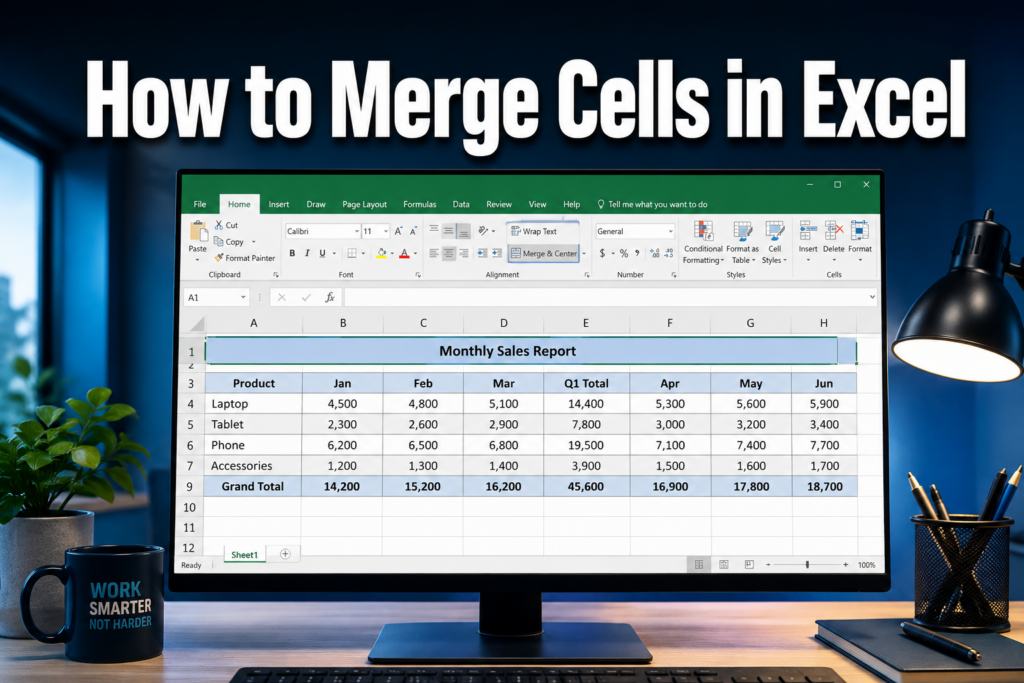
Last updated: June 26, 2026
Quick Answer: To merge cells in Excel, select the cells you want to combine, go to the Home tab, and click Merge & Center in the Alignment group. This joins the selected cells into one larger cell. Keep in mind that only the upper-left cell’s content is kept — all other data in the selection is deleted [1].
Key Takeaways
- Merge & Center is the fastest way to merge cells — found on the Home tab in the Alignment group.
- Only the upper-left cell’s content survives a merge; all other data is lost [1].
- Use “Merge Across” to merge row by row, and “Merge Cells” to merge without centering.
- The keyboard shortcut sequence Alt → H → M → C triggers Merge & Center on Windows.
- Merged cells break sorting, filtering, and some formulas — use them sparingly.
- For combining text without merging, use
=CONCAT(A1," ",B1)or=A1&" "&B1[2]. - “Center Across Selection” is a safer visual alternative that keeps cells technically separate.
- To unmerge, select the merged cell and click Merge & Center again, then choose Unmerge Cells [1].
- Mac users follow the same steps via the Home tab — the interface is nearly identical.
- Merging works best for headers and labels, not for data ranges you plan to analyze.
What Does Merging Cells in Excel Do?
Merging cells combines two or more adjacent cells into a single, larger cell. The merged cell spans the width (or height) of all the original cells, and its content is treated as one unit by Excel.
Practically speaking, this is most useful for creating titles or headers that stretch across multiple columns — like a report heading that sits above several data columns. When you merge cells, Excel keeps only the content from the upper-left cell in the selection and discards everything else [1].
⚠️ Common mistake: Selecting a range where multiple cells have data before merging. Excel will warn you, but if you click OK, all data except the top-left cell is gone permanently (unless you undo immediately with Ctrl+Z).
How to Merge Cells in Excel: Step-by-Step
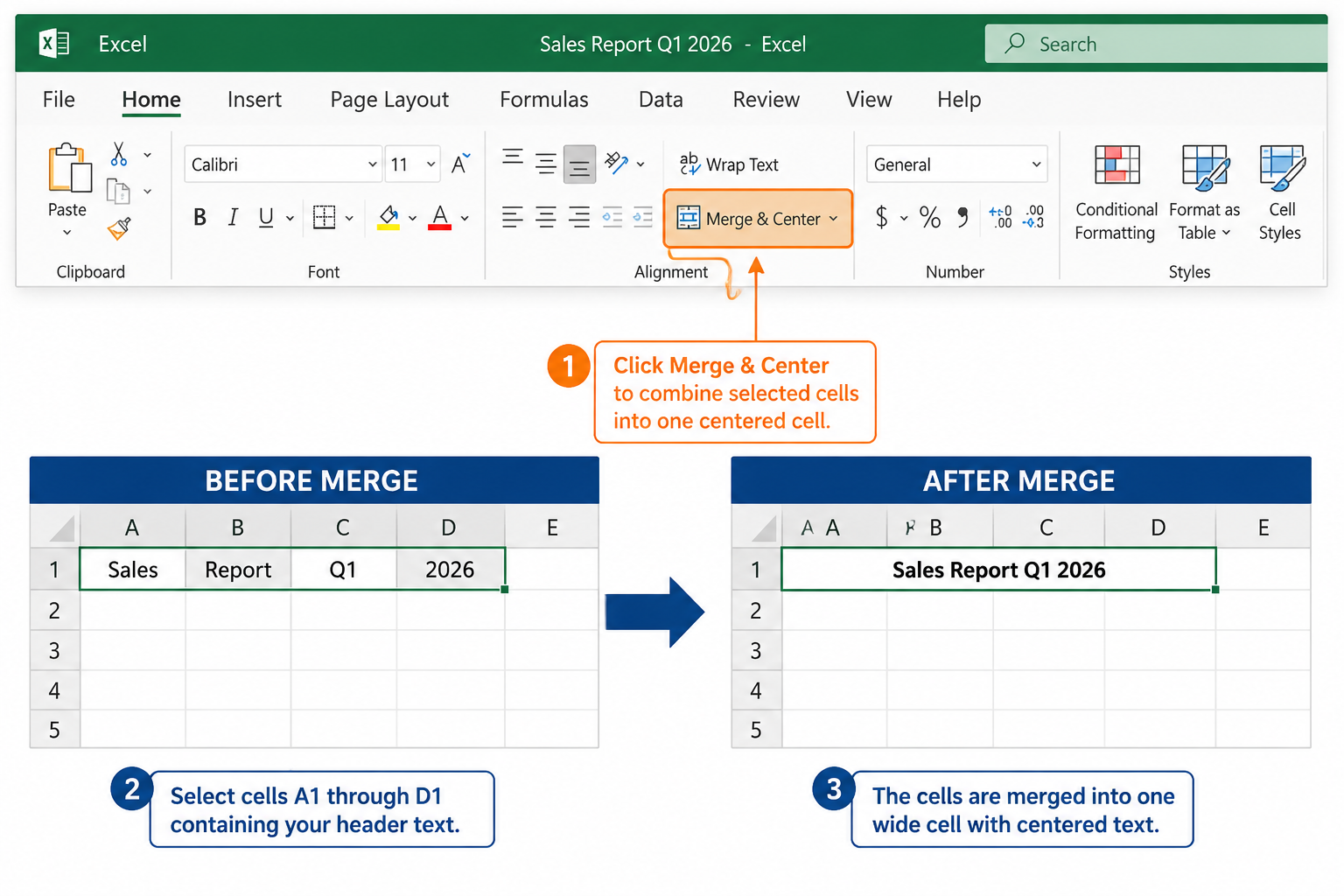
Here’s the standard method that works in Excel 2016, 2019, 2021, and Microsoft 365:
- Select the cells you want to merge (click and drag across them).
- Go to the Home tab on the ribbon.
- In the Alignment group, click the dropdown arrow next to Merge & Center.
- Choose one of the four options:
| Option | What It Does |
|---|---|
| Merge & Center | Merges cells and centers the content horizontally |
| Merge Across | Merges each row in the selection separately |
| Merge Cells | Merges without centering the text |
| Unmerge Cells | Splits a merged cell back into individual cells |
- Click your chosen option. Done.
For a deeper dive into keyboard-only methods, see this guide on merging cells in Excel using only shortcut keys.
Merge Cells Excel Shortcut (Windows and Mac)
Windows shortcut: Press Alt, H, M, C in sequence (not simultaneously). This activates Merge & Center without touching the mouse. For other merge options, replace C with:
- A for Merge Across
- M for Merge Cells
- U for Unmerge Cells
Mac shortcut: There’s no single built-in keyboard shortcut on Mac by default. However, you can assign one via System Preferences → Keyboard → Shortcuts, or use the ribbon path: Home → Merge & Center.
Pro tip: If you merge cells frequently, right-click the Merge & Center button and select “Add to Quick Access Toolbar”. Then use Alt+1 (or whichever number it lands on) to trigger it instantly.
How to Merge Cells in Excel Without Losing Data
The honest answer: Excel’s built-in merge always deletes data from all cells except the upper-left one [1]. There’s no native “merge and keep all data” option. But there are two solid workarounds:
Option 1 — Combine content first, then merge:
- In an empty cell, write a formula like
=A1&" "&B1to join the text. - Copy that cell, paste it as Values Only (Ctrl+Shift+V) into A1.
- Now merge A1 through B1 — the combined text is already in A1.
Option 2 — Use CONCAT or TEXTJOIN:
<code>=CONCAT(A1, " ", B1, " ", C1)
=TEXTJOIN(", ", TRUE, A1:C1)
</code>
These formulas pull text from multiple cells into one without destroying the source data [2].
If you’re new to Excel formulas, the beginner’s guide to using Excel step-by-step covers the basics well.
Can You Merge Cells in Excel and Keep All Data? (Formula Alternatives)
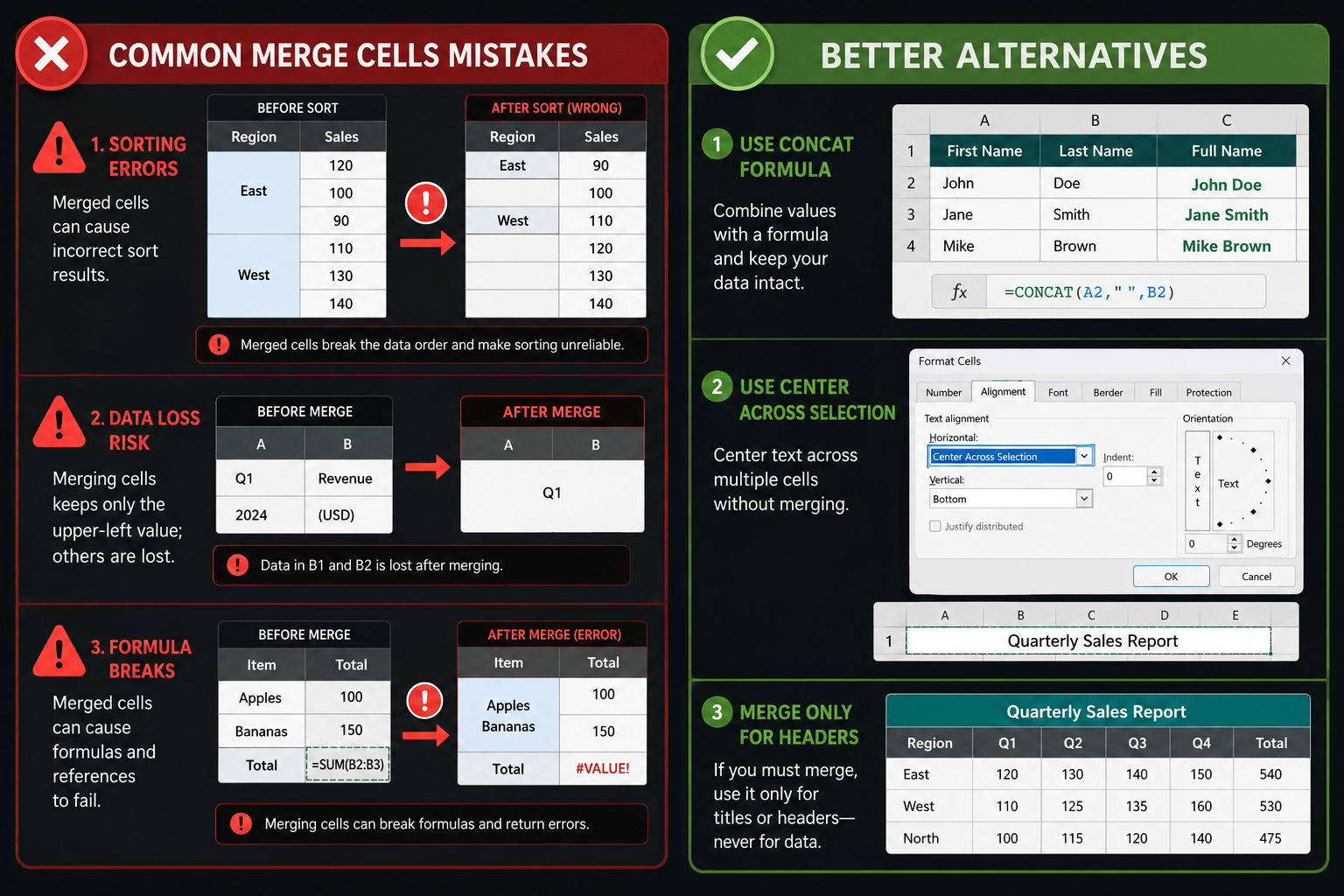
Yes — but not with the merge function itself. The better approach is to use a formula alternative that visually mimics a merged cell while keeping all data intact.
Best alternatives to merging:
- CONCAT function:
=CONCAT(A1," ",B1)— joins text from multiple cells [2]. - Ampersand operator:
=A1&", "&B1— same result, slightly shorter syntax. - TEXTJOIN:
=TEXTJOIN(" ", TRUE, A1:D1)— great for joining a range with a delimiter. - Center Across Selection: Format cells → Alignment tab → Horizontal: “Center Across Selection.” This looks identical to Merge & Center but keeps cells separate, so sorting and filtering still work.
Choose “Center Across Selection” if you want the visual look of a merged header without the functional drawbacks. It’s the expert’s preferred method for report headers.
Merge Cells vs. Center in Excel: What’s the Difference?
Merge & Center physically combines cells into one. Center Across Selection only looks merged — the cells stay independent.
| Feature | Merge & Center | Center Across Selection |
|---|---|---|
| Cells physically combined | ✅ Yes | ❌ No |
| Works with sorting/filtering | ❌ No | ✅ Yes |
| Data in non-left cells deleted | ✅ Yes | ❌ No |
| Works inside Excel Tables | ❌ No | ✅ Yes |
| Visual appearance | Identical | Identical |
For most header use cases, Center Across Selection is the safer choice [5].
Should You Merge Cells in Excel? Best Practice Guide
Merging cells is fine for specific cosmetic purposes, but it creates real problems in data-heavy sheets. Experts generally advise using it sparingly [5].
Use merging when:
- Creating a title row above a report or dashboard.
- Building a print-ready form where layout matters more than data analysis.
- Labeling grouped columns in a static summary table.
Avoid merging when:
- Your data needs to be sorted or filtered.
- You’re working inside an Excel Table (merging isn’t allowed there) [1].
- Formulas like VLOOKUP or INDEX/MATCH reference the merged range.
- You plan to copy and paste data programmatically.
If you’re building structured data sheets, also check out how to lock specific cells in Excel to protect your formatting after the fact.
What Happens When You Merge Cells With Formulas?
Merging cells that contain formulas can cause errors or unexpected results. If the upper-left cell has a formula, it’s retained in the merged cell — but if the formula references cells that were part of the merge, it may return incorrect values or a #REF! error.
Key things to know:
- Formulas in non-left cells are deleted along with their data [1].
- Formulas referencing merged cells generally still work, but the merged cell is treated as the upper-left cell’s address.
- Merged cells inside array formulas or structured table references often break entirely.
Safe approach: Finish all formula work first. Apply merging last, only to label/header rows that don’t contain calculations.
How to Unmerge Cells in Excel
Unmerging is straightforward. Select the merged cell, go to Home → Merge & Center dropdown → Unmerge Cells [1]. The cell splits back into its original individual cells, but only the upper-left cell will have content — the others will be empty.
To unmerge multiple merged cells at once: Select a range containing several merged cells, then click Unmerge Cells. All merged cells in the selection are split simultaneously.
After unmerging, if you need to fill the now-empty cells with the value from the top cell, use Go To Special → Blanks, then enter =A1 (pointing to the first filled cell) and press Ctrl+Enter to fill all blanks at once.
How to Merge Cells in Excel on Mac
On a Mac, the process for how to merge cells in Excel is nearly identical to Windows. The Home tab and Alignment group exist in the same location in Excel for Mac (Microsoft 365 version).
Steps on Mac:
- Select the cells to merge.
- Click the Home tab.
- Click Merge & Center (or its dropdown arrow for other options).
- Choose your merge type.
The main difference is keyboard shortcuts. Mac doesn’t support the Alt+H+M sequence. Instead, add Merge & Center to the Quick Access Toolbar for fast access, or use the Format menu → Cells → Alignment tab as an alternative path.
Merge Cells Excel Not Working: Why and How to Fix It
If the Merge & Center button is grayed out or not working, one of these is likely the cause [1]:
- The sheet is protected. Go to Review → Unprotect Sheet.
- The cells are inside an Excel Table. Convert the table to a range first: Table Design → Convert to Range.
- The workbook is shared. Merging isn’t available in shared workbooks (legacy sharing mode).
- The cells are in a filtered range. Clear the filter, merge, then reapply.
If the button works but data disappears unexpectedly, that’s expected behavior — only the upper-left cell’s content is kept [1]. Use Ctrl+Z immediately to undo if needed.
How to Merge Cells Across Rows and Columns
Merge Across handles rows individually. If you select A1:C3 and click Merge Across, Excel merges A1:C1 into one cell, A2:C2 into another, and A3:C3 into another — three separate merged cells, one per row.
To merge across both rows and columns into one big cell, use Merge Cells (not Merge Across). This creates a single cell spanning the entire selected range.
Example use case — a report header:
- Select A1:F1
- Click Merge & Center
- Type “Q1 2026 Sales Report”
The result is one wide header cell spanning six columns. This is the most common real-world use of cell merging in Excel.
How to Merge Cells in Excel on the Mobile App
On the Excel mobile app (iOS or Android), merging cells is possible but slightly tucked away:
- Select the cells to merge by tapping and dragging.
- Tap the Format icon (the “A” with lines, usually at the bottom or top of the screen).
- Go to Cell settings.
- Toggle on Merge Cells.
The mobile app supports basic merging but doesn’t offer the full dropdown (Merge Across, Merge Cells, etc.) that the desktop version provides. For complex formatting work, the desktop version is strongly recommended.
Merge Cells Excel for Headers: A Practical Example
The most practical and widely accepted use of merging is building report headers. Here’s a quick example:
Scenario: You have a sales table with columns: Region, Q1, Q2, Q3, Q4.
- In row 1, type “2026 Annual Sales Summary” in cell A1.
- Select A1:E1.
- Click Merge & Center.
- Bold the text and increase font size.
- In row 2, add your column headers: Region, Q1, Q2, Q3, Q4.
This creates a clean, professional header above your data. Since the header row isn’t part of the data range, merging here doesn’t interfere with sorting or filtering on rows 3 and below.
For more layout and formatting ideas, the complete beginner-to-pro Excel guide covers spreadsheet design in detail.
Conclusion
Knowing how to merge cells in Excel is a useful skill — but it’s equally important to know when not to use it. For headers, titles, and print layouts, Merge & Center works well. For anything involving live data, sorting, or formulas, stick with Center Across Selection or a CONCAT formula instead.
Actionable next steps:
- Try the Alt → H → M → C shortcut on your next report header.
- If you need to combine text from multiple cells, test
=TEXTJOIN(", ", TRUE, A1:D1)before reaching for Merge & Center. - For existing sheets with lots of merged cells causing issues, select all (Ctrl+A) and use Unmerge Cells to reset, then reformat with Center Across Selection.
- Bookmark the shortcut keys guide for merging cells for quick reference.
Want to keep leveling up your Excel skills? Check out how to remove duplicates in Excel, create a dropdown menu, and insert formulas for entire columns — all practical skills that pair well with clean spreadsheet formatting.
FAQ
Q: Does merging cells in Excel delete data? Yes. When you merge cells, Excel keeps only the content of the upper-left cell. All other data in the selected cells is permanently deleted unless you undo immediately [1].
Q: What is the shortcut to merge cells in Excel on Windows? Press Alt, H, M, C in sequence. This activates Merge & Center from the keyboard without using the mouse.
Q: Can I merge cells in an Excel Table? No. Merging is not available inside a formatted Excel Table. You must first convert the table to a range (Table Design → Convert to Range), then merge [1].
Q: What’s the difference between Merge & Center and Center Across Selection? Merge & Center physically combines cells into one. Center Across Selection only centers the text visually across multiple cells while keeping them separate — which means sorting and filtering still work normally.
Q: How do I merge cells without centering the text? Use the Merge Cells option from the Merge & Center dropdown. This merges the cells but leaves the text alignment as-is (usually left-aligned).
Q: Why is my Merge & Center button grayed out? The most common reasons are: the sheet is protected, the cells are inside an Excel Table, or the workbook is in shared mode. Fix the underlying condition first, then try merging again [1].
Q: Can I merge cells and keep all the text from every cell?
Not with the merge function directly. Combine the text first using =CONCAT(A1," ",B1) or =TEXTJOIN(", ",TRUE,A1:C1), paste the result as a value into the top-left cell, then merge [2].
Q: How do I unmerge all cells in a sheet at once? Press Ctrl+A to select all cells, then go to Home → Merge & Center dropdown → Unmerge Cells. This splits every merged cell on the sheet simultaneously [1].
Q: Does merging cells affect Excel formulas? Yes. Formulas in non-left cells are deleted. Formulas referencing merged cells may also behave unexpectedly, especially in array formulas or Excel Tables. Apply merging after all formula work is complete.
Q: Can I merge cells on the Excel mobile app? Yes. Select the cells, tap the Format icon, go to Cell settings, and toggle on Merge Cells. Options are more limited than the desktop version.
References
[1] Merge and Unmerge Cells in Excel – https://support.microsoft.com/en-us/office/merge-and-unmerge-cells-in-excel-5cbd15d5-9375-4540-907f-c673a93fcedf?utm_source=openai
[2] Combine Text From Two Or More Cells Into One Cell In Microsoft Excel – https://support.microsoft.com/en-US/Excel/get-started/combine-text-from-two-or-more-cells-into-one-cell-in-microsoft-excel?utm_source=openai
[3] Merge Cells – https://www.exceldome.com/solutions/merge-cells/?utm_source=openai
[4] Watch (Microsoft Excel Tutorial – Merging Cells) – https://www.youtube.com/watch?v=m1xjnm_tMH8&utm_source=openai
[5] Merge Cells In Excel – https://www.excelfunctions.net/merge-cells-in-excel.html?utm_source=openai