
Hello, and welcome to Mark’s Excel Tips. In this tutorial I will show you how to load A grocery list template in Excel 365. Let’s get started.
Click here to view our video tutorial.
Click here to download our PDF tutorial.
The first thing you need to do is click on File.

On the right side of the home screen, click on more templates.

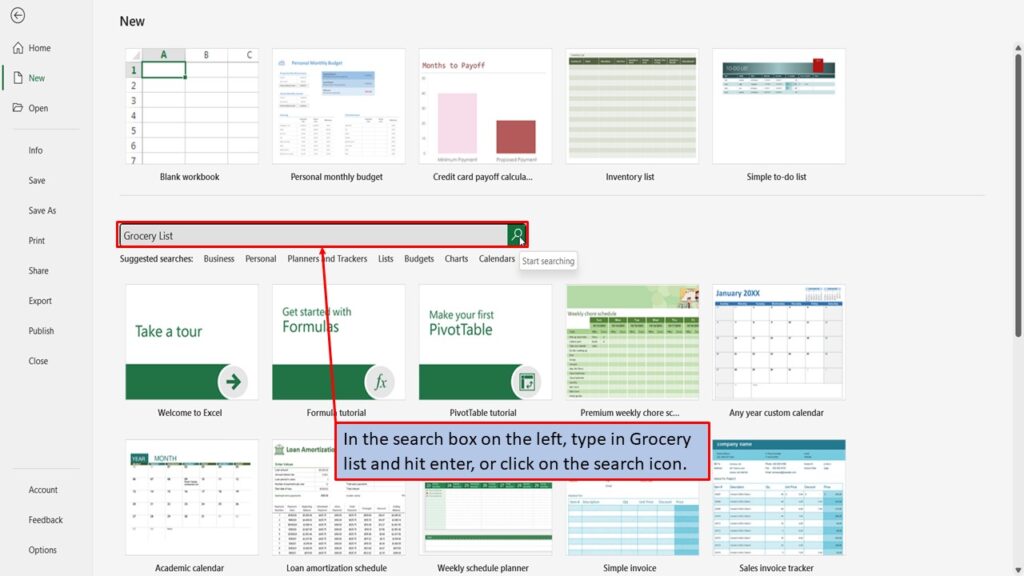
In the search box on the left, type in Grocery list and hit enter, or click on the search icon.
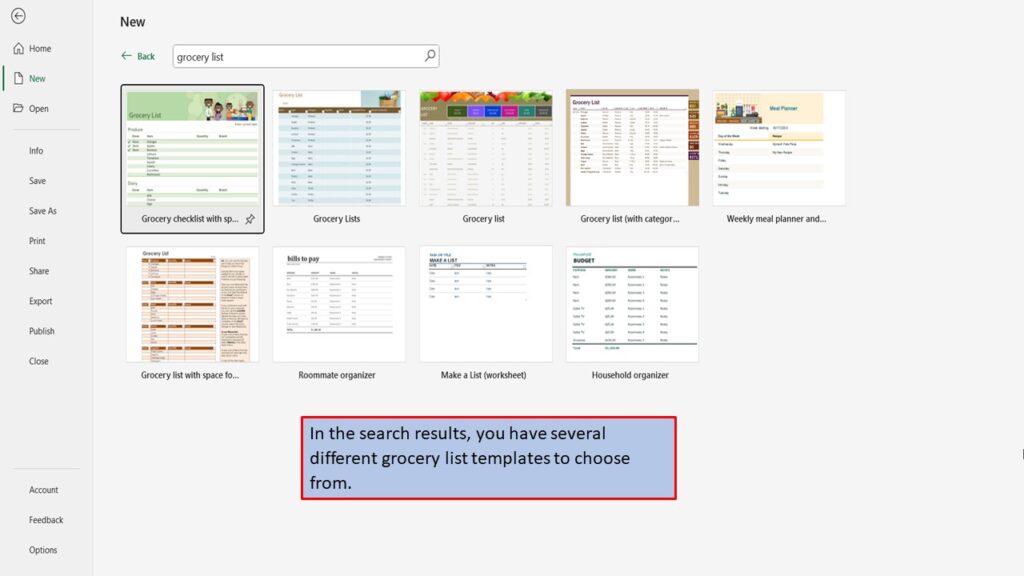
In the search results, you have several different grocery list templates to choose from.
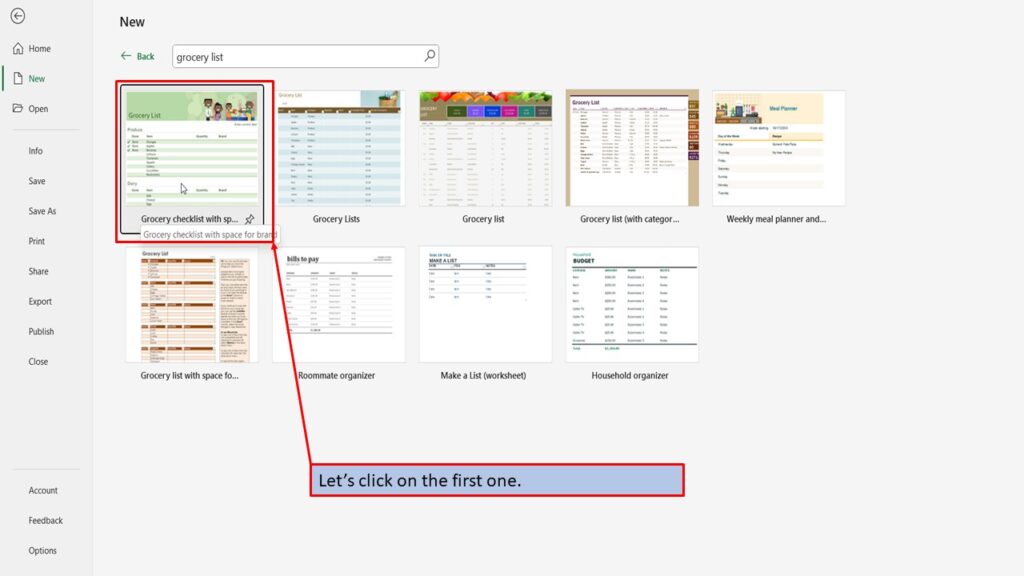
Let’s click on the first one.
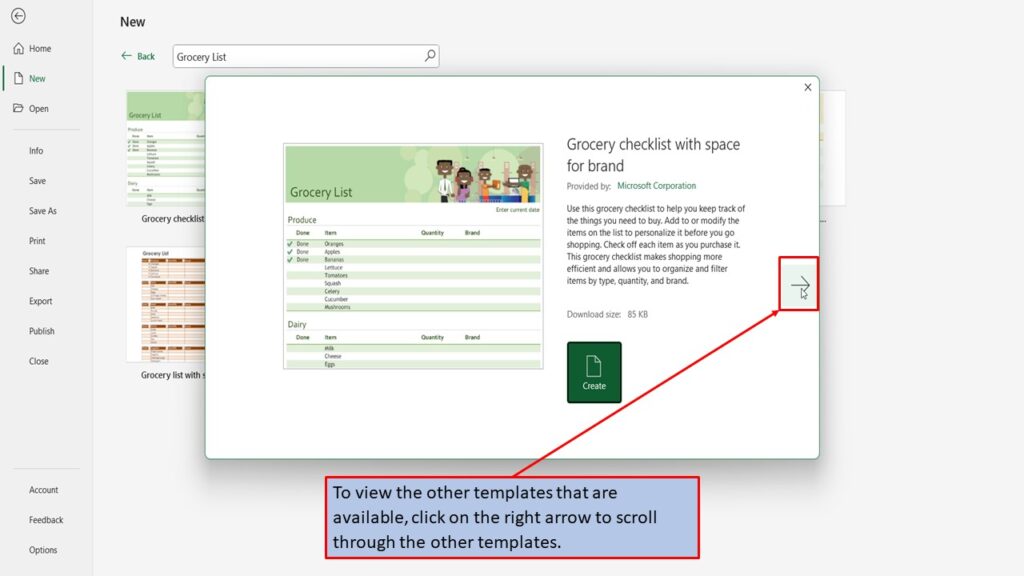
In the window that opens, Excel tells you all about this grocery list template, and what it can be used for.
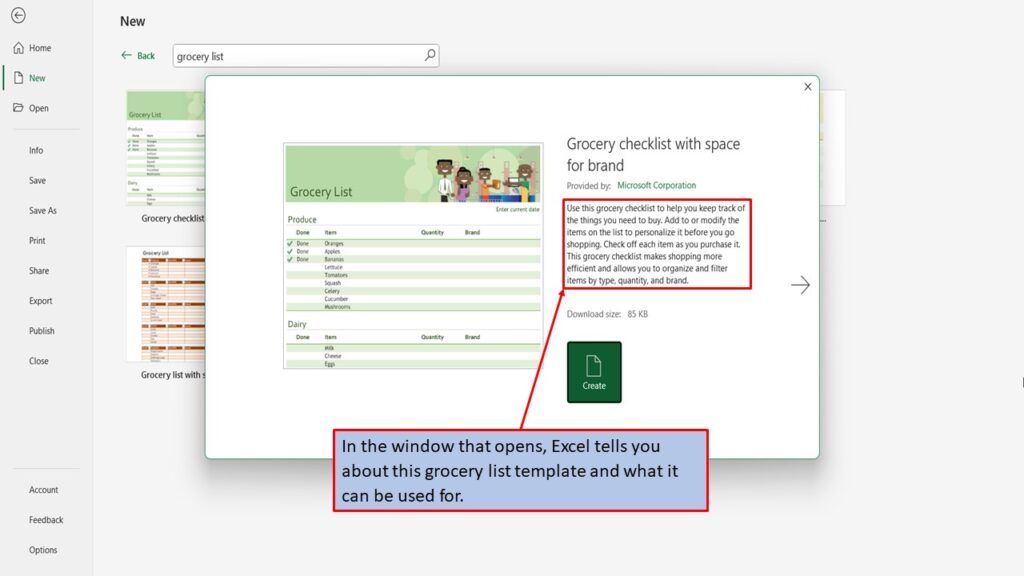
To view the other templates that are available, click on the right arrow to scroll through the other templates.
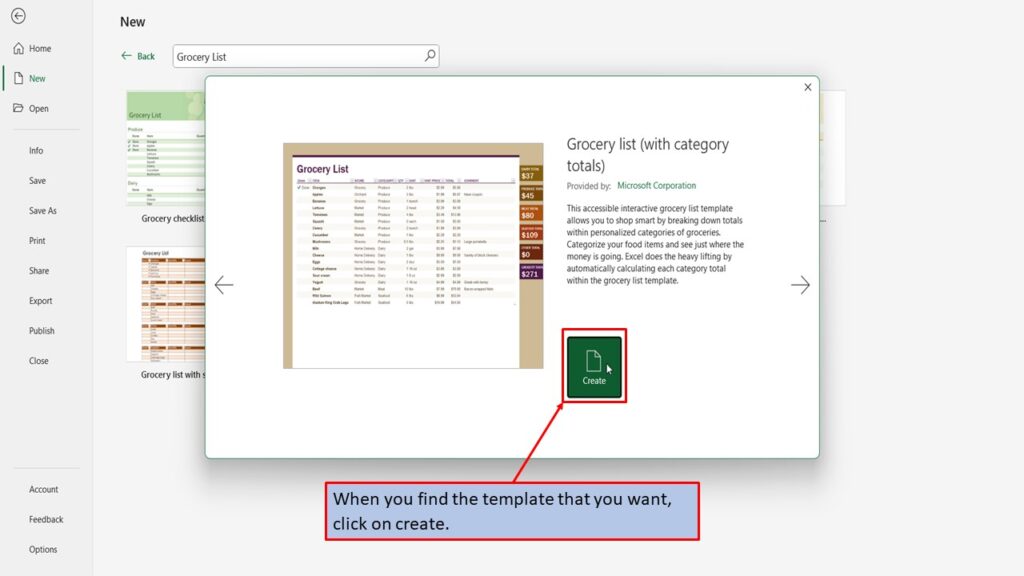
When you find the template that you want, click on create.
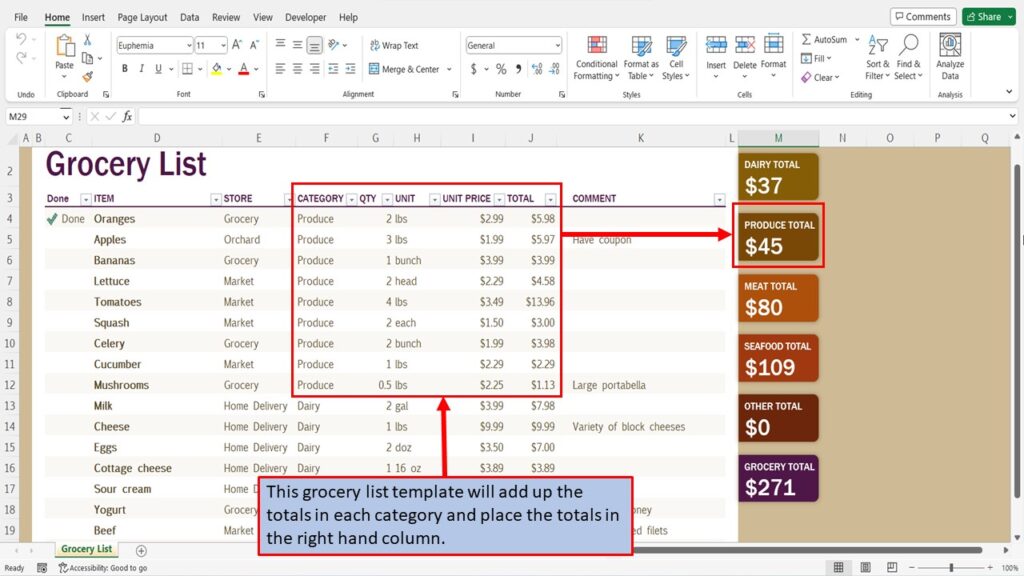
Excel will load your grocery list template, ready for you to use. You can add to this list, and modify it to best fit your needs.

This grocery list template will add up the totals in each category and place the totals in the right hand column.
View the vidio for this tutorial.
Download the PDF version of this tutorial by clicking download below.