
Last updated: June 6, 2026
Quick Answer: To use Excel with formulas, click any cell, type =, then enter a function name and its arguments (for example, =SUM(A1:A10)). Press Enter and Excel calculates the result instantly. Formulas can handle everything from basic math to complex financial modeling, and they update automatically when your data changes.
Key Takeaways
- Every Excel formula starts with an equals sign (
=) followed by a function name and cell references or values. - The most time-saving beginner formulas are SUM, AVERAGE, IF, VLOOKUP/XLOOKUP, and COUNTIF.
- Formulas can pull data from other sheets or even other workbooks using simple cross-sheet references.
- Common mistakes include forgetting the
=sign, mismatched parentheses, and using the wrong cell reference type (relative vs. absolute). - Microsoft 365 Excel introduced AI-powered formula completion in September 2025, which suggests formulas as you type. [1]
- Excel is strong for data analysis up to roughly 1 million rows; for larger datasets, tools like Python or Power BI may work better.
- Excel costs are covered under Microsoft 365 subscriptions, starting around $6.99/month for personal use (as of 2026).
- Mac and Windows Excel are nearly identical for formulas, with minor keyboard shortcut differences.
What Are Excel Formulas and How Do They Work?
An Excel formula is an instruction you write in a cell that tells Excel to calculate something. Every formula starts with =, followed by a function or math expression. Excel reads the formula, processes it, and displays the result in that cell.
The basic anatomy of a formula:
<code>= FUNCTION_NAME ( argument1, argument2, ... )
</code>
For example:
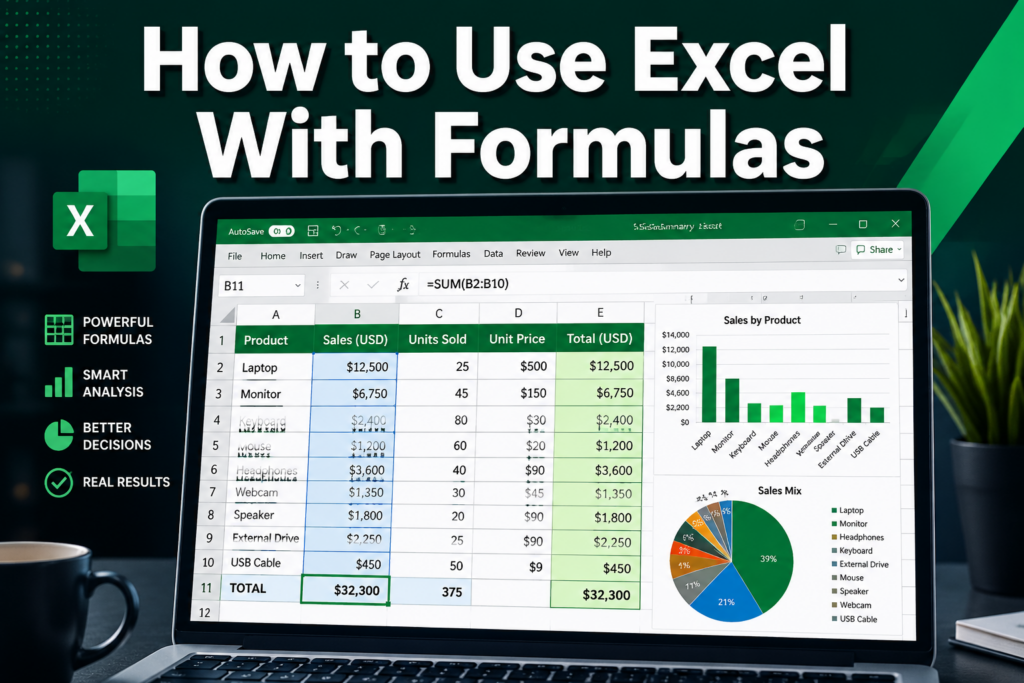
=SUM(B2:B10)adds all values in cells B2 through B10=A1*1.1multiplies the value in A1 by 1.1=IF(C5>100,"Yes","No")checks a condition and returns text
Microsoft’s official documentation covers the full formula syntax and how built-in functions work together. [3] Exceljet also maintains a library of over 1,000 formula examples with plain-English explanations. [2]
Choose absolute vs. relative references carefully:
- Relative (
A1): adjusts when you copy the formula to another cell. - Absolute (
$A$1): stays locked no matter where you copy it. - Mixed (
$A1orA$1): locks only the column or the row.
What Are the Most Useful Excel Formulas for Beginners?
The best starting formulas are the ones you’ll use every single week. These seven cover the majority of everyday tasks:
| Formula | What It Does | Example |
|---|---|---|
SUM |
Adds a range of numbers | =SUM(A1:A20) |
AVERAGE |
Calculates the mean | =AVERAGE(B1:B10) |
IF |
Returns one value or another based on a condition | =IF(C2>50,"Pass","Fail") |
VLOOKUP / XLOOKUP |
Finds a value in a table | =XLOOKUP(E2,A:A,B:B) |
COUNTIF |
Counts cells matching a condition | =COUNTIF(D:D,"Yes") |
TODAY |
Returns today’s date | =TODAY() |
ROUND |
Rounds a number to set decimal places | =ROUND(A1,2) |
For adding up a row of numbers quickly, the AutoSum shortcut on Mark’s Excel Tips is a great place to start. Press Alt + = to insert a SUM formula automatically.
Common mistake: New users often type SUM(A1:A10) without the = sign. Excel treats it as plain text and shows no result. Always start with =.
How Do I Calculate Percentage Changes in Excel?
To calculate a percentage change in Excel, use the formula =(New-Old)/Old and format the cell as a percentage. This works for sales growth, price changes, or any before-and-after comparison.
Step-by-step:
- Put the old value in cell A2 and the new value in B2.
- In C2, type:
=(B2-A2)/A2 - Select C2, then press Ctrl+Shift+% to format it as a percentage.
Other percentage formulas:
- Percentage of total:
=A2/SUM(A:A)— shows what share one item is of the whole. - Add a percentage increase:
=A2*(1+0.15)— increases A2 by 15%. - Find what percent X is of Y:
=X/Yformatted as a percentage.
💡 Quick tip: If your result shows a decimal like 0.23 instead of 23%, the cell just needs percentage formatting. Use Ctrl+Shift+% or the % button in the Home ribbon.
Which Excel Formulas Save the Most Time at Work?
The biggest time-savers are formulas that replace manual lookups, repetitive copying, and hand-calculated summaries. XLOOKUP, SUMIFS, and IFERROR are the three that most professionals say changed how they work.
Top time-saving formulas:
- XLOOKUP — replaces VLOOKUP and handles left-side lookups, missing values, and exact/approximate matching in one formula.
- SUMIFS — sums values that meet multiple conditions (e.g., sales in a specific region AND month).
- IFERROR — wraps any formula to display a clean message instead of an ugly
#N/Aor#VALUE!error. - TEXT — formats numbers as text (useful for combining dates with labels:
=TEXT(A1,"MMM DD, YYYY")). - CONCATENATE / TEXTJOIN — merges text from multiple cells, great for building full names or addresses.
For date-related work, check out this guide on adding date and time formulas in Excel 365 — especially useful for dashboards that need to show live timestamps.
In September 2025, Microsoft added AI-powered formula completion to Excel Copilot, which proactively suggests the right formula as you type =. [1] This feature alone cuts formula-writing time significantly for users on Microsoft 365.
Can Excel Formulas Work Across Different Spreadsheets?
Yes. Excel formulas can reference cells in other sheets within the same workbook, or even in entirely separate workbook files. This is called a cross-sheet or external reference.
Cross-sheet reference (same workbook):
<code>=Sheet2!B5
</code>
This pulls the value from cell B5 on Sheet2.
Cross-workbook reference (external file):
<code>=[Budget2026.xlsx]Sheet1!$C$10
</code>
The other file must be open, or Excel will show the full file path.
When to use cross-sheet references:
- You have a summary dashboard pulling totals from multiple department sheets.
- You want to keep raw data separate from your calculations.
- You’re building a balance sheet template that links to transaction data on other tabs.
Edge case: If you rename or move the source sheet, the reference breaks. Always double-check links after reorganizing a workbook.
What Common Mistakes Do People Make With Excel Formulas?
The most common formula errors fall into a handful of predictable patterns. Knowing them saves a lot of frustration.
Top mistakes and how to fix them:
| Error | Cause | Fix |
|---|---|---|
#VALUE! |
Wrong data type (text where number expected) | Check that referenced cells contain numbers, not text |
#REF! |
A referenced cell was deleted | Undo the deletion or update the reference |
#NAME? |
Misspelled function name | Check spelling; Excel is case-insensitive but spelling matters |
#DIV/0! |
Dividing by zero or an empty cell | Wrap in IFERROR: =IFERROR(A1/B1,0) |
#N/A |
Lookup value not found | Use IFERROR or IFNA to handle missing matches |
| Circular reference | Formula references its own cell | Move the formula to a different cell |
Other frequent slip-ups:
- Using a comma instead of a colon in ranges (
A1,A10vs.A1:A10). - Forgetting to lock references with
$before copying a formula down a column. - Mixing number-formatted and text-formatted cells in a SUM range (the text cells are silently ignored).
Why Is My Excel Formula Not Calculating Correctly?
If an Excel formula shows the wrong result or doesn’t update, the most likely causes are manual calculation mode, text-formatted numbers, or a circular reference.
Quick diagnostic checklist:
- Check calculation mode: Go to Formulas > Calculation Options > make sure it’s set to Automatic. If it’s on Manual, press F9 to force a recalculation.
- Look for text-formatted numbers: Cells with a green triangle in the corner may be storing numbers as text. Select them, click the warning icon, and choose “Convert to Number.”
- Check for circular references: Excel will warn you in the status bar. Go to Formulas > Error Checking > Circular References.
- Verify your range: A formula like
=SUM(A1:A10)won’t include A11 even if you added data there. Extend the range or use a full-column reference like=SUM(A:A).
💡 Pro tip: Press Ctrl+` (grave accent) to toggle between showing formula results and the actual formula text. This makes it easy to spot where a formula is referencing the wrong cells.
Can Excel Formulas Help Me Track Business Expenses?
Absolutely. Excel is one of the most practical tools for expense tracking, and formulas make it nearly automatic. A well-built expense sheet uses SUMIF to categorize spending, IF to flag over-budget items, and TODAY to timestamp entries.
Basic expense tracker formula setup:
- Total by category:
=SUMIF(B:B,"Travel",C:C)— sums all amounts in column C where column B says “Travel.” - Monthly total:
=SUMIFS(C:C,D:D,">="&DATE(2026,1,1),D:D,"<="&DATE(2026,1,31))— sums expenses within a date range. - Over-budget flag:
=IF(C2>E2,"Over Budget","OK")— compares actual spend to budget.
For personal finance, a credit card payoff calculator built in Excel uses the PMT function to show exactly how long payoff takes at different payment amounts.
What Formulas Do Financial Analysts Use Most Often?
Financial analysts rely on a core set of formulas for modeling, valuation, and reporting. These go beyond basic SUM and require understanding of financial logic.
Most-used formulas in finance:
- NPV (
=NPV(rate, value1, value2,...)) — calculates net present value of cash flows. - IRR (
=IRR(values)) — finds the internal rate of return. - PMT (
=PMT(rate, nper, pv)) — calculates loan or mortgage payments. - XNPV / XIRR — like NPV/IRR but for irregular cash flow dates.
- INDEX + MATCH — more flexible than VLOOKUP for two-way lookups in large financial models.
- OFFSET — creates dynamic ranges that expand as data grows.
For a practical starting point, the balance sheet template guide shows how these formulas connect across a real financial document.
How Much Does Microsoft Excel Cost for Professionals?
Microsoft Excel is not sold as a standalone product in 2026. It comes bundled with Microsoft 365 subscriptions.
Current pricing (as of 2026):
- Microsoft 365 Personal: ~$6.99/month (1 user, includes Excel, Word, PowerPoint, 1TB OneDrive)
- Microsoft 365 Family: ~$9.99/month (up to 6 users)
- Microsoft 365 Business Basic: ~$6.00/user/month (web and mobile apps only)
- Microsoft 365 Business Standard: ~$12.50/user/month (full desktop apps including Excel)
Free alternatives: Google Sheets handles most basic formulas. LibreOffice Calc is a free desktop option. However, neither matches Excel’s full formula library, Power Query, or advanced features like Copilot AI formula assistance.
Are Excel Formulas Different on Mac Versus Windows?
The formulas themselves are identical on Mac and Windows. The same =VLOOKUP, =IF, and =SUMIFS functions work exactly the same way on both platforms. The differences are mainly in keyboard shortcuts and a few UI locations.
Key differences to know:
- Absolute reference shortcut: Windows uses F4; Mac uses Cmd+T.
- Force recalculate: Windows uses F9; Mac uses Fn+F9.
- Some older add-ins are Windows-only, but this rarely affects standard formula work.
- The Analysis ToolPak is available on both platforms as of recent versions.
Bottom line: If you learn formulas on one platform, they transfer completely to the other.
Is Excel Good for Data Analysis, or Should I Use Something Else?
Excel is excellent for data analysis on datasets up to about 1 million rows, which covers most business use cases. For larger datasets, statistical depth, or automation, other tools may serve better.
Choose Excel if:
- Your dataset fits within 1,048,576 rows (Excel’s row limit).
- You need quick ad-hoc analysis, pivot tables, or charts.
- Your team is already comfortable with spreadsheets.
- You want to combine formulas with visual dashboards.
Consider alternatives if:
- Your data exceeds Excel’s row limit (use Power BI, SQL, or Python/pandas).
- You need reproducible statistical analysis (use R or Python).
- You’re building automated data pipelines (use SQL + a BI tool).
Excel’s Power Query feature (built-in, no extra cost) bridges a lot of the gap for data cleaning and transformation tasks that used to require coding.
What Skills Do I Need to Master Complex Excel Formulas?
To move from basic to advanced Excel formulas, focus on three foundational skills: understanding data structure, mastering reference types, and learning to nest functions.
Skill progression:
- Basic: SUM, AVERAGE, IF, basic formatting — takes a few hours to learn.
- Intermediate: VLOOKUP/XLOOKUP, SUMIFS, COUNTIFS, named ranges, data validation — a few days of practice.
- Advanced: Array formulas, INDEX+MATCH, dynamic arrays (FILTER, SORT, UNIQUE), Power Query — weeks of regular use.
- Expert: VBA macros, Power Pivot, DAX formulas, Copilot integration — months of applied work.
Excel Pal offers over 100 interactive exercises in a browser-based environment, so you can practice without installing anything. [4] For structured practice, Microsoft Support’s formula overview is a reliable free reference. [3]
Practical tip: The fastest way to learn is to solve a real problem you actually have, not to work through generic tutorials. Pick one task from your job, build it in Excel, and look up exactly what you need.
How to Use Excel With Formulas for Specific Real-World Tasks
Here’s how to apply Excel formula skills to three common real-world scenarios:
Track a Budget
Use SUMIF to total spending by category, TODAY() to auto-date entries, and conditional formatting to highlight overspending. For a ready-made starting point, see this wedding budget template in Excel that shows how these formulas connect.
Build a Loan Payoff Plan
The PMT function calculates monthly payments: =PMT(rate/12, months, -loan_amount). Pair it with a running balance column using =Previous_Balance - Payment + Interest to see a full amortization schedule. The credit card payoff calculator template is a practical example of this in action.
Analyze Sales Data
Use PIVOT TABLES for summaries, XLOOKUP to pull in product details, and SUMIFS to break down sales by region, rep, or time period. Add a chart using the tips in Mark’s Excel Charts series to make the data visual.
FAQ
Q: What is the most basic formula in Excel?
=SUM(A1:A10) is the most commonly used starting formula. It adds all numbers in a range and updates automatically when data changes.
Q: How do I enter a formula in Excel?
Click the cell where you want the result, type =, then type your function and arguments. Press Enter to confirm. The cell shows the result; the formula bar shows the formula.
Q: Can I use formulas to compare two columns?
Yes. =IF(A1=B1,"Match","No Match") checks whether two cells are equal. Copy it down the column to compare entire lists.
Q: What does the $ sign do in an Excel formula?
The $ locks a cell reference so it doesn’t shift when you copy the formula. $A$1 locks both the column and row; $A1 locks only the column; A$1 locks only the row.
Q: How do I count cells that contain specific text?
Use =COUNTIF(A:A,"*your text*") — the asterisks act as wildcards that match any text containing that phrase.
Q: What’s the difference between VLOOKUP and XLOOKUP? VLOOKUP only searches left-to-right and requires the lookup column to be the leftmost. XLOOKUP is more flexible: it searches in any direction, handles missing values cleanly, and doesn’t need the lookup column first.
Q: How do I stop a formula from showing an error?
Wrap it in IFERROR: =IFERROR(your_formula, "") returns a blank instead of an error. Replace "" with 0 or any message you prefer.
Q: Does Excel have AI help for formulas now?
Yes. Microsoft introduced AI-powered formula completion in Excel Copilot in September 2025. It suggests and autocompletes formulas as you type =. [1] It’s available to Microsoft 365 subscribers.
Q: Can I practice Excel formulas for free? Yes. Excel Pal offers browser-based exercises with 50+ functions and 100+ practice tasks, no installation needed. [4]
Q: How do I reference a cell on another sheet?
Type =SheetName!CellReference — for example, =Sales!B5 pulls the value from cell B5 on the “Sales” sheet.
Conclusion
Learning how to use Excel with formulas is one of the most practical skills you can build in 2026. Start with the core seven formulas (SUM, AVERAGE, IF, XLOOKUP, COUNTIF, TODAY, ROUND), then layer in SUMIFS and IFERROR once those feel comfortable.
Actionable next steps:
- Open Excel and build a simple expense tracker using
SUMIFandTODAY()— real practice beats tutorials every time. - Bookmark Exceljet’s formula library for quick reference when you hit an unfamiliar function.
- Enable Excel Copilot if you’re on Microsoft 365 — the AI formula suggestions cut trial-and-error time significantly.
- When a formula breaks, use the Ctrl+` trick to see all formulas at once and spot the problem cell fast.
- Explore the Mark’s Excel Tips AI Search to find answers to specific formula questions quickly.
Every complex Excel model started with a single =SUM. The best time to start building yours is now.
References
[1] Introducing Formula Completion — https://techcommunity.microsoft.com/t5/excel-blog/introducing-formula-completion-a-new-way-to-write-formulas-in/ba-p/4452196 [2] Exceljet Formula Library — https://exceljet.net/formulas [3] Overview of Formulas in Excel — https://support.microsoft.com/en-us/office/overview-of-formulas-in-excel-ecfdc708-9162-49e8-b993-c311f47ca173 [4] Excel Pal Interactive Practice — https://excelpal.io/ [5] Auto-Generated Excel Tutorials (2025) — https://arxiv.org/abs/2509.21816 [6] Auto-Formula Contrastive Learning (2024) — https://arxiv.org/abs/2404.12608