
Today, we are going to show you how to create an Excel calendar template for any year, in Excel 365. Let’s get started.
Click here to view our video tutorial.
Click here to download our PDF tutorial.
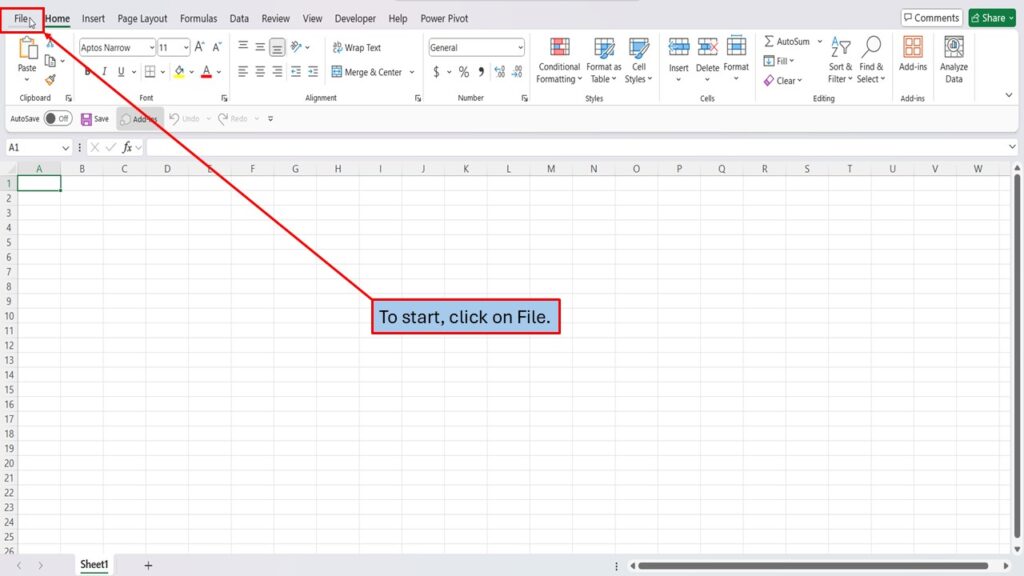
To start, click on File.
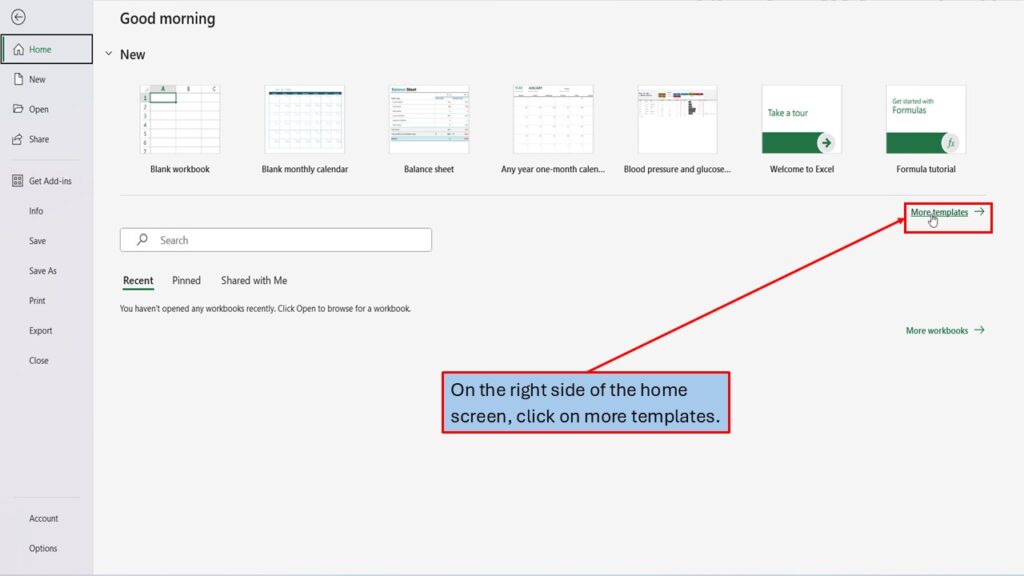
On the right side of the home screen, click on more templates.
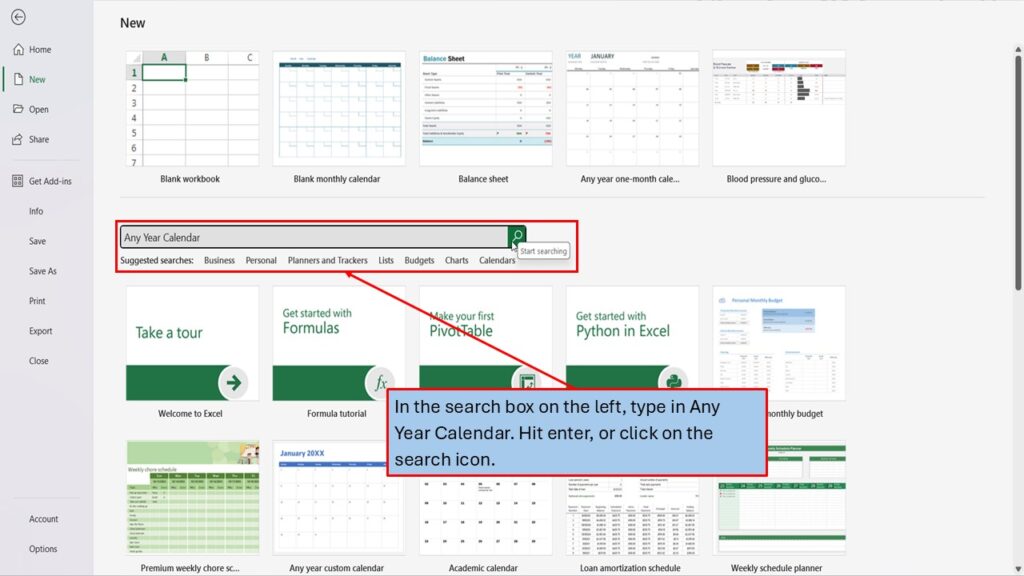
In the search box on the left, type in Any Year Calendar. Hit enter, or click on the search icon.
Excel will load multiple templates for Any Year Calendar.
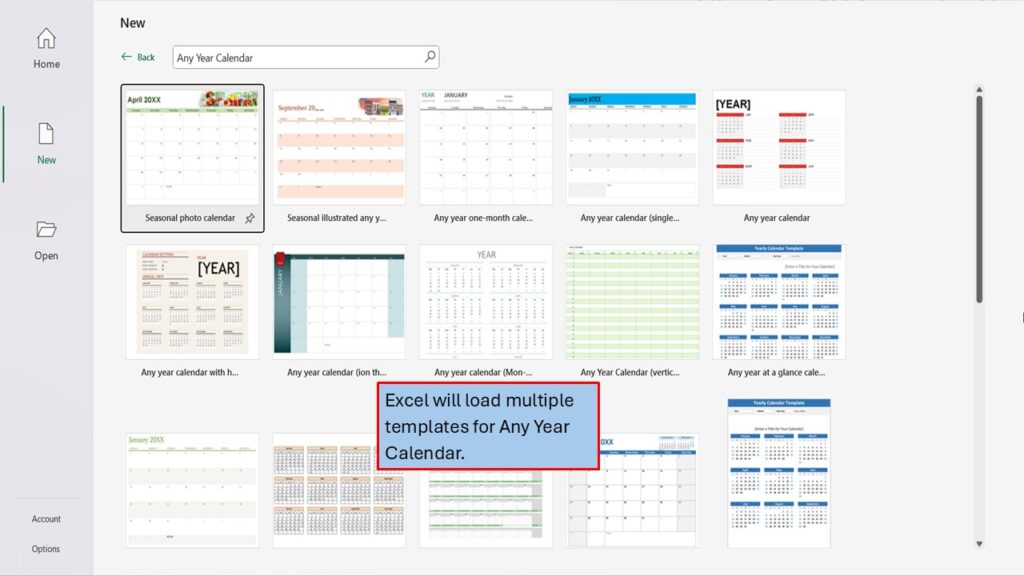
Let’s click on the third one.

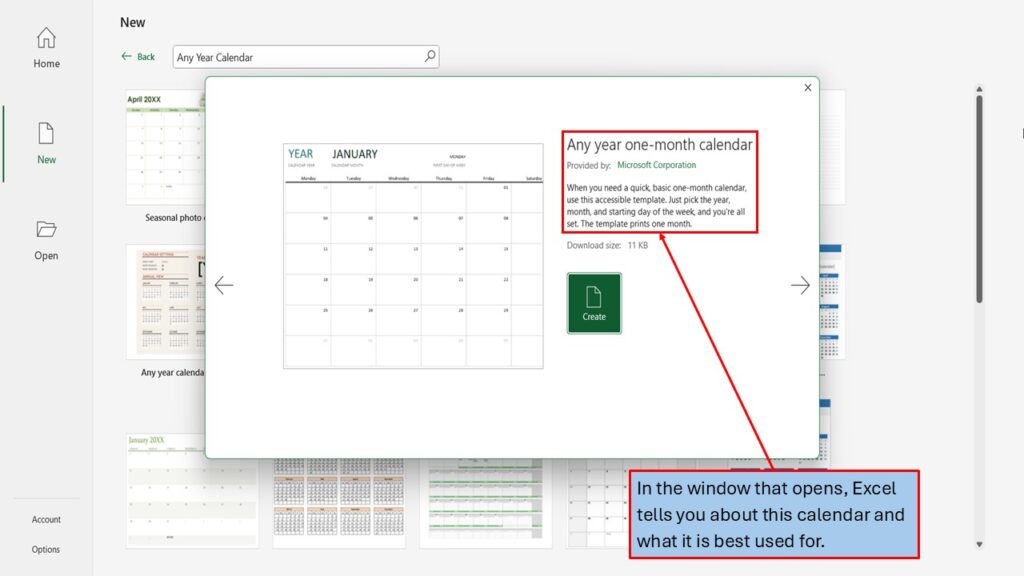
In the window that opens, Excel tells you about this calendar and what it is best used for.
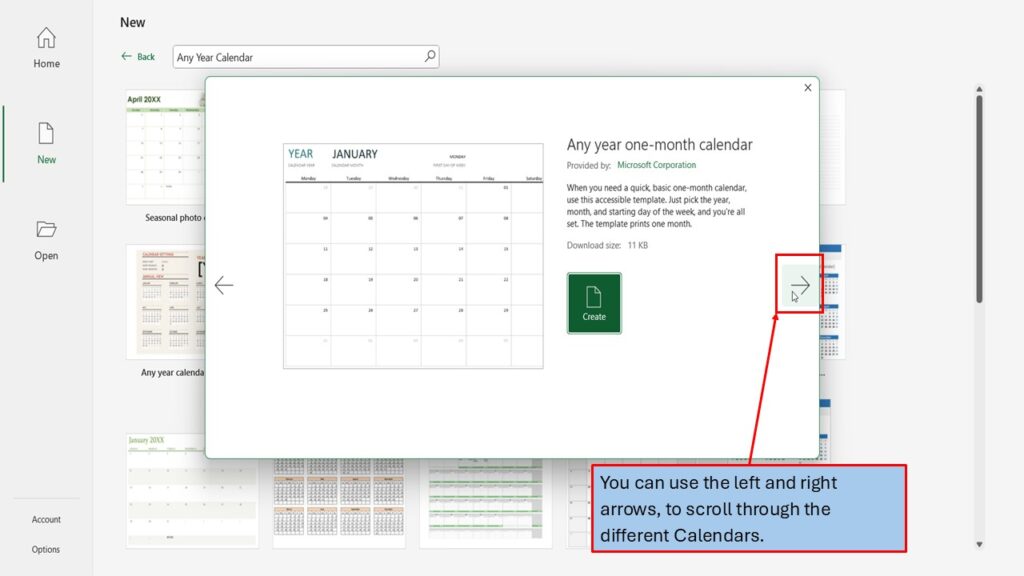
You can use the left and right arrows, to scroll through the different Calendars.
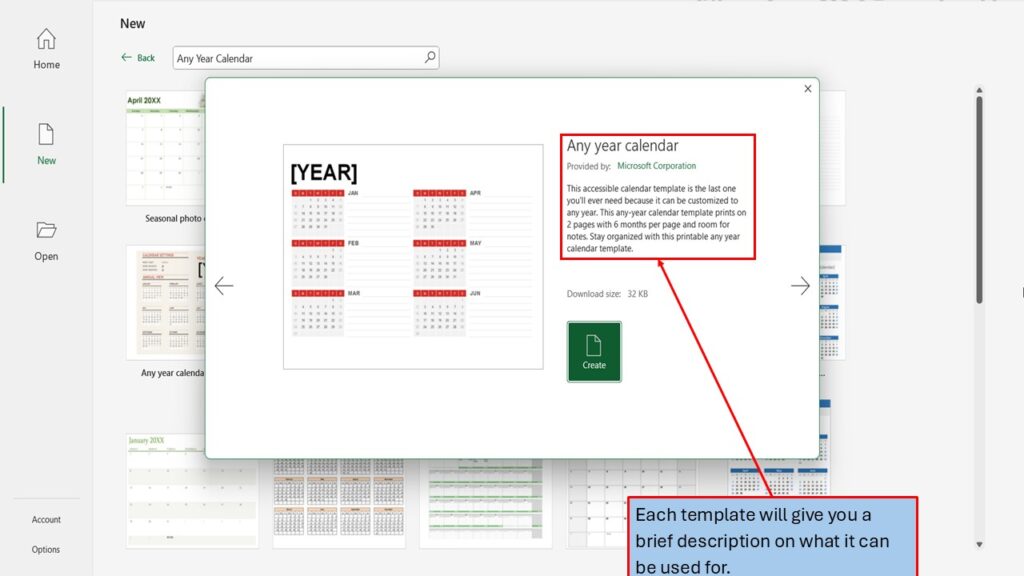
Each template will give you a brief description on what it can be used for.
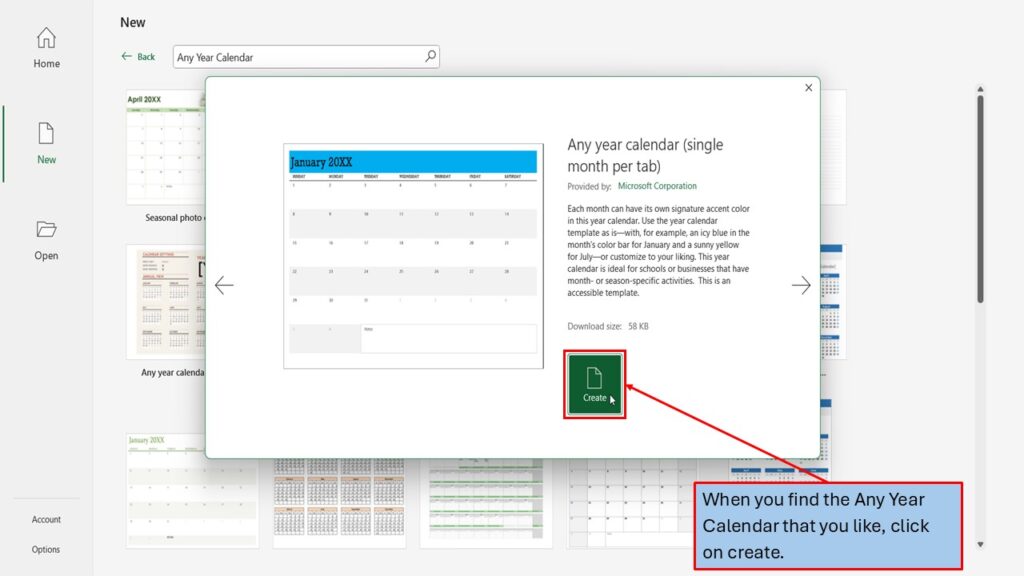
When you find the Any Year Calendar that you like, click on create.
Excel will load your Any Year Calendar, ready for you to use.

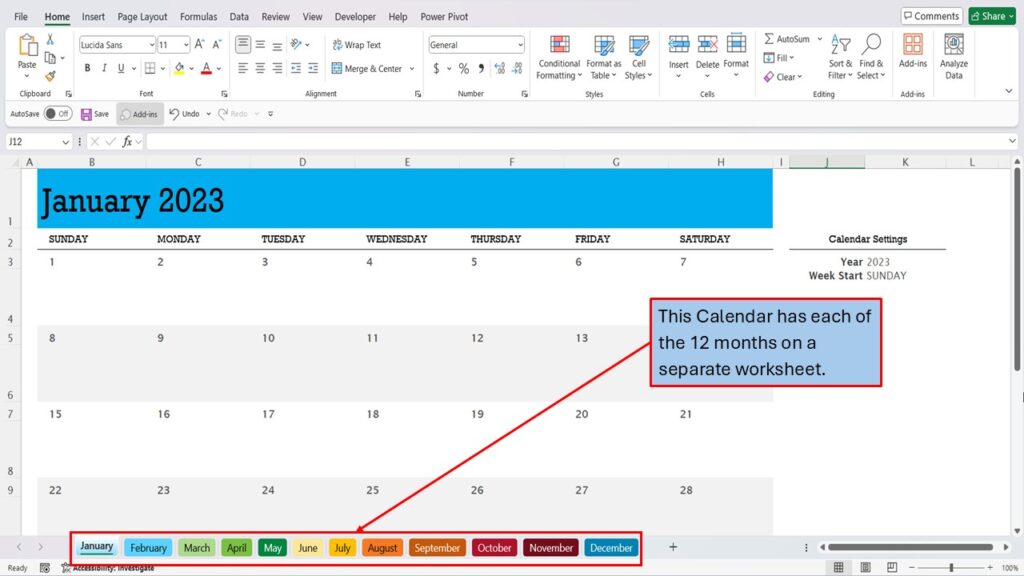
This Calendar has each of the 12 months on a separate worksheet.
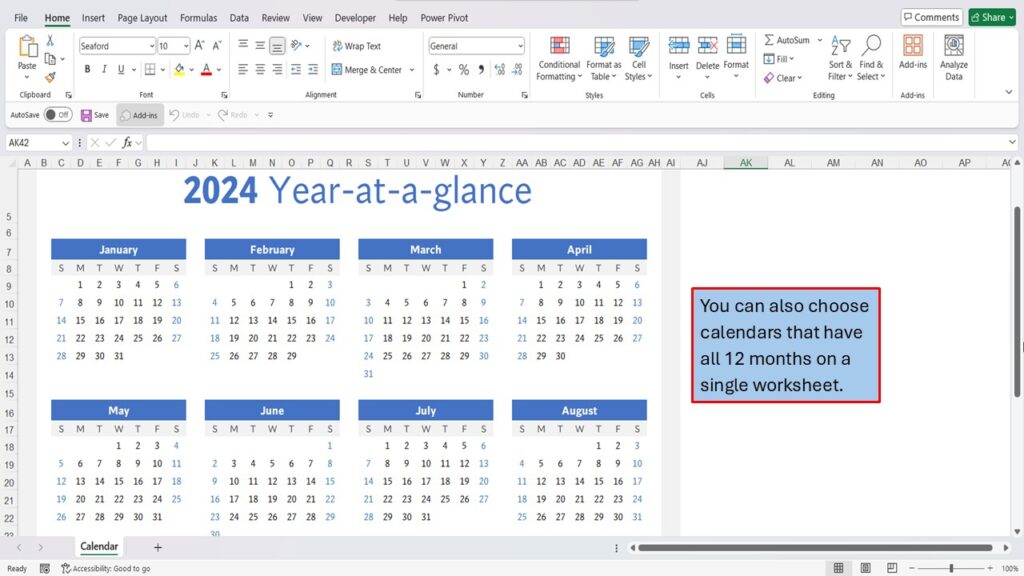
You can also choose calendars that have all 12 months on a single worksheet.
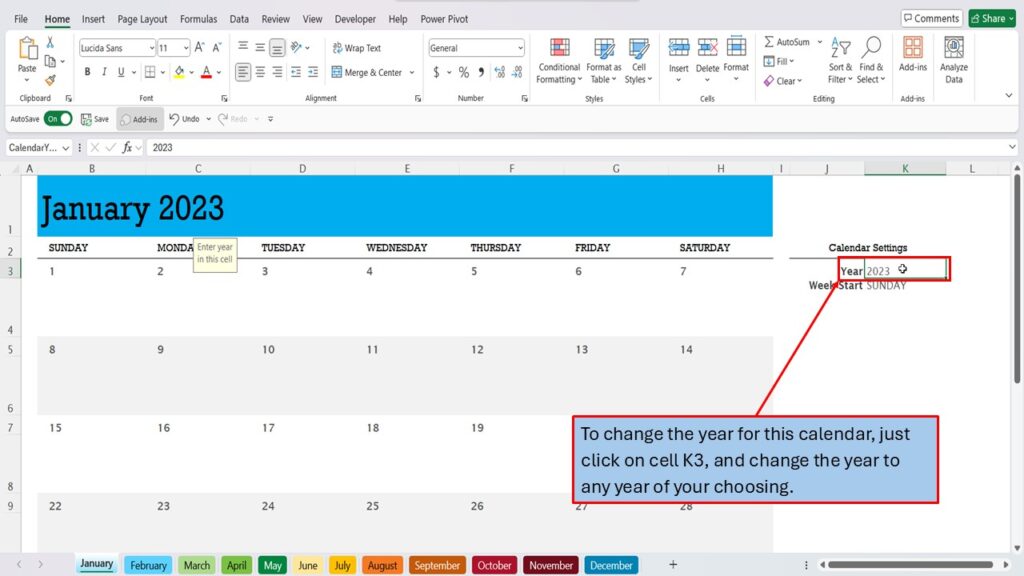
To change the year for this calendar, just click on cell K3, and change the year to any year of your choosing.
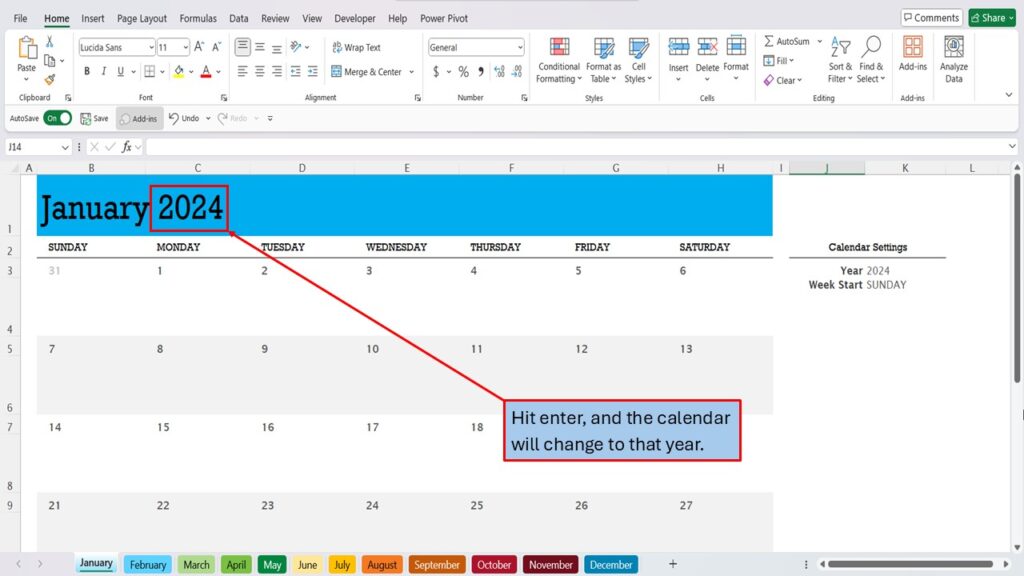
Hit enter, and the calendar will change to that year.
Need More Help?
Video Tutorial
PDF Download