
Last updated: June 23, 2026
Quick Answer: To create a dropdown menu in Excel, select your target cell, go to Data > Data Validation, choose List from the Allow menu, then type your items or select a cell range as the source. Click OK and a dropdown arrow appears in that cell. The whole process takes under two minutes.
Key Takeaways
- Excel’s Data Validation tool is the built-in feature used to create dropdown menus (also called drop-down lists).
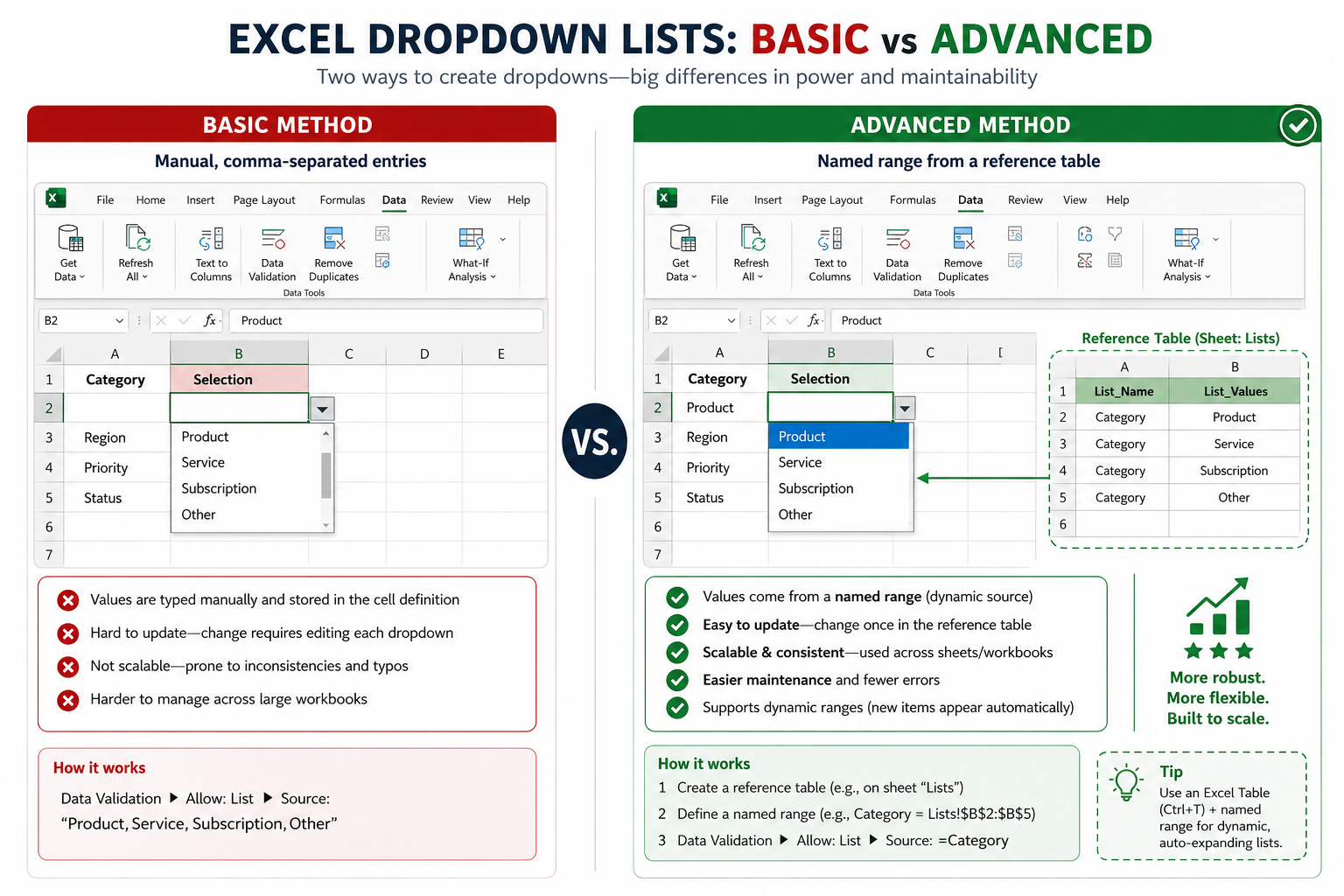
- You can source list items three ways: typing them manually, referencing a cell range, or using a named range.
- Dropdown menus reduce data entry errors and keep spreadsheets consistent — ideal for forms, budgets, trackers, and shared files.
- You can add an input message and an error alert to guide users when they interact with the cell.
- Named ranges make dropdown lists easier to manage, especially when the list grows or changes.
- Dropdown menus work in Excel for Microsoft 365, Excel 2019, Excel 2021, and Excel for the web.
- You can copy a dropdown cell to apply the same validation to multiple cells at once.
- Dependent (cascading) dropdowns are possible using named ranges and the INDIRECT function.
What Is a Dropdown Menu in Excel and Why Use One?
A dropdown menu in Excel is a cell that shows a clickable arrow, letting users pick from a pre-set list instead of typing freehand. It’s created using Excel’s Data Validation feature, which controls what data a cell will accept [2].
Why bother? Three strong reasons:
- Consistency: Everyone picks from the same options, so “New York,” “new york,” and “NY” don’t all end up in the same column.
- Speed: Clicking a choice is faster than typing, especially for repeated entries.
- Error prevention: Invalid entries get blocked before they cause formula errors downstream.
Dropdown menus are especially useful in shared workbooks, data entry forms, budget templates, and project trackers. If you’re building something like a monthly food budget template or a weekly timesheet, dropdowns keep the data clean from the start.
How To Create a Dropdown Menu in Excel: The Basic Method
The fastest way to create a dropdown menu in Excel is through Data > Data Validation. This works in all modern versions of Excel, including Microsoft 365 [2].
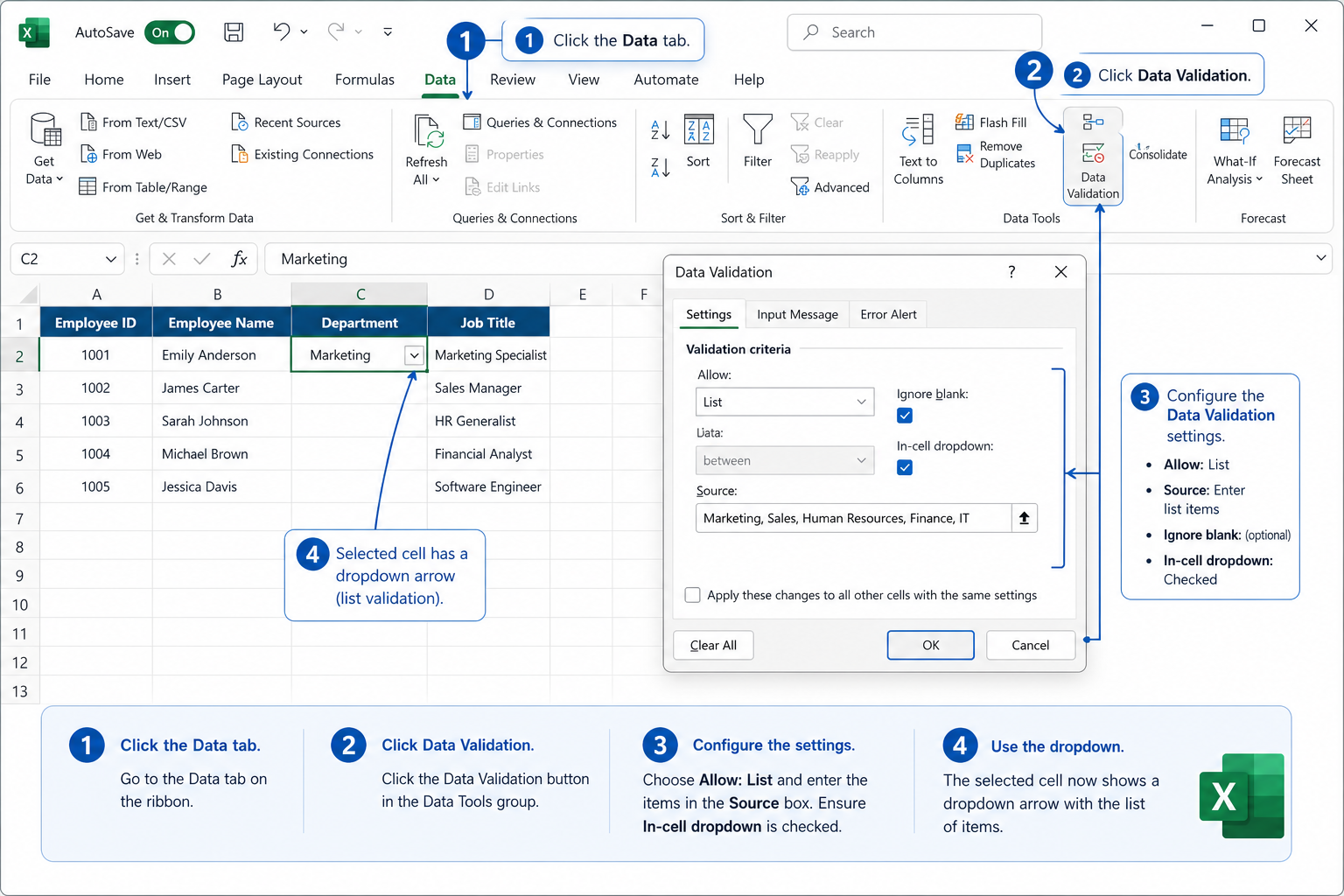
Step-by-step instructions
- Select the cell (or cells) where you want the dropdown to appear.
- Click the Data tab on the ribbon.
- Click Data Validation in the Data Tools group. A dialog box opens.
- Under the Settings tab, click the Allow dropdown and choose List.
- In the Source field, type your list items separated by commas — for example:
Yes,No,Maybe— OR click the small arrow icon and select a range of cells that contains your list. - Make sure In-cell dropdown is checked (it is by default).
- Click OK.
That’s it. A small dropdown arrow now appears on the right side of the cell. Click it to see your list [2][5].
Common mistake: Typing spaces around commas in the source field (e.g.,
Yes, No, Maybe) will include those spaces in the list items. TypeYes,No,Maybewith no spaces unless you want them.
Three Ways To Set Up Your Dropdown List Source
The source field in Data Validation accepts input in three formats. Each suits a different situation.
| Method | Best For | Example Source |
|---|---|---|
| Manual entry | Short, fixed lists that won’t change | Small,Medium,Large |
| Cell range | Lists stored on a sheet that may grow | =$A$2:$A$10 |
| Named range | Large or shared lists used across sheets | =StatusOptions |
Choose a cell range if your list items are already in a column on your sheet and you might add more items later. Excel will include any new entries you add within the range.
Choose a named range if you want to reference the same list from multiple sheets or keep the source data on a separate “lookup” tab. Named ranges also make formulas easier to read.
To create a named range: select your list cells, click the Name Box (top-left, where the cell address shows), type a name like StatusOptions, and press Enter. Then use =StatusOptions as the source in Data Validation [2].
How To Add an Input Message and Error Alert
Beyond the list itself, Data Validation lets you add two helpful extras that improve the user experience.
Input Message (the “tooltip” that appears when someone clicks the cell):
- In the Data Validation dialog, click the Input Message tab.
- Check Show input message when cell is selected.
- Add a title and message, such as: “Please select a status from the list.”
Error Alert (what happens if someone types something not on the list):
- Click the Error Alert tab.
- Choose a style: Stop (blocks invalid entries), Warning (warns but allows), or Information (notifies but allows).
- Add a title and error message.
For most shared forms, Stop is the right choice. It prevents bad data from getting in at all [2][5].
How To Create a Dropdown Menu in Excel Using a Named Range
Named ranges are the most flexible way to manage dropdown lists, especially in larger workbooks. Here’s the full process [2][4]:
- Set up your list on a separate sheet (e.g., a sheet named “Lists”). Put each item in its own cell in a column.
- Select those cells, then click the Name Box and type a descriptive name (e.g.,
Departments). Press Enter. - Go to your main sheet and select the cell where you want the dropdown.
- Open Data > Data Validation > Settings.
- Set Allow to List and in the Source field type
=Departments. - Click OK.
Now if you add a new department to the list sheet, the dropdown updates automatically — as long as your named range covers the new row. To handle dynamic lists that grow, define the named range using an OFFSET or TABLE formula, or simply convert the list to an Excel Table first (Ctrl+T), which expands automatically.
How To Copy a Dropdown to Multiple Cells
Creating a dropdown in one cell and copying it to others is straightforward.
- Copy and paste: Select the dropdown cell, press Ctrl+C, select the target cells, then press Ctrl+V. This copies the Data Validation rule along with any cell content, so use Paste Special > Validation only (Alt+E+S+N) if you want just the dropdown rule without overwriting existing data.
- Fill down: Select the dropdown cell plus the cells below it, then press Ctrl+D to fill down.
- Apply during setup: Before opening Data Validation, select the entire range of cells first (e.g., B2:B50). The dropdown rule applies to all selected cells at once [5].
For more keyboard efficiency while working in Excel, the 50 time-saving keyboard shortcuts guide covers the paste special shortcuts and more.
Advanced: Dependent (Cascading) Dropdown Menus
A dependent dropdown changes its options based on what was selected in another cell. For example, choosing “Fruit” in column A shows only fruit options in column B.
Here’s the basic approach:
- Create separate named ranges for each category (e.g.,
Fruit= apples, bananas, mango;Vegetable= carrot, spinach, broccoli). - In the first dropdown cell (A2), create a standard dropdown listing your categories:
Fruit,Vegetable. - In the dependent cell (B2), open Data Validation and set the source to
=INDIRECT(A2).
When A2 shows “Fruit,” the INDIRECT function looks up the named range called “Fruit” and uses it as the source for B2’s dropdown [4][10].
Edge case: If the category name in A2 contains spaces (e.g., “Fresh Fruit”), the named range name must match exactly — but Excel named ranges can’t contain spaces. Workaround: use underscores in the named range (
Fresh_Fruit) and a helper formula to replace spaces with underscores before passing to INDIRECT.
How To Edit or Remove a Dropdown Menu
To edit the list: Select the dropdown cell, go to Data > Data Validation, and change the source or items in the Settings tab. Click OK to apply.
To remove the dropdown entirely: Select the cell, open Data Validation, and click the Clear All button at the bottom of the dialog. This removes the validation rule but keeps the cell content.
To find all dropdown cells in a sheet: Press Ctrl+G (Go To), click Special, select Data Validation, and choose All. Excel highlights every cell with a validation rule, making it easy to audit a complex workbook [5].
Troubleshooting Common Dropdown Problems
| Problem | Likely Cause | Fix |
|---|---|---|
| Dropdown arrow not visible | “In-cell dropdown” unchecked | Re-open Data Validation and check the box |
| List shows blank items | Source range includes empty cells | Tighten the range to only filled cells |
| INDIRECT not working | Named range name doesn’t match cell value | Check spelling and spaces in both places |
| Can’t find Data Validation | Sheet is protected | Unprotect the sheet first (Review > Unprotect Sheet) |
| Dropdown missing after copy | Paste replaced validation | Use Paste Special > Validation only |
If you’re new to Excel and want a broader foundation before tackling dropdowns, the step-by-step guide for beginners is a good starting point.
FAQ
Does a dropdown menu work in Excel Online? Yes. Excel for the web supports Data Validation and dropdown lists. The steps are the same: Data tab > Data Validation > List. Some advanced options like dependent dropdowns with INDIRECT may have limited support depending on the browser version.
Can I add a dropdown to a protected sheet? Yes, but you need to unlock the specific cells before protecting the sheet. Select the cells, go to Format Cells > Protection, uncheck “Locked,” then protect the sheet. Users can then use the dropdown without being able to edit other cells.
How many items can a dropdown list hold? Excel doesn’t publish a hard cap on list items, but very long lists become impractical to scroll through. For lists over 30–40 items, consider using a searchable approach or breaking the list into categories with dependent dropdowns.
Can I use a dropdown list with conditional formatting? Absolutely. Select the dropdown cell, go to Home > Conditional Formatting, and set rules based on the cell’s value. For example, color the cell red if “Rejected” is selected and green if “Approved.” See the guide on removing conditional formatting if you need to undo rules later.
Will the dropdown list update automatically if I add items to the source range? Only if the source is an Excel Table or a dynamic named range. A standard fixed range (e.g., $A$2:$A$10) won’t pick up items added outside that range. Convert your list to a Table (Ctrl+T) and reference the Table column as the source for automatic updates.
Can I create a dropdown in Excel on a Mac? Yes. The process is identical on Mac: Data tab > Data Validation > List. The keyboard shortcuts differ slightly, but the dialog and options are the same.
What’s the difference between a dropdown list and a combo box in Excel? A Data Validation dropdown restricts cell input to the list. A combo box (from the Developer tab Form Controls) is a separate object that floats over the sheet and can be linked to a cell. For most users, Data Validation is simpler and sufficient.
Conclusion
Creating a dropdown menu in Excel is one of those skills that pays off immediately. It takes less than two minutes to set up, and it prevents the kind of messy, inconsistent data that causes headaches later. Start with the basic method — Data > Data Validation > List — and type a few items to see it in action. Once that clicks, move on to named ranges for lists that need to stay flexible, and try the INDIRECT trick for dependent dropdowns when your forms get more complex.
Actionable next steps:
- Open any existing workbook and add a dropdown to one column you currently type manually.
- Move your list items to a separate sheet and convert them to a named range.
- Add an error alert so collaborators can’t enter off-list values.
- Explore combining dropdowns with conditional formatting to color-code selections automatically.
- If you’re building templates with dropdowns, check out the ready-to-use grocery list template or the wedding budget template for real-world examples of dropdowns in action.
Dropdown menus are a small feature with a big impact on data quality. Once the habit forms, you’ll add them to almost every structured spreadsheet.
References
[2] Create a Drop-Down List – https://support.microsoft.com/en-us/office/create-a-drop-down-list-7693307a-59ef-400a-b769-c5402dce407b [4] Creating a Drop-Down Menu in Excel (PDF) – https://static1.squarespace.com/static/58d01deed482e982a9e679b5/t/626bddd58ec65809d44f6d1c/1651236310080/Creating+a+drop-down+menu+in+Excel.pdf [5] Create a Drop-Down List in Excel – https://www.wikihow.com/Create-a-Drop-Down-List-in-Excel [10] Instructions on Creating a Drop Down List – https://www.reddit.com/r/excel/comments/1ba64vs/instructions_on_creating_a_drop_down_list/