
Last updated: July 3, 2026
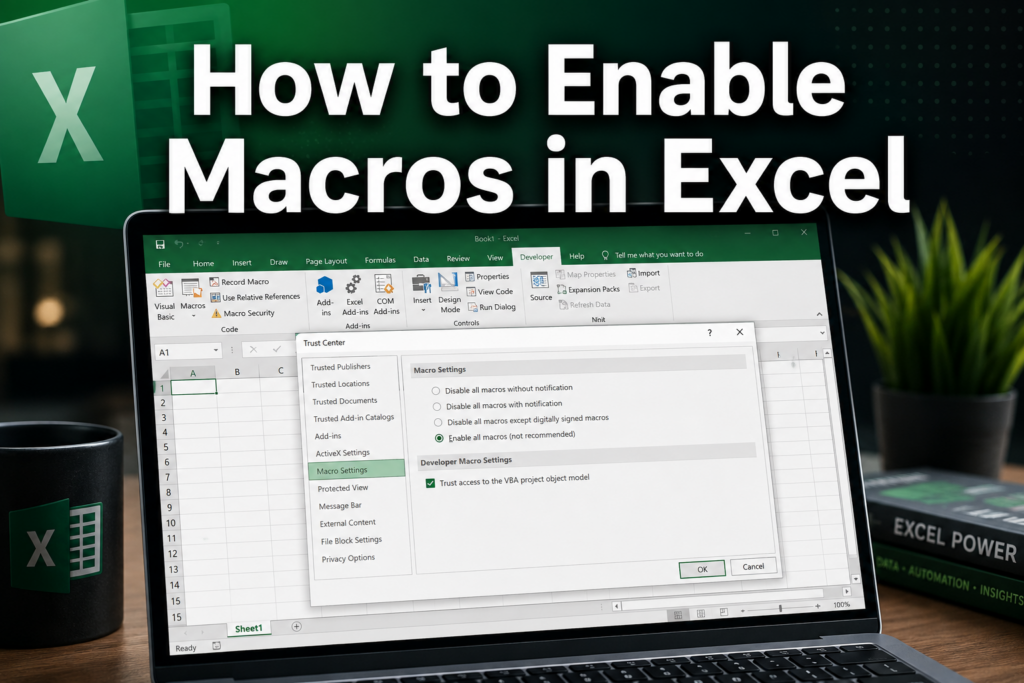
Quick Answer: To enable macros in Excel, open your workbook and click Enable Content in the yellow security bar that appears below the ribbon. For a permanent change, go to File > Options > Trust Center > Trust Center Settings > Macro Settings and choose your preferred option. Excel disables macros by default to protect users from potentially harmful code. [1]
Key Takeaways
- Excel blocks macros by default, you must actively choose to enable them, either per file or globally.
- The safest method for most users is clicking Enable Content on a per-file basis when you trust the source.
- Never enable macros in files received from unknown senders; malicious macros can execute harmful code on your computer.
- On Mac, macro settings live under Excel > Preferences > Security & Privacy, not the Trust Center.
- Files downloaded from the internet may need to be “unblocked” in Windows file Properties before macros will run.
- You can add a folder as a Trusted Location so any file stored there runs macros automatically.
- The Developer tab must be visible to create and manage macros, it’s hidden by default.
- Greyed-out macro options usually mean your IT department has enforced a group policy.
What Are Macros in Excel and Why Would You Need Them?
A macro is a recorded set of actions or a VBA (Visual Basic for Applications) script that automates repetitive tasks in Excel. Instead of manually formatting 500 rows every Monday morning, a macro does it in seconds with a single click.
Common reasons people use macros:
- Automating repetitive formatting (fonts, colors, borders)
- Generating reports from raw data with one button press
- Running custom calculations that standard formulas can’t handle
- Importing and cleaning data from external sources automatically
If you’re just getting started with Excel, check out this step-by-step guide for beginners before diving into macros, it helps to know the basics first.
How to Enable Macros in Excel: The Quickest Method
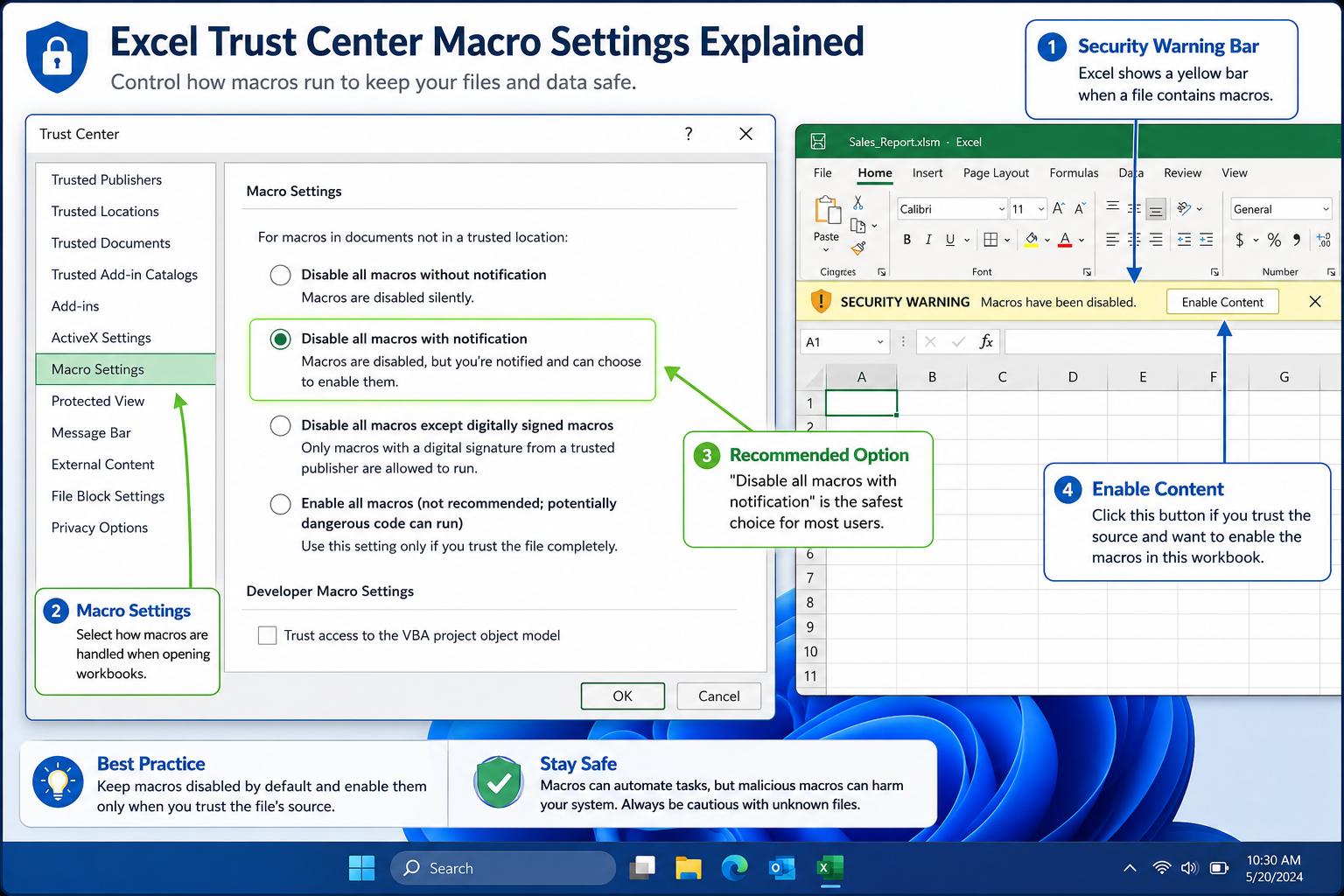
The fastest way to enable macros in Excel is to click the yellow “Enable Content” bar that appears just below the ribbon when you open a macro-enabled workbook (.xlsm file). This enables macros for that file only, without changing your global settings. [1]
Here’s what that looks like step by step:
- Open the Excel file (.xlsm or .xlsb format).
- Look for the yellow Security Warning bar below the ribbon.
- Click Enable Content.
- Excel marks the file as a Trusted Document, next time you open it, macros run automatically.
💡 Pro tip: If you don’t see the yellow bar, macros may already be enabled globally, or the file may not contain any macros at all.
How Do I Enable Macros in Excel 2021 (and Microsoft 365)?
The process for enabling macros in Excel 2021 and Microsoft 365 is identical. Both versions use the Trust Center, and the steps below apply to both. [2]
To change macro settings globally:
- Click File → Options.
- Select Trust Center from the left panel.
- Click Trust Center Settings.
- Choose Macro Settings from the left menu.
- Select one of the four options (see table below).
- Click OK twice to save.
| Setting | What It Does | Best For |
|---|---|---|
| Disable all macros without notification | Silently blocks all macros | High-security environments |
| Disable all macros with notification ✅ | Blocks macros but shows the yellow bar | Most users (recommended default) |
| Disable all macros except digitally signed | Only runs macros with a valid digital signature | Corporate/enterprise users |
| Enable all macros (not recommended) | Runs all macros without any prompt | Developers in isolated environments only |
Is It Safe to Enable Macros in Excel?
Enabling macros is safe when you trust the file’s source, but it carries real risk with files from unknown senders. Macros can execute code that deletes files, steals data, or installs malware. Microsoft disables them by default for exactly this reason. [1]
Safe situations to enable macros:
- Files you created yourself
- Files from a verified colleague sent through a secure channel
- Files stored in a company-managed Trusted Location
Never enable macros if:
- The file arrived via unexpected email
- The sender is asking you to “enable content to see the document”
- The file came from a random website download
⚠️ Security note: Social engineering attacks often use Excel files with macros as the delivery method for malware. When in doubt, don’t enable.
How to Enable Macros in Excel on Mac
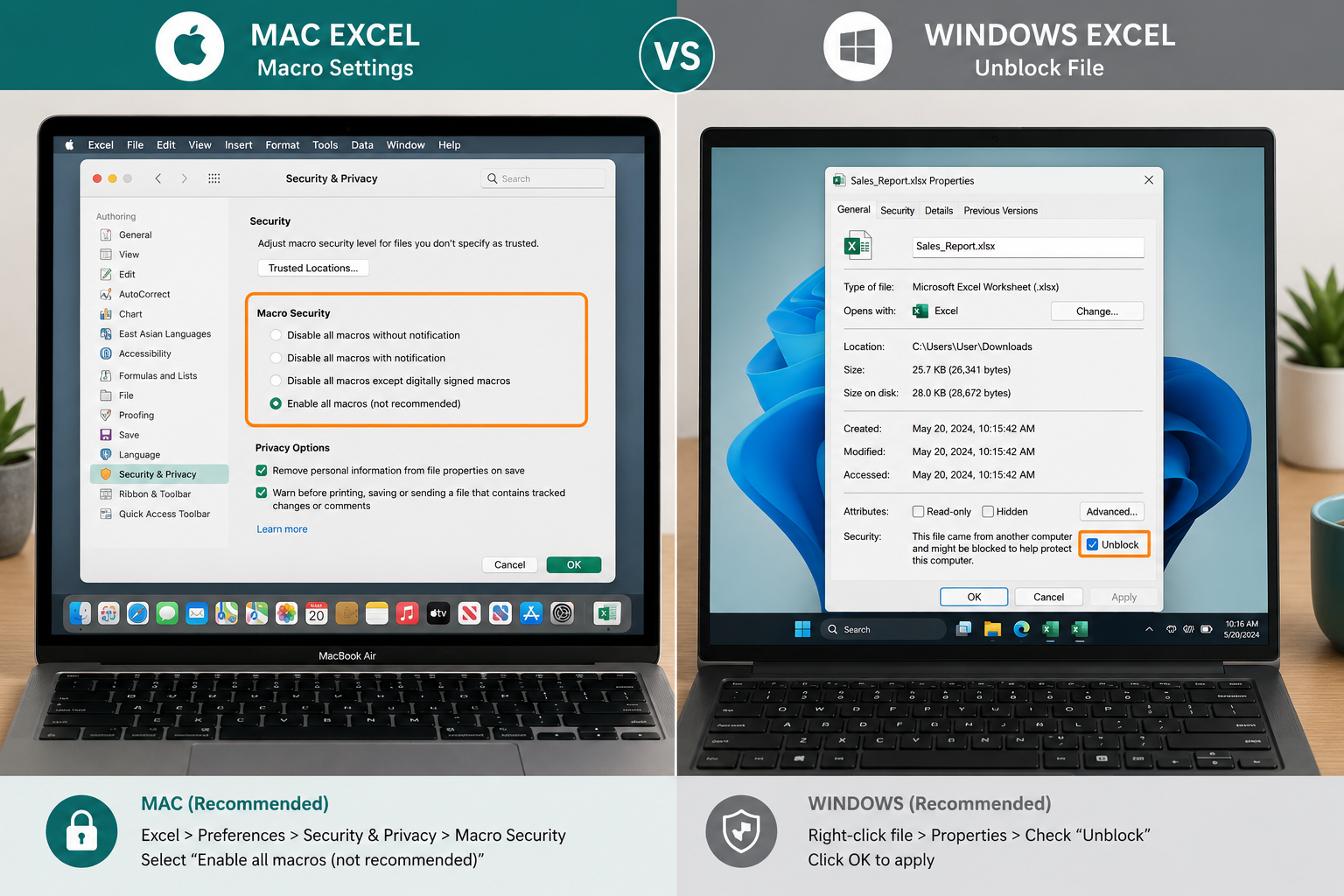
On a Mac, the macro settings are found under Excel Preferences rather than the Trust Center. The steps differ slightly from Windows but the outcome is the same. [3]
Steps for Mac (Excel for Microsoft 365 or Excel 2021):
- Open Excel and click Excel in the top menu bar.
- Select Preferences.
- Click Security & Privacy.
- Under “Macro Security,” choose your preferred setting.
- Close the Preferences window, changes apply immediately.
To enable macros for a single file on Mac, you’ll still see a security warning bar when opening an .xlsm file. Click Enable Macros in that bar.
Can I Enable Macros for Just One File Instead of All Files?
Yes, and this is the recommended approach for most users. When you click “Enable Content” on the yellow security bar, Excel enables macros only for that specific file and remembers your choice. [1]
Alternatively, you can add a specific folder as a Trusted Location:
- Go to File > Options > Trust Center > Trust Center Settings > Trusted Locations.
- Click Add new location.
- Browse to the folder where your trusted macro files are stored.
- Click OK.
Any Excel file saved in that folder will run macros automatically, without prompts. This is a cleaner solution than enabling all macros globally.
What’s the Difference Between Enabling Macros and Trusting a Publisher?
Enabling macros applies to a single file or session; trusting a publisher applies to all files signed by that developer permanently. [2]
- Enable Content (per file): Marks one workbook as trusted. Macros run every time you open that file.
- Trusted Publisher: If a macro developer has a digital certificate, you can add them as a trusted publisher. All their signed files will run macros without prompts, useful in enterprise settings where IT distributes macro-enabled tools.
To trust a publisher, go to Trust Center Settings > Trusted Publishers and add their certificate. Most everyday users won’t need this, per-file trust is sufficient.
How Do I Know If a File Has Macros in It?
The clearest sign is the file extension: .xlsm (macro-enabled workbook) or .xlsb (binary workbook) both support macros. A standard .xlsx file cannot run macros. [4]
Other indicators:
- A yellow Security Warning bar appears when you open the file.
- The file prompts you to “Enable Content” on opening.
- You can check via Developer > Macros, if the list shows macro names, they exist.
If you don’t see the Developer tab, right-click the ribbon, choose Customize the Ribbon, and check the Developer box.
What Happens If I Disable Macros in Excel?
If macros are disabled, any VBA code in the workbook simply won’t run. Buttons linked to macros won’t work, automated processes won’t trigger, and you may see error messages or blank results where macro output was expected. [1]
The workbook itself stays intact, disabling macros doesn’t delete them. You can re-enable macros at any time and everything will work again. For files you receive but don’t fully trust, disabling macros is the safest way to inspect the content first.
How to Enable Macros in Excel If the Option Is Greyed Out
Greyed-out macro settings almost always mean your organization’s IT policy is overriding your personal Trust Center settings. Group Policy can lock macro security to a specific level, and individual users can’t change it. [2]
What to do:
- Contact your IT department and explain which file you need macros for, they may whitelist it.
- Ask IT to add the file’s location to the organization’s Trusted Locations list.
- If you’re on a personal machine and the option is still greyed out, check whether you have admin rights. Some antivirus software also locks macro settings.
There’s no workaround that bypasses a Group Policy restriction without admin access, and attempting one is generally against company policy.
Macros Not Working After Enabling Them in Excel
If macros still don’t run after clicking Enable Content, the most common cause is that the file was downloaded from the internet and Windows has “blocked” it at the file system level. [4]
Fix for Windows:
- Close Excel.
- Right-click the Excel file in File Explorer.
- Select Properties.
- At the bottom of the General tab, check the Unblock checkbox.
- Click OK, then reopen the file.
Other things to check:
- Confirm the file is saved as .xlsm, not .xlsx (macros can’t run in .xlsx).
- Make sure the macro name doesn’t conflict with a built-in Excel function.
- Check that the VBA code itself doesn’t contain errors, open the VBA editor with Alt + F11 and look for red highlighted lines.
How to Enable Macros in Older Versions of Excel Like 2010
The Trust Center path is the same in Excel 2010, 2013, and 2016: File > Options > Trust Center > Trust Center Settings > Macro Settings. The interface looks slightly different but the four security options are identical. [2]
One key difference: Excel 2010 introduced the Protected View feature. Files opened in Protected View show a red bar, not yellow. You need to click Enable Editing first, then Enable Content for macros.
For very old versions (Excel 2003 or earlier), macro security was under Tools > Macro > Security, a much simpler dialog with just three levels: Low, Medium, High.
What’s the Security Risk of Enabling Macros From Unknown Sources?
Macros from unknown sources can execute any code your Windows user account has permission to run, including downloading files, modifying the registry, or sending data to external servers. [1]
This attack vector is called a “macro-based malware” attack and has been widely used in phishing campaigns. Microsoft has progressively tightened macro defaults over the years, and as of 2022, Excel began blocking macros in files downloaded from the internet by default, even if your Trust Center setting says “enable with notification.”
Best practices:
- Only open macro files from sources you can verify independently.
- Use digitally signed macros in enterprise environments.
- Scan downloaded .xlsm files with antivirus software before opening.
- Never enable macros just because a document instructs you to.
How Do I Create and Run a Macro After Enabling Them?
Once macros are enabled, you can record one without writing any code. Go to Developer > Record Macro, perform your actions, then click Stop Recording. To run it later, go to Developer > Macros, select the macro name, and click Run. [3]
Quick steps to record your first macro:
- Enable the Developer tab (right-click ribbon > Customize the Ribbon > check Developer).
- Click Developer > Record Macro.
- Give it a name (no spaces) and optionally assign a shortcut key.
- Perform the actions you want to automate.
- Click Stop Recording.
- To run it: Developer > Macros > [your macro name] > Run.
You can also assign macros to buttons on the Quick Access Toolbar for one-click access. Learning to use macros pairs well with other Excel productivity skills, for example, combining macros with drop-down lists can make data entry forms much more powerful.
For more Excel productivity tips, the Excel Shortcuts Simplified guide is a great companion resource.
Can I Set Excel to Always Allow Macros by Default?
Yes, selecting “Enable all macros” in Trust Center Macro Settings will run all macros without any prompt. Microsoft explicitly marks this as “not recommended” because it removes all protection against malicious files. [2]
A safer alternative that achieves a similar result:
- Use Trusted Locations for folders containing your own macro files.
- Use Trusted Documents by clicking Enable Content once, Excel remembers it.
- For work environments, ask IT to deploy a Group Policy that trusts specific signed publishers.
The “always allow” approach makes sense only if you work in a fully isolated environment (no internet, no external files) or you’re a developer testing your own macros constantly.
FAQ
Q: What file format do I need to save a macro-enabled workbook? Save as .xlsm (Excel Macro-Enabled Workbook). If you save as .xlsx, Excel will strip out all macros.
Q: Why does the yellow Enable Content bar not appear? Either macros are already globally enabled, the file has no macros, or your organization’s policy silently blocks macros without showing the notification bar.
Q: Can macros run automatically when I open a file?
Yes, a macro named Auto_Open or placed in the Workbook_Open event will run on file open, provided macros are enabled.
Q: Does enabling macros affect all Excel files or just the current one? Clicking “Enable Content” affects only the current file. Changing Trust Center settings affects all files going forward.
Q: Can I password-protect my macros? Yes. In the VBA editor (Alt + F11), go to Tools > VBAProject Properties > Protection tab and set a password.
Q: What’s the difference between .xlsm and .xlsb files? Both support macros. .xlsb is a binary format that opens faster and has smaller file sizes, but it’s less compatible with non-Microsoft tools.
Q: Why do macros work on my desktop but not on a colleague’s machine? Their macro security settings may be more restrictive, or the file may be blocked because it was received via email. Have them unblock the file in Properties first.
Q: Can I use macros in Excel Online (browser version)? No. Excel Online does not support VBA macros. You need the desktop app to create or run macros.
Conclusion
Knowing how to enable macros in Excel gives you access to one of the most powerful automation features in the entire Microsoft Office suite. The key is balancing convenience with security: use per-file trust for files you know, Trusted Locations for your own macro folders, and never click Enable Content on files from unknown sources.
Your next steps:
- Open an .xlsm file you trust and practice clicking Enable Content.
- Enable the Developer tab so you can start recording macros.
- Record a simple macro, even just auto-formatting a range, to see how it works.
- If you work in a team, talk to IT about setting up a Trusted Location on the shared drive.
For more Excel skills to pair with macros, explore how to insert formulas across an entire column, merge cells, or freeze columns to build more polished, automated workbooks. And if you ever need to access a locked sheet before running a macro, the guide on how to unprotect an Excel sheet has you covered.
References
[1] Enable Or Disable Macros In Microsoft 365 Files – https://support.microsoft.com/en-us/office/enable-or-disable-macros-in-microsoft-365-files-12b036fd-d140-4e74-b45e-16fed1a7e5c6?utm_source=openai
[2] Change Macro Security Settings In Excel – https://support.microsoft.com/en-us/excel/change-macro-security-settings-in-excel?utm_source=openai
[3] Run A Macro In Excel – https://support.microsoft.com/en-US/Excel/run-a-macro-in-excel?utm_source=openai
[4] Enable Excel Macros – https://excel-pratique.com/en/vba_tricks/enable-excel-macros?utm_source=openai