
Last updated: July 2, 2026
Quick Answer: To move a column in Excel, click the column header to select it, hover over the edge until you see a move cursor, then hold Shift and drag it to the new position. Release the mouse and the column drops in without overwriting anything. Alternatively, right-click the column header, choose Cut, right-click the destination column, and select Insert Cut Cells.
Key Takeaways
- Shift + drag is the fastest way to move a column without overwriting existing data
- Cut + Insert Cut Cells is the safest method for beginners and works on every Excel version
- Moving a column preserves formulas that reference that column’s cells — Excel updates references automatically
- You can move multiple adjacent columns at once by selecting them all before dragging
- On Mac, the same Shift + drag method works identically
- Google Sheets uses a simpler drag-and-drop (no Shift key needed)
- If a column won’t move, check for merged cells, protected sheets, or an active filter
- Ctrl + Z undoes any column move instantly
How to Move Columns in Excel: The Shift + Drag Method
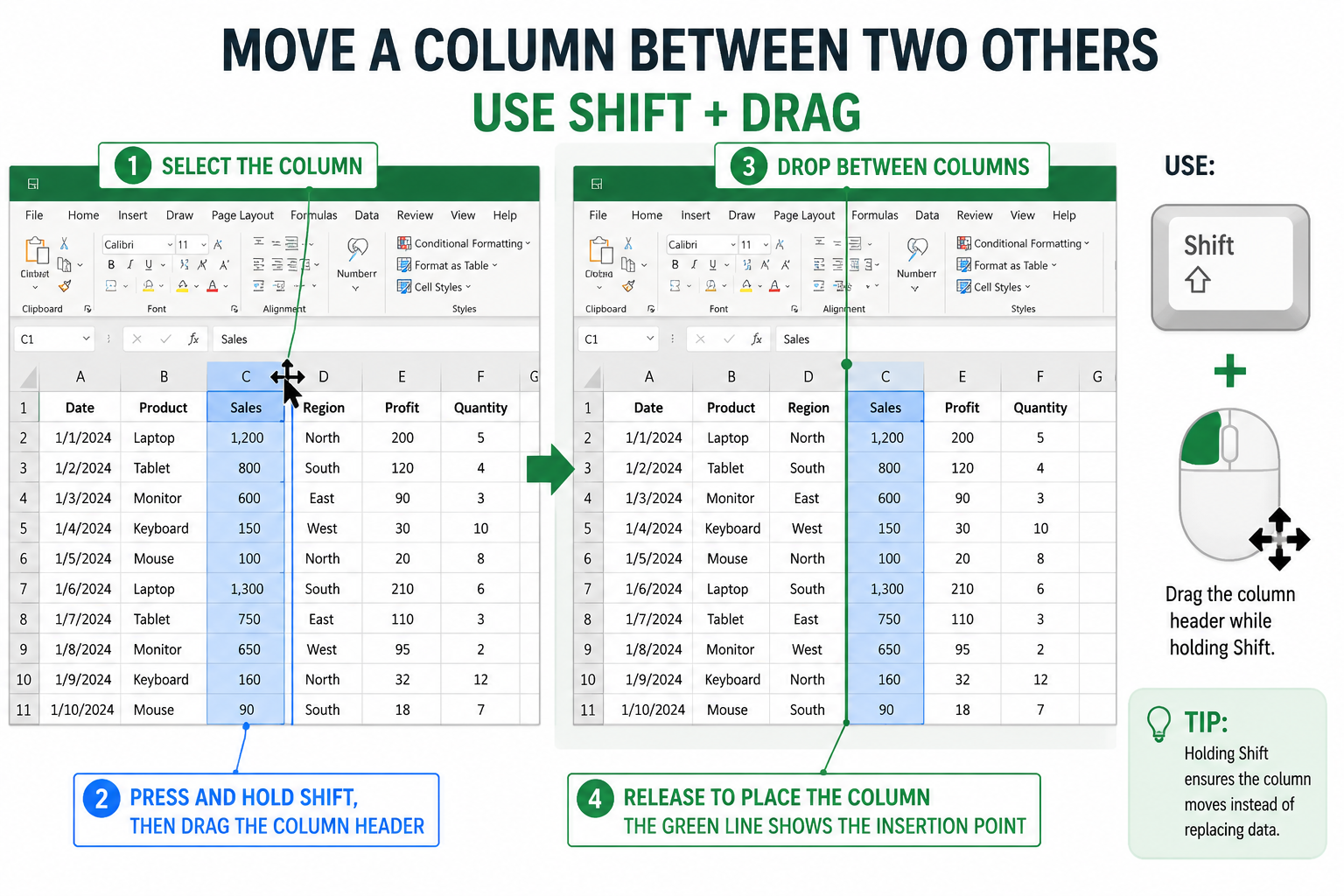
The fastest way to move a column in Excel is to select it, then Shift + drag it to a new location. This single technique handles most everyday column-rearranging tasks in seconds [1].
Step-by-step:
- Click the column header letter (e.g., “B”) to select the entire column
- Hover your mouse over the edge of the selected column until the cursor changes to a four-sided arrow (✛)
- Hold down the Shift key on your keyboard
- Click and drag the column left or right to its new position — a green insertion line shows where it will land
- Release the mouse button, then release Shift
💡 Why hold Shift? Without it, Excel tries to overwrite the destination column with your data. Holding Shift inserts the column between existing columns instead [1][5].
Common mistake: Letting go of Shift before releasing the mouse. Always release the mouse first, then Shift.
Can You Drag and Drop Columns in Excel?
Yes, you can drag and drop columns in Excel, but the standard drag (without Shift) will replace whatever is in the destination column. Always use Shift + drag to insert the column without data loss [1][2].
If you just want to copy a column to a new spot (keeping the original), hold Ctrl + Shift while dragging instead of Shift alone. The original column stays put and a copy lands at the destination.
How to Cut and Paste Columns in Excel
Cut and paste is the most reliable method for moving columns, especially if dragging feels tricky. It works in every version of Excel and never overwrites existing data when done correctly [8].
Steps:
- Click the column header to select the whole column
- Right-click and choose Cut (or press Ctrl + X)
- Right-click the column to the right of where you want the column to land
- Choose Insert Cut Cells (not “Paste” — that would overwrite)
- Excel inserts the cut column and shifts everything else over
Choose this method if: you’re moving a column across a large spreadsheet where drag precision is difficult, or if you’re new to Excel and want a predictable result. For more foundational Excel skills, the complete beginner-to-pro Excel guide covers this and much more.
How to Move Multiple Columns at Once in Excel
Excel lets you move several adjacent columns in a single action. You cannot move non-adjacent columns (e.g., columns B and D but not C) in one move — they must be next to each other [6][9].
Steps for moving multiple columns:
- Click the first column header, then hold Shift and click the last column header to select the range
- Hover over the edge of the selection until the move cursor appears
- Hold Shift and drag the entire group to the new position
- Release the mouse, then Shift
Edge case: If you try to select non-adjacent columns (using Ctrl + click), Excel won’t allow the move and will show an error. You’d need to move them one at a time or rearrange them into adjacent positions first.
Need to resize your columns after moving them? Check out this guide on how to expand multiple columns in Excel at once.
What’s the Difference Between Moving and Copying Columns in Excel?
Moving a column removes it from its original location and places it somewhere new. Copying a column leaves the original in place and creates a duplicate at the destination [1].
| Action | Original Column | Destination Column | Keyboard Modifier |
|---|---|---|---|
| Move (Shift + drag) | Removed | Inserted | Shift |
| Copy (Ctrl + Shift + drag) | Stays | New copy inserted | Ctrl + Shift |
| Cut + Insert Cut Cells | Removed | Inserted | None (menu) |
| Copy + Paste | Stays | Overwrites destination | None (menu) |
Choose move if you’re reorganizing your spreadsheet layout. Choose copy if you need the same data in two places, for example, when building a summary sheet alongside a detailed data sheet.
How to Move Columns in Excel Without Losing Data
Moving columns in Excel does not delete data — as long as you use Shift + drag or Cut + Insert Cut Cells. The risk of data loss only happens if you paste over an existing column without inserting [2][7].
To guarantee no data loss:
- Always use Insert Cut Cells from the right-click menu, not plain Paste
- Use Shift + drag rather than plain drag
- Save a backup copy of your file before major reorganizations (File > Save As)
- Press Ctrl + Z immediately if something looks wrong — Excel’s undo is reliable
How to Move Columns in Excel on Mac
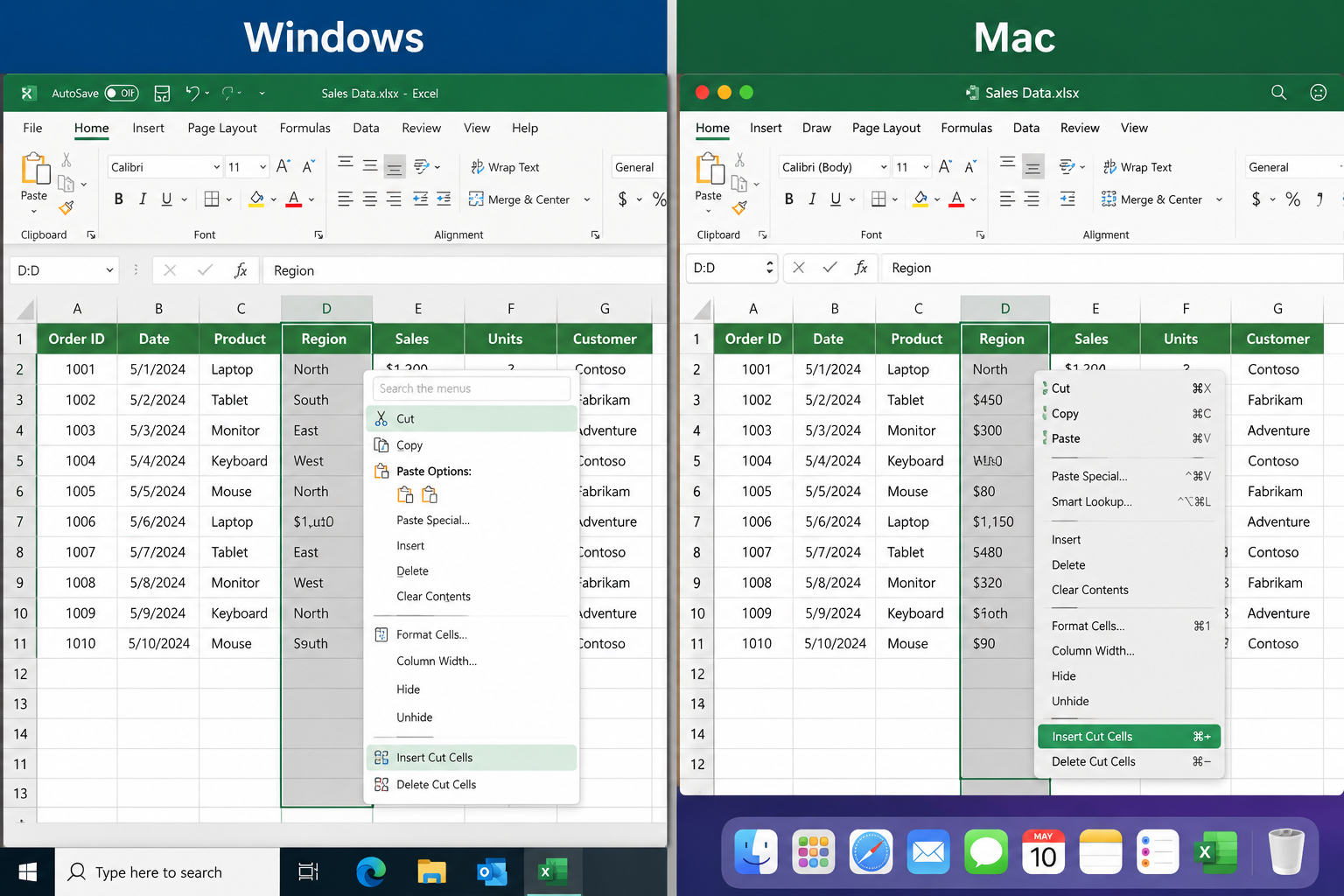
On a Mac, moving columns in Excel works exactly the same way as on Windows. Select the column header, hover over the edge for the move cursor, hold Shift, and drag to the new position [4][8].
Mac-specific notes:
- The move cursor looks the same on macOS as on Windows
- Use Command + X to cut (instead of Ctrl + X on Windows)
- Right-click menus on Mac show the same Insert Cut Cells option
- If you’re using a trackpad, a firm click-and-drag works — just keep Shift held throughout
Keyboard shortcut on Mac: Command + X to cut, then right-click the destination column header and choose Insert Cut Cells.
Why Won’t My Columns Move in Excel?
If a column refuses to move, one of four things is usually the cause [6][9]:
- Sheet is protected — Go to Review > Unprotect Sheet. If it’s password-protected, you’ll need the password.
- Merged cells — Merged cells block column moves. Select the area, go to Home > Merge & Center > Unmerge Cells, then try again.
- Active filter — Clear any active filters (Data > Clear) before moving columns.
- Table formatting — Columns inside an Excel Table (Insert > Table) behave differently. You can still drag them, but the Shift + drag method may not work as expected. Cut + Insert Cut Cells is more reliable inside Tables.
If you’re working with a protected sheet to lock specific cells, this guide on locking cells in Excel explains how protection settings work.
How to Move Columns in Excel Without Affecting Formulas
Excel automatically updates cell references when you move a column, so formulas that point to that column’s cells will continue to work correctly [1][2].
Example: If column B contains sales data and column D has a formula =SUM(B2:B10), moving column B to column C will automatically update that formula to =SUM(C2:C10).
When formulas can break:
- If you use hardcoded cell references in another sheet that aren’t linked dynamically
- If you move a column to a different workbook (external references may not update)
- If you use named ranges that reference a specific column by address — check Name Manager (Formulas > Name Manager) after moving
Best practice: After moving any column that’s referenced by formulas, scan the sheet for #REF! errors. If you spot any, press Ctrl + Z to undo and investigate before proceeding.
How to Move Columns in Google Sheets vs Excel
Google Sheets makes column moving slightly simpler — no Shift key required. Just click the column header and drag it directly to the new position. Google Sheets inserts it automatically without overwriting [4].
| Feature | Excel | Google Sheets |
|---|---|---|
| Drag to move | Shift + drag required | Plain drag works |
| Cut + Insert | Right-click > Insert Cut Cells | Right-click > Paste > Insert columns |
| Formula updates | Automatic | Automatic |
| Multiple columns | Shift-select, then Shift + drag | Shift-select, then plain drag |
| Undo | Ctrl + Z | Ctrl + Z |
Bottom line: Google Sheets is more forgiving for drag-and-drop. Excel requires the Shift key to avoid overwriting, but both platforms update formulas automatically after a move.
How to Undo Moving Columns in Excel
Press Ctrl + Z (Windows) or Command + Z (Mac) immediately after moving a column to undo it. Excel supports multiple undo steps, so you can press it repeatedly to go back further [8].
If you’ve saved the file after making the move, Ctrl + Z still works within the current session. Once you close and reopen the file, the undo history is cleared — which is another reason to save a backup before large reorganizations.
How to Move Columns in Excel to a Different Sheet
Moving a column to a different sheet requires a slightly different approach — cut and paste, not drag-and-drop (you can’t drag across sheet tabs) [6].
Steps:
- Select the column, right-click, and choose Cut
- Navigate to the destination sheet by clicking its tab at the bottom
- Right-click the column header where you want to insert it
- Choose Insert Cut Cells
Note: This removes the column from the original sheet. If you want it on both sheets, use Copy instead of Cut, then paste normally on the destination sheet.
Best Way to Reorganize Columns in an Excel Spreadsheet
For minor reordering (one or two columns), Shift + drag is the fastest method. For major reorganizations involving many columns, a combination of Cut + Insert Cut Cells and careful planning saves time and reduces errors [2][7][9].
Tips for large-scale column reorganization:
- Sketch the desired column order on paper or in a notes app before touching the spreadsheet
- Work from left to right — moving columns to the left is less disruptive to existing references
- Use freeze panes to keep header rows visible while you work across a wide sheet
- After reorganizing, use Ctrl + End to check the spreadsheet’s used range hasn’t expanded unexpectedly
- If your data has duplicates you want to clean up while reorganizing, see this guide on how to remove duplicates in Excel
For students learning Excel layout and data organization, the how to use Excel for students guide is a helpful companion resource.
FAQ
Q: Does moving a column delete the data? No. Moving a column relocates all its data to the new position. Nothing is deleted as long as you use Shift + drag or Insert Cut Cells.
Q: What’s the keyboard shortcut to move a column in Excel? There’s no single keyboard shortcut. The fastest keyboard-based method is Ctrl + X (cut), navigate to destination, right-click the column header, and choose Insert Cut Cells.
Q: Can I move a column between two existing columns without overwriting either? Yes. Use Shift + drag or Cut + Insert Cut Cells. Both methods insert the column between existing ones rather than replacing them.
Q: Will my formulas break when I move a column?
Usually no. Excel updates cell references automatically. Watch for #REF! errors after the move, which signal a reference that couldn’t be updated.
Q: Can I move a column in Excel on a phone or tablet? Yes, in the Excel mobile app. Tap the column header to select it, tap and hold, then drag it to the new position. The mobile app does not require a Shift key.
Q: How do I move a column to the very beginning of the spreadsheet? Select the column, Shift + drag it all the way to column A, and drop it to the left of the first column. Or use Cut + Insert Cut Cells, selecting column A as the destination.
Q: What happens if I drag a column without holding Shift? Excel will ask if you want to replace the contents of the destination column. If you click OK, the destination column’s data is overwritten. Press Ctrl + Z immediately if this happens by mistake.
Q: Can I move columns in a protected Excel sheet? Not unless the sheet protection allows it. Go to Review > Unprotect Sheet first, then move the column and re-protect if needed.
Conclusion
Knowing how to move columns in Excel is one of those skills that saves real time every week. The Shift + drag method handles most situations in a few seconds, while Cut + Insert Cut Cells gives a reliable fallback for any scenario where dragging isn’t practical. Both methods preserve your data and update formulas automatically.
Actionable next steps:
- Open any Excel spreadsheet and practice the Shift + drag technique on a test column
- Try the Cut + Insert Cut Cells method to get comfortable with both approaches
- If you’re reorganizing a large dataset, sketch the column order first and work left to right
- Use Ctrl + Z freely — Excel’s undo is your safety net
Once column moving feels natural, explore related skills like freezing the top row and first column to keep headers visible while navigating large sheets, or learn how to select the entire worksheet using shortcut keys for even faster navigation.
References
[1] Move Or Copy Cells Rows And Columns – https://support.microsoft.com/en-us/office/move-or-copy-cells-rows-and-columns-3ebbcafd-8566-42d8-8023-a2ec62746cfc [2] How To Move Columns In Excel – https://www.xelplus.com/how-to-move-columns-in-excel/ [4] How To Move Columns In Excel Easily Beginner Guide – https://www.arcade.software/guides/how-to-move-columns-in-excel-easily-beginner-guide [5] Move Columns – https://www.excel-easy.com/examples/move-columns.html [6] How To Move Columns And Rows In Excel – https://www.ionos.co.uk/digitalguide/online-marketing/online-sales/how-to-move-columns-and-rows-in-excel/ [7] Swap Excel Columns – https://www.ablebits.com/office-addins-blog/swap-excel-columns/ [8] Move Columns In Excel – https://www.wikihow.com/Move-Columns-in-Excel [9] Move Rows Columns Excel – https://www.goskills.com/Excel/Resources/Move-rows-columns-Excel