
Last updated: July 15, 2026
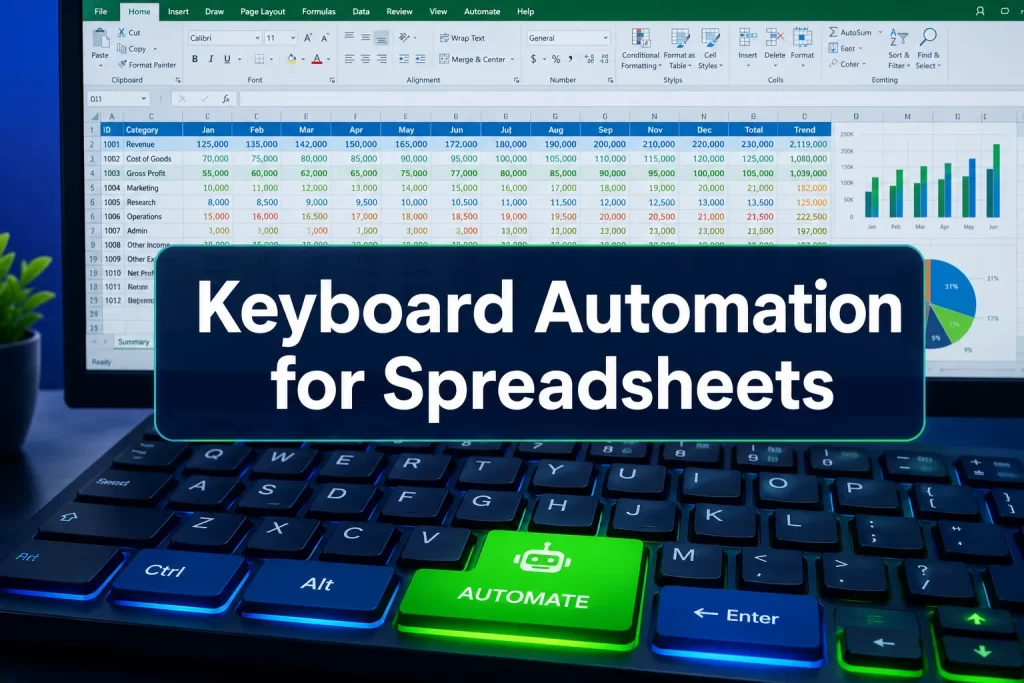
Quick Answer: Custom cursors and keyboard automation for faster spreadsheet work let power users navigate, select, and enter data in Excel and Google Sheets with far fewer mouse clicks. By combining built-in keyboard shortcuts with macro tools like AutoHotkey or Google Apps Script, spreadsheet users can cut repetitive task time dramatically, without violating app policies or breaking accessibility. The payoff is real: research shows keyboard macros can quadruple productivity on complex, repetitive tasks. [3]
Key Takeaways 🎯
- Custom cursors in spreadsheets refer to visual cursor changes and pointer behavior adjustments that speed up navigation and cell selection.
- Keyboard shortcuts alone can save hours per week for anyone who works in Excel or Google Sheets daily.
- Macro tools (Excel’s built-in macro recorder, AutoHotkey, Google Apps Script) automate repetitive sequences without violating platform terms of service.
- Keyboard-based input is measurably faster than mouse-based input for structured data tasks. [6]
- Both Windows and Mac users can benefit, though some tools and shortcut keys differ by platform.
- Most people can learn the core 20-30 shortcuts in under a week of daily practice.
- Common mistakes include overcomplicating macros early and ignoring accessibility needs.
- Third-party cursor tools (like custom cursor browser extensions) work in Google Sheets but don’t change spreadsheet logic, they only change pointer appearance.
What Are Custom Cursors in Excel and Google Sheets?
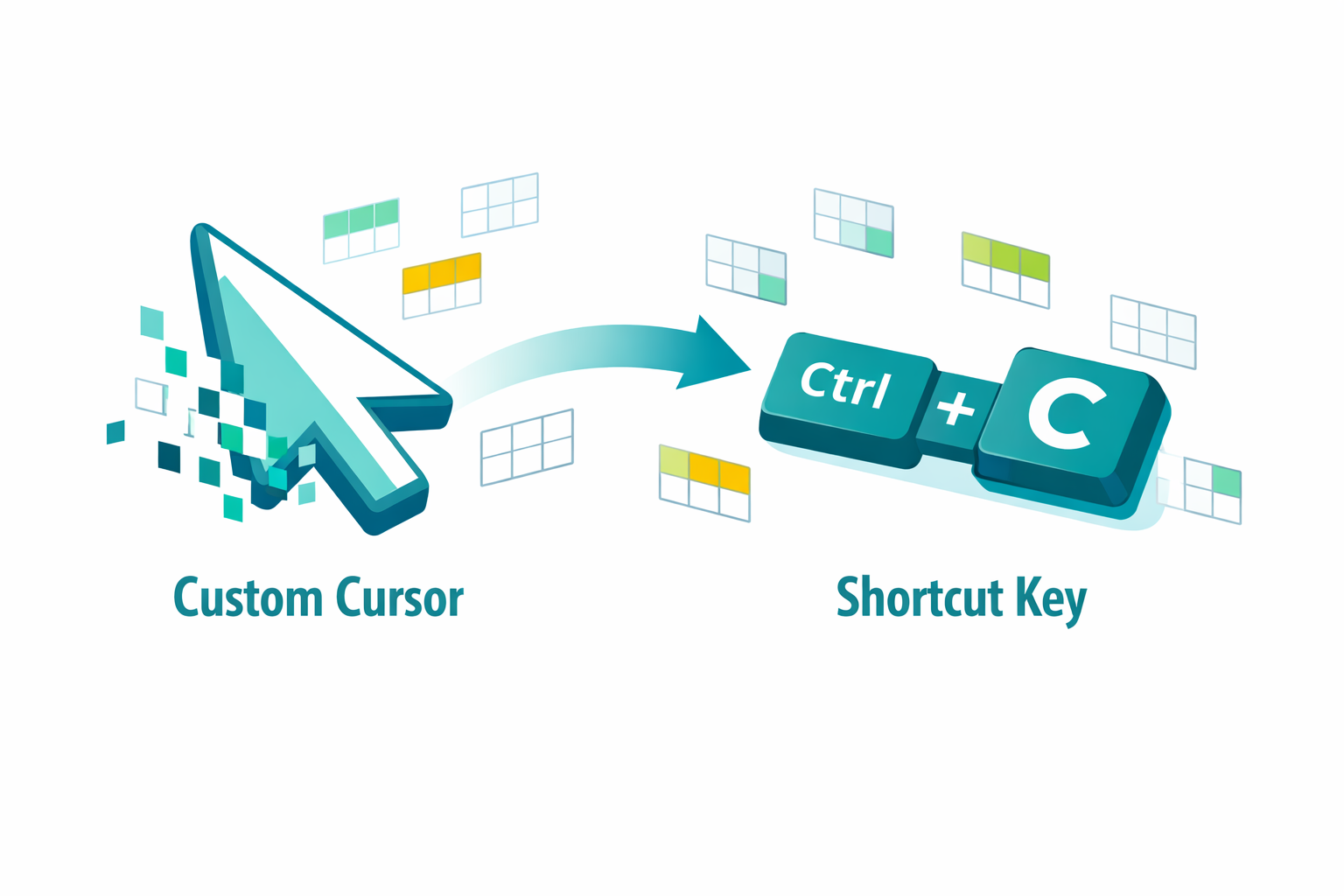
Custom cursors in spreadsheet apps are visual or behavioral changes to the mouse pointer that help users navigate cells more efficiently. In Excel, the cursor automatically changes shape depending on context, a thick white cross for selection, a thin black cross for fill-handle dragging, a four-arrow move cursor for repositioning ranges. These built-in cursor states are part of the app’s design, not add-ons.
For Google Sheets, the cursor behavior is browser-controlled. Users can install browser extensions (such as “Custom Cursor for Chrome”) to change the pointer’s visual appearance, but these are cosmetic only, they don’t affect spreadsheet logic or automation.
What actually matters for speed:
- Knowing which cursor state does what (so you don’t accidentally drag-fill when you meant to move)
- Using keyboard navigation to replace the cursor entirely for most tasks
- Pairing cursor awareness with shortcut keys to cut mouse travel to near zero
Key insight: The real power isn’t in changing what your cursor looks like, it’s in using the keyboard so much that the cursor barely moves.
How Do Keyboard Shortcuts Speed Up Spreadsheet Work?
Keyboard shortcuts eliminate the time cost of moving your hand from keyboard to mouse, locating a menu, clicking, and returning. Research comparing input methods for structured data tasks found that keyboard-based entry is consistently faster than mouse-driven navigation for repetitive workflows. [6]
For context, every time a user reaches for the mouse to click a ribbon button, that micro-interruption adds up. Over hundreds of actions per hour, the total delay is significant.
High-impact shortcuts to start with:
| Action | Excel (Windows) | Google Sheets |
|---|---|---|
| Move to last data cell | Ctrl + End | Ctrl + End |
| Select entire column | Ctrl + Space | Ctrl + Space |
| Select entire row | Shift + Space | Shift + Space |
| AutoSum | Alt + = | , (use formula) |
| Fill down | Ctrl + D | Ctrl + D |
| Open Find & Replace | Ctrl + H | Ctrl + H |
| Insert today’s date | Ctrl + ; | Ctrl + ; |
For a deeper list, see 50 time-saving keyboard shortcuts for Excel (Windows) and the Excel shortcuts cheat sheet tag.
You can also select the entire worksheet in Excel using only shortcut keys, no mouse required.
Best Keyboard Automation Tools for Excel Power Users
The best keyboard automation tools for Excel are the ones built directly into the app, Excel’s macro recorder and VBA editor, supplemented by AutoHotkey for Windows users who need system-level hotkey remapping.
Built-in options:
- Excel Macro Recorder, records your actions and replays them with a single shortcut. No coding needed to start.
- VBA (Visual Basic for Applications), for more complex automation: looping through rows, conditional formatting triggers, dynamic formula insertion.
- Google Apps Script, Google Sheets’ equivalent of VBA. JavaScript-based and runs in the browser.
Third-party tools (safe and policy-compliant):
- AutoHotkey (Windows), lets you assign any key combination to trigger multi-step actions. For example, pressing
Ctrl+Shift+Vcould paste-as-values automatically. Does not interact with spreadsheet internals in a way that violates terms of service. - Keyboard Maestro (Mac), similar to AutoHotkey but for macOS.
- Alfred (Mac), workflow automation with spreadsheet-friendly hotkey triggers.
Automation and macros routinely cut spreadsheet data-entry time by 70-90% and nearly eliminate input errors. [3] To get started with Excel macros specifically, see this guide on how to enable macros in Excel.
How to Create Custom Cursors in Google Sheets (and What That Really Means)
There is no native “custom cursor” setting inside Google Sheets itself. What users typically mean by this falls into two categories:
- Visual cursor customization, install a browser extension like “Custom Cursor” (available on the Chrome Web Store). This changes the pointer image site-wide, including inside Sheets. It’s cosmetic and doesn’t affect performance.
- Behavioral cursor automation, use Google Apps Script or keyboard shortcuts to control where the cursor (active cell) moves after each entry. For example, you can write a script that jumps the active cell to a specific column after data entry, rather than moving straight down.
Practical Apps Script example (concept): A simple onEdit trigger can detect when a user finishes typing in column B and automatically move focus to column D, skipping columns used for formulas. This mimics a “custom cursor path” for data entry forms built inside Sheets.
Choose this approach if: you’re building a data-entry template for others and want to control the flow of input without relying on users knowing shortcuts.
Excel vs Google Sheets Keyboard Automation Capabilities
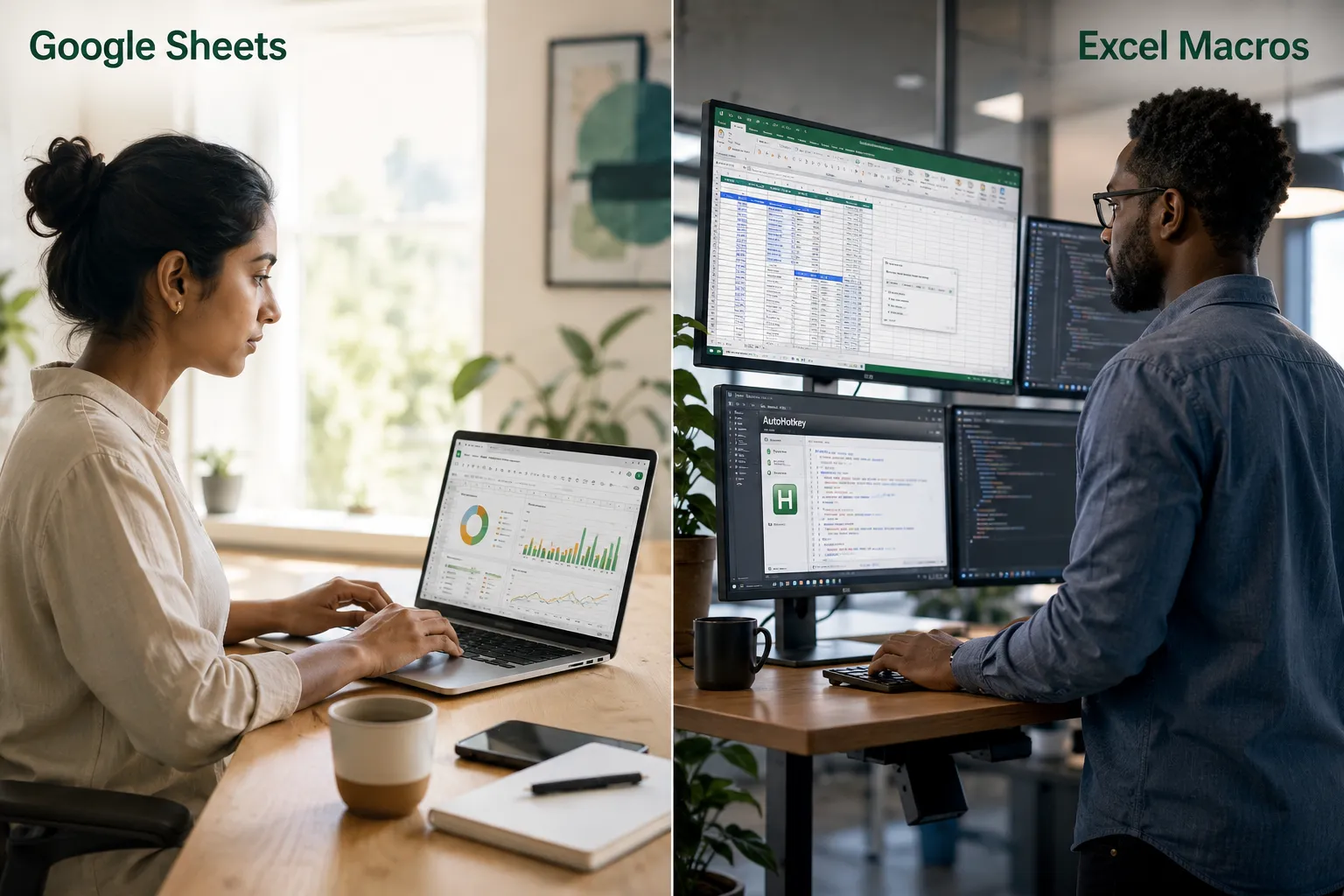
Excel has deeper native automation than Google Sheets, but Sheets has closed the gap significantly with Apps Script and add-ons.
Excel strengths:
- VBA is mature, well-documented, and can automate almost any action
- Macro recorder works offline and stores macros in the workbook
- Power Query automates data transformation without any coding
- Custom ribbon buttons can trigger macros with one click
Google Sheets strengths:
- Apps Script is cloud-based, macros run from any device
- Built-in macro recorder (added in 2018) works similarly to Excel’s
- Integration with other Google Workspace apps via script
- Easier to share automated sheets without macro security warnings
For a full breakdown of which platform fits which workflow, see Excel vs Google Sheets: Which Spreadsheet Tool Is Better for Your Workflow?
Does Keyboard Automation Work on Mac and Windows?
Yes, keyboard automation works on both Mac and Windows, but the specific keys and tools differ.
Windows:
- Excel shortcuts use
Ctrlas the primary modifier - AutoHotkey is Windows-only and extremely powerful for custom hotkey mapping
- Full VBA support in desktop Excel
Mac:
- Excel for Mac uses
Cmdin place ofCtrlfor most shortcuts, but some shortcuts differ or are missing entirely - Keyboard Maestro and Alfred fill the gap that AutoHotkey leaves on Mac
- Google Sheets shortcuts are more consistent across platforms since they run in Chrome
Common mistake: Windows users who switch to Mac often find that Alt-based Excel shortcuts (like Alt + = for AutoSum) don’t work the same way. The Mac equivalent is Cmd + Shift + T.
Keyboard Automation for Repetitive Data Entry and VLOOKUP Formula Entry
Keyboard automation shines brightest on repetitive tasks: entering the same formula across 500 rows, applying consistent formatting, or running a VLOOKUP across a new data import.
For VLOOKUP and formula entry specifically:
- Use
Ctrl + Dto fill a formula down an entire column after entering it once in the top cell - Use
F4to lock cell references (toggle absolute/relative) without retyping - Use
Ctrl + Shift + Enterfor array formulas in older Excel versions - Name your ranges (
Ctrl + F3) so VLOOKUP formulas read like=VLOOKUP(A2, CustomerData, 3, 0)instead of cryptic cell references
For building formulas from scratch, the beginner-to-advanced guide to writing spreadsheet formulas covers the full workflow. And if you need to insert today’s date automatically, Ctrl + ; does it in two keystrokes, or see how to insert today’s date in Excel with just two keystrokes.
Can You Use Third-Party Tools for Custom Cursors in Sheets?
Yes, third-party tools can be used safely for both visual cursor changes and automation in Google Sheets and Excel, as long as they don’t simulate unauthorized access or violate the platform’s terms of service.
Safe third-party options:
- Custom Cursor (Chrome extension), visual only, no data access
- AutoHotkey scripts, automate keystrokes at the OS level; Google and Microsoft cannot detect or block these since they appear as normal keyboard input
- Zapier / Make (Integromat), automate data flows into Sheets from external sources
- SheetKeys (Chrome extension), adds Vim-style keyboard navigation to Google Sheets
What to avoid:
- Tools that use screen-scraping bots to click UI elements automatically (these can break with UI updates and may violate terms)
- Unverified macro scripts downloaded from unknown sources (security risk)
- Auto-clicker tools that spam clicks in rapid succession (can trigger rate-limiting in cloud apps)
Common Mistakes People Make With Spreadsheet Shortcuts
The biggest mistake is trying to learn too many shortcuts at once. Most power users built their speed by mastering 5-10 shortcuts per week, not 50 in a day.
Other frequent mistakes:
- Skipping the macro recorder, many users jump straight to writing VBA when the recorder would handle 80% of their needs with zero code
- Not assigning shortcuts to macros, a macro without a hotkey still requires mouse clicks to run
- Forgetting
Ctrl + Zlimits, some macro actions can’t be undone, so always test on a copy - Using absolute references by accident, forgetting to press
F4when filling formulas down causes wrong results silently - Ignoring accessibility, custom cursor tools and aggressive keyboard remapping can break screen reader compatibility; always test with standard keyboard navigation intact
How Long Does It Take to Learn Spreadsheet Keyboard Shortcuts?
Most people can become noticeably faster within one to two weeks of deliberate practice. Full fluency with 30-50 shortcuts typically takes four to six weeks of daily use.
Realistic timeline:
- Days 1-3: Learn navigation shortcuts (arrow keys, Ctrl+Home, Ctrl+End, Ctrl+arrow)
- Week 1: Add selection shortcuts and basic formatting keys
- Week 2-3: Add formula shortcuts, fill shortcuts, and one or two macros
- Month 2: Start building AutoHotkey scripts or Apps Script macros for your most repetitive tasks
The fastest way to learn is to remove the mouse for 30 minutes a day and force yourself to use only the keyboard. It’s uncomfortable at first, but the muscle memory builds quickly.
For a structured learning path, see how to learn MS Excel in 24 hours.
Is Keyboard Automation Worth Learning for Casual Users?
For casual users (opening a spreadsheet once or twice a week), learning full macro automation probably isn’t worth the time investment. But even casual users benefit from 5-10 core shortcuts.
Worth it for casual users:
Ctrl + C/Ctrl + V/Ctrl + Z(most already know these)Ctrl + ;to insert today’s dateCtrl + Dto fill downCtrl + Fto find data fast
Worth investing more time if:
- You enter data into the same spreadsheet structure daily
- You copy-paste between sheets or files more than 10 times per session
- You apply the same formatting (bold, color, borders) repeatedly
For casual users who just need to get calculations done quickly, how to use Excel to calculate is a better starting point than automation.
Troubleshooting Keyboard Shortcuts Not Working in Excel
When shortcuts stop working in Excel, the cause is almost always one of four things.
Check these first:
- Num Lock is on, this disables some navigation shortcuts on keyboards with a number pad
- Add-in conflict, a third-party add-in has claimed the same shortcut; check via File > Options > Add-ins
- Sticky Keys is enabled, Windows accessibility feature that changes modifier key behavior; turn it off in Accessibility Settings
- Wrong keyboard layout, if the system language switched, key positions may have changed
- Macro assigned to the same shortcut, a workbook macro may be overriding the built-in shortcut; check via Developer > Macros > Options
For Google Sheets: If shortcuts aren’t working, check whether the browser extension (like Grammarly or an ad blocker) is intercepting keystrokes. Disable extensions one by one to isolate the conflict.
Best Practices for Setting Up Custom Keyboard Commands
The best custom keyboard command setups are simple, consistent, and documented. Power users who build elaborate hotkey systems without documentation often can’t remember their own shortcuts six months later.
Best practices:
- Map macros to memorable shortcuts, use
Ctrl + Shift + [letter]where the letter relates to the task (e.g.,Ctrl + Shift + Ffor “Format this report”) - Keep a shortcut reference sheet, a sticky note or a cell in a hidden sheet works fine
- Test every macro on sample data before deploying, especially anything that deletes or overwrites
- Use descriptive macro names,
FormatMonthlyReportbeatsMacro1 - Respect existing shortcuts, don’t overwrite
Ctrl + S(Save) orCtrl + Z(Undo) with custom macros - Version control your scripts, paste your VBA or Apps Script into a text file and date it before making changes
Conclusion: Start Small, Build Fast
Custom cursors and keyboard automation for faster spreadsheet work isn’t about learning everything at once, it’s about stacking small wins. Start with five navigation shortcuts this week. Record one macro for your most-repeated task next week. Add an AutoHotkey script or Apps Script trigger the week after.
Actionable next steps:
- ✅ Bookmark the Excel shortcuts cheat sheet and practice three new shortcuts today
- ✅ Record your first macro using Excel’s built-in recorder (no coding required)
- ✅ Try turning Excel data into a chart using only shortcut keys to see how far shortcuts can go
- ✅ If you use Google Sheets, explore Apps Script’s macro recorder for one repetitive task
- ✅ For Mac users, download a free trial of Keyboard Maestro and map your top three Excel actions
The difference between a casual spreadsheet user and a power user isn’t talent, it’s the decision to stop reaching for the mouse.
FAQ
Q: Do custom cursor extensions affect spreadsheet performance? A: No. Visual cursor extensions only change the pointer image rendered by the browser. They have no effect on spreadsheet calculations, data, or macro execution speed.
Q: Can AutoHotkey scripts get my Google account banned? A: No, as long as the scripts simulate normal keyboard input and don’t automate login bypasses or mass data scraping. Standard hotkey remapping is indistinguishable from manual keyboard use.
Q: What’s the fastest way to apply the same formula to 1,000 rows?
A: Enter the formula in the first cell, then press Ctrl + Shift + End to extend the selection to the last used row, and Ctrl + D to fill down. This takes about two seconds.
Q: Are Google Sheets macros saved to the cloud? A: Yes. Macros created via Google Sheets’ built-in recorder are saved as Apps Script functions tied to the spreadsheet file, accessible from any device.
Q: Can keyboard automation help with VLOOKUP errors?
A: Keyboard shortcuts help with formula entry speed, but VLOOKUP errors are usually logic issues (wrong column index, missing absolute reference). Use F4 to lock lookup ranges and named ranges to reduce errors.
Q: Is VBA still worth learning in 2026? A: Yes, especially for Windows Excel users. VBA remains the most powerful native automation layer in Excel and has no direct equivalent in Google Sheets.
Q: What’s the difference between a macro and an AutoHotkey script? A: A macro runs inside Excel or Sheets and can directly manipulate cells, formulas, and formatting. An AutoHotkey script runs at the operating system level and simulates keystrokes, it doesn’t have direct access to spreadsheet data.
Q: Do keyboard shortcuts work the same on Excel Online (browser version)?
A: Not always. Excel Online supports fewer shortcuts than the desktop app, and some browser shortcuts (like Ctrl + N) are intercepted by the browser before reaching Excel.
Q: How do I stop a macro that’s running and causing problems?
A: Press Esc in Excel to interrupt a running macro. If it doesn’t respond, press Ctrl + Break. Always save a backup before running new macros.
Q: Can I use custom keyboard automation on Excel mobile? A: Mobile Excel has very limited shortcut support and no macro execution. For automation on mobile, see how to use Excel on your phone, but serious automation work belongs on desktop.
References
[1] Jetir2511355 – https://www.jetir.org/papers/JETIR2511355.pdf [3] Macros 2006 Csun Quadruple – https://www.cantoraccess.com/publications/macros_2006_csun_quadruple.shtml [6] 3023 To Click Type Or Drag Evaluating Speed Of Survey Data Input Methods – https://www.surveypractice.org/api/v1/articles/3023-to-click-type-or-drag-evaluating-speed-of-survey-data-input-methods.pdf