
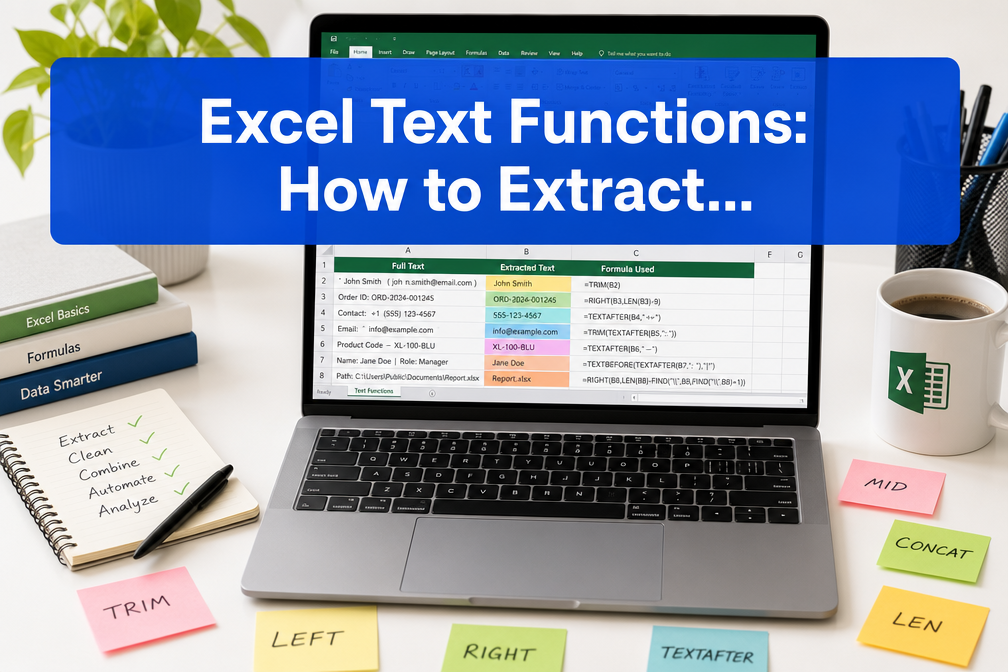
Last updated: July 14, 2026
Quick Answer: Excel text functions let you pull out parts of a string, join values from multiple cells, and scrub messy data, all without touching each cell by hand. Functions like LEFT, RIGHT, MID, TRIM, CONCAT, TEXTJOIN, and SUBSTITUTE cover the vast majority of real-world text tasks. Newer additions such as TEXTBEFORE, TEXTAFTER, and the June 2026 regex functions (REGEXEXTRACT, REGEXREPLACE, REGEXTEST) handle complex patterns that once required VBA. [4]
Key Takeaways
LEFT,RIGHT, andMIDextract characters from a specific position in a string.TRIMremoves leading, trailing, and double-spaced gaps;CLEANstrips non-printable characters.CONCATandTEXTJOINboth combine text, butTEXTJOINadds a delimiter and skips blanks automatically.SUBSTITUTEreplaces specific text;FINDandSEARCHlocate text within a cell.UPPER,LOWER, andPROPERconvert case in one step.TEXTSPLIT,TEXTBEFORE, andTEXTAFTERsimplify splitting and extracting by delimiter. [2]- As of June 2026, Microsoft 365 subscribers can use
REGEXEXTRACTandREGEXREPLACEfor pattern-based extraction. [1] - Combining two or three of these functions in a single formula handles most name-cleaning and code-parsing jobs.
- The
LENfunction is indispensable for measuring string length before extracting or validating data. - Flash Fill (Ctrl+E) is a fast no-formula alternative for simple, one-off text splits.
What Are the Main Text Functions in Excel?
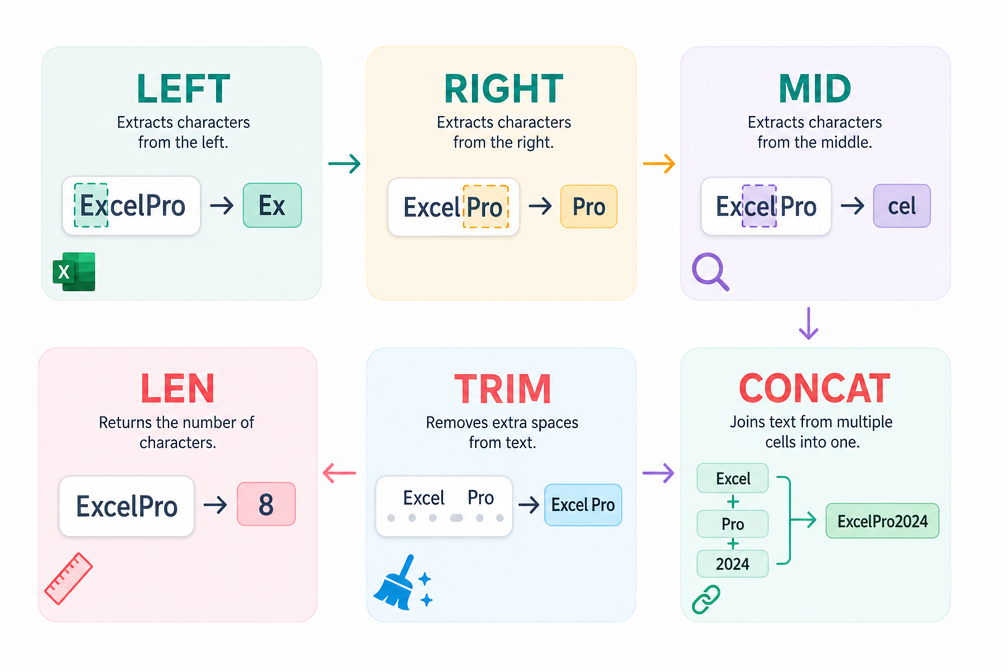
Excel text functions are built-in formulas that manipulate, measure, and format text strings. Microsoft’s official text functions reference lists more than 30 dedicated text functions, covering everything from basic extraction to advanced formatting. [4]
The most commonly used ones fall into four groups:
Extraction functions
LEFT(text, num_chars), returns characters from the left side of a stringRIGHT(text, num_chars), returns characters from the right sideMID(text, start_num, num_chars), returns characters from any positionLEN(text), counts total characters in a stringTEXTBEFORE(text, delimiter), returns everything before a delimiter [2]TEXTAFTER(text, delimiter), returns everything after a delimiter [2]
Combining functions
CONCAT(text1, text2, ...), joins text values togetherTEXTJOIN(delimiter, ignore_empty, text1, ...), joins with a separator and skips blanks
Cleaning functions
TRIM(text), removes extra spacesCLEAN(text), removes non-printable charactersSUBSTITUTE(text, old_text, new_text), replaces specific characters or words
Case and search functions
UPPER,LOWER,PROPER, change text caseFINDandSEARCH, locate a substring within a cellREPLACE, replaces text at a specific position
For a full alphabetical list, Microsoft’s function reference is the definitive starting point. [10]
How Do I Extract Part of a Text String in Excel?
Use LEFT, RIGHT, or MID depending on where the text sits in the string. For delimiter-based extraction, TEXTBEFORE and TEXTAFTER are faster and more readable. [2]
Examples:
| Goal | Formula | Result (if A1 = “INV-2026-001”) |
|---|---|---|
| First 3 chars | =LEFT(A1, 3) |
INV |
| Last 3 chars | =RIGHT(A1, 3) |
001 |
| Middle section | =MID(A1, 5, 4) |
2026 |
| Before first dash | =TEXTBEFORE(A1, "-") |
INV |
| After last dash | =TEXTAFTER(A1, "-", -1) |
001 |
Common mistake: Hardcoding the number of characters in MID when the string length varies. Fix this by nesting FIND to locate the delimiter position dynamically:
<code>=MID(A1, FIND("-", A1)+1, 4)
</code>
If you need to apply any of these formulas to an entire column at once, see this guide on how to insert a formula in Excel for an entire column.
What’s the Difference Between MID and TEXTBEFORE / TEXTAFTER?
MID requires a start position and character count, both numbers. TEXTBEFORE and TEXTAFTER work on delimiters (like a comma, dash, or space), so they adapt automatically when string lengths vary. [2]
- Use
MIDwhen the data has a fixed structure (e.g., product codes where the year is always characters 5-8). - Use
TEXTBEFORE/TEXTAFTERwhen the data is delimited but variable in length (e.g., “First Last” names, email addresses, file paths).
Excel does not have a standalone EXTRACT function. MID, TEXTBEFORE, and TEXTAFTER collectively cover what other tools call “extract.”
What’s the Best Way to Split Names in Excel?
For splitting “First Last” names, TEXTBEFORE and TEXTAFTER are the cleanest approach in 2026. For older Excel versions, combine LEFT/RIGHT with FIND and LEN.
Modern approach (Microsoft 365):
<code>First name: =TEXTBEFORE(A2, " ")
Last name:  =TEXTAFTER(A2, " ")
</code>
Classic approach (any Excel version):
<code>First name: =LEFT(A2, FIND(" ", A2)-1)
Last name:  =RIGHT(A2, LEN(A2)-FIND(" ", A2))
</code>
Edge case: Names with two spaces (e.g., “Mary Jo Smith”) will break the single-space approach. Use TEXTSPLIT(A2, " ") to split into an array, then reference each element by position.
💡 Quick tip: For one-off name splits, try Flash Fill (Ctrl+E). Type the first result manually, press Ctrl+E, and Excel fills the rest, no formula needed.
How Do I Combine Text from Multiple Cells?
CONCAT and TEXTJOIN both combine text. TEXTJOIN is more flexible because it accepts a delimiter and can skip empty cells automatically.
<code>=CONCAT(A2, " ", B2)
→ "John Smith"

=TEXTJOIN(", ", TRUE, A2:A10)
→ "Alice, Bob, Carol" (skips any blank cells)
</code>
When to use which:
CONCAT, simple joins where you control spacing manually.TEXTJOIN, joining a range of cells with a consistent separator, especially when some cells may be empty.&ersand, the fastest option for two or three values:=A2&" "&B2. See below for a full comparison.
Note: CONCATENATE still works but is the legacy version. Microsoft recommends CONCAT for new formulas. [4]
When Should I Use CONCATENATE vs Ampersand (&)?
The & operator and CONCAT (or the older CONCATENATE) produce identical results for simple joins. The practical difference is readability and range support.
&operator, best for short, ad-hoc joins:=A1&", "&B1. Fast to type, easy to read.CONCAT, accepts a cell range (=CONCAT(A1:A5)), which&cannot do.TEXTJOIN, the right choice when joining a range with a delimiter or skipping blanks.
Bottom line: Use & for two or three cells, CONCAT when referencing a range, and TEXTJOIN when you need a delimiter or blank-skipping behavior.
What Does the TRIM Function Do in Excel?
TRIM removes all leading spaces, trailing spaces, and reduces multiple internal spaces down to a single space. It does not remove single spaces between words.
<code>=TRIM("  John   Smith  ")
→ "John Smith"
</code>
TRIM handles the most common spacing issue in imported data. It does not remove non-breaking spaces (character 160), which sometimes appear in data copied from websites. For those, combine TRIM with SUBSTITUTE:
<code>=TRIM(SUBSTITUTE(A2, CHAR(160), " "))
</code>
How to Remove Extra Spaces and Clean Text Data Automatically in Excel
TRIM handles extra spaces. CLEAN removes non-printable characters (like line breaks or tab characters). Use both together for data imported from external systems:
<code>=TRIM(CLEAN(A2))
</code>
For cleaning an entire dataset automatically, apply the formula to a helper column, then paste-values over the original. This is the standard data-prep workflow before running lookups or pivot tables.
Step-by-step data cleaning checklist:
- Apply
=TRIM(CLEAN(A2))in a helper column. - Copy the helper column → Paste Special → Values only.
- Delete the original messy column.
- Run
PROPER,UPPER, orLOWERif case is inconsistent. - Use
SUBSTITUTEto remove unwanted characters (e.g., extra hyphens, parentheses in phone numbers).
If you’re working with numeric data alongside text, you may also find it useful to know how to remove numbers after the decimal in Excel for similar cleanup tasks.
How Do I Convert Text to Uppercase or Lowercase?
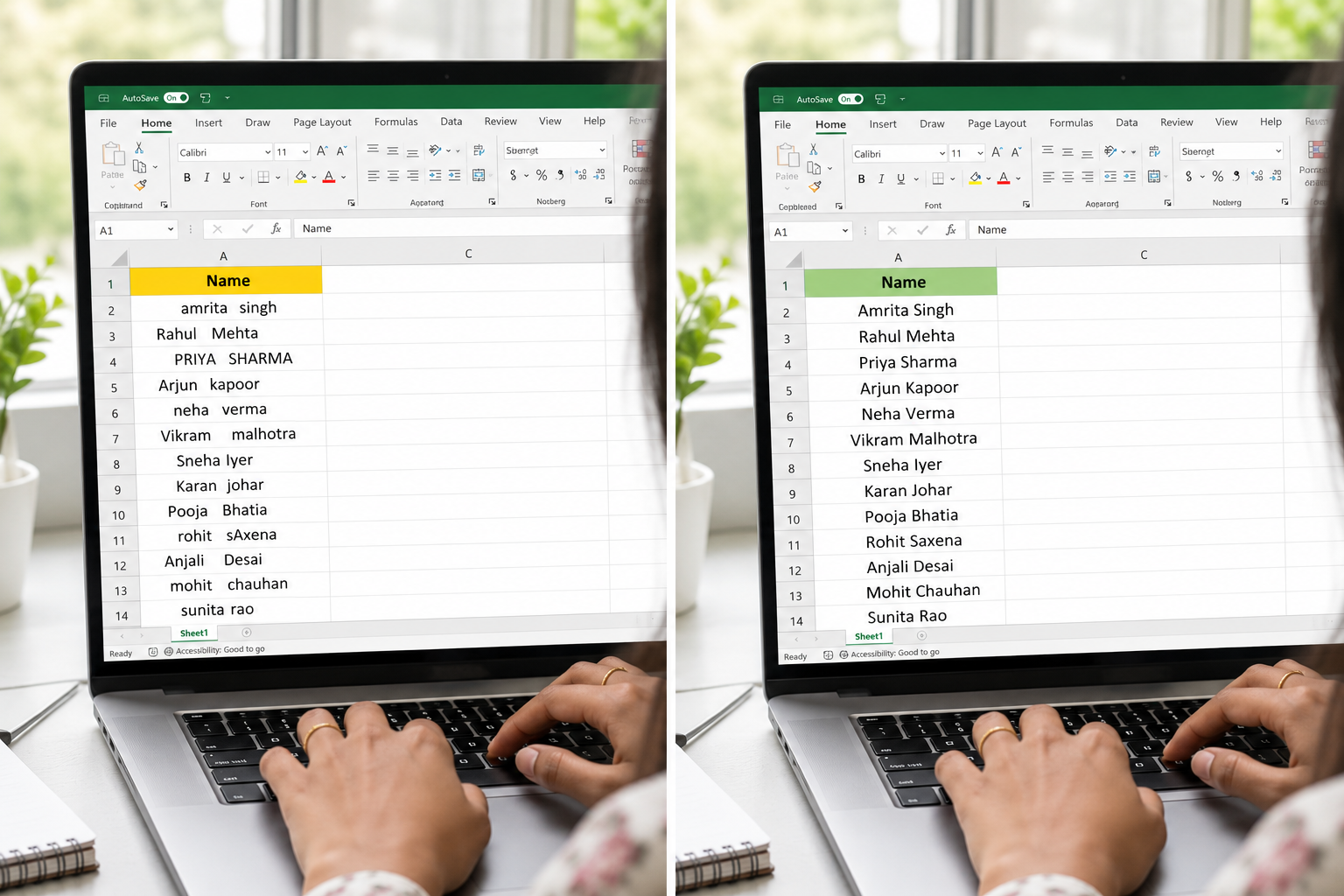
Three functions handle case conversion, each takes a single argument:
=UPPER(A2)→ ALL CAPS=LOWER(A2)→ all lowercase=PROPER(A2)→ First Letter Of Each Word Capitalized
PROPER is especially useful for name fields imported from all-caps legacy systems. Watch for edge cases: PROPER will capitalize after apostrophes, turning “O’brien” into “O’Brien” (correct) but also “It’S” in some versions, test on your data first. [8]
What Function Should I Use to Find Text Within a Cell?
Use FIND or SEARCH to locate a substring. The key difference: SEARCH is case-insensitive and supports wildcards; FIND is case-sensitive and does not.
<code>=FIND("INV", A2)    → returns position number (case-sensitive)
=SEARCH("inv", A2)  → returns same position (case-insensitive)
</code>
Both return an error if the text isn’t found, so wrap them in IFERROR when the match is optional:
<code>=IFERROR(FIND("INV", A2), "Not found")
</code>
Use the result of FIND/SEARCH as the start_num argument inside MID to dynamically extract text around a known marker.
How to Replace Specific Text in Excel Cells
SUBSTITUTE replaces every instance of a specific string. REPLACE swaps text at a fixed character position. For most text-cleaning tasks, SUBSTITUTE is the right choice.
<code>=SUBSTITUTE(A2, "(", "")          → removes all opening parentheses
=SUBSTITUTE(A2, " ", "_")         → replaces spaces with underscores
=SUBSTITUTE(A2, "USA", "US", 1)   → replaces only the FIRST occurrence
</code>
The optional fourth argument in SUBSTITUTE lets you target a specific instance, useful when a character appears multiple times and you only want to replace one of them.
Does Excel Have a Function to Remove Special Characters?
Excel doesn’t have a single “remove all special characters” function, but there are two practical approaches:
Nested SUBSTITUTE, chain multiple
SUBSTITUTEcalls to remove each character one by one:=SUBSTITUTE(SUBSTITUTE(SUBSTITUTE(A2,"#",""),"%",""),"@","")REGEXREPLACE (Microsoft 365, June 2026), use a regex pattern to remove any non-alphanumeric character in one formula: [1]
=REGEXREPLACE(A2, "[^a-zA-Z0-9 ]", "")
The regex approach is far cleaner for complex patterns. Availability depends on your Microsoft 365 subscription tier and build version. [1]
What’s the Easiest Way to Clean Messy Data in Excel?
The fastest complete workflow combines TRIM, CLEAN, PROPER (or UPPER/LOWER), and SUBSTITUTE in a single helper-column formula. For pattern-heavy data (phone numbers, codes, emails), add REGEXREPLACE if available.
Example, cleaning a name column imported from a CRM:
<code>=PROPER(TRIM(CLEAN(SUBSTITUTE(A2, "  ", " "))))
</code>
This one formula: strips non-printable characters, removes extra spaces, and capitalizes properly.
For more on building formulas like this from scratch, the beginner-to-advanced guide to spreadsheet formulas covers the logic step by step. Also, if you’re merging cleaned text back into a layout, check out this guide on how to merge cells in Excel for display formatting tips.
FAQ
Q: What is the LEN function used for in Excel?
LEN(text) returns the total number of characters in a string, including spaces. It’s most useful inside MID or RIGHT formulas where you need a dynamic character count rather than a hardcoded number.
Q: Can I use text functions on numbers in Excel?
Yes. Excel automatically converts numbers to text when used inside text functions. However, the result is always a text string, if you need the output to remain a number, wrap it in VALUE().
Q: What’s the difference between CLEAN and TRIM?
TRIM removes extra spaces. CLEAN removes non-printable characters (ASCII codes 1-31), such as line breaks. Use both together (=TRIM(CLEAN(A2))) for thorough data cleaning.
Q: Is CONCATENATE still supported in Excel 2026?
Yes, CONCATENATE still works, but Microsoft recommends switching to CONCAT or TEXTJOIN for new formulas since they offer more flexibility. [4]
Q: How do I extract text between two characters?
Use MID combined with FIND to locate both characters, then extract what’s between them:
=MID(A2, FIND("(", A2)+1, FIND(")", A2)-FIND("(", A2)-1)
Or use TEXTBEFORE(TEXTAFTER(A2,"("),")") in Microsoft 365. [2]
Q: What are REGEXEXTRACT and REGEXREPLACE?
These are native regex functions added to Microsoft 365 in June 2026. REGEXEXTRACT pulls out text matching a pattern; REGEXREPLACE swaps pattern matches with new text. They replace complex nested formulas for pattern-based tasks. [1]
Q: Can text functions handle data from another sheet?
Absolutely. Reference cells from another sheet normally: =TRIM(Sheet2!A2). Text functions work the same regardless of where the source cell lives.
Q: How do I count how many times a word appears in a cell?
Use: =(LEN(A2)-LEN(SUBSTITUTE(A2,"word","")))/LEN("word"). This subtracts the length after removing the word, then divides by the word’s length to get the count.
Conclusion
Mastering Excel text functions is one of the highest-return skills for anyone who works with data regularly. A handful of formulas, LEFT, RIGHT, MID, LEN, TRIM, CLEAN, SUBSTITUTE, CONCAT, and TEXTJOIN, handle the vast majority of name cleaning, code parsing, and data prep tasks. Newer functions like TEXTBEFORE, TEXTAFTER, and the 2026 regex additions make complex patterns far more manageable. [1][2]
Actionable next steps:
- Open a real dataset and apply
=TRIM(CLEAN(A2))to a helper column, most imported data has hidden spacing issues. - Practice
TEXTBEFOREandTEXTAFTERon a column of full names or email addresses. - Try chaining
PROPER(TRIM(CLEAN(...)))for a complete one-formula cleanup. - If you’re on Microsoft 365, test
REGEXREPLACEto remove special characters from phone or ID fields. - Bookmark the Excel text functions reference on Microsoft Support for quick lookups when you encounter an unfamiliar function.
Once these functions feel natural, combining them with Excel keyboard shortcuts and cell protection will make your spreadsheets faster and more reliable for everyone who uses them.
References
[1] Excel Finally Gets Regex 3 Functions That Replace Nested Formulas – https://logicity.in/en/blog/excel-finally-gets-regex-3-functions-that-replace-nested-formulas?utm_source=openai
[2] Extract Text In Excel With The Textbefore And Textafter Functions – https://www.excelnavigator.com/post/extract-text-in-excel-with-the-textbefore-and-textafter-functions?utm_source=openai
[4] Text Functions Reference – https://support.microsoft.com/en-gb/office/text-functions-reference-cccd86ad-547d-4ea9-a065-7bb697c2a56e?utm_source=openai
[8] Excel Text Functions Guide – https://mavenanalytics.io/video/excel-text-functions-guide?utm_source=openai
[10] Excel Functions Alphabetical – https://support.microsoft.com/en-us/excel/excel-functions-alphabetical?utm_source=openai