
Last updated: July 4, 2026
Quick Answer: To combine two columns in Excel, use the ampersand operator in a new column, for example,
=A2&" "&B2joins the values from cells A2 and B2 with a space between them. You can also useCONCATENATE,CONCAT,TEXTJOIN, or Flash Fill depending on your Excel version and how much control you need over formatting.
Key Takeaways
- The ampersand (&) operator is the fastest and most universally understood way to combine two columns in Excel.
- CONCATENATE still works in all Excel versions, but Microsoft now recommends CONCAT or TEXTJOIN for modern workflows. [2]
- Always combine columns into a third, new column, never merge cells if you want to keep your data intact. [1]
- Add a delimiter (space, comma, hyphen) inside quotes within your formula:
=A2&", "&B2. - Flash Fill (Ctrl+E) can combine columns without any formula at all, great for quick, one-time tasks.
- Combining columns with different data types (text + numbers) requires wrapping numbers in
TEXT()to avoid unexpected results. - After combining, you can paste as values to remove formula dependencies and keep only the final text.
- The original columns are not deleted by combining, you choose whether to keep or remove them.
How to Combine Two Columns in Excel: The Core Methods
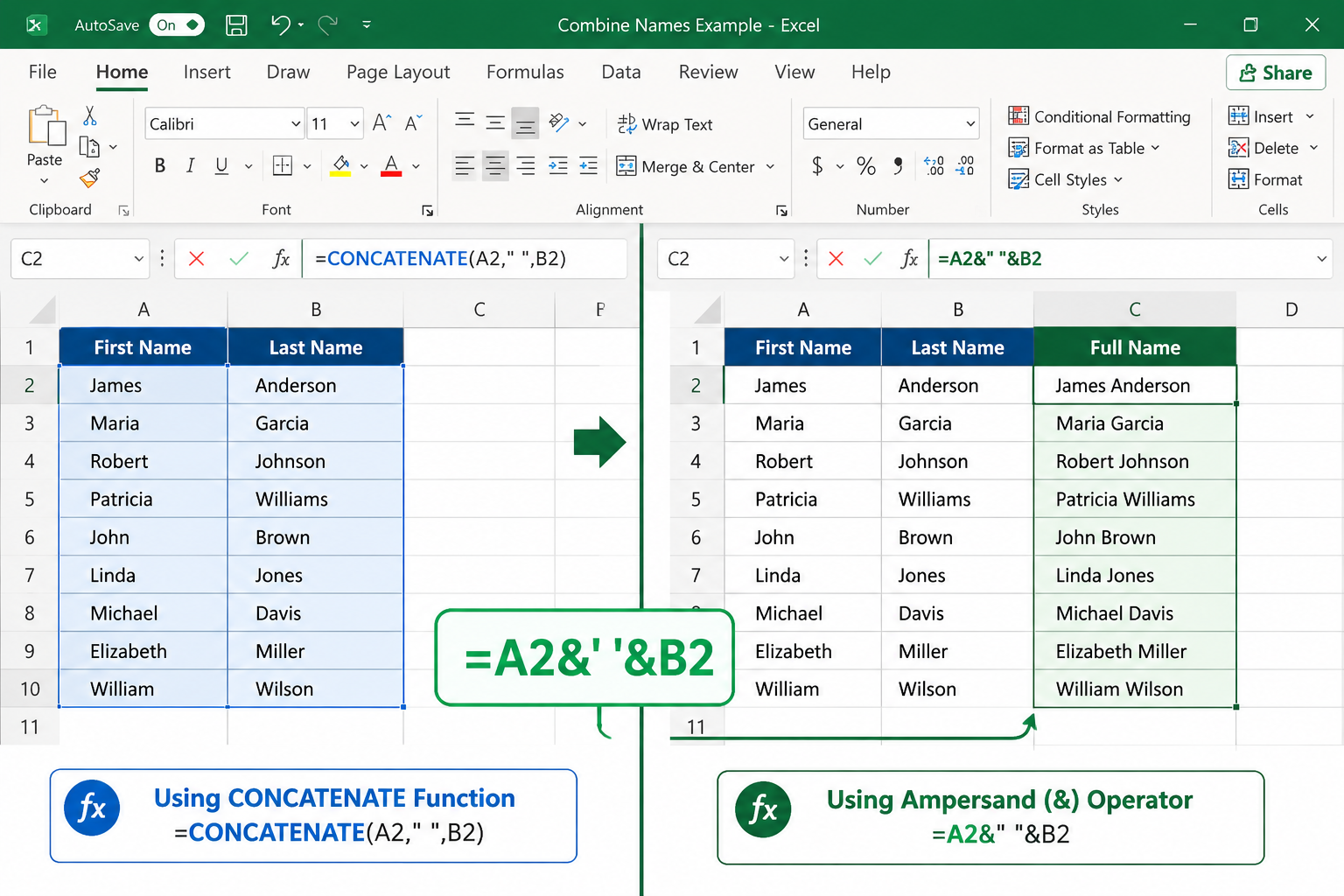
The most reliable way to combine two columns in Excel is to use a formula in a separate, empty column. Type =A2&" "&B2 into the new column, press Enter, then copy the formula down for all rows. This keeps your original data safe and gives you a clean combined result. [2]
Microsoft officially recommends using formulas rather than the “Merge Cells” button for combining column data, because cell merging destroys one set of values and causes problems with sorting and filtering. [1]
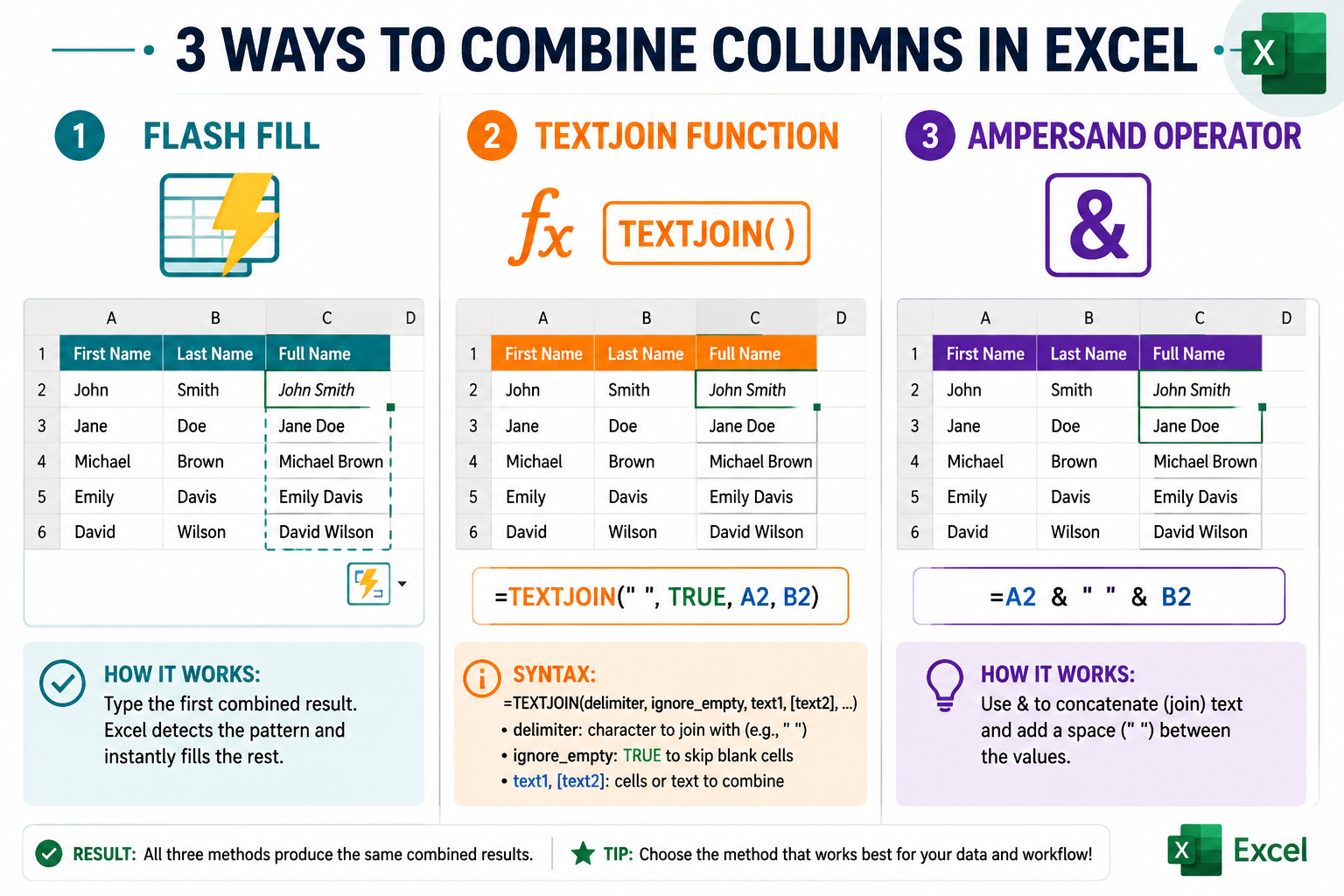
Here are the four main approaches:
| Method | Best For | Requires Formula? |
|---|---|---|
| Ampersand (&) | Quick joins, any version | Yes |
| CONCATENATE | Older Excel files, compatibility | Yes |
| CONCAT / TEXTJOIN | Multiple columns, modern Excel | Yes |
| Flash Fill | One-time tasks, no formula needed | No |
Excel Concatenate Formula: Two Columns Step by Step
The CONCATENATE function joins text strings from multiple cells into one. For two columns, the syntax is =CONCATENATE(A2, " ", B2), the middle argument is the separator you want between values. [2]
Step-by-step using CONCATENATE:
- Click the first empty cell in a new column (for example, C2).
- Type
=CONCATENATE(A2, " ", B2)and press Enter. - Click back on C2, then double-click the fill handle (the small square at the bottom-right of the cell) to copy the formula down.
- The combined text appears in column C, while columns A and B stay unchanged.
💡 Modern alternative: In Excel 365 and Excel 2019+,
CONCATreplacesCONCATENATEand works the same way:=CONCAT(A2, " ", B2). Both functions produce identical results for two-column joins.
If you regularly work with formulas across large datasets, see this guide on how to insert a formula in Excel for an entire column to speed up the process.
What’s the Difference Between CONCATENATE and the Ampersand in Excel?
Both produce the same output, the difference is purely stylistic and about readability. The ampersand (&) is shorter to type and easier to read in complex formulas. CONCATENATE reads more like plain English and may be clearer for beginners. [9]
=A2&" "&B2, compact, preferred by most experienced users=CONCATENATE(A2," ",B2), more explicit, easier to explain to others
Choose the ampersand if you’re building a formula with many parts or nesting inside other functions. Choose CONCATENATE (or CONCAT) if you’re writing formulas that others will need to read and maintain.
One practical note: CONCATENATE does not accept ranges (like A2:C2), but CONCAT and TEXTJOIN do, which matters when you’re combining more than two columns at once.
How to Combine Two Columns in Excel with a Space, Comma, or Hyphen
Adding a delimiter between combined values is as simple as including it as a text string inside your formula. The delimiter goes between the two cell references, wrapped in double quotes. [5]
Common delimiter examples:
- Space:
=A2&" "&B2→John Smith - Comma + space:
=A2&", "&B2→Smith, John - Hyphen:
=A2&"-"&B2→John-Smith - No separator:
=A2&B2→JohnSmith
For more complex separators or when combining many columns at once, TEXTJOIN is cleaner:
<code>=TEXTJOIN(", ", TRUE, A2, B2)
</code>
The second argument (TRUE) tells Excel to skip empty cells, useful when some rows have missing data. [2]
How to Merge Two Columns in Excel Without Losing Data
The key rule: never use the Merge Cells button when you want to keep both columns’ data. Excel’s built-in cell merge feature keeps only the upper-left value and silently discards everything else. [1]
To combine two columns without losing data:
- Insert a new empty column next to your data.
- Use a formula like
=A2&" "&B2to pull values from both original columns. - Copy the formula down all rows.
- Optional: Select the new column, copy it (Ctrl+C), then paste as values only (Ctrl+Shift+V or Paste Special > Values) to convert formulas to plain text.
- Delete the original columns only after confirming the combined column looks correct.
This workflow is the same whether you’re combining first and last names, addresses, product codes, or any other data. For the reverse operation, splitting one column into two, check out this tutorial on how to split first and last name into two columns in Excel.
Can I Combine Two Columns in Excel and Keep Both Original Columns?
Yes, and this is actually the default behavior. When you write a formula in a new column to combine two existing columns, the original columns remain completely untouched. [4]
You only lose original data if you:
- Use the Merge Cells button (which deletes one value)
- Manually delete the original columns after combining
Best practice: Keep the original columns until you’ve verified the combined output is exactly right. Once confirmed, paste the combined column as values, then delete the originals if you no longer need them.
How to Combine Two Columns in Excel Using Flash Fill
Flash Fill detects patterns in your data and fills the rest of the column automatically, no formula required. It’s ideal for quick, one-time tasks where you don’t need a live formula. [3]
How to use Flash Fill:
- Create a new column next to your data.
- In the first row, manually type the combined result you want (for example, type
John Smithif column A hasJohnand column B hasSmith). - Press Enter and move to the next cell in the same column.
- Press Ctrl+E, Excel fills the rest of the column automatically.
When Flash Fill works best: Consistent data with a clear pattern (names, codes, addresses).
When it fails: Inconsistent data, mixed formats, or when the pattern is ambiguous. In those cases, stick with a formula.
Flash Fill results are static text, they don’t update if the source data changes. Use a formula instead if your data will be edited later.
What Happens If You Combine Two Columns with Different Data Types in Excel?
Combining a text column with a number or date column can produce unexpected results. Excel treats numbers and dates as their underlying numeric values when you concatenate them directly, so a date like 7/4/2026 might appear as 46016 in your combined result. [5]
The fix: wrap non-text values in the TEXT() function.
- Number example:
=A2&" - "&TEXT(B2,"0.00")→Product A - 12.50 - Date example:
=A2&" "&TEXT(B2,"MM/DD/YYYY")→Invoice 7/04/2026 - Currency:
=A2&": "&TEXT(B2,"$#,##0")→Total: $1,250
The TEXT() function converts the number or date into a formatted string before combining, so the output looks exactly as intended. [2]
If you need to clean up decimal values before combining, this guide on how to remove numbers after the decimal in Excel covers the options clearly.
Why Isn’t My CONCATENATE Formula Working in Excel?
A broken concatenate formula usually comes down to one of a few common causes. Check these in order: [5]
- Extra spaces in source cells: Use
TRIM()around cell references,=TRIM(A2)&" "&TRIM(B2). - Numbers stored as text: If source cells show a green triangle warning, the data type is mixed. Use
VALUE()to convert, or just combine as-is and format withTEXT(). - Formula showing as text: Check that the cell is not formatted as “Text”, change it to “General” and re-enter the formula.
- Wrong quotes: Make sure you’re using straight quotes (
") not curly/smart quotes, which can happen when copying formulas from web pages or Word documents. - Missing separator argument:
=A2&B2with no space between values is valid but producesJohnSmith, add&" "&between references if you need a space.
For broader Excel troubleshooting skills, the beginner’s step-by-step Excel guide is a solid starting point.
Best Way to Combine Two Columns in Excel: A Quick Decision Guide
There’s no single “best” method, the right choice depends on your situation. Here’s a simple decision framework:
- Use
&(ampersand) if you want a quick formula and full control over delimiters. - Use
TEXTJOINif you’re combining more than two columns or need to skip blanks automatically. - Use Flash Fill if it’s a one-time task and your data is consistent.
- Use
CONCATif you’re on Excel 365/2019 and want a cleaner function syntax thanCONCATENATE. - Avoid Merge Cells for any data you plan to sort, filter, or reference in formulas.
For keyboard shortcut lovers, pairing these techniques with Excel’s most useful shortcut keys can cut your workflow time significantly. And if you’re building more complex spreadsheets, learning how to add a drop-down list in Excel pairs well with combined-column data for data validation.
FAQ
Q: Can I combine more than two columns at once?
Yes. Use =A2&" "&B2&" "&C2 for three columns, or use =TEXTJOIN(" ", TRUE, A2:C2) for a cleaner approach with any number of columns.
Q: Does combining columns in Excel affect the original data? No, using a formula in a new column leaves the source columns completely intact. Only the Merge Cells button destroys source data.
Q: How do I combine two columns in Excel with a line break between them?
Use =A2&CHAR(10)&B2 and enable “Wrap Text” on the result cell. CHAR(10) inserts a line break character.
Q: Can I combine columns in Excel Online (browser version)? Yes. The ampersand operator, CONCATENATE, CONCAT, and TEXTJOIN all work in Excel Online. Flash Fill is also available in the browser version.
Q: What’s the fastest way to apply a combine formula to 10,000 rows? Type the formula in the first cell, then double-click the fill handle, Excel automatically fills down to match the length of adjacent data.
Q: Will my combined column update automatically if I change the source data? Yes, as long as you’re using a formula. If you’ve pasted the column as values, it becomes static and won’t update.
Q: How do I remove duplicate combined values after merging columns? Use Excel’s built-in Remove Duplicates feature (Data tab > Remove Duplicates) on the combined column. For a detailed walkthrough, see this guide on how to delete duplicates in Excel 365.
Q: Is CONCATENATE being removed from Excel? Microsoft has not announced removal, but they recommend CONCAT and TEXTJOIN for new work. CONCATENATE continues to work in all current Excel versions for backward compatibility. [2]
Conclusion
Knowing how to combine two columns in Excel is one of those skills that saves time every single week. The ampersand operator covers most everyday needs in seconds. TEXTJOIN handles the trickier jobs, multiple columns, blank cells, custom delimiters. Flash Fill handles the rest when you just need a quick result without writing anything.
Your next steps:
- Open a spreadsheet with two columns of data you want to join.
- Try
=A2&" "&B2in a new column, just to see it work. - Experiment with different delimiters (comma, hyphen, line break).
- If you’re on Excel 365, try
=TEXTJOIN(", ", TRUE, A2, B2)for a taste of the modern approach. - Once comfortable, explore how to learn MS Excel more deeply in a structured way to build on these foundations.
The more you practice combining and manipulating data, the faster your spreadsheet work becomes, and these formula skills transfer directly to dozens of other Excel tasks.
References
[1] Merge And Unmerge Cells In Excel – https://support.microsoft.com/en-us/excel/get-started/merge-and-unmerge-cells-in-excel
[2] Combine Text From Two Or More Cells Into One Cell In Microsoft Excel – https://support.microsoft.com/en-us/office/combine-text-from-two-or-more-cells-into-one-cell-in-microsoft-excel-81ba0946-ce78-42ed-b3c3-21340eb164a6
[3] Merge Two Columns In Excel – https://www.datacamp.com/tutorial/merge-two-columns-in-excel
[4] Combine Two Columns In Excel – https://www.wikihow.com/Combine-Two-Columns-in-Excel
[5] How To Combine Two Columns In Excel – https://www.geeksforgeeks.org/excel/how-to-combine-two-columns-in-excel/
[9] Combine Two Columns Excel – https://www.xelplus.com/combine-two-columns-excel/