Last updated: June 27, 2026
Quick Answer: To find duplicates in Excel, select your data range, go to Home > Conditional Formatting > Highlight Cell Rules > Duplicate Values, and Excel will instantly color every repeated entry. For more control, use a COUNTIF formula or the built-in Remove Duplicates tool under the Data tab. These methods work in Excel 365, 2021, 2019, and 2016.
Key Takeaways
- Conditional Formatting is the fastest way to visually spot duplicates without changing your data
- The Remove Duplicates tool (Data tab) deletes repeated rows permanently — always back up first
- COUNTIF formulas let you flag, count, or filter duplicates without removing anything
- You can find duplicates across two columns using COUNTIF with a cross-range reference
- Comparing duplicates across multiple sheets requires helper formulas or Power Query
- “Duplicate” in Excel means an exact match — capitalization differences are ignored, but extra spaces are not
- The Remove Duplicates tool and Conditional Formatting serve different purposes; neither replaces the other
- For large files (10,000+ rows), Power Query or COUNTIF outperform visual highlighting for speed
What Does “Duplicate” Mean in Excel?
A duplicate in Excel is any value, row, or entry that appears more than once in a dataset. Excel treats two cells as duplicates when their content matches exactly — including numbers, text, and dates.
A few things worth knowing:
- Case is ignored: “APPLE” and “apple” are treated as duplicates
- Spaces matter: “John ” (trailing space) and “John” are not duplicates
- Partial matches don’t count as duplicates unless you use a formula designed for that purpose
- A duplicate row means every selected column in that row matches another row exactly
This distinction matters a lot when cleaning up data. If your duplicate check keeps missing entries, invisible spaces are often the culprit. Use =TRIM() to clean cells before running any duplicate check. If you’re new to working with data in Excel, the guide on how to use Excel for data entry is a solid starting point.
How to Highlight Duplicates in Excel with Conditional Formatting
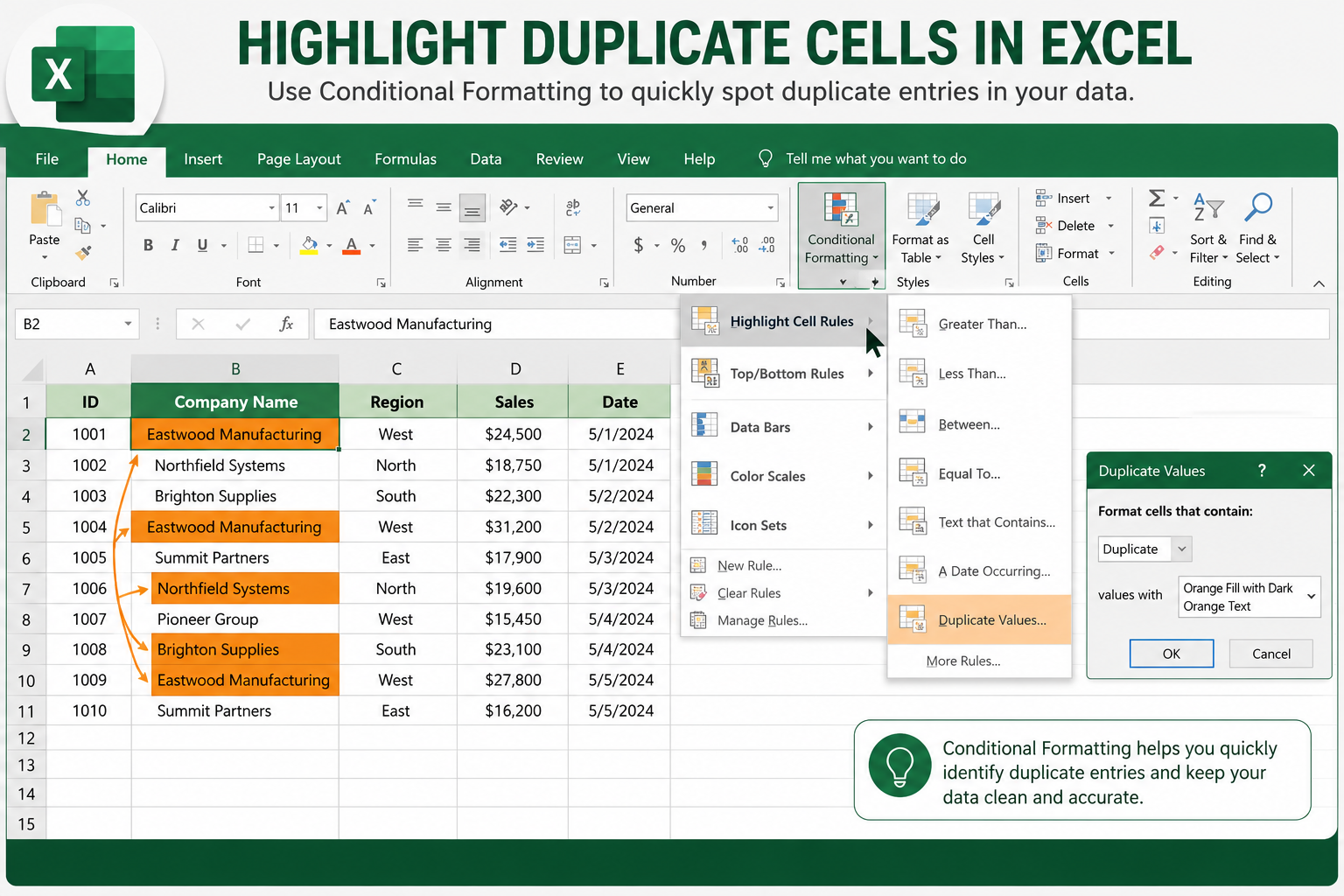
Conditional Formatting is the quickest way to find duplicates in Excel without deleting or moving anything. It colors duplicate cells so they’re immediately visible [1].
Steps:
- Select the column or range you want to check (e.g., A2:A500)
- Go to Home tab → Conditional Formatting
- Click Highlight Cell Rules → Duplicate Values
- Choose a highlight color (default is light red) and click OK
Every cell that appears more than once will now be colored. The original entry and every repeat both get highlighted — Excel doesn’t distinguish between “first occurrence” and “copy.”
💡 Want to highlight only the duplicates, not the first occurrence? Use a COUNTIF formula in Conditional Formatting instead (covered in the next section).
Common mistake: Selecting the entire column including the header. If your header text accidentally matches a data value, it’ll get flagged too. Always start your selection from row 2.
For more on using Conditional Formatting creatively, see this guide on applying color to alternate rows in Excel 365.
Excel Formula to Find Duplicate Values (COUNTIF Method)
A COUNTIF formula finds duplicates in Excel by counting how many times each value appears in a range. Any count above 1 is a duplicate [3].
Basic formula:
<code>=COUNTIF($A$2:$A$500, A2)
</code>
Place this in column B next to your data. It returns the number of times the value in A2 appears in the full range. A result of 2 or more means it’s a duplicate.
To flag duplicates as TRUE/FALSE:
<code>=COUNTIF($A$2:$A$500, A2)>1
</code>
To mark only the second and subsequent occurrences (not the first):
<code>=COUNTIF($A$2:A2, A2)>1
</code>
This uses an expanding range — the second A2 has no dollar sign, so the range grows as you copy the formula down. The first occurrence always returns FALSE; only repeats return TRUE.
This approach is ideal when you want to review duplicates before deciding what to delete.
How to Find Duplicates in One Column in Excel
To find duplicates in a single column, use Conditional Formatting or COUNTIF on just that column’s range. Both methods described above apply directly here.
Choose Conditional Formatting if you want a quick visual scan. Choose COUNTIF if you want to filter, sort, or count the duplicates programmatically.
For a single-column check, the COUNTIF formula is:
<code>=COUNTIF($A$2:$A$1000, A2)>1
</code>
Then filter column B for TRUE to see all duplicate rows at once. This is especially useful before removing duplicates so you can review what will be affected.
How to Find Duplicates Between Two Columns in Excel
To compare two columns for duplicates, use COUNTIF where one column checks against the other. This tells you which values from Column A also appear in Column B [3].
Formula in C2 (checking if A2 exists in Column B):
<code>=COUNTIF($B$2:$B$500, A2)>1
</code>
This returns TRUE for every value in Column A that also exists in Column B.
Alternatively, use MATCH:
<code>=ISNUMBER(MATCH(A2, $B$2:$B$500, 0))
</code>
Both work well. COUNTIF is simpler; MATCH is slightly faster on very large datasets.
Edge case: If both columns have different lengths, make sure your range covers all rows in the comparison column, not just the rows visible on screen.
How to Remove Duplicates in Excel
The Remove Duplicates tool permanently deletes repeated rows from your dataset. Go to Data tab > Remove Duplicates, select which columns to check, and click OK [1][4].
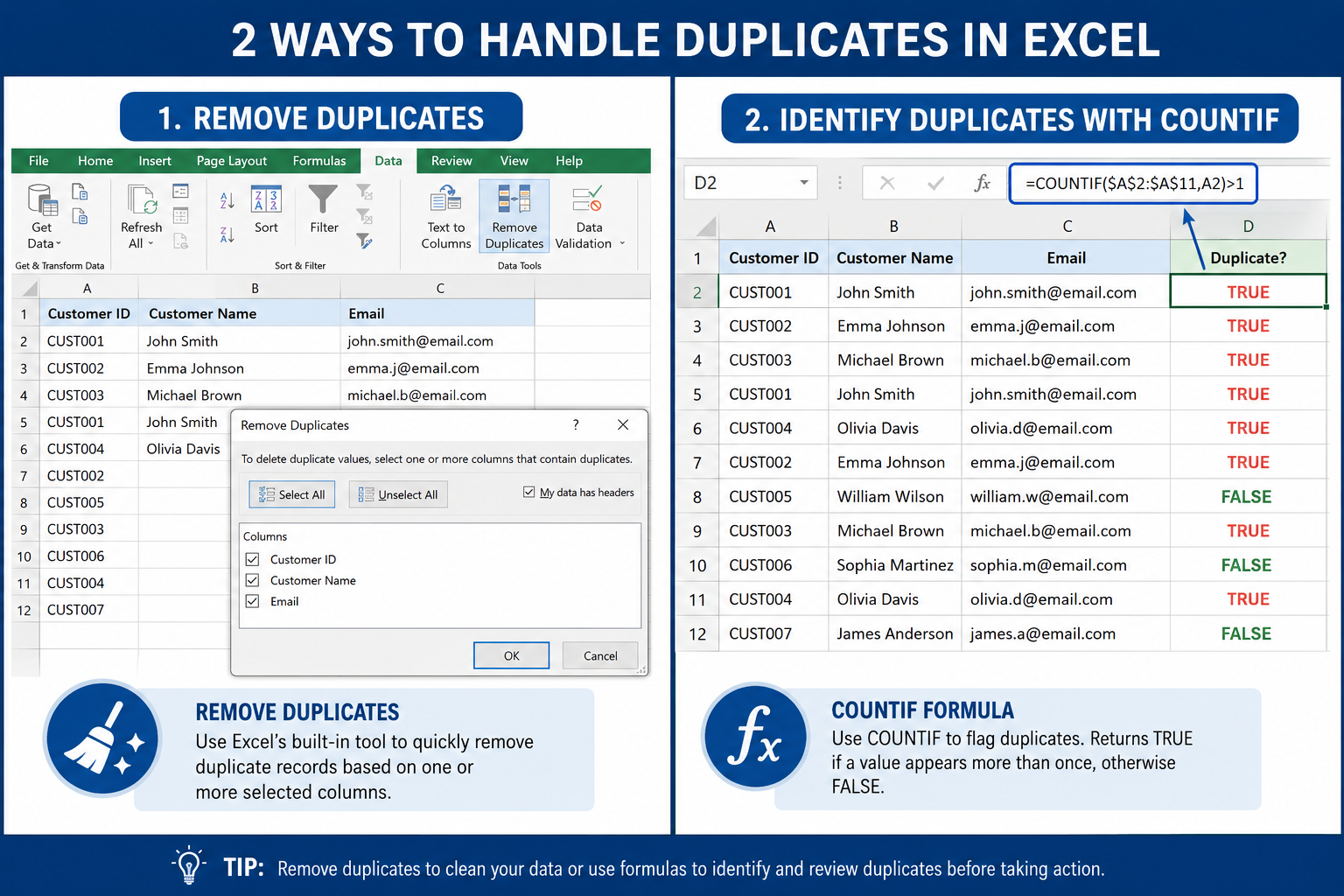
Step-by-step:
- Click anywhere inside your data table
- Go to Data tab → Remove Duplicates
- In the dialog box, check the columns you want Excel to evaluate
- Click OK — Excel shows a summary of how many duplicates were removed
Important: This action is permanent. Excel deletes the duplicate rows and keeps the first occurrence. Always save a backup copy before running this tool.
Choose Remove Duplicates if your data is clean and you’re confident the duplicates are errors. Avoid it if you need to audit which rows were removed — use COUNTIF first to review.
What’s the Difference Between Remove Duplicates and Conditional Formatting?
These two tools solve different problems. Conditional Formatting shows you duplicates visually without changing data. Remove Duplicates deletes them permanently [4].
| Feature | Conditional Formatting | Remove Duplicates |
|---|---|---|
| Changes data? | No | Yes (deletes rows) |
| Works on multiple columns? | One range at a time | Yes, multi-column |
| Reversible? | Yes | Only with Undo |
| Best for | Reviewing duplicates | Cleaning final data |
| Keeps first occurrence? | Highlights all | Yes, removes rest |
Use Conditional Formatting first to see what’s duplicated, then Remove Duplicates to clean it — that order protects your data.
Can I Find Duplicates in Excel Without Deleting Them?
Yes — and this is often the smarter approach. COUNTIF formulas, Conditional Formatting, and filtering all let you find and review duplicates without touching the original data [3][6].
Three non-destructive methods:
- Conditional Formatting — highlights duplicates in color, data unchanged
- COUNTIF formula — adds a helper column with TRUE/FALSE flags, filter to review
- Advanced Filter — go to Data > Advanced > Filter in place, check “Unique records only” to temporarily show only unique rows
None of these delete anything. They’re safe to use on live data.
How to Count Duplicates in Excel
To count how many times a specific value is duplicated, COUNTIF is the right tool. For a total count of all duplicate entries in a range, combine COUNTIF with SUMPRODUCT [3].
Count occurrences of one value:
<code>=COUNTIF(A2:A500, "John")
</code>
Count total duplicate entries (all values appearing more than once):
<code>=SUMPRODUCT((COUNTIF(A2:A500, A2:A500)>1)*1)
</code>
Count unique duplicated values (not total rows, just distinct repeated values):
<code>=SUMPRODUCT((COUNTIF(A2:A500, A2:A500)=1)*1)
</code>
Subtract that from total rows to get the count of values that appear more than once.
How to Find Duplicates Across Multiple Sheets in Excel
Finding duplicates across multiple sheets requires a helper column with COUNTIF referencing another sheet, or using Power Query to combine sheets first.
Formula method (Sheet1 vs Sheet2):
In Sheet1, column B:
<code>=COUNTIF(Sheet2!$A$2:$A$500, A2)>1
</code>
This flags every value in Sheet1 Column A that also appears in Sheet2 Column A.
Power Query method (best for large or multiple sheets):
- Go to Data > Get Data > From Other Sources > Blank Query
- Load each sheet as a table
- Append or merge the queries
- Group by the key column and filter for counts > 1
Power Query is more setup work but handles large datasets and multiple sheets far more reliably than formulas alone.
How to Find Partial Duplicates in Excel
Partial duplicates are entries that share part of their content but aren’t exact matches — for example, “John Smith” and “John A. Smith.” Excel’s standard tools won’t catch these automatically.
Options for partial duplicate detection:
LEFT/RIGHT/MID + COUNTIF: Extract the first N characters and check for matches
=COUNTIF($A$2:$A$500, LEFT(A2,5)&"*")>1The wildcard
*matches anything after the first 5 characters.Fuzzy matching add-ins: Tools like the Fuzzy Lookup Add-in (free from Microsoft) find near-matches based on similarity scores
Manual review after sorting: Sort the column alphabetically — partial duplicates often cluster together and become visible
Partial duplicate detection is inherently imprecise. Define your matching criteria clearly before choosing a method.
Best Way to Find Duplicates in Large Excel Files
For files with more than 10,000 rows, visual highlighting slows Excel down and makes it hard to act on results. COUNTIF formulas or Power Query are more practical [5].
Recommended approach for large files:
- Add a COUNTIF helper column to flag duplicates (fast, non-destructive)
- Filter the helper column for values > 1
- Review the filtered list before deleting anything
- Use Remove Duplicates only after confirming the results look correct
Power Query is the best option when combining data from multiple sources or sheets, since it processes data outside the grid and handles millions of rows efficiently.
Also make sure your file isn’t slowed by unnecessary formatting — learning how to use Excel step-by-step can help you build cleaner workbooks from the start.
Why the Excel Remove Duplicates Tool Might Not Be Working
The Remove Duplicates tool sometimes appears to fail when the data has hidden formatting differences, extra spaces, or inconsistent data types [1][8].
Common reasons it misses duplicates:
- Extra spaces: “John ” ≠ “John” — use
=TRIM()to fix - Different data types: The number 100 and text “100” look the same but aren’t
- Merged cells: Remove Duplicates doesn’t work correctly with merged cells — unmerge first
- Hidden rows: Filtered or hidden rows are still included in the duplicate check
- Inconsistent capitalization in formulas: Not usually an issue since Excel ignores case, but worth checking
Fix: Run =TRIM() and =CLEAN() on your data into a new column, then run Remove Duplicates on the cleaned version.
Conclusion
Knowing how to find duplicates in Excel saves time, prevents errors, and keeps datasets trustworthy. The right method depends on what you need to do with the duplicates:
- Just want to see them? Use Conditional Formatting for an instant visual check
- Need to flag them without deleting? Add a COUNTIF helper column and filter
- Ready to clean the data? Run Remove Duplicates from the Data tab — after making a backup
- Working across sheets or large files? Use Power Query for the most reliable results
Start with the non-destructive methods (Conditional Formatting or COUNTIF) before reaching for Remove Duplicates. That one extra step of reviewing before deleting has saved many spreadsheets from accidental data loss.
For more Excel skills, check out the guides on how to use Excel for beginners and how to calculate total cost in Excel with formulas — both pair well with the data-cleaning techniques covered here.
FAQ
Q: Does Excel’s Conditional Formatting highlight the first occurrence of a duplicate? A: Yes, by default it highlights all occurrences including the first. To highlight only repeats (not the first), use a COUNTIF-based Conditional Formatting rule with an expanding range formula.
Q: Will Remove Duplicates delete the first or second occurrence? A: Excel keeps the first occurrence and deletes all subsequent ones. The order of your rows determines which entry is “first.”
Q: Can COUNTIF find duplicates that are case-sensitive? A: No. COUNTIF is not case-sensitive. “APPLE” and “apple” will be counted as duplicates. For case-sensitive matching, use EXACT() inside an array formula.
Q: Does the Remove Duplicates tool work on tables (ListObjects)? A: Yes. It works on both regular ranges and formatted Excel tables. When used on a table, it respects the table boundaries automatically.
Q: How do I find duplicates in Excel on a Mac? A: The same methods apply. Conditional Formatting, COUNTIF formulas, and the Remove Duplicates tool are all available in Excel for Mac under the same menus.
Q: Can I undo Remove Duplicates? A: Yes, immediately after running it, press Ctrl+Z (or Cmd+Z on Mac) to undo. Once you save and close the file, the undo history is gone — which is why backing up first is important.
Q: What’s the fastest way to find duplicates in a single column? A: Select the column, go to Home > Conditional Formatting > Highlight Cell Rules > Duplicate Values. It takes about three clicks and works instantly on most dataset sizes.
Q: Do blank cells count as duplicates in Excel? A: Yes. If multiple blank cells exist in a range, Excel treats them as duplicates of each other. Consider filtering out blanks before running a duplicate check.
References
[1] Find And Remove Duplicates – https://support.microsoft.com/en-us/excel/find-and-remove-duplicates [3] Find Duplicates In Excel – https://www.geeksforgeeks.org/excel/find-duplicates-in-excel/ [4] Filter For Unique Values Or Remove Duplicate Values – https://support.microsoft.com/en-us/office/filter-for-unique-values-or-remove-duplicate-values-ccf664b0-81d6-449b-bbe1-8daaec1e83c2 [5] practicetestgeeks – https://practicetestgeeks.com/excel/excel-find-duplicates/amp [6] How To Find And Remove Duplicates In Excel A Beginners Guide – https://www.academyoflearning.com/blog/how-to-find-and-remove-duplicates-in-excel-a-beginners-guide/ [8] How To Find And Remove Duplicates In Excel – https://corporatefinanceinstitute.com/resources/excel/how-to-find-and-remove-duplicates-in-excel/