
Last updated: July 5, 2026
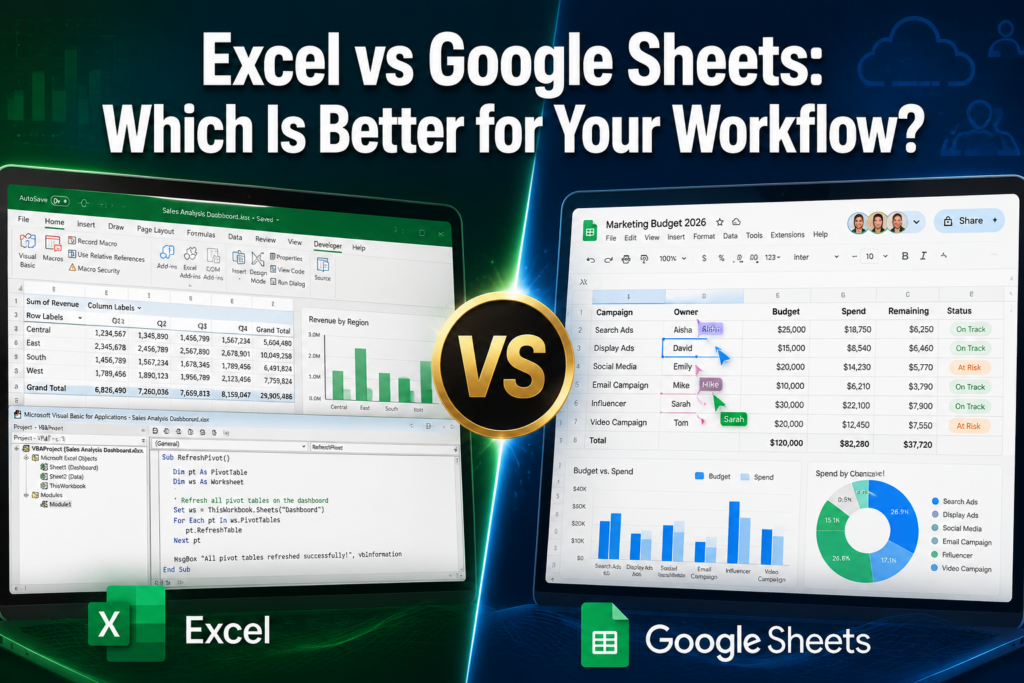
Quick Answer: Excel is the stronger choice for power users who need advanced data analysis, large datasets, VBA macros, and deep customization. Google Sheets wins for teams that prioritize real-time collaboration, free access, and simplicity. For most people, the best tool depends on how they work, not which logo they prefer.
Key Takeaways
- Excel handles larger datasets, complex formulas, and automation (VBA/Power Query) better than Google Sheets
- Google Sheets is free for personal use and leads in real-time, multi-user collaboration
- Microsoft 365 Personal costs approximately $6.99/month; Google Sheets is free with a Google account [1]
- Both tools now include AI assistants (Excel’s Copilot, Google’s Gemini) for formula help and data insights [1]
- Google Sheets requires a browser extension for offline use; Excel works offline natively
- You can use both tools together, Excel files open directly in Google Sheets and vice versa
- Beginners find Google Sheets easier to learn; Excel rewards users who invest time in its deeper features [6]
- Excel offers more advanced chart types and data visualization options [2]
What’s the Difference Between Excel and Google Sheets?
Excel is a desktop-first spreadsheet application from Microsoft, while Google Sheets is a browser-based tool from Google. Both handle formulas, charts, and data management, but they’re built for different priorities.
Excel is part of the Microsoft 365 suite and runs as installed software (with cloud sync through OneDrive). Google Sheets lives entirely in the browser and saves automatically to Google Drive. The core difference: Excel prioritizes power and depth; Google Sheets prioritizes accessibility and collaboration. [4]
At a glance:
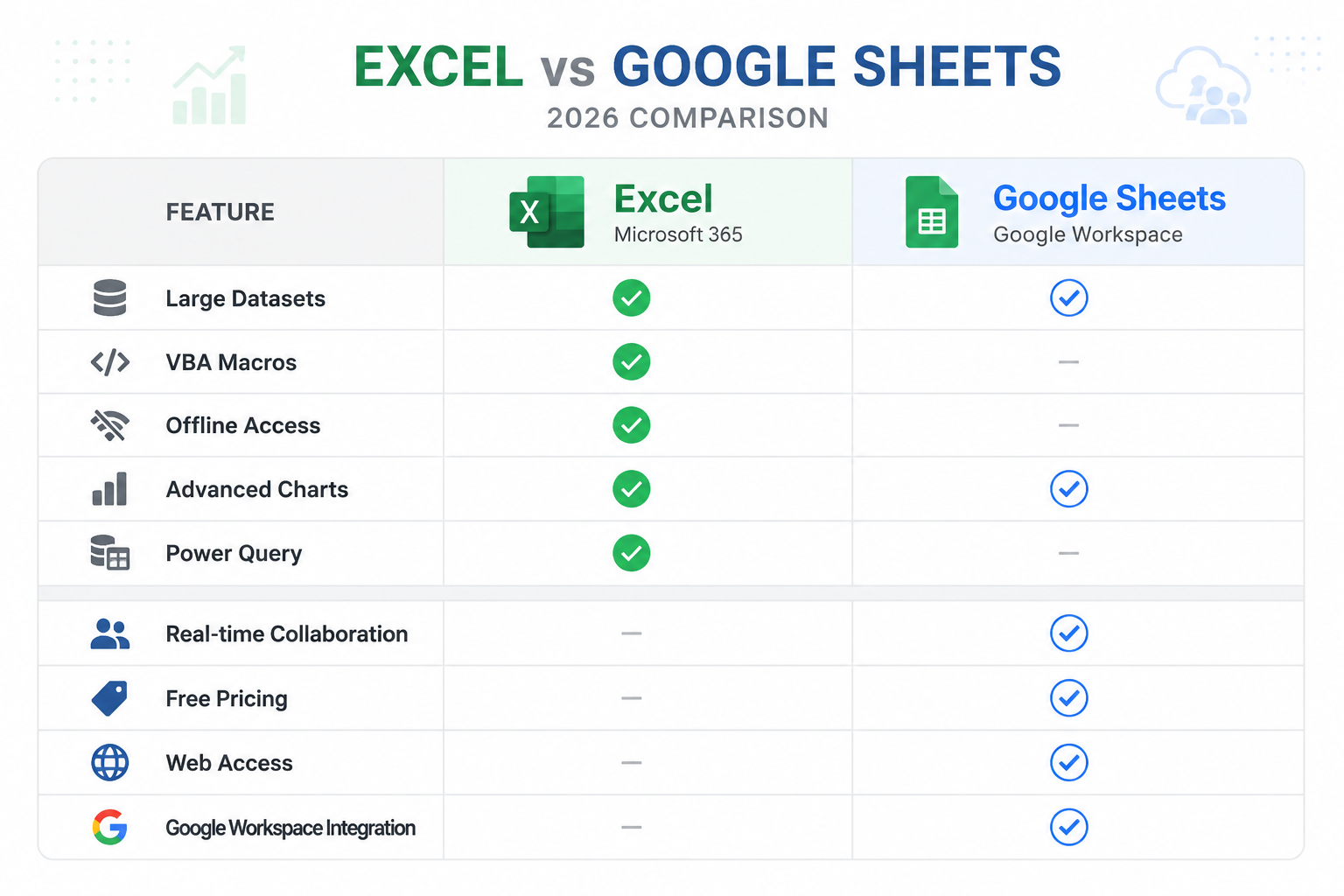
| Feature | Excel | Google Sheets |
|---|---|---|
| Price | ~$6.99/month (personal) | Free |
| Offline access | Native | Requires extension |
| Real-time collaboration | Yes (via OneDrive) | Yes (native, smoother) |
| Max rows | ~1 million | 10 million cells |
| VBA/Macros | Yes (VBA + Power Query) | Apps Script only |
| AI assistant | Copilot | Gemini |
| Best for | Power users, analysts | Teams, beginners |
Excel vs Google Sheets Pricing and Cost
Google Sheets is free for anyone with a Google account. Excel requires a paid Microsoft 365 subscription.
Microsoft 365 Personal runs approximately $6.99/month. Business plans start lower per user but are expected to increase by $1-3 per user per month in mid-2026 due to added AI and security features. [1] Google Workspace (for business) starts at $6/user/month and includes Sheets, Docs, Drive, and Gmail.
- Choose Google Sheets if: cost is a concern or you need a free tool right now
- Choose Excel if: you already pay for Microsoft 365 or need features that justify the subscription
Which Spreadsheet Is Better for Collaboration?
Google Sheets is the better collaboration tool, especially for remote teams. Multiple users can edit the same file simultaneously, changes save automatically, and every edit is tracked in version history without any extra setup. [3]
Excel has improved significantly with real-time co-authoring through OneDrive, but Google Sheets still feels more natural for collaborative work. Shared links are easier to manage, comments and suggestions work smoothly, and there’s no risk of conflicting file versions. [1]
💡 For remote teams editing the same file daily, Google Sheets reduces friction noticeably compared to emailing Excel files back and forth.
Excel vs Google Sheets for Large Datasets
Excel handles large datasets better. It stays responsive with tens of thousands of rows and supports advanced tools like Power Query for data transformation and Power Pivot for data modeling. [2]
Google Sheets technically supports up to 10 million cells per spreadsheet, but performance can slow down noticeably with very large or formula-heavy files. If your work involves importing, cleaning, and analyzing big data regularly, Excel is the more reliable choice.
- Excel: better for 50,000+ rows, complex multi-sheet models, and Power Query workflows
- Google Sheets: fine for most everyday datasets under 10,000 rows
If you’re building complex data models in Excel, learning to use Pivot Charts for unsummarized data can save a lot of manual work.
Google Sheets vs Excel Offline Access
Excel wins on offline access. As a desktop application, Excel works fully without an internet connection, no setup required. [4]
Google Sheets can work offline, but you need to enable it first through a Chrome browser extension and Google Drive settings. Some features are limited without a connection, and syncing occasionally causes issues if the setup isn’t done correctly. For users in areas with unreliable internet, or anyone who frequently works on planes or in the field, Excel’s offline capability is a real advantage.
Which Spreadsheet Is Easier to Learn?
Google Sheets is easier for beginners. The interface is cleaner, there are fewer menus to navigate, and the learning curve is gentler. [6]
Excel has a steeper learning curve but rewards the investment. Its deeper feature set, including keyboard shortcuts, conditional formatting, and advanced formulas, makes it much more capable once you’re comfortable. If you’re new to spreadsheets, starting with Google Sheets and migrating to Excel later is a reasonable path.
For anyone ready to build Excel skills quickly, a structured guide like how to use Excel step by step can flatten that learning curve fast.
Excel vs Google Sheets for Macros and Automation
Excel is significantly more powerful for automation. VBA (Visual Basic for Applications) lets users build custom macros, automate repetitive tasks, and create complex workflows that go far beyond what’s possible in Google Sheets. [4]
Google Sheets uses Google Apps Script, a JavaScript-based language, which is more approachable for web developers but less capable than Excel’s VBA for heavy automation. Excel also includes Power Query for automated data transformation and, in 2026, supports Python scripting directly inside cells through Copilot integration. [1]
- Choose Excel if: you need scheduled macros, complex automation, or Python-based data workflows
- Choose Google Sheets if: you want simple automation using a JavaScript-like language or Gemini AI suggestions
Google Sheets vs Excel for Data Analysis
Excel is the stronger data analysis platform, particularly for users who work with pivot tables, statistical functions, Power Pivot, and now Python integration. [2]
Google Sheets covers the basics well, SUM, AVERAGE, VLOOKUP, and even QUERY functions work reliably. But for serious analysis, Excel’s toolset is deeper. Its Copilot AI can generate formulas, explain data patterns, and run Python scripts in cells. Google’s Gemini assistant offers similar help for simpler tasks. [1]
For data visualization specifically, Excel offers more chart types and customization. Check out these tips on creating pie charts in Excel or using a table with a chart to get more from your data.
Can You Use Excel and Google Sheets Together?
Yes, the two tools are more compatible than most people realize. Google Sheets can open, edit, and export .xlsx files (Excel format). Excel can open files downloaded from Google Sheets. [4]
The workflow many teams use: collaborate in Google Sheets for day-to-day editing, then export to Excel when deeper analysis or formatting is needed. Some formulas and formatting don’t transfer perfectly between the two, so always check your file after converting.
Common compatibility issues to watch for:
- VBA macros don’t transfer to Google Sheets
- Some Excel-specific functions (like XLOOKUP) may not work in Sheets
- Complex conditional formatting can look different after export
Excel vs Google Sheets for Teams and Remote Work
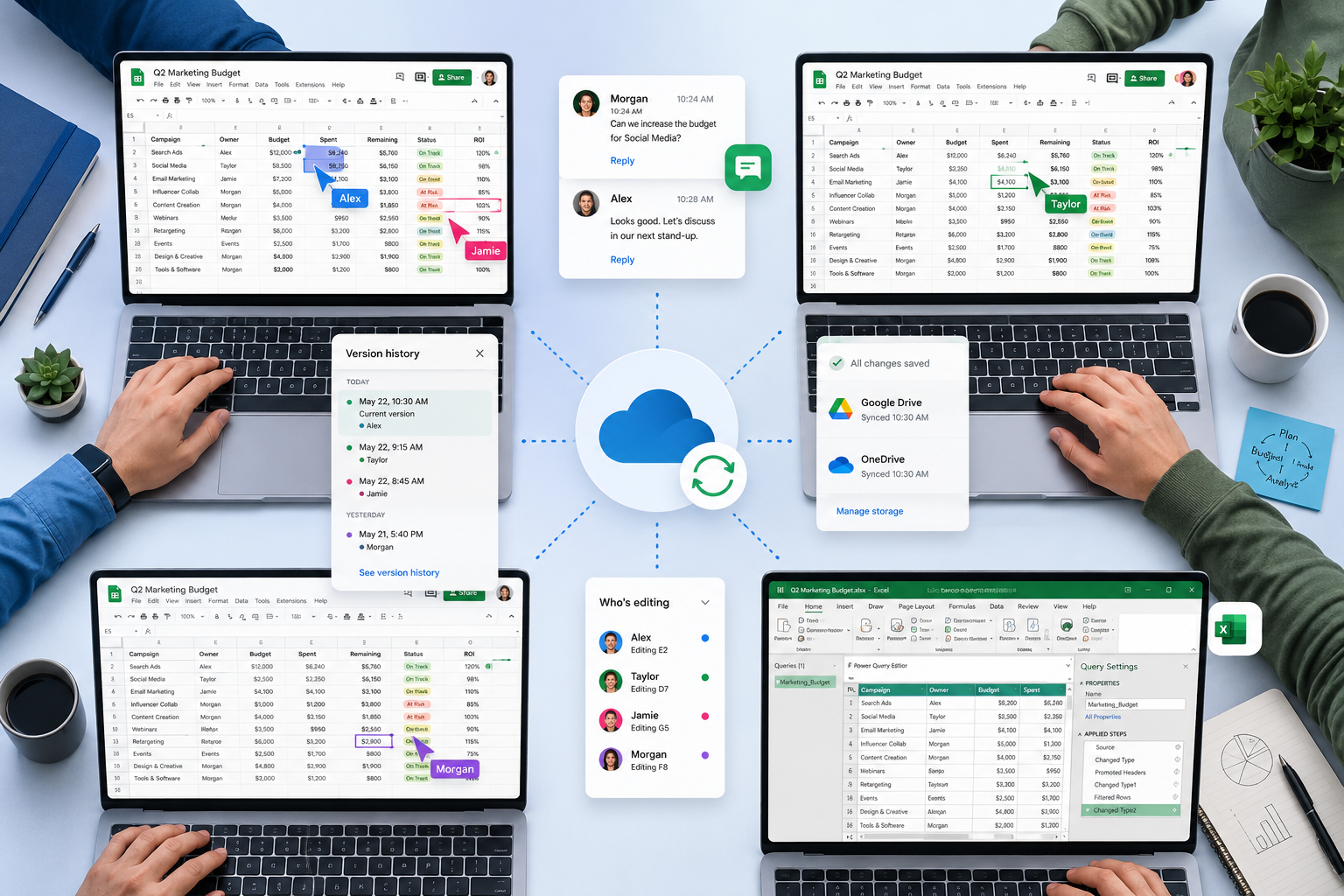
For remote teams, Google Sheets is often the easier starting point, no software to install, instant sharing via link, and built-in version history. [3]
That said, larger organizations often standardize on Microsoft 365 because of its security controls, enterprise compliance features, and integration with Teams, SharePoint, and Outlook. Excel’s co-authoring via OneDrive has improved significantly and works well for teams already in the Microsoft ecosystem. [1]
- Small remote teams or startups: Google Sheets (free, fast, collaborative)
- Mid-to-large enterprises on Microsoft 365: Excel with OneDrive sharing
When Should You Use Excel Instead of Google Sheets?
Use Excel when your work demands more than basic spreadsheet tasks. Specifically, Excel is the better choice when:
- Your dataset has more than 50,000 rows or requires Power Query
- You need VBA macros or Python scripting for automation
- You’re building financial models, forecasts, or complex multi-sheet workbooks
- Your organization requires offline access or strict data privacy (local storage)
- You need advanced chart types or precise formatting for reports
For tasks like calculating quantity and price or finding duplicates in a dataset, Excel’s formula depth gives you more options.
Common Mistakes When Switching from Excel to Google Sheets
The biggest mistake is assuming the two tools work identically, they don’t. Here are the most common issues switchers run into:
- Expecting VBA macros to work, they won’t. You’ll need to rewrite automation in Apps Script
- Ignoring formula differences, some Excel functions have different names or don’t exist in Sheets
- Skipping offline setup, Google Sheets won’t work offline unless you configure it in advance
- Sharing files instead of links, in Sheets, sharing a link is the norm; attaching files creates version confusion
- Assuming formatting will transfer, complex Excel formatting often breaks when opened in Sheets
Which Spreadsheet Has Better Templates and Add-Ons?
Excel has a richer library of built-in templates and a mature add-in ecosystem. From financial models to project trackers, Excel’s template gallery covers a wide range. Ready-made options like a home inventory template or a project timeline template make it easy to get started fast.
Google Sheets has the Google Workspace Marketplace for add-ons and a solid template gallery, but it’s smaller and less customizable than Excel’s ecosystem. For users who want plug-and-play templates with room to grow, Excel has the edge. [4]
Excel vs Google Sheets Mobile App Features
Both tools offer solid mobile apps for iOS and Android, but neither is a full replacement for the desktop experience. [5]
The Excel mobile app handles viewing and basic editing well. The Google Sheets app is slightly more polished for mobile collaboration, notifications, comments, and sharing work more smoothly on a phone. For heavy editing or complex formulas, a laptop or desktop is still recommended for both tools.
FAQ
Q: Is Google Sheets completely free? Google Sheets is free for personal use with a Google account. Business use through Google Workspace starts at $6/user/month.
Q: Can Excel open Google Sheets files? Yes. Download the Google Sheets file as an .xlsx file and Excel opens it normally. Some formatting or functions may need adjustment.
Q: Does Google Sheets work without internet? Google Sheets can work offline, but you must enable offline mode in advance through Chrome and Google Drive. Not all features are available offline.
Q: Which is better for a small business? It depends on your existing tools. If your team uses Gmail and Google Drive, Google Sheets fits naturally. If you use Outlook and Teams, Excel with Microsoft 365 makes more sense.
Q: Can Google Sheets run macros? Google Sheets doesn’t support VBA macros. It uses Google Apps Script (JavaScript-based) for automation, which is less powerful but more accessible for web developers.
Q: Is Excel better for accounting and finance? Yes. Excel’s advanced functions, Power Query, Power Pivot, and VBA make it the preferred tool for accountants, financial analysts, and anyone building complex models.
Q: Which tool has better AI features in 2026? Both have improved significantly. Excel’s Copilot supports Python integration and Agent Mode. Google’s Gemini offers strong formula suggestions and data insights. Excel’s AI is more powerful; Gemini is easier to use for quick tasks. [1]
Q: What’s the row limit for Google Sheets vs Excel? Excel supports approximately 1,048,576 rows per sheet. Google Sheets limits files to 10 million cells total (not rows), and performance can degrade well before that limit.
Q: Which is better for students? Google Sheets is ideal for students, it’s free, works in any browser, and makes group project collaboration easy. Excel is worth learning for career readiness, especially in business or data fields.
Q: Can both tools be used on a Mac? Yes. Excel has a Mac version (included with Microsoft 365). Google Sheets works in any browser on Mac with no installation needed.
Conclusion
The Excel vs Google Sheets debate doesn’t have one universal winner, it has a right answer for each type of user. Google Sheets is the smarter pick for beginners, budget-conscious users, and teams that collaborate daily on shared files. Excel is the better tool for anyone doing serious data analysis, automation, or working with large, complex datasets.
Actionable next steps:
- If you’re new to spreadsheets: Start with Google Sheets (free, no install) and build core skills
- If you need advanced analysis or automation: Invest in Excel and explore Power Query, pivot tables, and keyboard shortcuts to work faster
- If your team is split: Use Google Sheets for collaboration and export to Excel for final reporting
- If you’re already paying for Microsoft 365: Get more from Excel, the depth is there once you know where to look
Both tools are capable. The one that fits your workflow is the better one. 🎯
References
[1] Excel Vs Google Sheets Which Is Better In 2026 – https://spreadsheetshub.com/blogs/articles/excel-vs-google-sheets-which-is-better-in-2026?utm_source=openai [2] Microsoft Excel Vs Google Sheets The 5 Ways Excel Beats Sheets – https://www.pcworld.com/article/423746/microsoft-excel-vs-google-sheets-the-5-ways-excel-beats-sheets.html?utm_source=openai [3] Google Docs Support – https://support.google.com/docs/answer/9331278?hl=en-en&utm_source=openai [4] Google Sheets Vs Microsoft Excel – https://www.adobe.com/acrobat/hub/google-sheets-vs-microsoft-excel.html?utm_source=openai [5] Google Sheets Vs Excel – https://www.smartsheet.com/google-sheets-vs-excel?utm_source=openai [6] Excel Vs Google Sheets – https://www.ardentworkshop.com/excel-vs-google-sheets/?utm_source=openai